
Introduction
This manual provides detailed instructions for the safe and efficient operation of your Phomemo D30 Bluetooth Thermal Label Maker. Please read this manual thoroughly before use and retain it for future reference.

Image: The Phomemo D30 Label Maker in white, accompanied by three rolls of adhesive labels and its product packaging.
Setup
1. Unboxing and Initial Charge
Carefully remove all components from the packaging. The package includes: 1 Phomemo D30 Label Maker, 1 USB Charging Cable, 1 User Guide, and 3 Rolls of Label Paper.
Before first use, fully charge the device using the provided USB cable. The indicator light will show charging status.
2. Installing Label Roll
- Open the label compartment by gently pressing the side release button or lifting the top cover, depending on the model design.
- Insert the label roll with the printing surface facing upwards, ensuring it is properly seated in the designated slot.
- Pull a small portion of the label tape out, extending it past the cutting edge.
- Close the label compartment securely.

Image: A close-up view of the Phomemo D30 Label Maker with its top cover open, illustrating the correct placement of a label roll for thermal printing.
Operating Instructions
1. App Installation and Connection
Download the "Print Master" app from your device's app store (compatible with iOS and Android smartphones and tablets).
Turn on the Phomemo D30 Label Maker by pressing the power button. The indicator light will illuminate.
Open the "Print Master" app on your mobile device. Ensure Bluetooth is enabled on your device. The app will automatically detect and connect to the label maker.
2. Creating and Printing Labels
Within the "Print Master" app, you can choose from various modes and templates:
- Lite Mode: For simple and quick label design.
- Creation Mode: Offers extensive functions and materials for customized labels.
- One-Click Print: Pre-designed common words and phrases for instant printing.
To create a custom label:
- Select "Creation Mode" or "New Label" in the app.
- Choose your desired label size and type (e.g., white, continuous, cut label). The app supports label widths of 12-15mm.
- Utilize the app's features to add text, icons (over 1000 available), borders (over 60 available), images, barcodes, QR codes, and more. You can also import data from Excel or use OCR functionality.
- Adjust font styles, sizes, alignment, and character pitch as needed.
- Preview your label design.
- Tap "Print Label" or "Print Now" to send the design to the label maker.
- Once printed, gently tear off the label along the cutting edge.
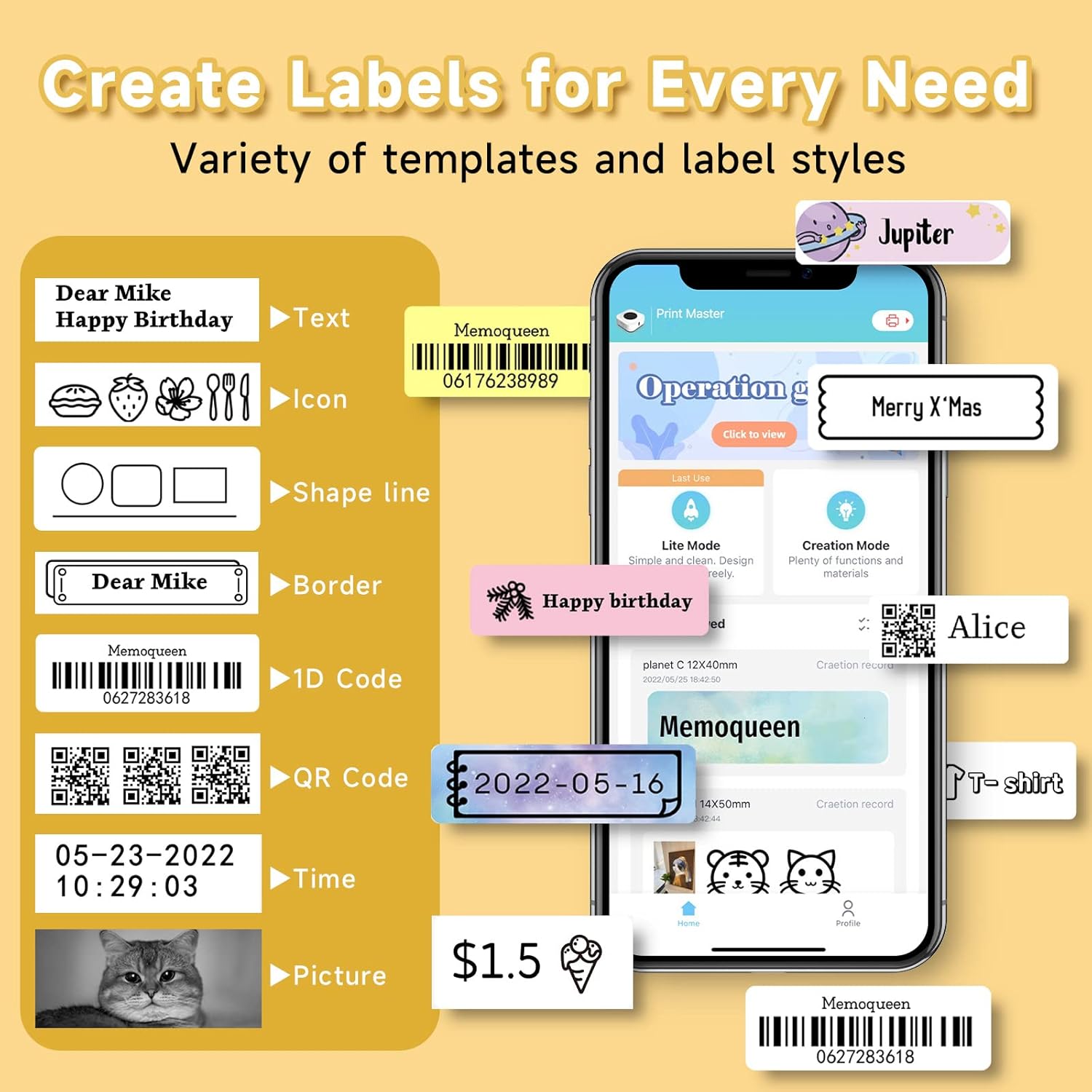
Image: Screenshot of the "Print Master" app, displaying diverse label creation tools and templates for text, icons, barcodes, and QR codes.

Image: The Phomemo D30 Label Maker shown alongside a smartphone running the "Print Master" app, highlighting Bluetooth connectivity and customization options like fonts and templates.
Video Demonstrations
Video: A quick look at the Phomemo D30 Label Maker, demonstrating its compact size and ease of use with the companion app.
Video: A thorough review demonstrating the Phomemo D30 app's features and the quality of the printed labels.
Maintenance
To ensure optimal performance and longevity of your Phomemo D30 Label Maker, follow these maintenance guidelines:
- Cleaning: Regularly clean the print head with a soft, lint-free cloth. Do not use harsh chemicals or abrasive materials.
- Storage: Store the label maker in a cool, dry place away from direct sunlight and extreme temperatures.
- Battery Care: Charge the device regularly, even if not in frequent use, to maintain battery health. Avoid fully discharging the battery for extended periods.
- Label Rolls: Use only genuine Phomemo D30 thermal label rolls to prevent damage to the print head and ensure print quality.

Image: A visual comparison emphasizing the compact and portable design of the Phomemo D30 Label Maker.
Troubleshooting
| Problem | Possible Cause | Solution |
|---|---|---|
| Device not turning on | Low battery; Power button not pressed correctly | Charge the device fully; Press and hold the power button for a few seconds. |
| Unable to connect via Bluetooth | Bluetooth off on device; App not detecting printer; Printer too far from device | Ensure Bluetooth is enabled; Restart app and printer; Move devices closer (within 10m). |
| Poor print quality / Faint print | Print head dirty; Incorrect label roll insertion; Low battery | Clean the print head; Re-insert label roll correctly; Charge the device. |
| Labels not feeding correctly | Label roll jammed or improperly installed | Open compartment, clear any jams, and re-install label roll. |
Specifications
| Feature | Detail |
|---|---|
| Model Name | D30 |
| Printing Technology | Thermal (Inkless) |
| Connectivity | Bluetooth |
| Print Resolution | 203 x 203 DPI |
| Max Print Speed (Monochrome) | 1 ppm (60mm/s) |
| Compatible Label Width | 12-15 mm (0.47-0.59 inches) |
| Compatible Devices | Smartphones, Tablets (iOS & Android) |
| Battery Capacity | 1000 mAh |
| Product Dimensions | 1.14"D x 2.95"W x 5.17"H (approx. 2.9 x 7.5 x 13.1 cm) |
| Item Weight | 5.5 ounces (approx. 156 grams) |
| Included Components | Label Maker, USB Cable, User Guide, 3 Roll Paper |
Warranty and Support
The Phomemo D30 Label Maker comes with a limited warranty. For specific warranty terms and conditions, please refer to the warranty card included in your product packaging or visit the official Phomemo website.
For technical support, troubleshooting assistance, or to purchase additional label rolls, please contact Phomemo customer service through their official channels.


