
Optelec Traveller HD
Optelec Traveller HD Portable Electronic Video Magnifier User Manual
Model: Traveller HD
1. Introduction
The Optelec Traveller HD is a portable electronic video magnifier designed to assist individuals with low vision in reading various materials. Its compact and lightweight design allows for comfortable use at home, in the office, at school, or while traveling. This manual provides essential information on setting up, operating, maintaining, and troubleshooting your Traveller HD device.

Image 1.1: The Optelec Traveller HD in use, magnifying text from a book. The device features a large screen and intuitive controls on its sides.
2. Key Features
The Traveller HD offers a range of features designed to enhance the reading experience:
- Unique Slide & Read Mechanism: Allows for natural and fluent reading by sliding the screen across text.
- Lightweight Design: Weighs less than 2KG, making it highly portable.
- Full High Definition Image Quality: Provides clear and crisp magnified images.
- 13.3-inch Full Colour TFT Widescreen Display: Offers a large viewing area for more complete lines of text.
- Tilted Screen Position: Ergonomically designed for comfortable viewing.
- Continuous Zoom: Adjustable magnification from 2.4X to 30X (+/-3%).
- Adjustable Document Viewing Modes: Multiple high-contrast semi-color options for personalized viewing.
- Snapshot Function: Ability to save up to 1,000 captured images and change their high-contrast semi-colors.
- Ready to Use: Operates immediately when the screen is in the reading position.
3. Package Contents
Please check the package to ensure all items are present:
- Optelec Traveller HD Unit
- Power Adapter/Charger
- User Manual (this document)
- Cleaning Cloth (optional, may vary by region)

Image 3.1: A front view of the Traveller HD, showing its sleek design and the large screen area when powered off.
4. Setup
The Traveller HD is designed for ease of use with minimal setup required.
- Unpack the Device: Carefully remove the Traveller HD and all accessories from its packaging.
- Charge the Battery: Before first use, it is recommended to fully charge the device. Connect the power adapter to the charging port on the Traveller HD and plug it into a wall outlet. The charging indicator (if present) will show the charging status.
- Position for Reading: Unfold the device into its reading position. The screen will automatically tilt for ergonomic viewing. The Traveller HD is ready to use once the screen is in this position.

Image 4.1: The Traveller HD shown in its compact, folded state, highlighting its portability. This is how it appears before unfolding for use.
5. Operating Instructions
5.1 Powering On/Off
The device typically powers on automatically when unfolded into the reading position. To power off, fold the device back into its compact state or look for a dedicated power button (refer to device markings if present).
5.2 Using the Slide & Read Mechanism
Place the material you wish to read (e.g., a book, newspaper) under the Traveller HD. Gently slide the entire device across the line of text. The unique mechanism allows for smooth movement, displaying the magnified text on the screen as you slide. This helps maintain reading fluency and follow the line easily.
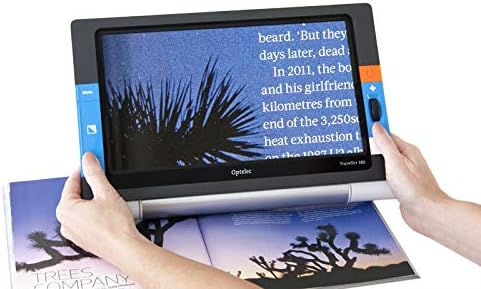
Image 5.1: A user's hands guiding the Traveller HD across an open book, illustrating the "Slide & Read" functionality for continuous text magnification.
5.3 Adjusting Magnification (Zoom)
The Traveller HD features continuous zoom from 2.4X to 30X. Locate the zoom control buttons, typically marked with '+' and '-' symbols on the side of the device. Press '+' to increase magnification and '-' to decrease it until you reach your desired viewing level.
5.4 Changing Viewing Modes (Color Schemes)
The device offers various high-contrast semi-color modes to optimize readability for different users and lighting conditions. Look for a dedicated mode button, often indicated by a color palette icon or similar. Press this button repeatedly to cycle through available color schemes (e.g., black on white, white on black, yellow on blue, etc.).
5.5 Using the Snapshot Function
The snapshot function allows you to capture and save images of text or objects. Locate the snapshot button (refer to your device for specific marking). Press it to capture the current view. You can then review saved images and, if supported, change their high-contrast semi-colors. The device can store up to 1,000 captured images.

Image 5.2: A user demonstrating the comfortable and ergonomic use of the Traveller HD for reading a magazine indoors on a couch.

Image 5.3: The Traveller HD being used outdoors, showcasing its portability and ability to provide clear magnification in various environments.
6. Maintenance
Proper care and maintenance will ensure the longevity and optimal performance of your Traveller HD.
- Cleaning the Screen: Use a soft, lint-free cloth (preferably a microfiber cloth) to gently wipe the screen. For stubborn smudges, slightly dampen the cloth with water or a screen-cleaning solution specifically designed for electronics. Do not spray liquids directly onto the screen.
- Cleaning the Body: Wipe the exterior of the device with a soft, dry cloth. Avoid abrasive cleaners or solvents.
- Storage: When not in use, fold the Traveller HD into its compact state and store it in a clean, dry place, away from direct sunlight and extreme temperatures.
- Avoid Liquids: Keep the device away from water and other liquids to prevent internal damage.
- Handle with Care: Avoid dropping the device or subjecting it to strong impacts.
7. Troubleshooting
If you encounter issues with your Traveller HD, refer to the following common problems and solutions:
| Problem | Possible Cause | Solution |
|---|---|---|
| Device does not turn on. | Battery is depleted. Device not unfolded correctly. | Connect the power adapter and charge the device. Ensure the device is fully unfolded into the reading position. |
| Image on screen is blurry or unclear. | Incorrect focus. Screen is dirty. Magnification too high for current viewing distance. | Ensure the device is placed flat on the reading material. Clean the screen with a soft cloth. Adjust the zoom level. |
| Battery life is shorter than expected. | Battery not fully charged. High brightness settings. Aging battery. | Ensure the device is fully charged before use. Reduce screen brightness if possible. Contact support if battery performance significantly degrades. |
| Controls are unresponsive. | Temporary software glitch. | Try turning the device off and on again. If the issue persists, contact customer support. |
If the problem persists after trying these solutions, please contact Optelec customer support for further assistance.
8. Specifications
| Feature | Detail |
|---|---|
| Brand | Optelec |
| Model | Traveller HD |
| Screen Size | 13.3-inch Full Colour TFT Widescreen |
| Magnification Range | 2.4X – 30X (continuous zoom, +/-3%) |
| Image Quality | Full High Definition |
| Weight | Approximately 4.3 pounds (less than 2KG) |
| Snapshot Capacity | Up to 1,000 images |
| Date First Available | October 29, 2020 |
9. Warranty and Support
For warranty information, please refer to the documentation provided with your purchase or visit the official Optelec website. Optelec products typically come with a limited warranty covering manufacturing defects.
For technical support, service, or to inquire about replacement parts, please contact Optelec customer service. Contact details can usually be found on the manufacturer's website or in your product packaging.
Manufacturer: Optelec
Website: www.optelec.com (This is a placeholder link, please verify the actual support website for Optelec)
Related documentsTraveller HD


Ask a question about this manual
Ask about setup, troubleshooting, compatibility, parts, safety, or missing instructions. Manuals+ will review the question and use this page’s manual context to help answer it.