
1. Introduction
This manual provides detailed instructions for the installation, operation, and maintenance of your MekedeTech Android 12 Car Touch Screen Multimedia Player. This system is designed to enhance your driving experience by integrating advanced multimedia and navigation features while retaining the original functionalities of your Mercedes-Benz vehicle.
The MekedeTech Android 12 system features a 10.25-inch high-definition IPS display, an 8-core CPU, 4GB RAM, and 64GB ROM, ensuring responsive performance. It includes built-in wireless Carplay, Bluetooth, Wi-Fi, and GPS navigation capabilities. The system is engineered for non-destructive installation, preserving your vehicle's original wiring and functions.

Image 1.1: MekedeTech Android 12 Car Touch Screen integrated into a Mercedes-Benz S-Class dashboard.
2. Vehicle Compatibility
This multimedia player is specifically designed for Mercedes-Benz S-Class W221 and CL-Class W216 models manufactured between 2005 and 2013, equipped with the NTG 3.0 system. It is crucial to verify your vehicle's NTG system version before installation to ensure proper functionality.
2.1 Identifying Your NTG System
To confirm your vehicle's NTG system, check the original car CD unit. The connection type for NTG 3.0 is a 10-pin LVDS connection, while NTG 3.5 uses a 4-pin LVDS connection. Additionally, ensure your car has an "AUX" or "TV" function for audio integration.

Image 2.1: Visual guide for distinguishing between NTG 3.0 (10-pin LVDS) and NTG 3.5 (4-pin LVDS) connections.
3. Package Contents
Please verify that all components listed below are included in your package:

Image 3.1: Overview of the accessories included with the multimedia player.
- 1 x MekedeTech Android 12 Car Touch Screen Unit
- 1 x Power Cable
- 1 x Speaker
- 1 x LVDS Cable
- 1 x GPS Antenna
- 1 x Audio Cable
- 1 x 4G Antenna
4. Installation and Setup
The MekedeTech Android 12 system is designed for non-destructive, plug-and-play installation. However, professional installation is recommended. Ensure the vehicle's power is disconnected before beginning installation.
4.1 Wiring and Connection
Follow the provided wiring diagram to connect the new unit. Special attention should be paid to the fiber optic cable connection to ensure the original car power cord is correctly integrated with the conversion cable and the new power cord interface.
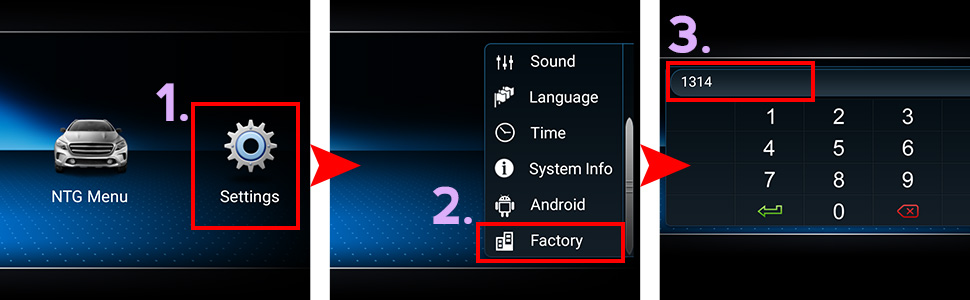
Image 4.1: Illustration of fiber optic cable connection steps for integrating the new head unit.
4.2 Initial Configuration
After physical installation, power on the unit. You may need to access the factory settings menu for initial setup or troubleshooting. The default factory password is typically '1314'.
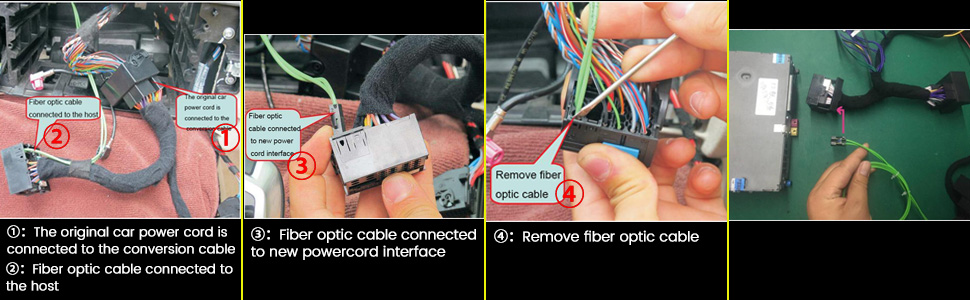
Image 4.2: Guide to navigating to the factory settings menu for system adjustments.
4.3 Installation Video Guide
For a visual guide on the installation process, please refer to the official seller video below. This video demonstrates key connection points and operational aspects relevant to the Mercedes-Benz S-Class W221 S550.
Video 4.1: Official installation and feature overview for the MekedeTech unit in a Mercedes-Benz S-Class W221 S550.
5. Operating Instructions
5.1 Main Interface Overview
The main interface provides quick access to core functions such as Navigation, Music, Telephone, NTG Menu (for original car system access), and Settings.

Image 5.1: The primary user interface displaying main application icons.
5.2 Navigation System
The unit supports various navigation maps. Access the Navigation app from the main menu. Ensure the GPS antenna is properly connected for optimal signal reception.
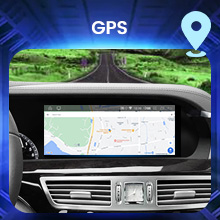
Image 5.2: The GPS navigation application displaying a map.
5.3 Multimedia Playback (Music/Video)
Play music and videos from USB flash drives or SD cards. The system supports 1080P video format and includes a built-in Digital Sound Processor (DSP) for enhanced audio quality. Adjust equalizer settings for a personalized sound experience.

Image 5.3: The DSP equalizer interface for fine-tuning audio output.
5.4 Bluetooth Connectivity
Connect your mobile phone via Bluetooth for hands-free calling and wireless music streaming. The system allows syncing your phonebook and making calls directly from the touch screen.

Image 5.4: Bluetooth connection screen with hands-free calling and music playback options.
5.5 Wireless Carplay / Android Auto
The unit features built-in wireless Carplay and Android Auto, allowing seamless integration of your smartphone's apps, navigation, and communication features directly onto the car's display without additional dongles.

Image 5.5: The Carplay interface showing integrated smartphone applications.
5.6 DVR Functionality
Connect an external USB DVR camera (not included) to record driving footage. Records are automatically saved to a GPS card.
5.7 Reversing Camera Input
The system supports both factory and aftermarket reversing cameras, including 360-degree camera systems. It automatically switches to the rear view when the vehicle is in reverse gear, displaying parking guidelines and obstacle detection.
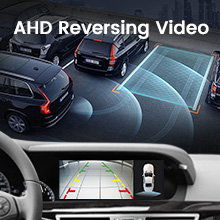
Image 5.6: Reversing camera view with dynamic parking lines and sensor display.
5.8 Wi-Fi Connectivity
Connect the screen to the internet by tethering to your cellphone's hotspot. This enables access to online services and applications.
5.9 Original Car Settings Display
The unit can display original car settings and information, such as speed and RPM, in a digital dashboard format. You can customize the display colors.
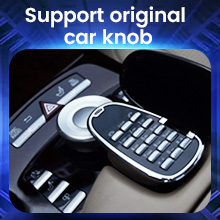
Image 5.7: Digital dashboard showing vehicle speed and RPM, with customizable color options.
5.10 Split Screen Function
Utilize the split-screen feature to run two applications simultaneously, such as navigation and music playback, for enhanced multitasking.
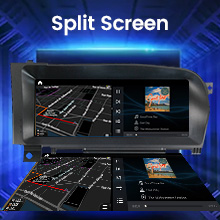
Image 5.8: The split-screen feature showing navigation and media player running concurrently.
5.11 Language Settings
The device supports multiple languages. Navigate to the settings menu to select your preferred language.
6. Maintenance
6.1 Cleaning the Screen
Use a soft, lint-free cloth to gently wipe the screen. For stubborn smudges, slightly dampen the cloth with water or a screen-safe cleaner. Avoid abrasive materials or harsh chemicals.
6.2 Software Updates
Periodically check for software updates to ensure optimal performance and access to new features. Updates can typically be performed via Wi-Fi or USB. Refer to the system settings for update options.
7. Troubleshooting
This section addresses common issues you might encounter with your MekedeTech multimedia player.
7.1 No Sound from Android System
If there is no sound from the Android side, ensure the audio output mode is correctly set to AUX. In some Mercedes-Benz models, an additional AUX cable connection to the vehicle's AMI connector (often in the glove box) might be required. Verify all audio connections are secure.
7.2 GPS Signal Issues
Ensure the GPS antenna is properly installed and has a clear line of sight to the sky. Check the GPS settings within the unit to confirm it is actively searching for a signal.
7.3 Virtual Buttons Not Responding
If virtual buttons (e.g., for suspension or airbag status) are not working after installation, it may be due to a fault code in the vehicle's ECU. After installation, clear any SRS or related fault codes from the ECU using a diagnostic tool. This often resolves the issue by allowing the system to properly communicate with the vehicle's original modules.
7.4 Erratic Original Knob Control
While the unit supports the original car knob, its functionality can sometimes be erratic depending on the specific application or system state. For critical selections, using the touchscreen directly is often more reliable.
7.5 System Freezing or Slow Performance
If the system freezes or performs slowly, try restarting the unit. Ensure there is sufficient free storage space and close any unnecessary background applications. Regular software updates can also improve stability and performance.
8. Technical Specifications
| Feature | Specification |
|---|---|
| Brand | MekedeTech |
| Model Name | MekedeTech Android 12 Car Touch Screen |
| Operating System | Android 12 |
| CPU | 8 Core |
| RAM | 4GB |
| ROM | 64GB |
| Display Size | 10.25 Inches |
| Display Resolution | 1920x720 |
| Display Type | IPS |
| Special Features | Bluetooth, Touchscreen, WiFi, Wireless Carplay, Split Screen, Built-in DSP |
| Connectivity Technology | Bluetooth, USB, Wi-Fi, Wireless |
| Map Type | North America (pre-loaded) |
| Audio Output Mode | AUX |
| Mounting Type | Panel Mount |
| Item Weight | 5.04 pounds |
| Package Dimensions | 15.43 x 9.21 x 6.77 inches |
9. Warranty and Support
9.1 Product Warranty
The MekedeTech Android 12 Car Touch Screen Multimedia Player comes with a 1-year warranty from the date of purchase. This warranty covers manufacturing defects and malfunctions under normal use. Please retain your proof of purchase for warranty claims.
9.2 Customer Support
For technical assistance, troubleshooting, or warranty inquiries, please contact MekedeTech customer support through the retailer where the product was purchased. Provide your product model and purchase details for efficient service.