Introduction
This manual provides essential information for setting up, operating, and maintaining your Samsung Galaxy Note 10 smartphone. The Galaxy Note 10 (Model SM-N970U) features a 6.3-inch Dynamic AMOLED display, a powerful processor, 256GB of internal storage, a versatile triple camera system, and the iconic S Pen with enhanced capabilities.
Please read this manual thoroughly to ensure proper use and to maximize your device's potential.
1. Setup
1.1 Unboxing and Initial Charge
Upon unboxing, ensure all components are present. It is recommended to fully charge your device before first use. Connect the provided charging cable to the USB-C port at the bottom of the phone and plug the adapter into a power outlet.
1.2 SIM Card Installation
To install your Nano-SIM card:
- Locate the SIM card tray on the top edge of the phone.
- Insert the provided SIM tray ejector tool into the small hole next to the tray.
- Gently push until the tray pops out.
- Place your Nano-SIM card onto the tray with the gold contacts facing down.
- Carefully reinsert the tray into the phone until it clicks into place.
1.3 Powering On/Off
- To Power On: Press and hold the Side key (located on the right side) until the Samsung logo appears.
- To Power Off: Press and hold the Side key and Volume Down button simultaneously, then tap 'Power off' on the screen. Alternatively, swipe down from the top of the screen to open the Quick Settings panel, tap the Power icon, and select 'Power off'.
1.4 Initial Device Setup
Follow the on-screen prompts to complete the initial setup, which includes selecting your language, connecting to Wi-Fi, signing into your Google account, and setting up security features like fingerprint recognition.

Image: Front view of the Samsung Galaxy Note 10 with the S Pen alongside. This illustrates the device's design and the S Pen's presence.
2. Operating Your Device
2.1 Basic Navigation
The Galaxy Note 10 uses a touch-based interface. Swipe, tap, pinch, and spread gestures are used for navigation and interaction. The navigation bar at the bottom of the screen (or full-screen gestures) allows you to go back, go to the home screen, or view recent apps.
2.2 S Pen Functionality
The S Pen is an integral part of the Note 10 experience.
- Taking Notes: Remove the S Pen to automatically launch Air Command, then select 'Create note' or 'Screen off memo' to quickly jot down ideas.
- Air Actions: Use the S Pen's Bluetooth capabilities to control your phone remotely. For example, press the S Pen button to take photos, or gesture to navigate presentations. Customize Air Actions in Settings > Advanced features > S Pen > Air actions.
- Smart Select: Capture specific areas of the screen, extract text, or create GIFs.
2.3 Camera Usage
Your Galaxy Note 10 features a versatile triple-camera system on the rear and a 10MP front camera.
- Launching Camera: Double-press the Side key or tap the Camera app icon.
- Modes: Swipe left or right on the camera screen to switch between modes like Photo, Video, Pro, Live Focus, Super Steady, and Scene Optimizer.
- Zoom: Pinch the screen or tap the lens icons (wide, telephoto, ultra-wide) to adjust zoom.
2.4 Connectivity
- Wi-Fi: Go to Settings > Connections > Wi-Fi to connect to available networks.
- Bluetooth: Go to Settings > Connections > Bluetooth to pair with headphones, speakers, or other devices.
- Mobile Data: Ensure mobile data is enabled in Quick Settings or Settings > Connections > Data usage for internet access via your cellular network.

Image: Front view of the Samsung Galaxy Note 10 with its display active, showcasing the Infinity-O design.
3. Maintenance
3.1 Device Cleaning
Use a soft, lint-free cloth to clean your phone's screen and body. Avoid harsh chemicals or abrasive materials. For stubborn smudges, slightly dampen the cloth with water.
3.2 Battery Care
The Galaxy Note 10 is equipped with a 3500 mAh battery. To prolong battery life:
- Avoid extreme temperatures.
- Optimize battery usage in Settings > Device care > Battery.
- Close unused apps running in the background.
- Reduce screen brightness and screen timeout duration.
3.3 Software Updates
Keep your device's software up to date to ensure optimal performance and security. Check for updates in Settings > Software update > Download and install.
3.4 Storage Management
Your device has 256GB of internal storage. Regularly review and delete unnecessary files, apps, and media to free up space. You can manage storage in Settings > Device care > Storage.
3.5 Renewed Product Condition
As a renewed product, your Samsung Galaxy Note 10 has been inspected and tested to work and look like new. It comes with generic or original accessories. Cosmetic condition may vary based on the renewed grade (Excellent, Good, Acceptable), but functionality is guaranteed. Battery life is typically greater than 80% of a new equivalent.
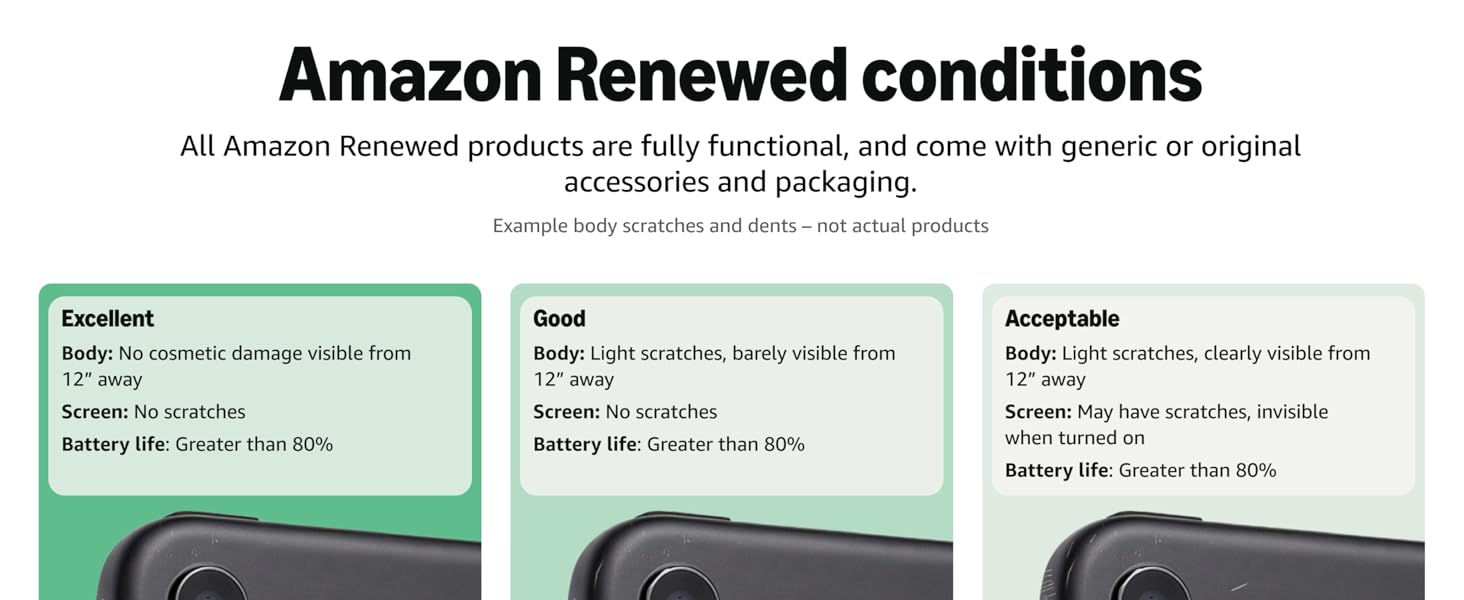
Image: Diagram illustrating Amazon Renewed conditions (Excellent, Good, Acceptable) based on cosmetic damage visibility and battery life.
4. Troubleshooting
If you encounter issues with your device, try the following solutions:
- Device Not Responding: Press and hold the Side key and Volume Down button for about 7 seconds to force restart the device.
- Poor Battery Life:
- Ensure background apps are closed.
- Reduce screen brightness and disable unnecessary features like Always On Display.
- Check battery usage in Settings > Device care > Battery to identify power-hungry apps.
- Consider that renewed devices may have slightly reduced battery capacity compared to new, though it should be above 80%.
- Fingerprint Scanner Issues:
- Ensure your finger and the screen are clean and dry.
- Re-register your fingerprints.
- If using a screen protector, ensure it is compatible with the in-display fingerprint sensor. Some screen protectors can interfere with its functionality.
- Charging Problems:
- Use the original or a certified charging cable and adapter.
- Check the charging port for debris.
- Try a different power outlet.
- Connectivity Issues (Wi-Fi/Bluetooth/Cellular):
- Toggle Wi-Fi, Bluetooth, or Mobile Data off and on.
- Restart your phone.
- For Wi-Fi, restart your router.
- For cellular, ensure your SIM card is properly inserted and your plan is active.
- Screen Damage: While renewed products are tested, accidental drops can cause screen damage. Always use a protective case and screen protector to minimize risk.
- Factory Reset: As a last resort, if software issues persist, you may perform a factory reset. Warning: This will erase all data on your device. Back up important data before proceeding. Go to Settings > General management > Reset > Factory data reset.
5. Specifications
| Feature | Detail |
|---|---|
| Model Name | Galaxy Note 10 |
| Model Number | SM-N970U |
| Display | 6.3-inch Dynamic AMOLED, 2280 x 1080 resolution, 60Hz Refresh Rate |
| Processor | Snapdragon 855, 1.78 GHz CPU Speed |
| RAM | 8 GB |
| Internal Storage | 256 GB |
| Rear Camera | Triple Camera System (12MP Wide, 12MP Telephoto, 16MP Ultra-Wide) |
| Front Camera | 10 MP |
| Operating System | Android |
| Battery Capacity | 3500 Milliamp Hours (mAh) |
| Connectivity | Cellular, Bluetooth, Wi-Fi, GPS |
| Audio Jack | No headphone jack |
| Dimensions (Product) | 7 x 5 x 4 inches |
| Item Weight | 11 ounces |
| Included in Box | SIM Tray Ejector (other accessories may be generic) |
6. Warranty and Support
6.1 Renewed Product Warranty
This Samsung Galaxy Note 10 is a renewed product. It typically comes with a 90-day refund or replacement policy from the seller. Please refer to the specific terms and conditions provided at the time of purchase for detailed warranty information.
6.2 Customer Support
For technical assistance, warranty claims, or further inquiries, please contact the seller from whom you purchased the device. The seller for this product is "WirelessSource". You can usually find their contact information through your purchase history on the platform where you bought the device.
For general information about Samsung products, you may visit the official Samsung support website.


