
MekedeTech E65 E66
MekedeTech Android Car Stereo User Manual
Model: E65 E66 (BMW 7 Series 2001-2008 MASK CCC System)
1. Introduction
This manual provides detailed instructions for the installation, operation, and maintenance of your MekedeTech Qualcomm Android 12 Car Radio Stereo. This unit is specifically designed for BMW 7 Series E65 and E66 models from 2001 to 2008 with the MASK CCC System. Please read this manual thoroughly before installation and use to ensure proper functionality and to avoid damage.
2. Package Contents
Verify that all items listed below are included in your package:
- MekedeTech Android Car Stereo Unit
- Power Cable
- RCA Cable
- Canbus Box
- 4G Antenna
- GPS Module
- Bluetooth Module
- Carplay System (integrated)
- Additional connecting cables (as pictured)

Figure 2.1: Included components for the MekedeTech Android Car Stereo. This image displays the main stereo unit, power cable, RCA cable, Canbus box, 4G antenna, and various other connecting cables required for installation.
3. Setup and Installation
Important: Professional installation is recommended. Disconnect the vehicle's battery before beginning installation to prevent electrical damage.
3.1 Pre-Installation Checks
- Ensure your BMW 7 Series (E65/E66) is from 2001-2008 and equipped with the MASK CCC system.
- Verify all package contents are present.
- Gather necessary tools (e.g., trim removal tools, screwdrivers).
3.2 Wiring Diagram Overview
Refer to the provided wiring diagram for specific connections. Key connections include:
- Power Cable: Connects to the vehicle's power supply.
- RCA Cable: For audio/video input/output.
- Canbus Box: Integrates with the vehicle's CAN-BUS system for steering wheel controls and vehicle data.
- 4G Antenna: For cellular data connectivity.
- GPS Module: For navigation functionality.
- Bluetooth Module: For wireless communication.

Figure 3.1: Rear view of the MekedeTech Android Car Stereo unit, showing various ports for power, GPS, 4G antenna, and other connections. This illustrates where the included cables connect to the main unit.
3.3 Installation Steps (General)
- Carefully remove the original car stereo unit and trim panels.
- Connect the new stereo's wiring harness to the vehicle's existing harness, ensuring all connections are secure.
- Install the GPS antenna and 4G antenna in a location with good signal reception, typically on the dashboard or under the windshield.
- Integrate the Canbus box as per the specific wiring diagram for your vehicle model.
- Mount the new MekedeTech unit into the dashboard opening.
- Reconnect the vehicle's battery and test the unit's functionality before reassembling all trim panels.
4. Operating Instructions
4.1 Initial Power On and System Configuration
- Upon first power-on, the system will boot into the Android interface.
- Follow on-screen prompts for initial setup, including language, time zone, and Wi-Fi connection.
- Access the system settings to configure vehicle-specific options, such as steering wheel controls and original car information display.
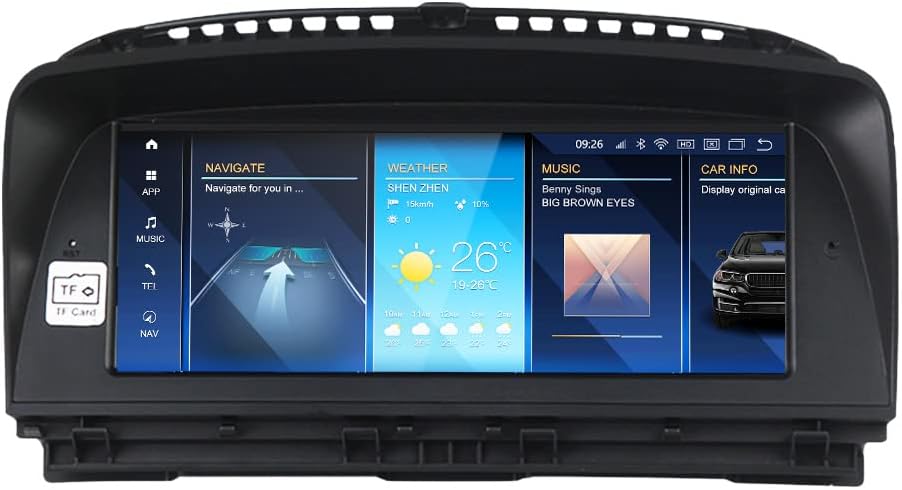
Figure 4.1: The main interface of the MekedeTech Android Car Stereo, displaying navigation, weather, music, and car information widgets. This screen provides quick access to primary functions.
4.2 Key Features and Functions
4.2.1 Navigation
The unit includes built-in GPS. You can use pre-installed navigation apps or download others from the Google Play Store. Ensure the GPS module is properly connected for accurate positioning.

Figure 4.2: The navigation screen of the MekedeTech Android Car Stereo, showing a map with a highlighted route and communication status. This demonstrates the integrated GPS functionality.
4.2.2 Wireless CarPlay and Android Auto
Connect your compatible smartphone wirelessly for seamless integration of CarPlay or Android Auto. This allows access to phone functions, messaging, music, and navigation directly from the stereo display.
- Pairing: Go to Bluetooth settings on the stereo and your phone to pair.
- Activation: Once paired, select the CarPlay or Android Auto icon on the stereo's main screen.
4.2.3 Bluetooth Connectivity
Pair your mobile phone via Bluetooth for hands-free calling and audio streaming.
- Navigate to the Bluetooth menu.
- Enable Bluetooth on your phone and search for the stereo unit.
- Select the unit and confirm the pairing code.
4.2.4 Original Car Information Display
The unit retains and displays original vehicle information such as speed, fuel level, oil pressure, and safety warnings. Access this feature through the "Car Info" application on the stereo.

Figure 4.3: The "Car Info" screen on the MekedeTech Android Car Stereo, showing a dashboard with a speedometer and other vehicle data. This feature integrates with the original car's systems to display vital information.
4.2.5 Rear View Camera Support
If a rear view camera is connected, the display will automatically switch to the camera feed when the vehicle is put into reverse gear.
4.2.6 Media Playback
The unit supports various media formats and sources, including USB, SD card (TF Card slot), and streaming services via Android apps. The TF Card slot is visible on the left side of the unit.

Figure 4.4: The media playback screen of the MekedeTech Android Car Stereo, showing a video file list and playback controls. The TF Card slot is visible on the left bezel, indicating support for external storage.
5. Maintenance
- Screen Cleaning: Use a soft, lint-free cloth to clean the IPS touch screen. Do not use abrasive cleaners or solvents.
- Software Updates: Periodically check for system software updates through the unit's settings menu to ensure optimal performance and access to new features.
- Environmental Conditions: Avoid exposing the unit to extreme temperatures or direct sunlight for prolonged periods.
6. Troubleshooting
6.1 Common Issues and Solutions
- No Power:
- Check all power cable connections.
- Verify the vehicle's fuse for the stereo system.
- Ensure the vehicle battery is properly connected and charged.
- No Sound:
- Check speaker connections.
- Verify volume settings on the unit and vehicle.
- Ensure the correct audio source is selected.
- GPS Not Working / Inaccurate:
- Ensure the GPS module is securely connected.
- Relocate the GPS antenna to an area with a clearer view of the sky.
- Check GPS settings in the Android system.
- Bluetooth Pairing Issues:
- Ensure Bluetooth is enabled on both the stereo and your phone.
- Delete previous pairings and attempt to re-pair.
- Restart both devices.
- CarPlay/Android Auto Not Connecting:
- Ensure your phone is compatible and running the latest OS.
- Verify wireless connection settings.
- Restart the stereo unit and your phone.
If issues persist, contact MekedeTech customer support for further assistance.
7. Specifications
| Feature | Detail |
|---|---|
| Model Name | BMW 7 Series (E65 E66) |
| Compatible Years | 2001-2008 (MASK CCC System) |
| Display Size | 8.8 Inches IPS Touch Screen |
| Operating System | Android 12 (Qualcomm) |
| Memory/Storage | 4GB RAM / 64GB Internal Storage |
| Connectivity | Built-in Wireless CarPlay, Android Auto, Bluetooth, GPS, 4G (via antenna), Auxiliary |
| Special Features | RDS, Spotify, Touchscreen, Voice Command (Dial, Touchscreen), Rear View Camera Support, Original Car Information Display |
| Audio Output Mode | Stereo |
| Mounting Type | Dashboard Mount |
| Item Weight | 4.88 pounds |
| Package Dimensions | 16.3 x 8.74 x 6.18 inches |
8. Warranty and Support
For warranty information and technical support, please contact MekedeTech directly. Refer to your purchase documentation for specific warranty terms and contact details.
Manufacturer: Shenzhen Mekede Technology Co.,Ltd
Online Support: Visit the MekedeTech Store on Amazon for additional resources and contact options.
Ask a question about this manual
Ask about setup, troubleshooting, compatibility, parts, safety, or missing instructions. Manuals+ will review the question and use this page’s manual context to help answer it.