1. Introduction
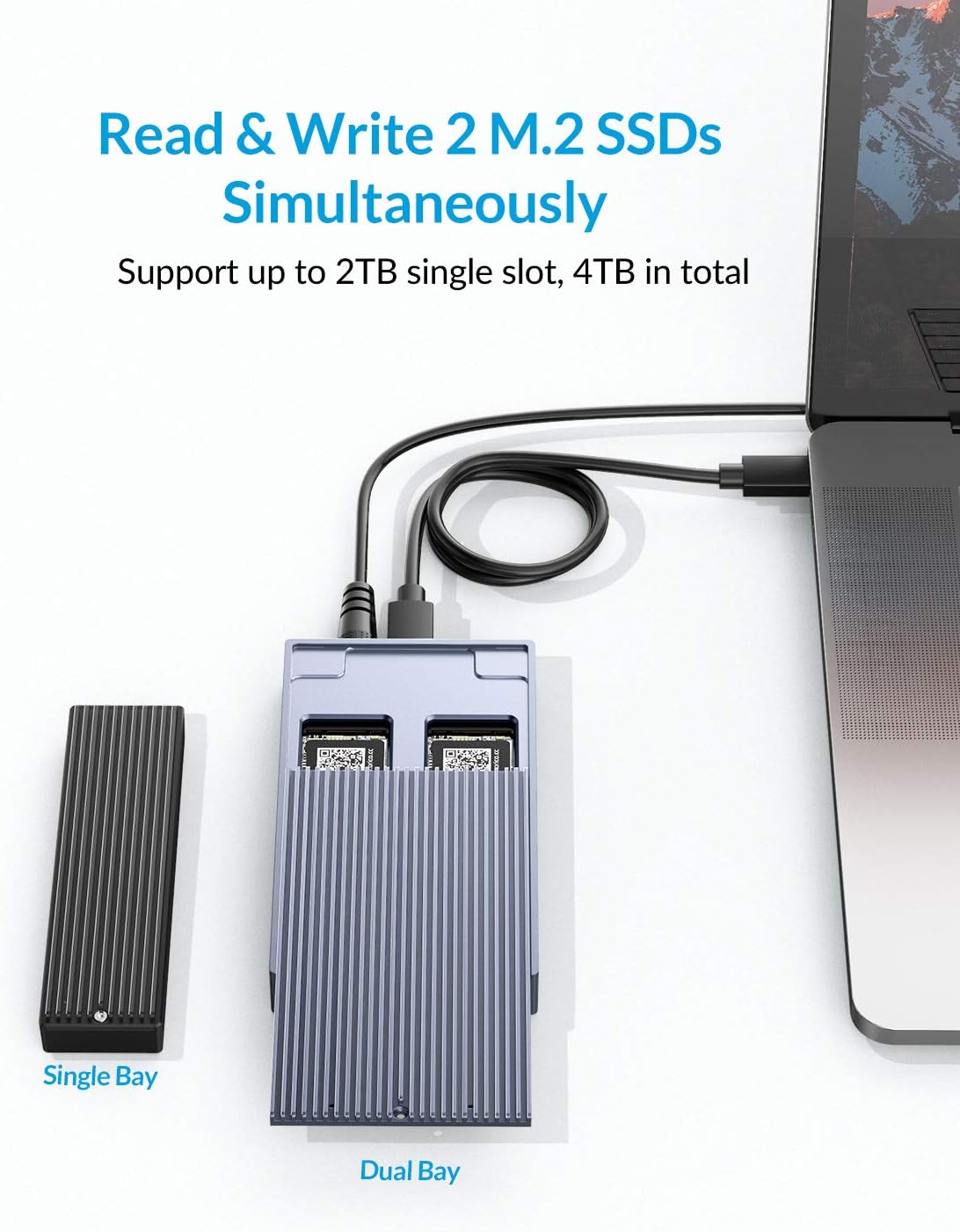
This manual provides detailed instructions for the ORICO M.2 SSD Enclosure, Model M2NV01. This dual-bay external enclosure is designed to connect M.2 NVMe and NGFF SATA SSDs to various devices, facilitating data transfer, storage expansion, and system upgrades. It supports simultaneous read and write operations for two M.2 SSDs.
The enclosure is compatible with M-Key NVMe SSDs and B&M-Key SATA SSDs, supporting sizes 2230, 2242, 2260, and 2280. Ensure your SSD type matches the corresponding slot (NVMe for M-Key, SATA for B&M-Key) as card slots cannot be reversed.
2. Features
- Dual-Bay Compatibility: Supports two M.2 SSDs (one NVMe M-Key, one NGFF SATA B&M-Key) for simultaneous read and write operations.
- High-Speed Data Transfer: Utilizes USB 3.2 Gen2 Type-C for speeds up to 10Gbps for NVMe SSDs and 6Gbps for SATA SSDs.
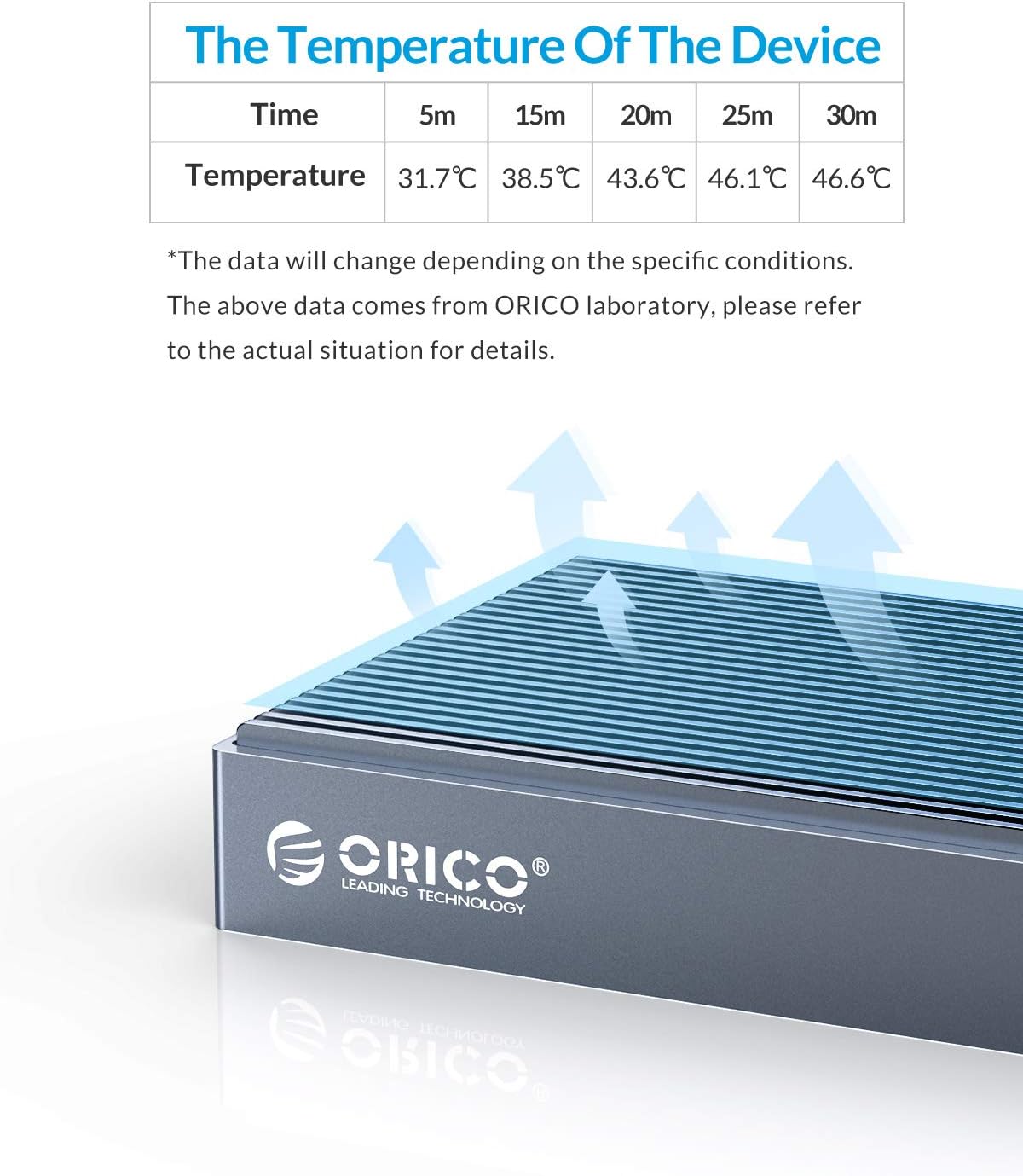
- Efficient Heat Dissipation: Constructed with an aluminum alloy striped shell to expand the heat dissipation area, reducing heat buildup during high-speed operation.
- Easy Installation: Tool-free design for quick and simple SSD installation. Plug and play functionality with no drivers required.
- Universal Compatibility: Works with Windows, macOS, and Linux operating systems. Compatible with PCs, laptops, smart TVs, smart routers, and gaming consoles like PS4.
- SSD Size Support: Accommodates M.2 SSDs of sizes 2230, 2242, 2260, and 2280.
3. Package Contents
Verify that all items are present in the package:
- ORICO M.2 SSD Enclosure (Model M2NV01)
- USB-C to USB-C Cable
- USB-A to USB-C Cable
- Power Adapter
- User Manual
- Screwdriver
- Thermal Pads (for heat dissipation)

4. Setup Guide
Follow these steps to install your M.2 SSDs into the enclosure:
- Loosen the Screw: Use the provided screwdriver to loosen the screw on the enclosure's cover.
- Open the Enclosure: Gently push the cover to slide it open and reveal the internal slots.
- Insert SSDs: Carefully insert your M.2 SSDs into the appropriate slots. The enclosure has dedicated slots for NVMe (M-Key) and SATA (B&M-Key) SSDs. Ensure the SSDs are fully seated.
- Secure SSDs: Buckle and fix the M.2 SSDs in place using the provided fasteners.
- Close the Cover: Slide the cover back into place and tighten the screw to secure the enclosure.

Important Note:
- If your SSD is new and has not been used before, it must be formatted and partitioned before it can be recognized and used by your operating system.
- Ensure the SSDs are inserted into the correct slots (NVMe for M-Key, SATA for B&M-Key). Reversing the card slots will prevent the SSDs from being read.
5. Operating Instructions
After installing the SSDs, connect the enclosure to your device:
- Connect one end of the provided USB cable (USB-C to USB-C or USB-A to USB-C) to the enclosure's Type-C port.
- Connect the other end of the USB cable to an available USB port on your computer, laptop, smart TV, or other compatible device.
- Connect the power adapter to the DC port on the enclosure and plug it into a power outlet. This is essential for stable operation, especially with two SSDs.
- The enclosure is plug-and-play; your operating system should automatically detect the connected SSDs.

6. Maintenance
The ORICO M.2 SSD Enclosure is designed with an aluminum alloy striped shell to aid in heat dissipation. During high-speed data transfer, it is normal for the surface temperature of the enclosure to rise. This is a characteristic of efficient heat transfer from the SSDs to the enclosure for cooling.
To ensure optimal performance and longevity:
- Avoid obstructing the striped surface of the enclosure to allow for proper airflow and heat dissipation.
- Keep the enclosure in a well-ventilated area.
- Clean the exterior with a soft, dry cloth. Do not use liquid cleaners.
7. Troubleshooting
- SSD Not Detected:
- Ensure the SSDs are correctly inserted into their respective NVMe (M-Key) or SATA (B&M-Key) slots and securely fastened.
- Verify that the USB cable and power adapter are securely connected to both the enclosure and your device/power source.
- If it's a new SSD, it needs to be initialized, formatted, and partitioned through your operating system's Disk Management (Windows) or Disk Utility (macOS) before it can be used.
- Test with a different USB port or cable on your computer.
- Slow Data Transfer Speed:
- To achieve 10Gbps data transmission, your device's USB port must be USB 3.2 Gen 2 compatible. Older USB 3.1 Gen 1 ports only support up to 5Gbps.
- Ensure you are using the provided high-speed USB 3.2 Gen 2 Type-C cable.
- The actual speed can be affected by the performance of your SSD, the host device, and the operating system.
- Enclosure Feels Warm:
- It is normal for the aluminum alloy shell to become warm during operation, especially during high-speed data transfers. This indicates effective heat dissipation from the SSDs.
- If the temperature feels excessively hot or causes system instability, ensure the thermal pads are correctly applied to the SSDs (if included and applicable) and that the enclosure is in a well-ventilated area.
- Auto Sleep Function:
- The enclosure may have an auto-sleep function to save power. If you wish to disable this, it may be possible by flashing the firmware. Always back up your data before attempting any firmware updates.
8. Specifications
| Feature | Specification |
|---|---|
| Model | M2NV01 |
| Brand | ORICO |
| Compatible Devices | Laptop, PC, Smart TV, Smart Router, PS4 |
| Hard Disk Form Factor | M.2 2230, 2242, 2260, 2280 |
| Max Number of Supported Devices | 2 (M.2 NVMe & M.2 NGFF SATA) |
| Data Transfer Rate (NVMe) | Up to 10Gbps |
| Data Transfer Rate (SATA) | Up to 6Gbps |
| Connectivity Technology | USB 3.2 Gen2 Type-C |
| Material | Aluminum Alloy |
| Product Dimensions (LxWxH) | 7.99 x 4.37 x 2.01 inches |
| Item Weight | 1.12 pounds |
| Hardware Platform | Windows, macOS, Linux |
9. Warranty and Support
ORICO products typically come with a manufacturer's warranty. For specific warranty details, duration, and terms, please refer to the warranty card included in your package or visit the official ORICO website. Keep your purchase receipt as proof of purchase.
For technical support, product inquiries, or warranty claims, please contact ORICO customer service through their official website or the contact information provided in your product documentation.
You can also visit the ORICO Store on Amazon for more information and product updates.


