
1. Product Overview
The Ewin Keyboard Case with Trackpad is designed to enhance your tablet experience by providing a physical keyboard and a multi-touch trackpad, transforming your tablet into a versatile productivity tool. It features a durable protective cover and smart functions for efficient use.

Image 1.1: Ewin Keyboard Case with Trackpad, showcasing the integrated keyboard and trackpad with a tablet in stand mode.
2. Compatibility
This keyboard case is compatible with various iPad models. Please verify your iPad's model number to ensure proper fit and function.
- iPad Air 4 10.9 inch 2020: Model Numbers A2072, A2316, A2324, A2325
- iPad Pro 11 inch 3rd Gen 2021: Model Numbers A2301, A2459, A2460
- iPad Pro 11 inch 2nd Generation 2020: Model Numbers A2228, A2068, A2230, A2231
- iPad Pro 11 inch 1st Generation 2018: Model Numbers A1980, A2013, A1934

Image 2.1: Visual guide for iPad model compatibility, including iPad Pro 11-inch (2019), iPad Air 4 10.9-inch (2020), and iPad Pro 11-inch (2020).
3. Package Contents
Upon opening the package, ensure all the following items are present:
- 1 x Ewin Keyboard Case
- 1 x Type-C Charging Cable
- 1 x User Manual
Note: iPad is not included.

Image 3.1: Contents of the Ewin Keyboard Case package, including the case, charging cable, and manual.
4. Setup
4.1 Charging the Keyboard
Before first use, fully charge the keyboard. Connect the provided Type-C charging cable to the keyboard's charging port and a USB power source. The charging indicator light will show the charging status.
- Charging Time: Approximately 2 hours
- Usage Time: 100+ hours
- Standby Time: 130+ days
4.2 Bluetooth Pairing
- Ensure the keyboard is charged.
- Turn on the keyboard by sliding the power switch. The Bluetooth indicator light will begin to flash, indicating it's in pairing mode.
- On your iPad, go to Settings > Bluetooth.
- Turn on Bluetooth. Your iPad will search for available devices.
- Select "Magnetic Keyboard 5.1 V81" (or similar name) from the list of "OTHER DEVICES".
- Once connected, the Bluetooth indicator light on the keyboard will stop flashing. The keyboard will automatically reconnect to your iPad in the future after the initial pairing.
4.3 Inserting the iPad
Carefully align your iPad with the case and gently press it into place. Ensure all edges are securely seated within the protective frame of the case.

Image 4.1: Detailed view of the iPad Keyboard Case, illustrating its key features including the gestures touchpad, Bluetooth connectivity, ergonomic design, Type-C port, and integrated pencil holder.
5. Operating Instructions
5.1 Keyboard Functions and Shortcuts
The keyboard provides a comfortable typing experience with industry-leading design and 22 kinds of shortcuts for increased productivity.
Familiarize yourself with standard keyboard shortcuts for your iPadOS. Common shortcuts include:
- Command + H: Go to Home Screen
- Command + Space: Open Search
- Command + Tab: Switch between open apps
- Command + C / Command + V: Copy / Paste
- Fn + Spacebar: Toggle Trackpad On/Off
5.2 Smart Trackpad Gestures
The integrated smart touchpad supports 9 kinds of practical laptop gestures, allowing for precise navigation and control. Ensure "AssistiveTouch" is enabled in your iPad settings if you wish to use advanced touch features.

Image 5.1: Close-up of the Smart Touchpad, illustrating its functionality for precise control.
5.3 Auto Sleep/Wake Function
The case features an auto sleep/wake function to conserve battery life. Closing the case will put your iPad to sleep, and opening it will wake it up.
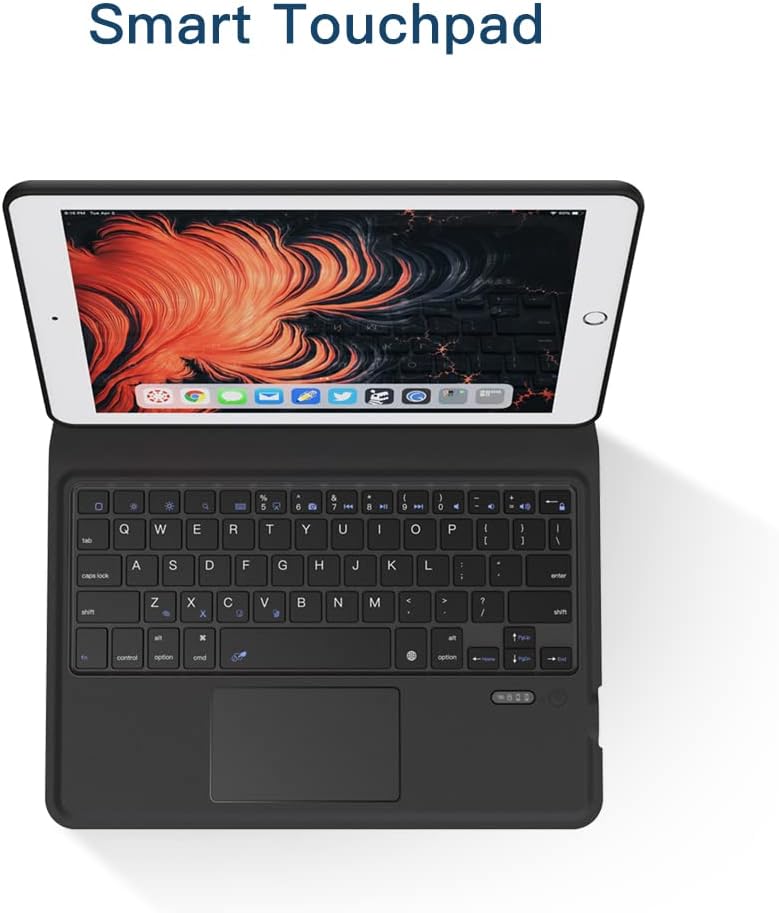
Image 5.2: Illustration of the Auto Sleep feature, which reduces battery consumption when the case is closed.
5.4 Stand Function
The case is designed to automatically convert into a stable stand for comfortable viewing and typing. Fold the buckle along the crease and allow the magnets to secure the stand position.

Image 5.3: Demonstration of the iPad Keyboard Case's stand function, showing how it folds and magnetically secures into a viewing position.
6. Maintenance
6.1 Cleaning
To clean the keyboard case, gently wipe the exterior with a soft, damp cloth. Avoid using harsh chemicals or abrasive materials. For the keyboard keys, use a soft brush or compressed air to remove dust and debris.
6.2 Battery Care
To prolong battery life, avoid fully discharging the keyboard frequently. Charge it regularly, even if not in constant use. Store the device in a cool, dry place when not in use for extended periods.
7. Troubleshooting
| Problem | Possible Cause | Solution |
|---|---|---|
| Keyboard not connecting via Bluetooth. | Low battery; Bluetooth not enabled on iPad; keyboard not in pairing mode; interference. | Charge the keyboard. Ensure Bluetooth is on in iPad settings. Turn keyboard off and on to re-enter pairing mode. Move closer to iPad. |
| Trackpad not responding. | Trackpad disabled; software glitch; dirty surface. | Press Fn + Spacebar to enable/disable trackpad. Restart iPad and keyboard. Clean trackpad surface. |
| Keys are not responding. | Low battery; connection issue. | Charge the keyboard. Re-pair the Bluetooth connection. |
| iPad does not go to sleep/wake automatically. | iPad settings; case not properly closed. | Ensure "Lock/Unlock" is enabled in iPad settings (Settings > Display & Brightness > Lock/Unlock). Ensure the case is fully closed. |
8. Specifications
| Feature | Detail |
|---|---|
| Brand | Ewin |
| Model Number | EWIN-KEYBOARD |
| Compatible Devices | iPad Air 4 10.9 inch (2020), iPad Pro 11 inch (2018/2020/2021) |
| Connectivity | Bluetooth Wireless |
| Special Feature | Integrated Trackpad, Pencil Holder, Auto Sleep/Wake, Stand Function |
| Shell Type | Hard Case |
| Max. Compatible Device Size | 10.9 Inches |
| Item Weight | 1.48 pounds (approx. 0.67 kg) |
| Package Dimensions | 11.34 x 7.99 x 1.3 inches (approx. 28.8 x 20.3 x 3.3 cm) |

Image 8.1: Illustration of the Scissor Switch Keycap mechanism, indicating responsive and comfortable typing.

Image 8.2: Detail of the Honeycomb Case design, promoting heat dissipation for the tablet.

Image 8.3: Visual representation of the case's shockproof design, offering enhanced protection against drops.
9. Warranty and Support
Ewin products are manufactured with high-quality standards. For warranty information or technical support, please refer to the contact details provided on the product packaging or the official Ewin website. Keep your purchase receipt for warranty claims.
