
1. Introduction
This manual provides essential information for the safe and efficient operation of your Cantonape 2500W Power Inverter. This device converts 12V DC battery power into 110V/120V AC household electricity, suitable for various applications including vehicles, RVs, boats, and off-grid solar systems. Please read this manual thoroughly before installation and use.
2. Product Overview
2.1 Key Features
- Powerful Output: Provides 2500 Watts continuous modified sine wave power and 5000 Watts surge power.
- Versatile Charging: Equipped with 4 AC outlets and 4 USB ports (3.1A total) for multi-purpose charging.
- Intelligent LCD Display: Shows input/output voltage, battery capacity, load capacity, output frequency, and error codes.
- Remote Control: Includes a wireless remote for convenient ON/OFF control.
- Multi-Protection System: Features 6 types of protection: Overload, Short Circuit, Overheat, Reverse Polarity, Under Voltage, and Over Voltage.
- Durable Design: Aluminum body for advanced protection and efficient cooling, with built-in temperature-controlled cooling fans.
2.2 Package Contents
Upon unpacking, ensure all items listed below are present:
- Cantonape 2500W Power Inverter
- Battery Cables (Red and Black)
- Remote Controller (requires 12V 23A battery, not included)
- Instruction Manual (this document)
- Spare Fuses

Image: The package includes the red 2500W power inverter, battery cables (red and black), a white remote control, and spare fuses.
2.3 Component Identification
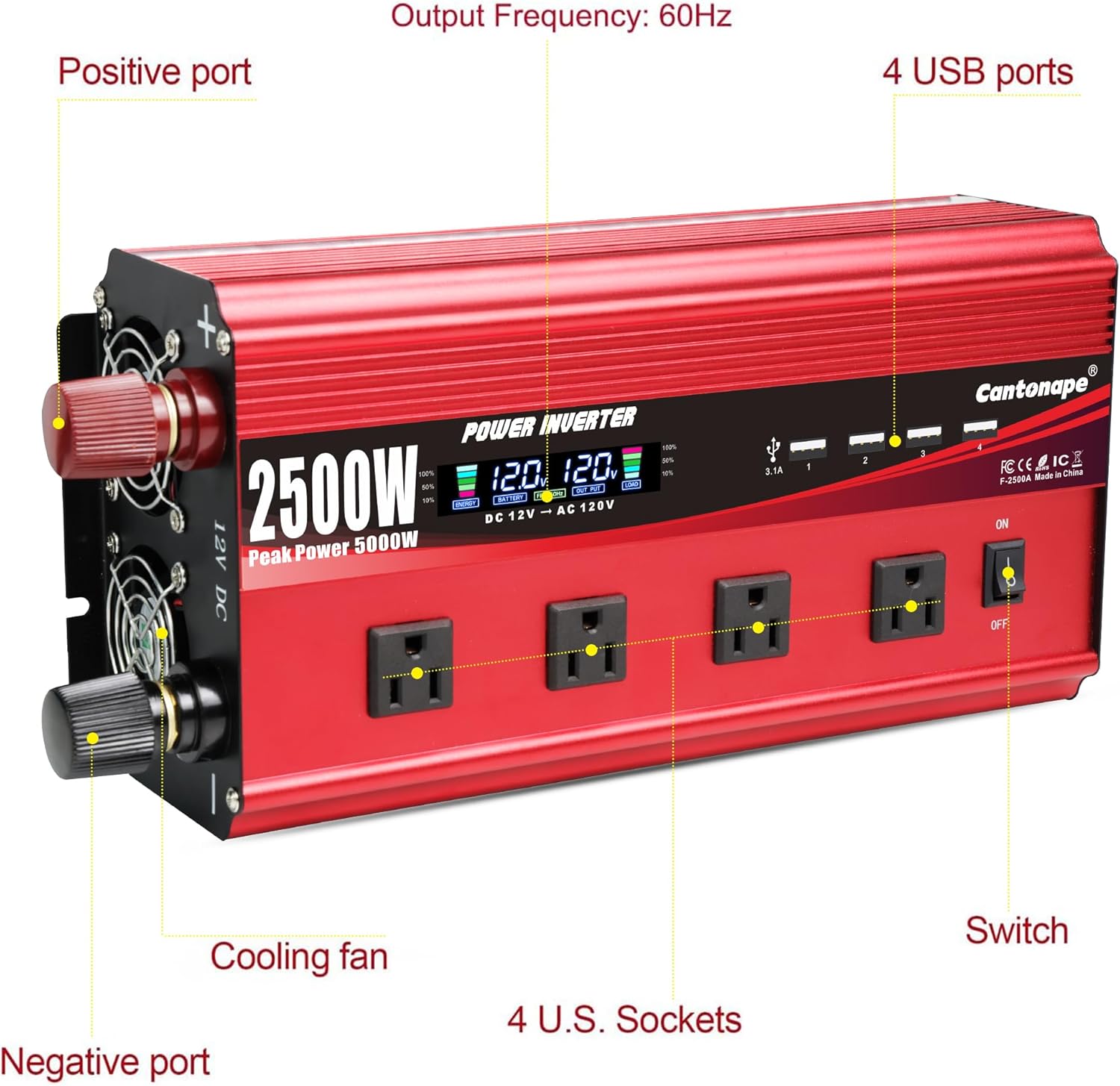
Image: A detailed view of the Cantonape 2500W Power Inverter with labels pointing to its various components. These include the positive port, negative port, cooling fans, 4 USB ports, 4 U.S. sockets, and the power switch.
- Positive Port: Connects to the positive terminal of the 12V DC battery.
- Negative Port: Connects to the negative terminal of the 12V DC battery.
- Cooling Fans: Automatically activate based on internal temperature to prevent overheating.
- USB Ports: Four 3.1A USB ports for charging compatible devices.
- AC Outlets: Four 110V/120V AC outlets for connecting appliances.
- Power Switch: Toggles the inverter ON/OFF.
- LCD Display: Shows operational status and error codes.
3. Safety Information
Please observe the following safety precautions to prevent injury and damage to the inverter or connected devices:
- Do not open the inverter casing. There are no user-serviceable parts inside.
- Ensure proper ventilation around the inverter. Do not block cooling vents.
- Keep the inverter away from water, moisture, flammable materials, and direct sunlight.
- Connect the inverter only to a 12V DC power source. Connecting to other voltages may cause damage.
- Ensure the total wattage of connected AC appliances does not exceed the inverter's continuous power rating (2500W).
- Always connect the inverter to the battery before plugging in AC appliances.
- Disconnect the inverter from the battery when not in use.
- Use appropriate gauge battery cables to minimize voltage drop and ensure safe operation.
- Ensure proper grounding of the inverter.
4. Setup
4.1 Connecting the Inverter to a 12V DC Battery
- Ensure the inverter's power switch is in the OFF position.
- Connect the red battery cable to the positive (+) terminal of the inverter.
- Connect the black battery cable to the negative (-) terminal of the inverter.
- Connect the other end of the red battery cable to the positive (+) terminal of your 12V DC battery.
- Connect the other end of the black battery cable to the negative (-) terminal of your 12V DC battery.
- Ensure all connections are tight and secure to prevent arcing and overheating.

Image: A diagram illustrating how the power inverter connects to a battery, which is part of a larger solar panel and charge controller system. This setup provides power for both DC and AC appliances.
4.2 Remote Controller Setup
The remote controller allows you to turn the inverter ON/OFF from a distance.
- Open the battery compartment of the remote controller.
- Insert a 12V 23A battery (not included), ensuring correct polarity.
- Close the battery compartment.
- The remote control is now ready for use. Press 'A' to turn ON and 'B' to turn OFF the inverter.

Image: The Cantonape 2500W power inverter shown alongside its wireless remote control. The remote has 'ON' and 'OFF' buttons, and a note indicates that a 12V 23A battery is not included.
5. Operating Instructions
5.1 Powering On and Off
- After connecting the inverter to the battery, press the power switch on the inverter or the 'ON' button on the remote control.
- The LCD display will illuminate, indicating the inverter is operational.
- To turn off, press the power switch on the inverter or the 'OFF' button on the remote control.
5.2 Understanding the LCD Display
The intelligent LCD display provides real-time information about the inverter's status:
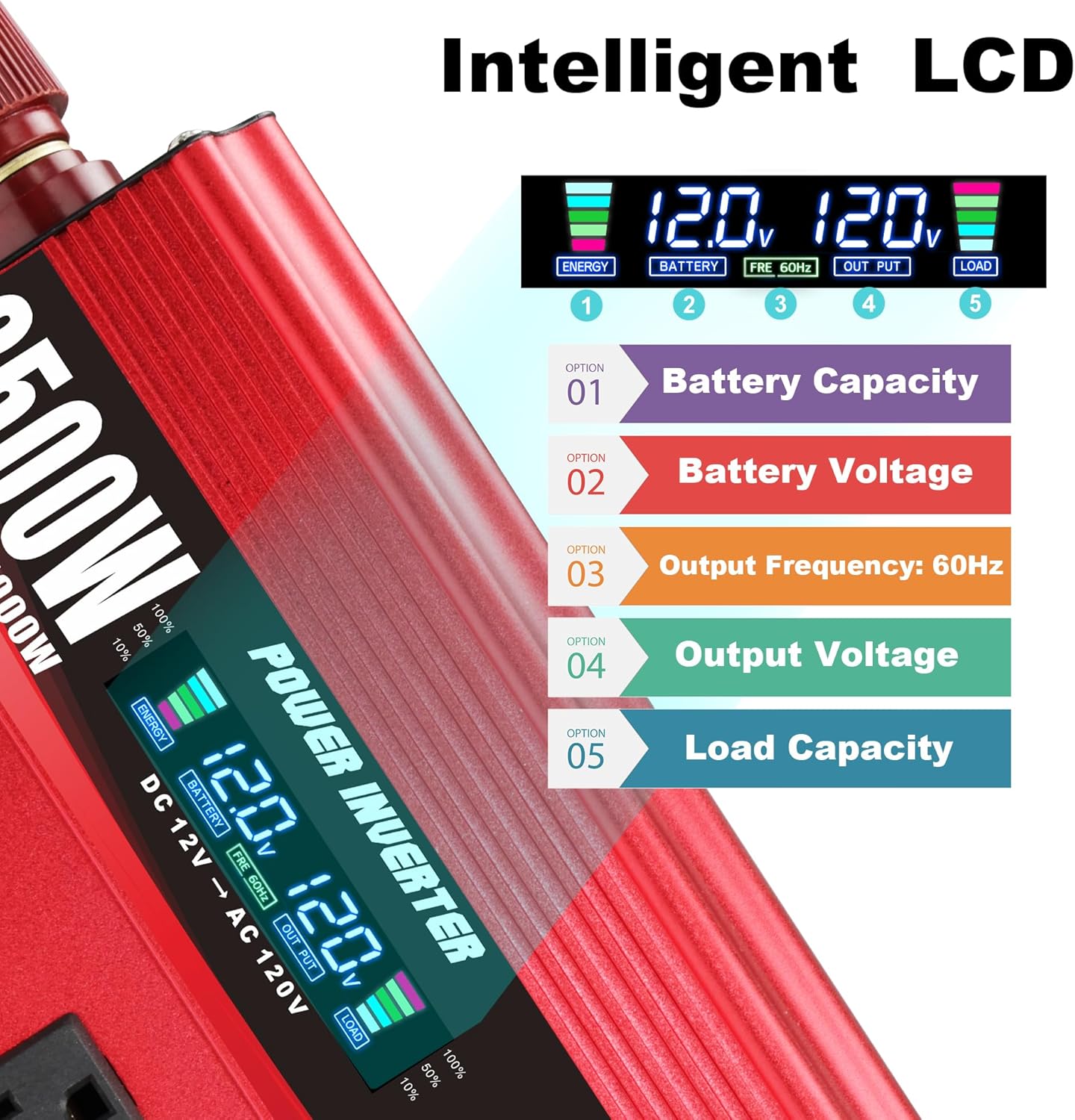
Image: A close-up of the inverter's LCD screen, highlighting five key indicators: Battery Capacity, Battery Voltage, Output Frequency (60Hz), Output Voltage, and Load Capacity. Each is numbered for easy identification.
- Battery Capacity: Shows the remaining charge level of the connected battery.
- Battery Voltage: Displays the current DC input voltage from the battery.
- Output Frequency: Indicates the AC output frequency, typically 60Hz.
- Output Voltage: Shows the current AC output voltage (110V/120V).
- Load Capacity: Displays the percentage of the inverter's capacity currently being used by connected appliances.
5.3 Connecting Appliances
- Ensure the inverter is ON.
- Plug your AC appliances into the 110V/120V AC outlets.
- Plug your USB-powered devices into the USB ports.
- Monitor the Load Capacity on the LCD display to ensure you do not exceed the inverter's rated power.
6. Maintenance
Regular maintenance ensures optimal performance and longevity of your inverter:
- Cleaning: Periodically clean the exterior of the inverter with a dry, soft cloth. Do not use liquids or abrasive cleaners.
- Ventilation: Ensure the cooling fans and vents are free from dust and obstructions. Blocked vents can lead to overheating.
- Connections: Regularly check battery cable connections for tightness and corrosion. Clean terminals if necessary.
- Storage: If storing the inverter for an extended period, disconnect it from the battery and store it in a cool, dry place.

Image: A close-up view of the Cantonape power inverter, highlighting its efficient and quiet intelligent cooling fans. The fans are designed to automatically activate based on temperature to prevent overheating.
7. Troubleshooting
The LCD display provides error codes to help diagnose issues:

Image: The inverter's LCD screen displaying an error code 'E-1' with a low battery voltage reading (11.6V). Surrounding text boxes explain various error codes: E-1 (Low Voltage Protection), E-2 (High Voltage Protection), E-3 (Overtemperature Protection), E-4 (Overload Protection), E-5 (Short Circuit Protection), and E-6 (Restart Required for Repeated Faults).
| Error Code | Description | Solution |
|---|---|---|
| E-1 | Low Voltage Protection | Recharge or replace the 12V DC battery. Check battery connections. |
| E-2 | High Voltage Protection | Disconnect the inverter immediately. Ensure the input voltage does not exceed 15V DC. |
| E-3 | Overtemperature Protection | Reduce load, ensure proper ventilation, and allow the inverter to cool down. Clean cooling vents if blocked. |
| E-4 | Overload Protection | Reduce the total wattage of connected appliances. Disconnect high-power devices. |
| E-5 | Short Circuit Protection | Check all AC outlets and connected appliances for short circuits. Disconnect faulty devices. |
| E-6 | Repeated Faults Shutdown / Restart Required | The inverter has shut down due to repeated protection events. Turn off the inverter, resolve the underlying issue, and then restart. |
General Troubleshooting Tips
- No Output: Check battery connections, battery voltage, and ensure the inverter is switched ON.
- Weak Output: Ensure battery is fully charged and cables are of adequate gauge and securely connected.
- Intermittent Operation: Could indicate low battery voltage or an intermittent connection.
8. Specifications
Detailed technical specifications for the Cantonape 2500W Power Inverter:

Image: The Cantonape 2500W Power Inverter with its dimensions clearly labeled: 14.17 inches (36cm) in length, 6.3 inches (16cm) in width, and 3.93 inches (10cm) in height.
| Feature | Specification |
|---|---|
| Model Name | CAP-MSW2500W-US |
| Continuous Power | 2500 Watts |
| Peak Power | 5000 Watts |
| Input Voltage | 12V DC |
| Output Voltage | 110V/120V AC |
| Output Frequency | 60Hz |
| Output Waveform | Modified Sine Wave |
| AC Outlets | 4 |
| USB Ports | 4 x 3.1A |
| Conversion Efficiency | > 90% |
| Product Dimensions | 14.17 x 6.3 x 3.94 inches (36 x 16 x 10 cm) |
| Item Weight | 7.13 pounds |
| Manufacturer | Cantonape |
9. Warranty and Support
9.1 Warranty Information
The Cantonape 2500W Power Inverter comes with a 12-month warranty from the date of purchase. This warranty covers manufacturing defects and ensures the product is free from defects in material and workmanship under normal use. Please retain your proof of purchase for warranty claims.
9.2 Customer Support
For technical assistance, troubleshooting, or warranty inquiries, please contact Cantonape customer support. Refer to the contact information provided with your purchase or visit the official Cantonape website for support details.
You can also visit the Cantonape Store on Amazon for more product information and support resources.