
Introduction
Thank you for purchasing the Overmax Multipic 4.1 Full HD 1080p LED Projector. This manual provides essential information for the safe and efficient use of your projector. Please read it thoroughly before operation and retain it for future reference.
Safety Information
To ensure safe operation and prevent damage, please observe the following precautions:
- Do not block ventilation openings. Ensure adequate airflow around the projector.
- Avoid direct eye exposure to the projector lens when the lamp is on.
- Do not place the projector on unstable surfaces.
- Keep the projector away from water or other liquids.
- Use only the power adapter supplied with the projector.
- Do not attempt to open or repair the projector yourself. Refer all servicing to qualified personnel.
- Unplug the projector during lightning storms or when unused for long periods.
Package Contents
Verify that all items are present in your package:
- Overmax Multipic 4.1 Projector
- Remote Control
- Power Cable
- HDMI Cable
- Fuse Cable
- User Manual (this document)
Product Overview
Familiarize yourself with the projector's components and controls.
Front View

Image: Front view of the Overmax Multipic 4.1 projector. The main projection lens is visible on the right side, with ventilation grilles and an infrared receiver on the left.
Top Panel Controls
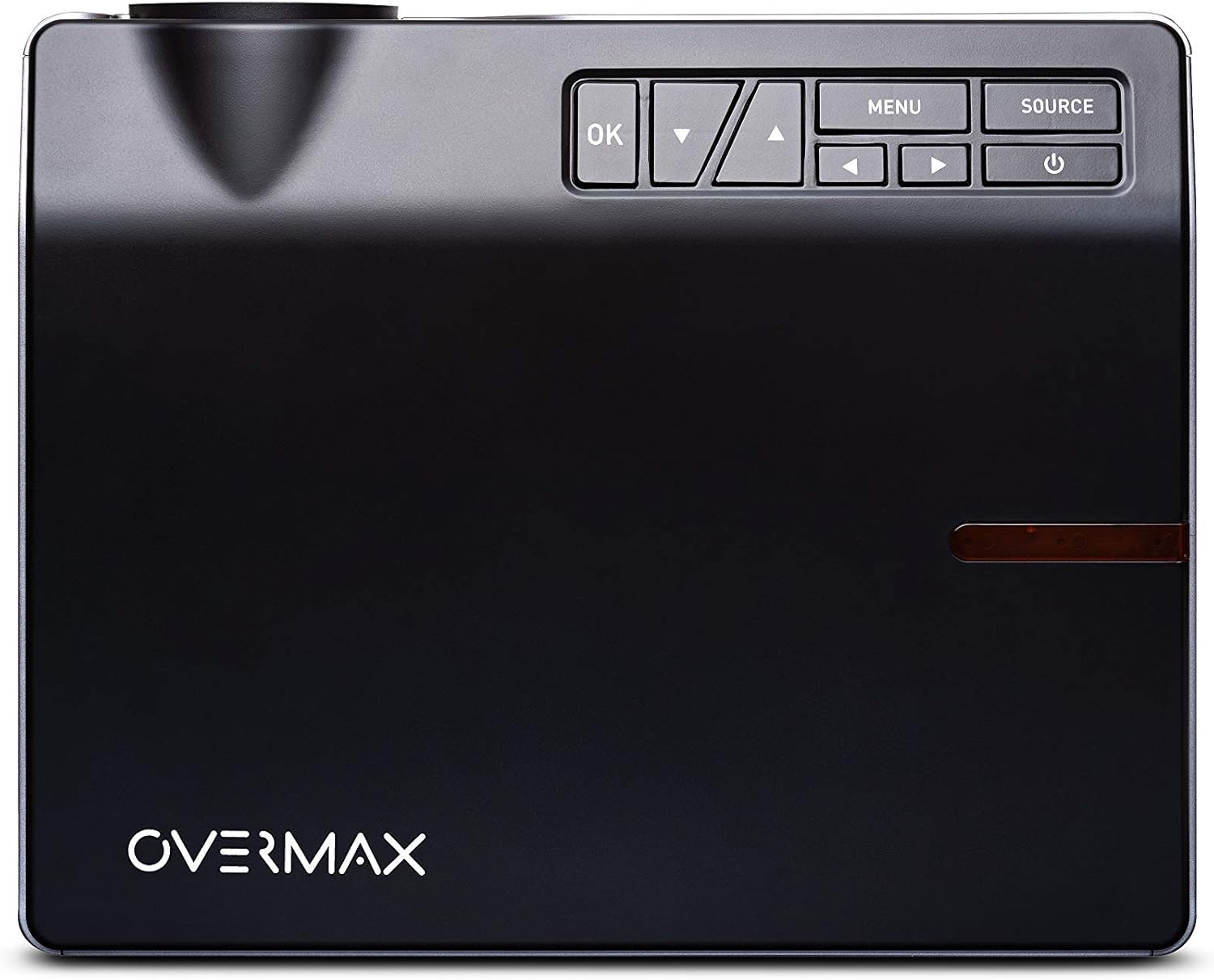
Image: Top view of the Overmax Multipic 4.1 projector. The control panel is located on the top right, featuring buttons for Power, Source, Menu, OK, and directional navigation.
- Power Button: Turns the projector on or off.
- Source Button: Selects input source (HDMI1, HDMI2, USB, VGA, AV).
- Menu Button: Accesses the projector's settings menu.
- OK Button: Confirms selections in the menu.
- Directional Arrows: Navigates through menu options and adjusts settings.
Rear Panel Ports

Image: Rear view of the Overmax Multipic 4.1 projector. Ports include VGA, USB, HDMI1, HDMI2, and AV input, along with the power input and main power switch.
- VGA Port: Connects to computers with a VGA output.
- USB Ports (x2): Connects USB storage devices for media playback.
- HDMI Ports (x2): Connects to devices like laptops, game consoles, or streaming sticks.
- AV Port: Connects to older devices using a composite video and stereo audio cable.
- Power Input: Connects the power cable.
- Main Power Switch: Controls the main power supply to the unit.
Focus and Keystone Adjustment

Image: Side view of the Overmax Multipic 4.1 projector, showing the focus ring (larger) and keystone correction ring (smaller) located near the lens.
- Focus Ring: Rotate to sharpen the projected image.
- Keystone Correction Ring: Adjusts the image shape to correct trapezoidal distortion if the projector is not perfectly perpendicular to the screen.
Setup
1. Placement
Position the projector on a stable, flat surface or mount it to a ceiling or tripod. Ensure the projector is within a suitable distance from the projection surface to achieve the desired screen size (up to 200 inches diagonal).
- For ceiling mounting, use the four screw holes on the bottom of the projector.
- Ensure proper ventilation around the unit.
2. Power Connection
- Connect the power cable to the projector's power input port.
- Plug the other end of the power cable into a power outlet.
- Flip the main power switch on the rear panel to the "ON" position.
3. Connecting Input Devices
Connect your desired source device (e.g., laptop, game console, USB drive) to the appropriate port on the projector.
- HDMI: Use an HDMI cable to connect to HDMI1 or HDMI2 ports.
- USB: Insert a USB flash drive into one of the USB ports for direct media playback.
- VGA: Use a VGA cable to connect to a computer's VGA output.
- AV: Use a composite AV cable to connect to devices with AV output.
4. Focus and Keystone Adjustment
- Turn on the projector and display an image.
- Rotate the Focus Ring (larger ring near the lens) until the image appears sharp and clear.
- If the image appears trapezoidal (wider at the top or bottom), rotate the Keystone Correction Ring (smaller ring near the lens) to square the image.
Operating Instructions
Powering On/Off
- To Power On: Press the Power button on the projector or remote control. The indicator light will turn on.
- To Power Off: Press the Power button again. The projector will initiate a shutdown sequence. Do not unplug the projector until the fan stops running.
Selecting Input Source
After powering on, press the Source button on the projector or remote control to cycle through available input sources (HDMI1, HDMI2, USB, VGA, AV). Select the source corresponding to your connected device.
Menu Navigation
Press the Menu button to access settings such as picture mode, aspect ratio, sound settings, and system preferences. Use the directional arrows to navigate and the OK button to confirm selections.
Wi-Fi Connectivity
The Multipic 4.1 supports Wi-Fi connectivity for screen mirroring from compatible smartphones, tablets, and computers.
- Navigate to the Wi-Fi settings in the projector's menu.
- Select your Wi-Fi network and enter the password if required.
- Once connected, follow the on-screen instructions to initiate screen mirroring from your device.
Audio Output
The projector features two built-in stereo speakers. Volume can be adjusted via the remote control or the projector's menu.
Maintenance
Cleaning the Lens
Use a soft, lint-free cloth specifically designed for optical lenses. Do not use abrasive cleaners or excessive force, as this can scratch the lens.
Cleaning Air Vents
Regularly check and clean the air vents to prevent dust buildup, which can affect cooling and projector performance. Use a soft brush or compressed air to gently remove dust.
Lamp Life
The LED lamp in your projector has an estimated lifespan of up to 50,000 hours. No lamp replacement is typically required during the product's lifetime under normal usage conditions.
Troubleshooting
| Problem | Possible Cause | Solution |
|---|---|---|
| No image displayed |
|
|
| Image is blurry |
|
|
| Image is trapezoidal |
|
|
| No sound |
|
|
| Wi-Fi connection issues |
|
|
Specifications
| Feature | Detail |
|---|---|
| Model Number | OV-MULTIPIC 4.1 |
| Brand | Overmax |
| Display Resolution | 1920 x 1080 (Full HD 1080p Native) |
| Brightness | 4000 Lumens |
| Contrast Ratio | 4000:1 |
| Aspect Ratio | 16:9 and 4:3 |
| Lamp Type | LED |
| Lamp Life | Up to 50,000 hours |
| Connectivity Technology | HDMI (x2), USB (x2), VGA, AV, Wi-Fi |
| Built-in Speakers | 2 Stereo Speakers |
| Power Consumption | 170 Watts |
| Control Type | Remote Control, On-device buttons |
| Mounting Type | Ceiling Mount, Portable |
| Compatible Devices | Laptop, Tablet, Game Consoles, USB drives |
Warranty and Support
For warranty information, please refer to the warranty card included with your product or contact your retailer. Overmax provides support for its products. For technical assistance or further inquiries, please visit the official Overmax website or contact their customer service department.
Note: Specific warranty terms and support contact details may vary by region.
Official Product Videos
No official product videos from the seller are available for this model at this time.


