
1. Introduction and Overview
The Dooya Smart Home Box is an intelligent automation device designed to centralize and control your Dooya wireless roller shutters and other compatible home automation products. This smart box enables remote management via your smartphone and voice control through popular assistants like Google Home and Amazon Alexa. It provides a convenient solution for automating your home's openings, enhancing comfort and security.
This manual will guide you through the setup, operation, and maintenance of your Dooya Smart Home Box, ensuring you can fully utilize its features for a smarter home.
2. Key Features
- Smartphone Remote Control: Manage your roller shutters and compatible devices from anywhere using the dedicated app.
- Voice Control Integration: Compatible with Google Home and Amazon Alexa for hands-free operation.
- Scenario Creation: Program custom scenarios, such as opening shutters at sunrise or closing them at sunset.
- Wide Compatibility: Works with all Dooya radio receivers and most DIY radio roller shutters using DC250 or DC90 remote controls.
- Gate/Garage Control: Can control DC428 receivers for automatic gate or garage door operation.
- IFTTT Support: Integrates with IFTTT for advanced automation possibilities.
3. Package Contents
Please check the package for the following items:
- Dooya Smart Home Box
- Power Adapter (may vary by region)
- User Manual (this document)
4. Setup Guide
4.1 Physical Installation
- Power Connection: Connect the provided power adapter to the Dooya Smart Home Box and plug it into a standard electrical outlet. The indicator light on the box should illuminate.
- Network Connection: Ensure your Wi-Fi network is active and stable. The Smart Home Box connects wirelessly to your home network.

Figure 1: The Dooya Smart Home Box, a compact white device, is designed to integrate with popular smart home ecosystems like Google Assistant, Amazon Alexa, and IFTTT for enhanced control of your roller shutters.
4.2 App Installation and Pairing
- Download the App: Search for the "Connector" app (or specified Dooya app) in your smartphone's app store (iOS App Store or Google Play Store) and install it.
- Create an Account: Open the app and follow the on-screen instructions to create a new user account or log in if you already have one.
- Add Device: In the app, select the option to add a new device. Follow the prompts to put the Dooya Smart Home Box into pairing mode. This usually involves pressing and holding the 'Program Button' on the back of the device until an indicator light flashes.
- Connect to Wi-Fi: The app will guide you to connect the Smart Home Box to your home Wi-Fi network. Ensure your smartphone is connected to the same 2.4GHz Wi-Fi network during this process.
- Complete Pairing: Once connected, the app will confirm successful pairing. You can then name your Smart Home Box for easy identification.
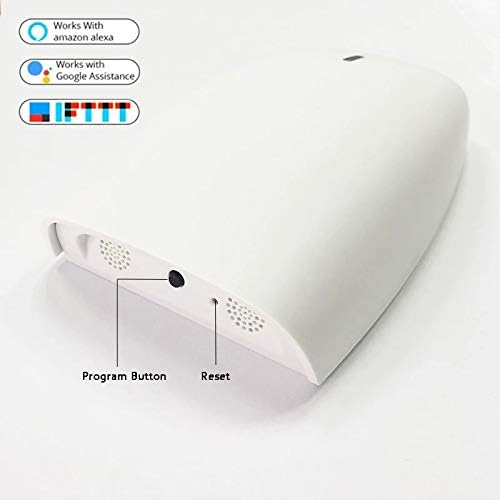
Figure 2: This image displays the rear of the Dooya Smart Home Box, featuring the 'Program Button' for device pairing and configuration, and a 'Reset' button for factory default restoration.
4.3 Integrating Dooya Roller Shutters and Other Devices
After pairing the Smart Home Box, you can add your Dooya roller shutters and other compatible devices:
- Add Shutters: In the Connector app, navigate to the device management section and select to add a new shutter or compatible device (e.g., DC428, DC250, DC90).
- Pairing Mode for Shutters: Follow the specific instructions for your Dooya roller shutter or receiver to put it into pairing mode. This often involves a short press on a button on the motor or receiver.
- Complete Integration: The app will detect the shutter/device and allow you to name it and assign it to a room. Repeat for all your Dooya-compatible devices.
4.4 Voice Assistant Integration (Google Home / Amazon Alexa)
To enable voice control, link your Dooya Smart Home Box with your preferred voice assistant:
- Open Voice Assistant App: Open the Google Home app or Amazon Alexa app on your smartphone.
- Link Service/Skill: Navigate to the 'Works with Google' or 'Skills & Games' section. Search for the "Connector" skill/service.
- Authorize Account: Link your Connector app account with your Google or Alexa account by entering your Connector app credentials.
- Discover Devices: Once linked, ask your voice assistant to "Discover devices" or manually initiate device discovery in the app. Your roller shutters and other integrated devices will appear.

Figure 3: An illustrative diagram demonstrating how the Dooya Smart Home Box connects your smartphone, Google Home, and Amazon Alexa to wirelessly control your home's roller shutters, enabling voice commands and remote operation.
5. Operating Instructions
5.1 Basic Control via Smartphone App
Once your devices are integrated, you can control them directly from the Connector app:
- Open/Close Shutters: Tap on the specific shutter in the app to open, close, or stop it at any desired position.
- Group Control: If you have grouped multiple shutters, you can control them simultaneously with a single command.
5.2 Voice Commands
Use simple voice commands with your Google Home or Amazon Alexa device:
- "Hey Google, open the living room shutter."
- "Alexa, close all shutters."
- "Hey Google, set kitchen shutter to 50%."
5.3 Creating Scenarios and Schedules
The Connector app allows you to create automated scenarios:
- Time-Based Schedules: Set specific times for shutters to open or close daily.
- Sunrise/Sunset Automation: Configure shutters to automatically adjust based on local sunrise and sunset times. The box will adapt to new schedules automatically.
- Custom Scenarios: Combine multiple actions (e.g., close all shutters and turn off lights) into a single command or schedule.
6. Maintenance
- Cleaning: Wipe the device with a soft, dry cloth. Do not use liquid cleaners or abrasive materials.
- Software Updates: Periodically check the Connector app for available firmware updates for your Smart Home Box to ensure optimal performance and access to new features.
- Placement: Ensure the box is placed in a location with good Wi-Fi signal and away from direct sunlight or extreme temperatures.
7. Troubleshooting
- Device Not Connecting:
- Ensure the Smart Home Box is powered on and its indicator light is active.
- Verify your Wi-Fi network is working and your smartphone is connected to the 2.4GHz band.
- Try restarting your Wi-Fi router and the Smart Home Box.
- If issues persist, perform a factory reset using the 'Reset' button (refer to Figure 2) and attempt pairing again.
- Voice Commands Not Working:
- Check if your Google Home or Alexa account is correctly linked to the Connector app.
- Ensure your devices have been discovered by the voice assistant.
- Use the exact names you assigned to your shutters in the Connector app when giving voice commands.
- Shutters Not Responding:
- Confirm the individual shutter is powered and its receiver is functioning correctly.
- Re-pair the shutter with the Smart Home Box if necessary.
8. Specifications
| Attribute | Value |
|---|---|
| Manufacturer | Dooya |
| Model Number (ASIN) | B08LL79FT2 |
| Item Weight | 500 grams |
| First Available Date | October 21, 2020 |
9. Warranty and Support
For warranty information and technical support, please refer to the documentation provided with your purchase or visit the official Dooya website. You may also contact your retailer for assistance.


