
1. Introduction
The ORIA Wireless Thermometer Hygrometer is a compact, high-precision sensor designed to monitor temperature and humidity levels. Utilizing Bluetooth 5.0 technology, it connects wirelessly to a smartphone application, allowing for real-time data monitoring, historical data storage, and customizable alerts. This device is ideal for various indoor environments, helping you maintain optimal conditions.

Figure 1: ORIA Thermometer Hygrometer with companion app.

Figure 2: Versatile placement options for the ORIA sensor in various indoor environments.
2. Features
- Wireless APP Control & Smart Alert: Connects to your smartphone via Bluetooth for remote monitoring. Set custom temperature and humidity ranges, with alerts displayed in the app when data exceeds preset limits.
- Data Storage & Export: Stores data internally every 10 minutes for up to 100 days. Data can be exported for analysis.
- High Accuracy Sensor: Equipped with a Bluetooth 5.0 chip and built-in MEMS sensor for precise measurements. Temperature range: -20-60℃ (-4-140℉), Humidity range: 0-99%RH.
- Compact Design: Mini size (1.3 x 1.3 x 0.47 inches) with a hanging hole for flexible placement.
- Quick Response: Automatically updates data once per second.
- Extended Connectivity: Up to 20m (65.6ft) connecting distance without obstacles.
3. Package Contents
Each ORIA Thermometer Hygrometer package includes the following items:
- 2 x ORIA Thermometer Hygrometer Sensors
- 1 x Instruction Manual
- 1 x Battery Insulation Sheet Removal Tool (or similar small tool for battery access)
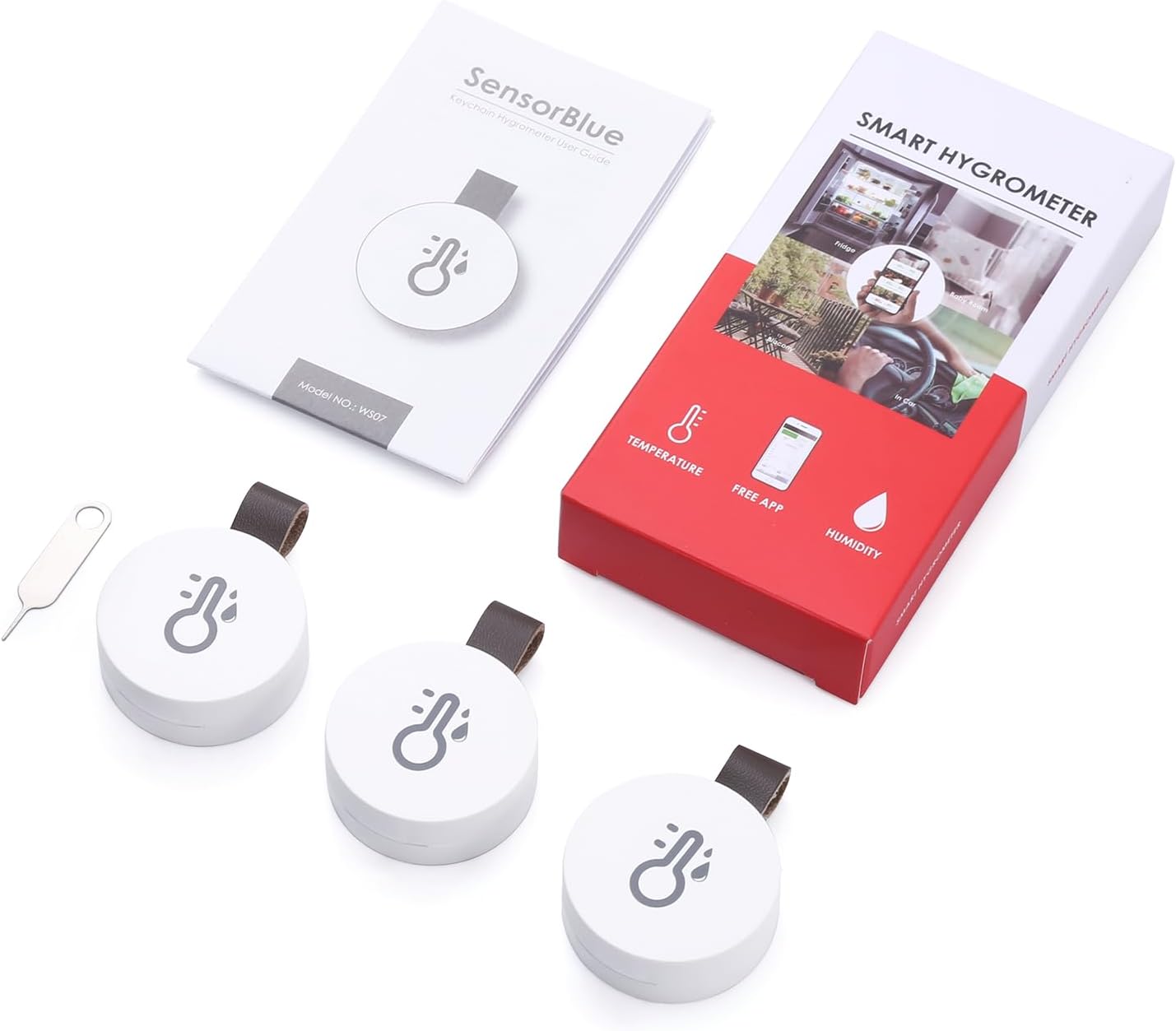
Figure 3: Contents of the ORIA Thermometer Hygrometer package.
4. Setup
Follow these steps to set up your ORIA Thermometer Hygrometer:
- Download the SensorBlue App: Scan the QR code provided in the manual or search for "SensorBlue" in your device's app store. The app is available for Android 4.3 or above and iPhone 4s or above.
Download SensorBlue for iOS - Activate the Device: Gently pull out the battery insulation sheet from the sensor. This activates the battery.
- Open App and Pair: Ensure Bluetooth is enabled on your smartphone. Open the SensorBlue app. The app will prompt you to add a device. Press the button on the ORIA sensor once to initiate pairing.
- Confirm Connection: Once paired, the sensor's data will appear in the app. You can then name your sensor and set desired temperature/humidity alert ranges.

Figure 4: Easy setup steps for the ORIA sensor.
Setup and Operation Video Guide
Video 1: An instructional video demonstrating the setup process, data monitoring, and battery replacement for the ORIA Wireless Thermometer Hygrometer.
5. Operating Instructions
Monitoring Data
Once connected, the SensorBlue app will display real-time temperature and humidity readings from your ORIA sensor. You can view current data, as well as historical trends and distributions.
Setting Alerts
Within the app, navigate to the sensor settings to define your desired temperature and humidity ranges. If the readings go beyond these preset limits, the app will display a red indicator, alerting you to potential issues.
Data Storage and Export
The sensor automatically records data every 10 minutes. This data is stored internally for up to 100 days. To access historical data or export it for further analysis:
- Open the SensorBlue app and select the desired sensor.
- Navigate to the data history section.
- You can view charts of temperature and humidity trends over time.
- To export data, select the export option (usually a CSV icon) and choose the desired date range. The data will be sent to your email in CSV format.

Figure 5: Data storage and export features within the SensorBlue app.
6. Maintenance
Cleaning
To maintain optimal performance, wipe the sensor clean with a soft, dry cloth as needed. Avoid using abrasive cleaners or submerging the device in water.
Battery Replacement
The ORIA sensor is powered by a CR2477 battery, which typically lasts for approximately 1 year. When the battery needs replacement:
- Locate the battery compartment on the back of the sensor.
- Use the provided tool or a similar small, flat object to open the compartment.
- Carefully remove the old CR2477 battery.
- Insert a new CR2477 battery, ensuring correct polarity.
- Close the battery compartment securely.
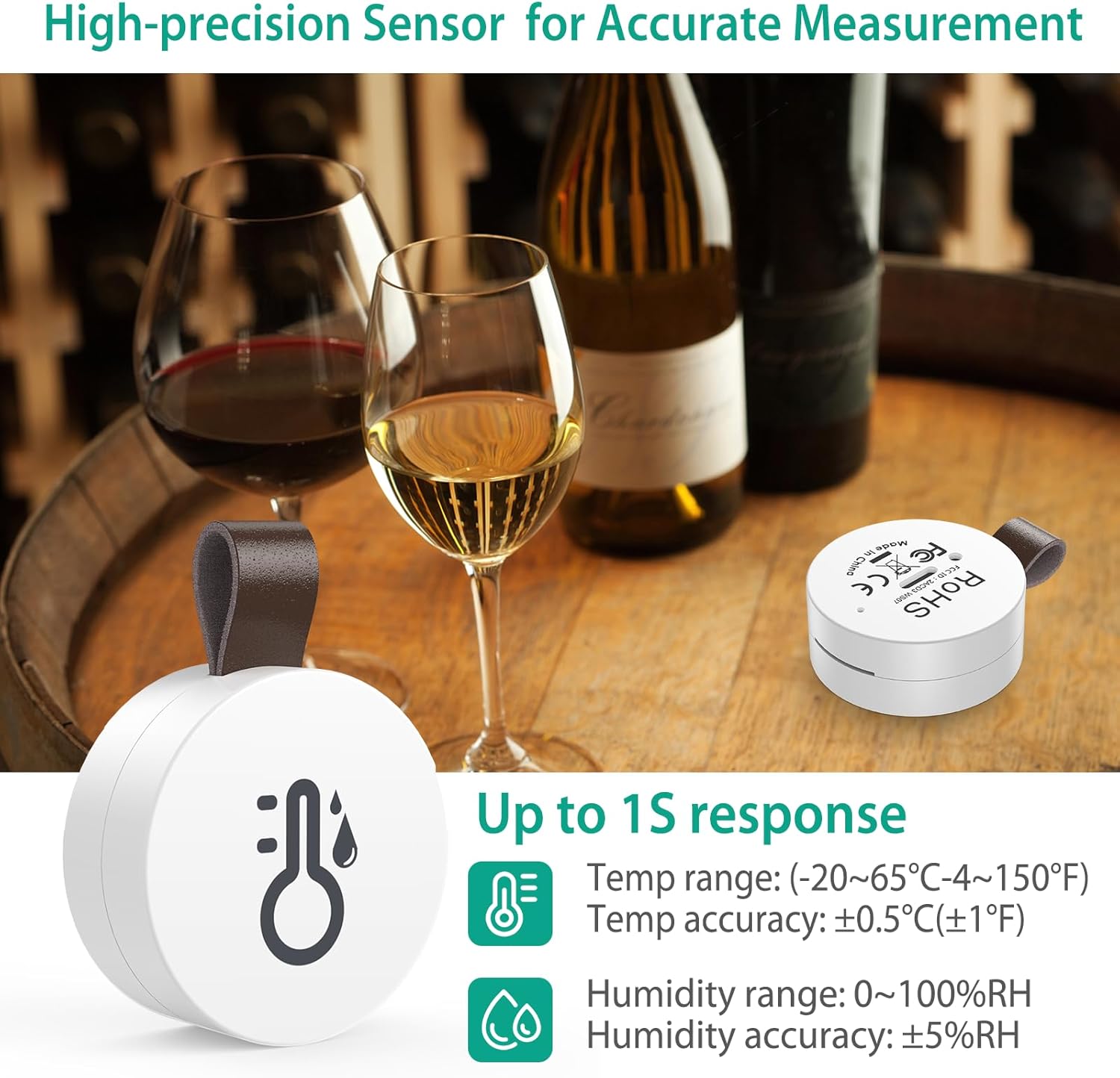
Figure 6: The ORIA sensor's compact design and high-precision capabilities.
7. Troubleshooting
If you encounter issues with your ORIA Thermometer Hygrometer, consider the following:
- Device Not Connecting/Pairing:
- Ensure Bluetooth is turned on on your phone.
- Make sure your phone is within the effective range (approx. 20m/65.6ft without obstacles) of the device.
- Confirm that the battery insulation sheet has been removed.
- Press the button on the device once to ensure it's in pairing mode.
- If the issue persists, try replacing the battery.
- Inaccurate Readings:
- Ensure the sensor is placed in a location free from direct sunlight, drafts, or extreme temperature sources.
- Allow the device sufficient time to stabilize after placement or battery replacement.
- Data Not Updating:
- Ensure your phone comes within range of the device at least once per day to sync stored data.
- Check the app for any error messages or connectivity issues.
8. Specifications
| Specification | Detail |
|---|---|
| Brand | ORIA |
| Model Name | OUS1-WA64_2PCS |
| Connectivity Technology | Bluetooth 5.0 |
| Temperature Range | -20℃ to 60℃ (-4℉ to 140℉) |
| Temperature Accuracy | ±0.5℃ (±1℉) |
| Humidity Range | 0-99%RH |
| Humidity Accuracy | ±3%RH |
| Response Time | 1 second (data update) |
| Data Storage | Up to 100 days (recorded every 10 mins) |
| Wireless Range | Up to 20m (65.6ft) without obstacles |
| Power Source | Battery Powered (CR2477) |
| Battery Life | Approx. 1 year |
| Dimensions | 1.3 x 1.3 x 0.47 inches |
| Weight | 2.08 ounces |
| Material | Plastic |
| Indoor/Outdoor Usage | Indoor |
9. Warranty and Support
For warranty information and technical support, please refer to the contact details provided on the product packaging or the official ORIA website. Keep your purchase receipt for warranty claims.