
NETGEAR WAX204-100NAS
Contents
NETGEAR WAX204 WiFi 6 Dual-Band Gigabit Router User Manual
Model: WAX204-100NAS | Brand: NETGEAR
1. Introduction
The NETGEAR WAX204 delivers high-speed WiFi 6 that is affordable and easy to install, without added infrastructure and deployment costs. It’s a cost-effective WiFi solution for small businesses, home offices, dorm rooms, cafes, retail, and small offices. Engineered with the latest in WiFi technology, the WAX204 provides performance, coverage, and security to keep your small business, employees, guests, and customers connected.

Figure 1: Front view of the NETGEAR WAX204 WiFi 6 Router, showcasing its design with three external antennas and front-facing LED indicators for status.
2. What's in the Box
Verify that your package contains the following items:
- WiFi 6 AX1800 Dual Band Wireless Access Point (WAX204)
- Ethernet cable
- 12V DC, 1.5A power adapter
- Installation guide
3. Setup
Follow these steps to set up your NETGEAR WAX204 router:
- Unpack and Place: Carefully remove all components from the box. Place the router in a central location, away from obstructions and other electronic devices that might cause interference. Ensure good airflow around the device.
- Connect Power: Connect the provided 12V DC, 1.5A power adapter to the router's power port and then plug it into a wall outlet. Wait for the power LED indicator on the router to stabilize.
- Connect to Modem: Use the included Ethernet cable to connect the Internet (WAN) port on the back of the WAX204 router to your existing cable modem or internet service provider's device.
- Connect Devices: For initial setup, connect a computer directly to one of the 4 x 1G Ethernet LAN ports on the router using an Ethernet cable. You can also connect wirelessly using the default WiFi network name (SSID) and password found on the router's label.
- Access Setup Interface: Open a web browser on the connected computer and navigate to http://routerlogin.net or http://192.168.1.1. Follow the on-screen instructions to complete the initial configuration, including setting up your WiFi network name and password.


Figure 2: Left: The initial setup welcome screen for the NETGEAR WAX204. Right: A detailed view of the router's rear panel, highlighting the Internet (WAN) port and the four 1 Gigabit Ethernet ports for wired connections.
4. Operating Your Router
The NETGEAR WAX204 is designed for optimal performance in various environments, supporting high-speed WiFi 6 connectivity.
4.1. WiFi 6 Advantages
- Faster Speeds: Experience AX1800 Gigabit speed with WiFi 6 technology for uninterrupted streaming, HD video gaming, and web conferencing.
- Extended Coverage: Provides coverage up to 1,500 sq. ft., supporting up to 40 devices simultaneously.
- Increased Capacity: Optimized for concurrent usage and high-density areas, handling up to 4 times more capacity than previous WiFi standards.
- Dual-Band Support: Operates on both 2.4 GHz and 5 GHz bands for flexible connectivity and reduced interference.
- Backward Compatibility: Fully compatible with older WiFi 5 (802.11ac) and earlier devices, ensuring all your existing devices can connect.


Figure 3: Left: A bar chart illustrating the speed advantage of WAX204 WiFi 6 (1.8 Gbps) over AC1200 WiFi 5 (1.2 Gbps). Right: A visual representation of the router's ability to connect various devices for work, entertainment, and smart home applications.
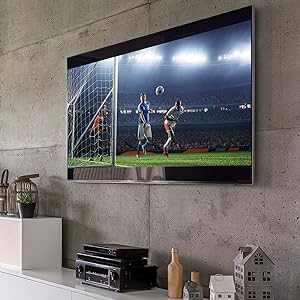

Figure 4: Left: A large screen TV showing a soccer game, demonstrating the router's capability for high-quality video streaming. Right: A tablet displaying a network map, suggesting ease of management and suitability for home office or small business environments.
4.2. Official Product Video
Video: "Introducing WiFi 6 For Business | NETGEAR". This video provides an overview of WiFi 6 technology and its benefits for business environments, including improved speed, coverage, and capacity.
5. Maintenance
To ensure optimal performance and longevity of your NETGEAR WAX204 router, consider the following maintenance tips:
- Firmware Updates: Regularly check for and install the latest firmware updates from the NETGEAR support website. Firmware updates often include performance improvements, security patches, and new features.
- Regular Reboot: Periodically reboot your router (e.g., once a month) by unplugging it from the power outlet for 10-15 seconds and then plugging it back in. This can help clear temporary issues and improve performance.
- Secure Your Network: Use strong, unique passwords for your WiFi network (WPA2/WPA3 encryption) and the router's administration interface. Change default credentials immediately after setup.
- Optimal Placement: Ensure the router is placed in an open area, away from large metal objects, concrete walls, and other electronic devices that can interfere with the WiFi signal.
- Cleanliness: Keep the router free from dust and debris. Ensure ventilation openings are not blocked to prevent overheating.
6. Troubleshooting
If you encounter issues with your NETGEAR WAX204 router, try the following troubleshooting steps:
- No Internet Connection:
- Check all cable connections (power, Ethernet to modem, Ethernet to devices).
- Reboot your modem and then your router.
- Verify your Internet Service Provider (ISP) is not experiencing an outage.
- Slow WiFi Speed:
- Ensure your devices are connected to the 5 GHz band if possible, for faster speeds.
- Reduce interference by moving the router away from other electronics.
- Check for active downloads or streaming on other devices that might be consuming bandwidth.
- Update your device's wireless drivers.
- Devices Not Connecting to WiFi:
- Double-check the WiFi password.
- Ensure the WiFi network is enabled in the router's settings.
- Reboot the device attempting to connect.
- If the issue persists, try a factory reset of the router (refer to the installation guide for specific instructions), but note this will erase all custom settings.
7. Technical Specifications

Figure 5: Overview of the NETGEAR WAX204's technical specifications, including physical dimensions and key performance metrics.
| Feature | Specification |
|---|---|
| Model Name | WAX204-100NAS |
| Wireless Type | 802.11ax (WiFi 6) |
| Frequency Band Class | Dual-Band (2.4 GHz & 5 GHz) |
| Wireless Speed | AX1800 (Up to 1.8 Gbps) |
| Coverage Area | Up to 1,500 sq. ft. |
| Device Capacity | Up to 40 devices |
| Ethernet Ports | 4 x 1G Ethernet LAN ports, 1 x 1G Ethernet WAN port |
| Security Protocol | WPA-PSK, WPA2-PSK |
| Special Feature | WPS (Wi-Fi Protected Setup) |
| Item Weight | 2.33 pounds |
| Package Dimensions | 10.87 x 8.11 x 4.41 inches |
8. Warranty and Support
For detailed warranty information and technical support, please refer to the official NETGEAR resources.
- User Guide: A comprehensive PDF user manual is available for download at the following link: NETGEAR WAX204 User Manual (PDF).
- Online Support: Visit the official NETGEAR support website for FAQs, troubleshooting guides, and community forums.
- Contact Support: If you require further assistance, contact NETGEAR customer support through their official channels.
Ask a question about this manual
Ask about setup, troubleshooting, compatibility, parts, safety, or missing instructions. Manuals+ will review the question and use this page’s manual context to help answer it.