
1. Introduction
The WAVLINK UG69DK1 USB-C Docking Station is designed to expand the connectivity of your laptop or computer, transforming it into a powerful workstation. This docking station provides multiple ports for connecting external displays, USB devices, Ethernet, and audio peripherals through a single USB-C or USB-A connection to your host device. It supports dual 4K displays or a single 5K display, enhancing productivity for various work environments.
2. Package Contents
Please verify that all items are present in your package:
- 1 x WAVLINK UG69DK1 USB-C Universal Docking Station
- 1 x USB 3.0 C to C Cable
- 1 x USB 3.0 A to C Cable
- 1 x DC20V Certified Power Adapter
- 1 x User Manual
3. Product Overview
The WAVLINK UG69DK1 docking station offers a comprehensive set of ports for expanded connectivity. Below is an overview of the device and its various connection points.

Figure 1: Front view of the WAVLINK UG69DK1 USB-C Docking Station, showcasing its compact design and port layout.
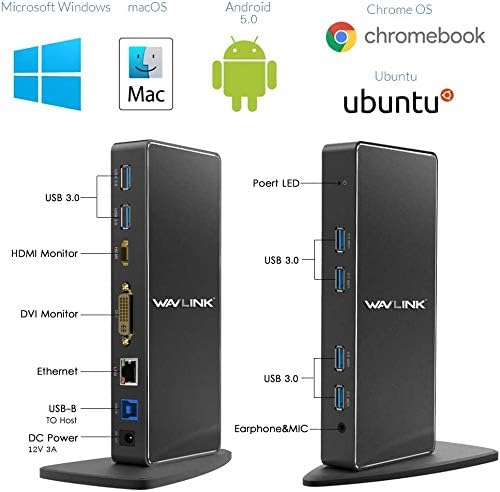
Figure 2: Detailed diagram illustrating the various ports on the WAVLINK UG69DK1 docking station, including USB 3.0, HDMI, DVI, Ethernet, USB-B (host connection), DC Power, Earphone, and Microphone jacks.
Port Layout:
- USB 3.0 Ports (6x): Connect USB peripherals such as keyboards, mice, external hard drives, and flash drives.
- DisplayPort++ (2x): Connect external monitors for video output. Supports resolutions up to 4K (4096x2160@60Hz) per port.
- HDMI Ports (2x): Connect external monitors for video output. Supports resolutions up to 4K (4096x2160@60Hz) per port.
- USB-C Port (1x): Connect to your host laptop for data and video transmission.
- Audio Output Jack (1x): Connect headphones or external speakers.
- Microphone Input Jack (1x): Connect a microphone.
- RJ45 Gigabit Ethernet Port (1x): Connect to a wired network for stable internet access.
- DC Power Jack Port (1x): Connect the included power adapter to supply power to the docking station.
- Power ON/OFF Switch (1x): Controls the power to the docking station.
- LED Indicator: Blue LED indicates power status.
4. System Requirements
To ensure optimal performance, your host computer should meet the following requirements:
- Operating System: Windows (7/8/10/11), macOS (10.13.3 or later), Chrome OS.
- USB Port: Available USB-C port (with DisplayPort Alternate Mode support recommended for full functionality) or USB-A 3.0 port.
- Drivers: DisplayLink drivers must be installed.

Figure 3: Illustration of the WAVLINK UG69DK1's compatibility with various operating systems (Windows, macOS, Android, Chrome OS, Ubuntu) and supported display modes (Distinct, Rotate, Extended, Mirror).
5. Setup Instructions
Follow these steps to set up your WAVLINK UG69DK1 docking station:
- Connect Power: Connect the included DC20V power adapter to the DC Power Jack Port on the docking station, then plug the adapter into a power outlet. Press the Power ON/OFF switch. The blue LED indicator should illuminate.
- Connect to Host Computer:
- If your computer has a USB-C port, use the USB 3.0 C to C Cable to connect the docking station to your computer.
- If your computer has a USB-A port, use the USB 3.0 A to C Cable to connect the docking station to your computer.
- Install DisplayLink Drivers: The docking station utilizes DisplayLink technology for video output.
- For Windows and macOS, drivers are typically installed automatically upon connection or can be downloaded from the official DisplayLink website (www.displaylink.com/downloads).
- Follow the on-screen prompts to complete the driver installation. A restart of your computer may be required.
- Connect External Displays: Connect your monitors to the DisplayPort++ or HDMI ports on the docking station using appropriate cables. The docking station supports up to two 4K displays simultaneously or one 5K display via a single DisplayPort++ port.
- Connect Peripherals: Connect your USB devices (keyboard, mouse, printer, external storage), Ethernet cable, and audio devices to the corresponding ports on the docking station.
6. Operating Instructions
Display Configuration:
After driver installation, you can configure your displays through your operating system's display settings:
- Extend Mode: Each monitor displays a separate desktop, allowing for increased workspace.
- Mirror Mode: All monitors display the same content as your primary display.
- Rotation: Some operating systems and DisplayLink drivers allow for screen rotation (90°, 180°, 270°).
Audio and Network:
- Audio: Select the "DisplayLink Audio" or "WAVLINK Audio" device as your default playback and recording device in your operating system's sound settings.
- Ethernet: The Gigabit Ethernet port provides a stable wired network connection. Ensure your computer's network settings are configured to use the Ethernet adapter provided by the docking station.
7. Maintenance
- Keep the docking station in a dry, well-ventilated area, away from direct sunlight and heat sources.
- Clean the device with a soft, dry cloth. Avoid using liquid cleaners or solvents.
- Do not block ventilation openings.
- Ensure cables are connected securely to prevent accidental disconnections.
8. Troubleshooting
No Power Indicator:
- Ensure the power adapter is securely connected to both the docking station and a working power outlet.
- Verify the power ON/OFF switch is pressed.
No Display on External Monitors:
- Check all video cables (HDMI/DisplayPort) are securely connected to both the docking station and the monitors.
- Ensure the DisplayLink drivers are correctly installed and updated. Visit www.displaylink.com/downloads.
- Verify your computer's display settings are configured to detect and extend/mirror to the external monitors.
- Try connecting one monitor at a time to isolate the issue.
- Restart your computer and the docking station.
USB Devices Not Working:
- Ensure the docking station is powered on and connected to your host computer.
- Try connecting the USB device to a different USB port on the docking station.
- Connect the USB device directly to your computer to confirm it is functional.
No Network Connection:
- Check the Ethernet cable connection between the docking station and your router/modem.
- Verify network settings on your computer.
- Ensure DisplayLink drivers are installed, as they often include the network adapter driver.
9. Specifications
| Feature | Description |
|---|---|
| Model | UG69DK1 |
| Host Connection | USB-C (USB 3.1 Gen1) or USB-A (USB 3.0) |
| Video Output | 2 x DisplayPort++, 2 x HDMI |
| Max Resolution (Dual Display) | 4096 x 2160 @ 60Hz (per port) |
| Max Resolution (Single DisplayPort) | 5120 x 2880 @ 60Hz |
| USB Ports | 6 x USB 3.0 Type-A |
| Ethernet | RJ45 Gigabit Ethernet (10/100/1000 Mbps) |
| Audio | 1 x Audio Output Jack, 1 x Microphone Input Jack |
| Power Supply | DC20V / 2A |
| Dimensions | 228mm x 80mm x 26mm (L x W x H) / 5.91 x 3.15 x 7.87 inches |
| Housing Material | ABS |
| Color | Black |
| Operating System Support | Windows, macOS, Chrome OS |
10. Warranty and Support
WAVLINK products are designed for reliability and performance. For warranty information and technical support, please refer to the official WAVLINK website or contact their customer service directly. Keep your purchase receipt for warranty claims.
For the latest drivers and support resources, please visit: www.wavlink.com