
HUAWEI B628-265
Huawei B628-265 4G/LTE CPE Router User Manual
Model: B628-265
Introduction
The Huawei B628-265 is a high-performance CAT 12 4G/LTE CPE (Customer Premises Equipment) router designed to provide fast and reliable internet connectivity. Featuring an upgraded Balong 5000 chipset, it supports download speeds of up to 600Mbps and upload speeds of 100Mbps. This dual-band Wi-Fi router allows connection for up to 64 devices simultaneously, making it suitable for both home and office environments. Its unlocked design ensures compatibility with any network provider.
What's in the Box
Please verify that all items are present in your product package:
- 1x Huawei B628 (White) Router
- 1x Power Plug (UK Plug)
- 1x Quick Start Guide
- 1x Ethernet Cable
- 1x Warranty Card
Setup Guide
1. Device Overview
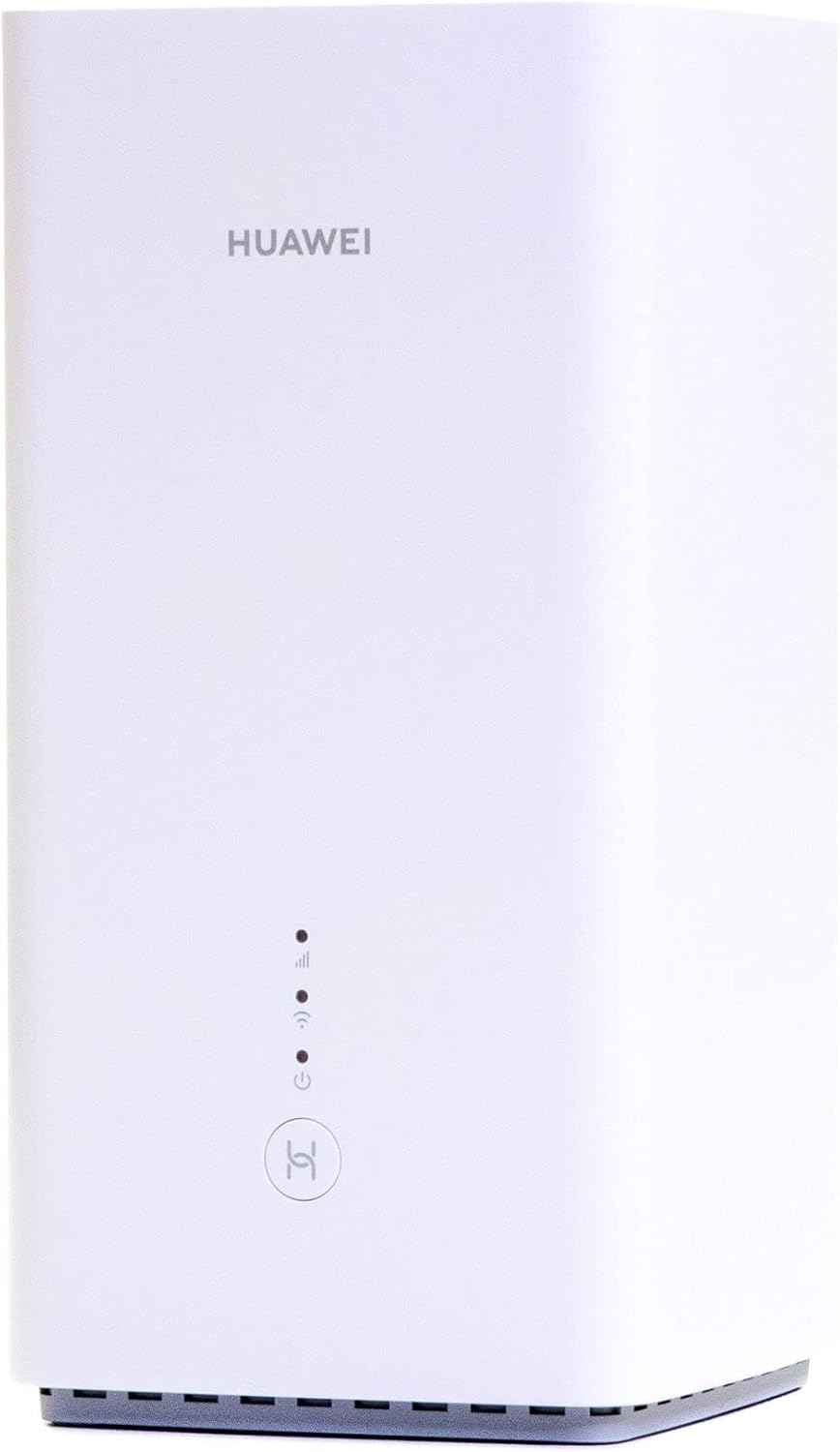
Figure 1: Front View - Shows the Huawei B628-265 router with its minimalist white design and LED indicators for signal strength, Wi-Fi, and power.

Figure 2: Rear View - Displays the back panel of the router with two Gigabit Ethernet ports (LAN1, LAN2/WAN), a TEL port for voice services, and the power input.

Figure 3: Bottom View - Highlights the Nano-SIM card slot, reset button, and the product label with Wi-Fi name, password, and IP address details.
2. SIM Card Installation
- Locate the SIM card slot cover on the bottom of the router (refer to Figure 3).
- Open the SIM card slot cover.
- Insert a Nano-SIM card into the slot with the gold contacts facing down and the notched corner aligned correctly. Ensure it clicks into place.
- Close the SIM card slot cover.
3. Power Connection
- Connect the provided power adapter to the "POWER" port on the back of the router (refer to Figure 2).
- Plug the power adapter into a wall outlet.
- The router will automatically power on. Wait for the LED indicators on the front to stabilize. The signal strength indicator should show a steady light, and the Wi-Fi indicator should be on.
4. Initial Wi-Fi Connection
- On your computer or mobile device, search for available Wi-Fi networks.
- Locate the Wi-Fi network name (SSID) printed on the product label on the bottom of the router (e.g., "HUAWEI_B628_XXXX").
- Enter the Wi-Fi password (WPA Key) also found on the product label to connect.
- Once connected, you can access the internet.
Operating Instructions
Connecting Devices
The Huawei B628-265 supports up to 64 Wi-Fi enabled devices simultaneously. You can connect devices wirelessly or via Ethernet cable.
- Wireless Connection: Use the Wi-Fi network name and password provided on the router's label to connect your smartphones, tablets, laptops, and other Wi-Fi devices.
- Wired Connection: Use an Ethernet cable to connect devices like desktop computers, gaming consoles, or smart TVs to the LAN ports (LAN1, LAN2/WAN) on the back of the router. The LAN2/WAN port can also function as a WAN port if you wish to connect the router to an existing wired network.
Accessing Router Management Page
To configure advanced settings, manage connected devices, or change Wi-Fi settings:
- Ensure your device is connected to the router's Wi-Fi or via an Ethernet cable.
- Open a web browser (e.g., Chrome, Firefox, Edge).
- In the address bar, type the router's IP address, which is typically
192.168.8.1(found on the product label), and press Enter. - Enter the login username and password. The default password is also on the product label. It is highly recommended to change the default password for security reasons after initial setup.
External Antenna Ports
The router is equipped with two external antenna ports (MAIN and AUX) to improve 4G/LTE signal reception, especially in areas with weak cellular coverage. These are located under a cover on the back of the router (refer to Figure 2). Connect compatible external antennas (sold separately) to these ports for enhanced performance.
Voice Port (TEL)
The router includes a TEL port, allowing you to connect a standard analog telephone for voice services if supported by your SIM card's mobile network provider.
Maintenance
- Cleaning: Use a soft, dry cloth to clean the router's exterior. Do not use liquid cleaners or aerosols.
- Ventilation: Ensure the router is placed in a well-ventilated area to prevent overheating. Do not block the ventilation openings.
- Firmware Updates: Periodically check the router's management page for available firmware updates. Keeping the firmware updated ensures optimal performance and security.
- Resetting the Router: If you encounter persistent issues, you can perform a factory reset. Locate the reset button on the bottom of the router (refer to Figure 3). Use a pin or a straightened paperclip to press and hold the reset button for approximately 5-10 seconds until the indicators flash. This will restore the router to its factory default settings, including Wi-Fi name and password.
Troubleshooting
- No Internet Connection:
- Check if the SIM card is correctly inserted and activated.
- Verify that the signal strength indicator on the router is lit. If not, try repositioning the router or connecting external antennas.
- Restart the router by unplugging and replugging the power adapter.
- Access the router's management page to check network status and APN settings. Ensure the APN settings match your mobile network provider's requirements.
- Slow Internet Speed:
- Ensure the router is placed in an open area, away from obstructions and other electronic devices that may cause interference.
- Check the signal strength indicator; a weak signal can lead to slower speeds.
- Reduce the number of connected devices or bandwidth-intensive activities.
- Consider connecting external antennas for improved signal reception.
- Cannot Connect to Wi-Fi:
- Ensure you are entering the correct Wi-Fi password (WPA Key) from the router's label.
- Check if the Wi-Fi indicator on the router is lit.
- Restart both the router and your device.
- If you have changed the Wi-Fi settings, try connecting with the new password. If forgotten, a factory reset may be necessary.
- Forgot Router Management Page Password:
- Perform a factory reset using the reset button on the bottom of the router. This will revert the password to the default one printed on the label.
Specifications
| Feature | Detail |
|---|---|
| Model Number | B628-265 |
| Brand | HUAWEI |
| Network Type | 4G/LTE CAT 12 CPE |
| Chipset | Balong 5000 |
| Max Download Speed | 600Mbps |
| Max Upload Speed | 100Mbps |
| Wi-Fi Standard | 802.11ac |
| Frequency Band | Dual-Band |
| Max Connected Devices | Up to 64 |
| Ethernet Ports | 2x Gigabit Ethernet (LAN1, LAN2/WAN) |
| Voice Port | 1x TEL port |
| External Antenna Ports | 2x (MAIN, AUX) |
| SIM Card Type | Nano-SIM |
| Dimensions (L x W x H) | 9.5 x 9.5 x 19 cm |
| Weight | 550 Grams |
| Color | White |
| Special Features | Access Point Mode, X-shaped Wi-Fi antennas |
Warranty and Support
This Huawei B628-265 router comes with a 2-Year warranty provided by LIVEWIRE/eFones®. For technical support, warranty claims, or further assistance, please contact your retailer or the manufacturer's authorized service center. Please refer to the warranty card included in your package for detailed terms and conditions.
For additional resources and support, you may visit the official HUAWEI support website or contact their customer service.
Related documentsB628-265


Ask a question about this manual
Ask about setup, troubleshooting, compatibility, parts, safety, or missing instructions. Manuals+ will review the question and use this page’s manual context to help answer it.