
1. Introduction
This manual provides detailed instructions for the setup, operation, maintenance, and troubleshooting of your HISTTON Industrial Mini PC, model P12-B-i7-10510U. Please read this manual thoroughly before using the device to ensure proper functionality and longevity.
2. Product Overview
2.1 Key Features
- Processor: Intel Core i7-10510U (10th Generation)
- Memory: 16GB DDR4 RAM
- Storage: 128GB SSD + 1TB HDD
- Operating System: Pre-installed Windows 10 Pro
- Connectivity: HDMI, VGA, Multiple USB ports (USB 2.0, USB 3.0), GPIO, LPT, RS232 COM ports, Dual Gigabit Ethernet (NIC), WiFi, Bluetooth
- Cooling: Fanless aluminum alloy design for silent operation and efficient heat dissipation
- Display Support: Dual monitor output via HDMI and VGA
2.2 Package Contents
Verify that all items are present in the package:
- HISTTON Industrial Mini PC Unit
- Power Adapter
- WiFi Antennas
- Mounting Bracket (if included)
- Screws and cables for internal storage (if applicable)
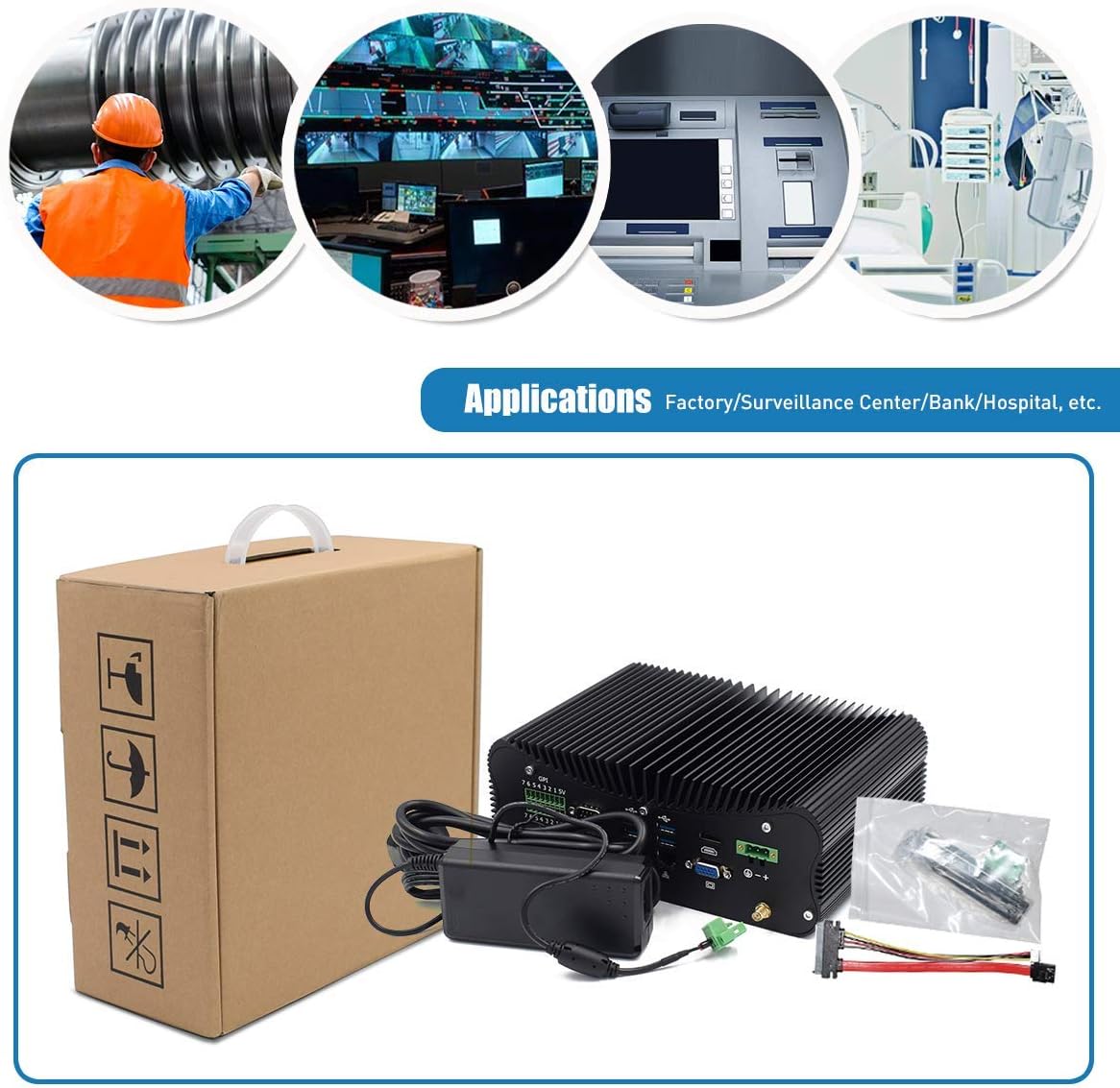
Figure 2.2.1: Contents of the HISTTON Industrial Mini PC package, showing the main unit, power supply, and various accessories.
2.3 Port Layout
Familiarize yourself with the available ports on your Mini PC:

Figure 2.3.1: Rear panel ports of the Mini PC, including GPIO, COM ports, USB 3.0, Ethernet, HDMI, VGA, and DC power input.
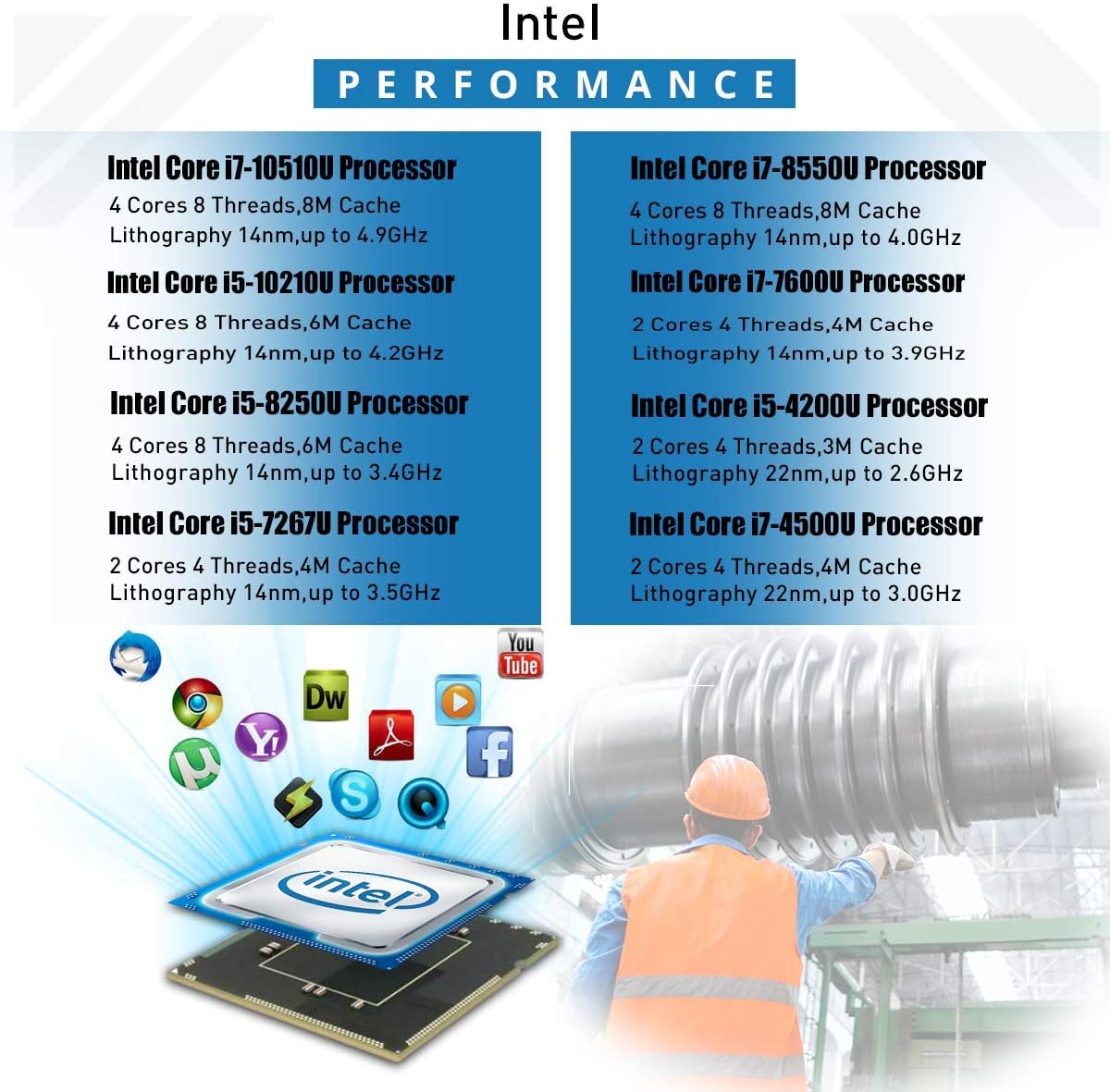
Figure 2.3.2: Comprehensive port diagram with labels, highlighting USB 2.0, USB 3.0, HDMI, VGA, GPIO, COM ports, LAN, and the power switch.
3. Setup
3.1 Initial Setup
- Connect Peripherals: Connect your monitor(s) to the HDMI and/or VGA ports. Connect a USB keyboard and mouse to the available USB ports.
- Connect Network: For wired internet, connect an Ethernet cable to one of the LAN ports. For wireless internet, screw the provided WiFi antennas onto the connectors on the rear panel.
- Connect Power: Plug the power adapter into the DC power input port on the Mini PC, then plug the adapter into a power outlet.
- Power On: Press the power button located on the front/side panel of the Mini PC.
3.2 Operating System
Your HISTTON Industrial Mini PC comes with Windows 10 Pro pre-installed. Upon first boot, you may need to complete the initial Windows setup process, including language selection, user account creation, and network configuration.
4. Operating Instructions
4.1 Power Management
- Power On: Press the power button once.
- Power Off: Use the Windows shutdown procedure (Start > Power > Shut down) or press and hold the power button for 5 seconds for a forced shutdown (not recommended for regular use).
- Restart: Use the Windows restart procedure (Start > Power > Restart).
4.2 Connecting Displays
The Mini PC supports dual display output. Connect your primary monitor to either the HDMI or VGA port, and your secondary monitor to the other available display port. You can configure display settings within Windows (Right-click on desktop > Display settings).

Figure 4.2.1: Example of a dual monitor setup using the Mini PC's HDMI and VGA outputs.
4.3 Using Serial (COM) Ports
The Mini PC features multiple RS232 COM ports (COM5, COM6, etc.) for connecting industrial devices, point-of-sale systems, or other serial peripherals. Ensure proper driver installation for your specific serial devices.
4.4 GPIO and LPT Ports
The General Purpose Input/Output (GPIO) and LPT (Parallel) ports are available for specialized industrial applications requiring direct hardware control. Consult your application's documentation for specific usage instructions.
5. Maintenance
5.1 Cleaning
To maintain optimal performance, regularly clean the exterior of the Mini PC with a soft, dry cloth. Avoid using liquid cleaners directly on the device. The fanless design minimizes dust accumulation internally, but ensure the heat sink fins are free from obstructions.
5.2 Storage and Memory Expansion
The Mini PC allows for internal storage and memory upgrades. To access the internal components, carefully remove the bottom cover. The device supports 2.5-inch HDD/SSD, mSATA SSD, M.2 SSD, and DDR4 RAM modules.

Figure 5.2.1: Internal layout of the Mini PC, indicating locations for 2.5-inch HDD, mSATA SSD, M.2 SSD, and DDR4 RAM slots.
5.3 Fanless Cooling System
The Mini PC utilizes an all-aluminum body and a fanless design for passive cooling. This design ensures silent operation and reduces maintenance needs by eliminating moving parts prone to wear and dust accumulation.

Figure 5.3.1: Illustration of the fanless cooling mechanism, where the aluminum alloy body acts as a heatsink for efficient heat transfer.
6. Troubleshooting
6.1 Common Issues and Solutions
- No Power: Ensure the power adapter is securely connected to both the Mini PC and a working power outlet. Test the outlet with another device.
- No Display: Verify that the monitor is powered on and correctly connected to the Mini PC's HDMI or VGA port. Try a different cable or monitor if possible. Ensure the correct input source is selected on your monitor.
- No Network Connection: For wired connections, check the Ethernet cable and router. For WiFi, ensure antennas are attached, WiFi is enabled in Windows, and you are connected to the correct network.
- System Unresponsive: If the system freezes, press and hold the power button for 5 seconds to force a shutdown, then restart.
6.2 Resetting CMOS
If you encounter boot issues or incorrect BIOS settings, you may need to reset the CMOS. Locate the CMOS button hole (refer to Figure 2.3.2) and use a thin, non-conductive object to press the button for a few seconds while the PC is powered off.
7. Specifications
7.1 Technical Specifications
| Component | Specification |
|---|---|
| Processor | Intel Core i7-10510U (1.8 GHz, 4 Cores, 8 Threads, 8M Cache, up to 4.9 GHz) |
| RAM | 16 GB DDR4 |
| Storage | 128 GB SSD + 1 TB HDD |
| Operating System | Windows 10 Pro |
| Graphics | Intel UHD Graphics (Dedicated) |
| Max Screen Resolution | 3840 x 2160 pixels |
| Wireless Connectivity | WiFi, Bluetooth |
| Ports | HDMI, VGA, USB 3.0, USB 2.0, RS232 COM, GPIO, LPT, Dual Gigabit Ethernet |
| Dimensions (LxWxH) | 9.45 x 6.3 x 3.39 inches |
| Item Weight | 5.06 pounds |

Figure 7.1.1: Intel processor performance overview, including the i7-10510U.
8. Warranty and Support
For warranty information and technical support, please refer to the documentation provided with your purchase or contact HISTTON customer service through their official channels. Keep your proof of purchase for warranty claims.