
1. Introduction
Thank you for choosing the HBN Smart Plug WiFi Socket. This smart plug allows you to control your home appliances remotely, set schedules, and use voice commands through compatible smart assistants. This manual provides detailed instructions for setting up, operating, and maintaining your smart plug to ensure optimal performance and a seamless smart home experience.

Image: The HBN Smart Plug, a compact white device with a UK 3-pin socket and a power button with a blue LED indicator.
Key Features:
- Remote Control: Control appliances from anywhere using the HBN Smart app.
- Voice Control: Compatible with Amazon Alexa and Google Home Assistant.
- Scheduling & Timer: Set daily ON/OFF schedules and countdown timers to automate your devices and save energy.
- Child Safety Design: Features a sliding safety cover to prevent accidental contact.
- Space-Saving Design: Compact size ensures it does not obstruct adjacent outlets.

Image: An illustration showing the key features of the HBN Smart Plug, including APP Control, Voice Control, ON/OFF Button, Schedule Timer, Group Control, and Device Share.

Image: A young child reaching for the HBN Smart Plug plugged into a wall socket, illustrating the child safety design with a protective shield graphic.

Image: The HBN Smart Plug plugged into a wall socket next to a light switch, demonstrating its compact size and how it does not interfere with the switch.
2. Specifications
| Attribute | Value |
|---|---|
| Model Number | BNC-50/E78WT |
| Brand | HBN |
| Colour | White |
| Material | Acrylonitrile Butadiene Styrene (ABS) |
| Voltage | 240 Volts (AC) |
| Amperage | 13 Amps |
| Wattage | 3120 watts |
| Power Source | AC |
| Plug Type | Standard (UK 3-pin) |
| Installation Method | Plug-in |
| Switch Type | Remote |
| Usage | Indoor use only |
| Connectivity | 2.4GHz WiFi only |
| Certification | CE Certificated |
| Item Weight | 100 g |
| Package Dimensions | 7.1 x 6.4 x 6.2 cm |
3. Setup Guide
Follow these steps to set up your HBN Smart Plug and connect it to your home Wi-Fi network.
3.1. Download the App
Download the HBN Smart app from the App Store (iOS) or Google Play Store (Android). Alternatively, you can use the Smart Life or Tuya Smart app, as they are compatible with this device.
Note: During app upgrades, some Android users might experience issues downloading the HBN APP. In such cases, please use Smart Life or Tuya Smart APP.
3.2. Register and Log In
Open the app and register a new account if you don't have one, then log in.
3.3. Prepare the Smart Plug
- Plug the HBN Smart Plug into a standard wall socket.
- Ensure your Wi-Fi router is powered on and broadcasting a 2.4GHz network. The smart plug only works with 2.4GHz Wi-Fi. If your router broadcasts both 2.4GHz and 5GHz, ensure you connect your phone to the 2.4GHz network during setup.

Image: The HBN Smart Plug next to a Wi-Fi router, with text indicating that only a 2.4GHz network is supported.
3.4. Add Device in App
- In the app, tap the "Add Device" or "+" icon.
- Select "Socket (Wi-Fi)" from the device list.
- Confirm that the indicator light on the smart plug is rapidly flashing. If not, press and hold the power button on the smart plug for 5 seconds until it flashes rapidly. This puts the device into pairing mode (EZ Mode).
- Enter your 2.4GHz Wi-Fi network name and password in the app.
- The app will begin connecting to the smart plug. Once connected, the indicator light on the plug will stop flashing and remain solid.
- You can now rename your smart plug for easier identification (e.g., "Living Room Lamp").

Image: A smartphone screen showing the "Add Device" menu in the HBN Smart app, with "Socket (Wi-Fi)" highlighted.

Image: A smartphone screen showing instructions to reset the device by holding the button for 5 seconds, with an image of the smart plug.

Image: A smartphone screen showing the "Connecting Device" interface, indicating that the light should be flashing to connect to the phone.

Image: A smartphone screen showing the Wi-Fi network selection, emphasizing the choice of a 2.4GHz network.
4. Operating Instructions
4.1. Remote Control via App
Once connected, you can control your smart plug from anywhere using the HBN Smart app (or Smart Life/Tuya Smart app).
- Open the app and select the smart plug you wish to control.
- Tap the power icon to turn the connected appliance ON or OFF.

Image: An aerial view of a house layout with green pins indicating smart devices, and a smartphone screen showing the HBN Smart Socket app interface for remote control.
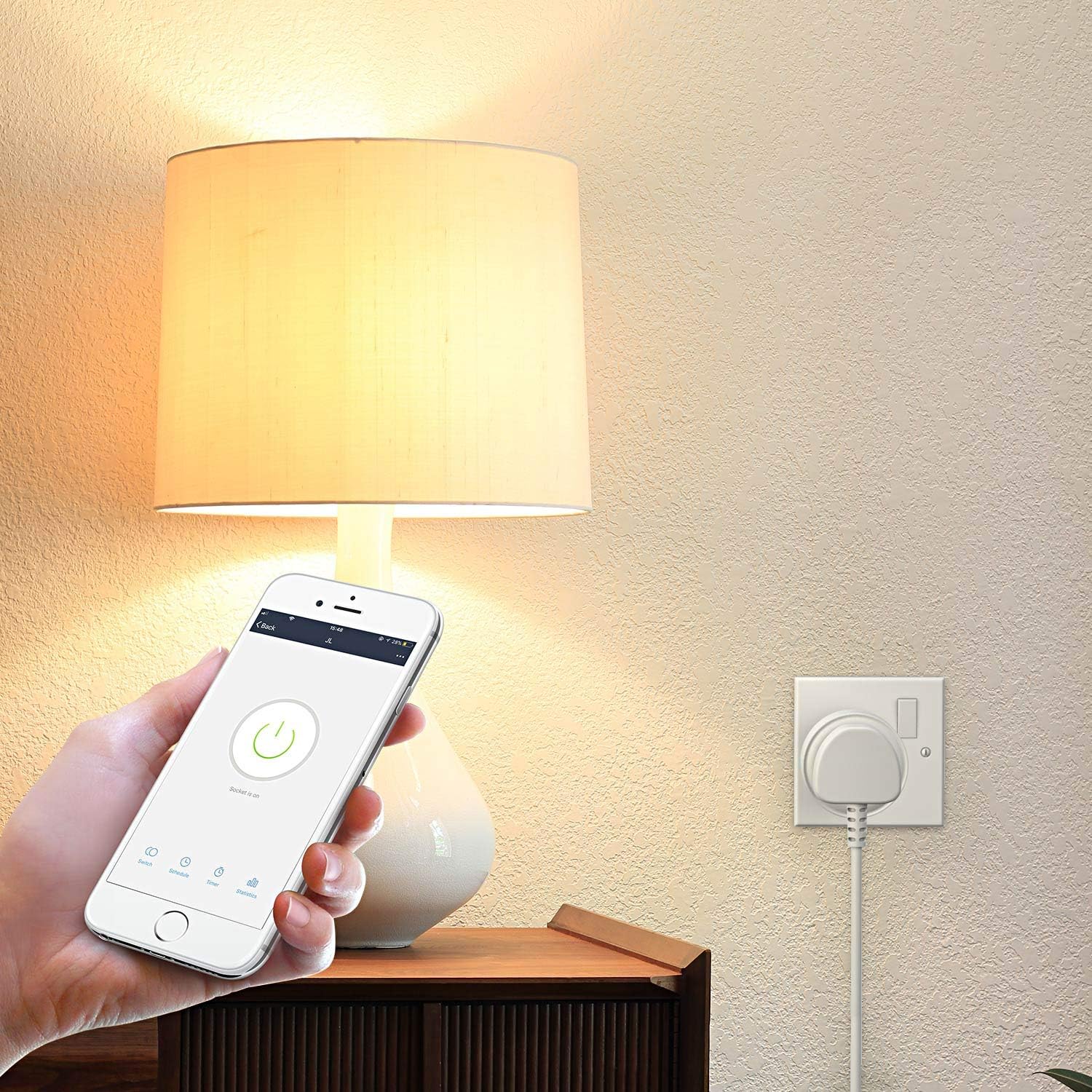
Image: A hand holding a smartphone displaying the HBN Smart app, with the power button on the screen, controlling a lamp plugged into the HBN Smart Plug.

Image: A split image showing a person controlling a smart pet feeder via their smartphone, demonstrating remote app control.
4.2. Voice Control
Integrate your HBN Smart Plug with Amazon Alexa or Google Home Assistant for convenient voice control.
- For Amazon Alexa:
- Open the Alexa app, go to "Skills & Games".
- Search for "HBN Smart" (or "Smart Life"/"Tuya Smart") skill and enable it.
- Link your HBN Smart account with your Alexa account.
- Discover devices. Once discovered, you can say commands like: "Alexa, turn on [device name]".
- For Google Home Assistant:
- Open the Google Home app, tap "Add" > "Set up device" > "Works with Google".
- Search for "HBN Smart" (or "Smart Life"/"Tuya Smart") and link your account.
- Once linked, you can say commands like: "Hey Google, turn off [device name]".

Image: A kitchen counter with an Amazon Echo and Google Home Mini, demonstrating voice control with speech bubbles showing "Alexa, turn on the light." and "okay!".

Image: A graphic showing the HBN Smart Plug and icons for various appliances, indicating compatibility with Amazon Alexa and Google Home assistant for voice control.
4.3. Set Schedules & Timers
Automate your appliances by setting schedules and countdown timers through the app.
- In the app, select your smart plug and navigate to the "Schedule" or "Timer" section.
- Schedule: Create daily or weekly ON/OFF schedules for your devices. You can set up to 15 ON/OFF events per day.
- Countdown Timer: Set a countdown for the plug to turn ON or OFF after a specified duration.
- Random: Set the plug to turn on/off randomly within a time frame, useful for simulating occupancy.
- Circulate: Set the plug to cycle on and off repeatedly.
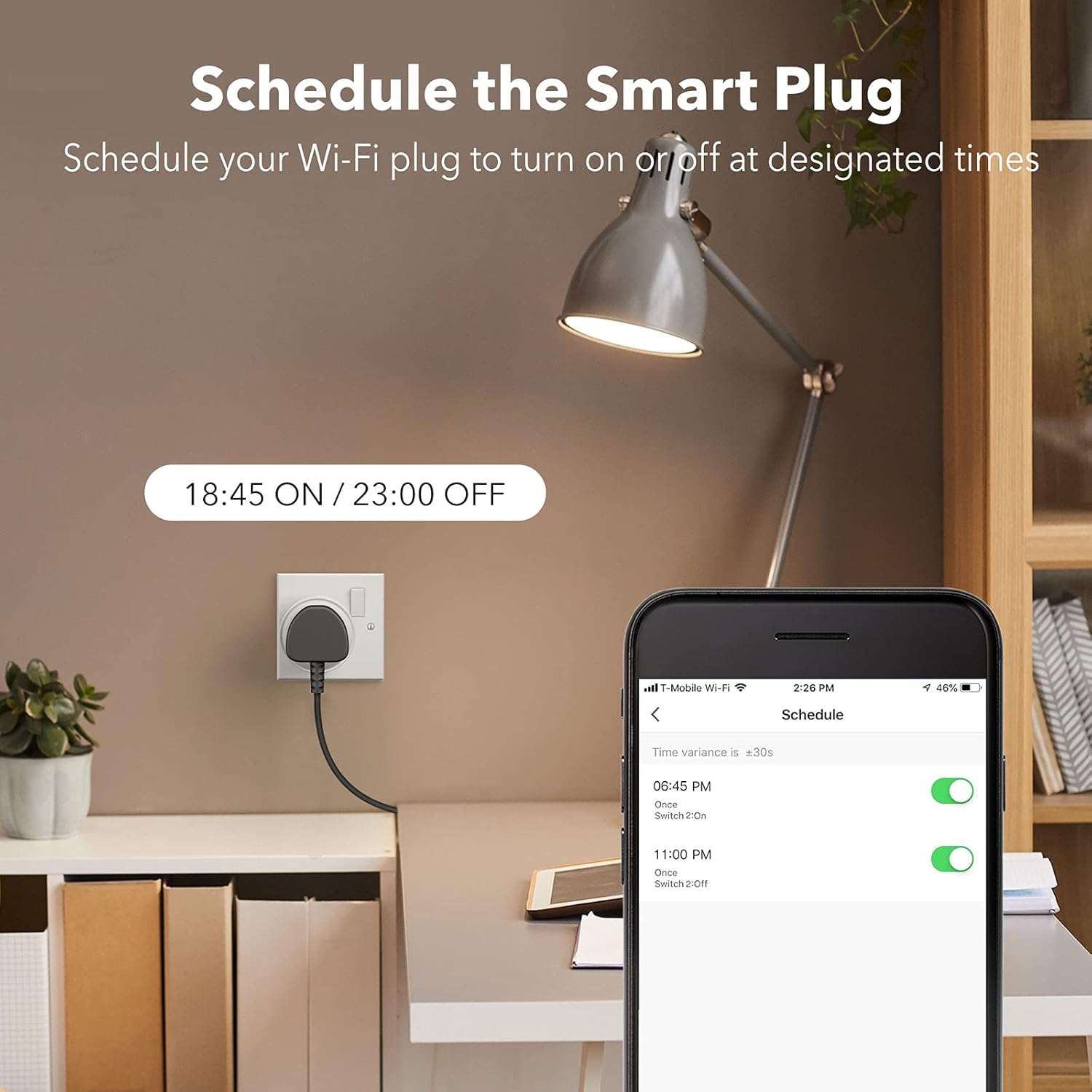
Image: A smart plug connected to a lamp, with a smartphone screen showing the scheduling interface set to turn on at 18:45 and off at 23:00.

Image: A graphic illustrating the scheduling and timer features (Schedule, Countdown, Random, Circulate) with a smartphone screen showing device connection and a smart plug connected to an aquarium light.
4.4. Manual Control
The smart plug features a physical power button on its side. Press this button to manually turn the connected appliance ON or OFF.
5. Maintenance
- The HBN Smart Plug is designed for indoor use only. Do not use it in wet environments or outdoors.
- To clean the smart plug, wipe it with a dry, soft cloth. Do not use liquid cleaners or sprays.
- Ensure the plug is disconnected from the power outlet before cleaning.
- Avoid exposing the device to extreme temperatures or direct sunlight.
6. Troubleshooting
6.1. Device Not Connecting to Wi-Fi
- Check Wi-Fi Band: Ensure your router is broadcasting a 2.4GHz Wi-Fi network and your phone is connected to it during setup. The smart plug does not support 5GHz Wi-Fi.
- Wi-Fi Password: Double-check that you have entered the correct Wi-Fi password in the app.
- Router Proximity: Move the smart plug closer to your Wi-Fi router during the initial setup process.
- Reset Device: Press and hold the power button on the smart plug for 5 seconds until the indicator light flashes rapidly to re-enter pairing mode.
- Router Settings: If issues persist, check your router settings for any restrictions on new device connections or MAC address filtering.
6.2. Voice Control Not Working
- App Linkage: Ensure your HBN Smart (or Smart Life/Tuya Smart) account is correctly linked to your Amazon Alexa or Google Home account.
- Device Discovery: Ask your voice assistant to "discover devices" after linking the skill/service.
- Device Name: Use the exact device name you set in the HBN Smart app when giving voice commands.
- Internet Connection: Verify that both your smart plug and voice assistant device have a stable internet connection.
6.3. Schedules Not Activating
- Time Zone: Ensure the time zone in your HBN Smart app is correctly set.
- Schedule Status: Verify that the schedules are enabled in the app.
- Internet Connection: While schedules are typically stored on the device, a stable internet connection is needed for initial setup and synchronization.
7. Warranty and Support
The HBN Smart Plug is CE Certificated, ensuring it meets European safety, health, and environmental protection requirements. HBN is committed to customer satisfaction.
For any questions, technical support, or warranty inquiries, please contact the seller or refer to the support section within the HBN Smart app. Please retain your proof of purchase for warranty claims.


