1. Introduction
This manual provides detailed instructions for the installation, operation, maintenance, and troubleshooting of the Cudy PE25 2.5Gbps PCI Express Network Adapter. Please read this manual thoroughly before installation and use to ensure proper functionality and to avoid any potential issues.

Image 1.1: Cudy PE25 2.5Gbps PCI Express Network Adapter. This image shows the network adapter card with its standard bracket, featuring the RJ45 port and PCIe connector.
2. Package Contents
Verify that all items are present in your package:
- Cudy PE25 2.5Gbps PCI Express Network Adapter
- Standard Profile Bracket (pre-installed)
- Low-Profile Bracket
- Driver CD (or link to online drivers)
- Quick Installation Guide

Image 2.1: Cudy PE25 Product Box. The retail packaging for the Cudy PE25 network adapter, indicating its 2.5Gbps speed and PCI Express interface.
3. System Requirements
- Available PCI Express x1, x4, x8, or x16 slot
- Operating System: Windows 11/10/8.1/8/7, Windows Server 2003/2008/2012, Linux
- Minimum 1GB RAM
- Compatible network cable (Cat5e or higher recommended for 2.5Gbps speeds)

Image 3.1: PCIe Slot Compatibility. This diagram illustrates the various PCI Express slot types (x1, x4, x8, x16) that are compatible with the Cudy PE25 adapter.

Image 3.2: Operating System Compatibility. A computer monitor displaying various operating system logos, including Windows, Windows Server, Synology DSM, and Linux, indicating broad compatibility for the network adapter.
4. Setup and Installation
4.1 Hardware Installation
- Power Off Your Computer: Completely shut down your computer and disconnect the power cord.
- Open the Computer Case: Remove the side panel of your computer case.
- Locate an Available PCIe Slot: Find an empty PCI Express x1, x4, x8, or x16 slot on your motherboard.
- Remove Slot Cover: Remove the metal slot cover corresponding to the chosen PCIe slot.
- Install the Network Adapter: Carefully insert the Cudy PE25 adapter into the PCIe slot, pressing firmly until it is securely seated. Ensure the gold contacts are fully engaged.
- Secure the Adapter: Fasten the adapter's bracket to the computer case with a screw.
- Close the Computer Case: Replace the side panel and reconnect the power cord.
4.2 Bracket Replacement (Optional)
If your computer case requires a low-profile bracket, follow these steps:
- Unscrew the two screws holding the standard bracket to the adapter.
- Carefully remove the standard bracket.
- Align the low-profile bracket with the screw holes on the adapter.
- Secure the low-profile bracket with the two screws.

Image 4.1: Standard and Low-Profile Brackets. This image displays the Cudy PE25 network adapter alongside both its standard and low-profile brackets, offering flexibility for different computer chassis sizes.
4.3 Driver Installation
After hardware installation, power on your computer. The operating system may automatically detect and install the necessary drivers. If not, follow these steps:
- For Windows:
- Insert the provided Driver CD into your CD-ROM drive and follow the on-screen instructions.
- Alternatively, download the latest drivers from the official Cudy website or Realtek website (for RTL8125 chipset).
- After installation, verify the adapter is recognized in Device Manager under "Network adapters."
- For Linux:
- Most modern Linux distributions include native support for the Realtek RTL8125 chipset. The adapter should be recognized automatically.
- If not, consult your distribution's documentation for installing Realtek RTL8125 drivers or download them from the Realtek website.
5. Operating Instructions
5.1 Connecting to a Network
- Connect one end of an Ethernet cable (Cat5e or higher recommended) to the RJ45 port on the Cudy PE25 adapter.
- Connect the other end of the Ethernet cable to your router, switch, or modem.
- Once connected, the Link/Speed/Act LED indicators on the adapter's RJ45 port will illuminate, indicating network activity and connection speed.
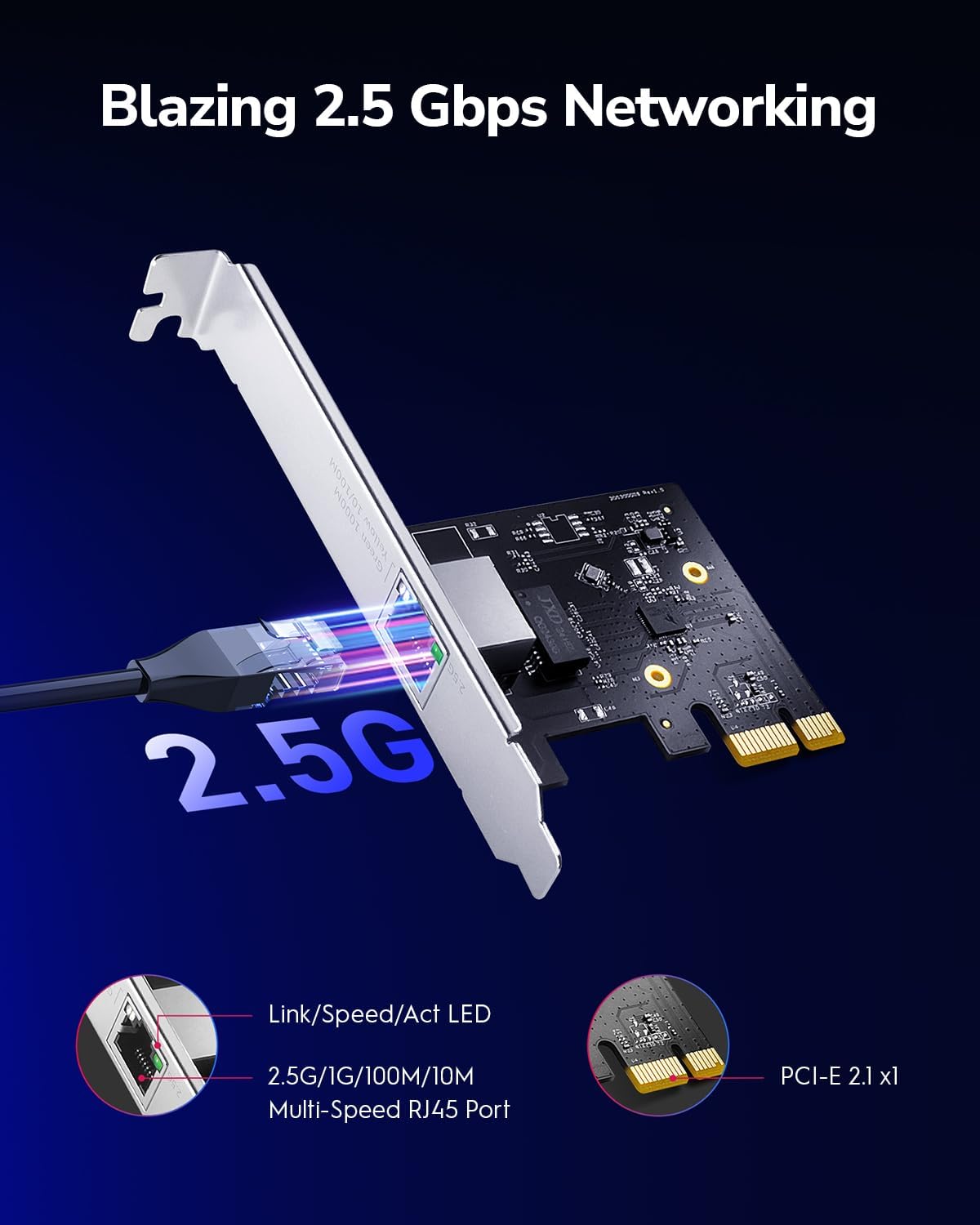
Image 5.1: 2.5Gbps Networking with Cudy PE25. This image highlights the Cudy PE25 network adapter connected via an Ethernet cable, emphasizing its 2.5Gbps capability and showing the Link/Speed/Act LED indicators on the RJ45 port.
5.2 Key Features
- 2.5Gbps Speed: The PE25 supports data transfer rates up to 2.5 Gigabits per second, offering significantly faster performance than standard Gigabit Ethernet.
- Versatile Compatibility: It is backwards compatible with Fast Ethernet (100Mbps) and Gigabit Ethernet (1Gbps) networks, automatically negotiating the highest possible speed.
- Wake-on-LAN (WOL): This feature allows you to remotely power on your computer over the network, useful for centralized management or accessing your PC from another location.
- Flow Control: Helps manage data traffic to prevent packet loss during periods of high network congestion.
- Energy Efficient Ethernet (EEE): Reduces power consumption during periods of low network activity.

Image 5.2: Network Diagram with Cudy PE25. This diagram illustrates a network setup where Cudy PE25 adapters are used to connect various devices like servers and gaming PCs to a multi-gigabit router, showcasing enhanced data transfer speeds.
6. Maintenance
To ensure optimal performance and longevity of your Cudy PE25 network adapter, consider the following maintenance tips:
- Driver Updates: Regularly check the official Cudy or Realtek website for the latest drivers. Keeping drivers updated can improve stability, performance, and compatibility.
- Physical Inspection: Periodically inspect the adapter for dust accumulation, especially around the PCIe contacts and the RJ45 port. Use compressed air to gently clean if necessary.
- Secure Seating: Ensure the adapter remains securely seated in its PCIe slot. Loose connections can lead to intermittent network issues.
- Cable Integrity: Use high-quality Ethernet cables (Cat5e or higher) and ensure they are not damaged or kinked.
7. Troubleshooting
If you encounter issues with your Cudy PE25 network adapter, refer to the following troubleshooting steps:
- No Network Connection:
- Verify the Ethernet cable is securely connected to both the adapter and your network device (router/switch).
- Check the Link/Speed/Act LEDs on the adapter. If they are off, there might be a cable issue or the adapter is not receiving power/signal.
- Ensure the adapter is properly seated in the PCIe slot.
- Check Device Manager (Windows) or network configuration (Linux) to confirm the adapter is recognized and enabled. Reinstall drivers if necessary.
- Slow Network Speeds:
- Ensure your router/switch supports 2.5Gbps speeds.
- Use a Cat5e or higher rated Ethernet cable. Older cables (e.g., Cat5) may limit speeds.
- Update the network adapter drivers to the latest version from the Realtek website.
- Check network settings in your operating system to ensure the adapter is configured for full duplex and the correct speed (if not set to auto-negotiate).
- Consider other network components (e.g., other network cards, router firmware) that might be bottlenecking performance.
- Intermittent Connection Drops:
- Update drivers. Some chipsets (like the RTL8125) benefit significantly from the latest driver versions for stability.
- Ensure the adapter is not overheating. Good airflow within the computer case is important.
- Check for conflicts with other PCIe devices. Try moving the adapter to a different PCIe slot if available.
- Disable power-saving features for the network adapter in Device Manager (Windows) if experiencing drops during idle periods.
8. Specifications
| Feature | Specification |
|---|---|
| Model Number | PE25 |
| Brand | Cudy |
| Hardware Interface | PCIe x1 (compatible with x4, x8, x16 slots) |
| Data Transfer Rate | 2.5 Gigabits Per Second (2.5G/1G/100M/10M auto-negotiation) |
| Data Link Protocol | Fast Ethernet, Gigabit Ethernet, 2.5GBase-T |
| Chipset | Realtek RTL8125 |
| Compatible Devices | Desktop PCs |
| Supported Operating Systems | Windows 11/10/8.1/8/7, Windows Server 2003/2008/2012, Linux |
| Features | Wake-on-LAN (WOL), Flow Control, Energy Efficient Ethernet (EEE) |
| Dimensions (L x W x H) | 19.69 x 19.69 x 11.02 inches (approx. 50 x 50 x 28 cm) |
| Item Weight | 5.3 ounces (approx. 0.15 kg) |

Image 8.1: Cudy PE25 Product Dimensions. This image provides a visual representation of the network adapter's physical size, including key measurements.
9. Warranty and Support
For warranty information, please refer to the documentation included with your purchase or visit the official Cudy website. Cudy provides technical support and driver downloads through their official channels.
- Official Cudy Website: www.cudy.com
- Driver Downloads: Check the support section of the Cudy website or the Realtek website for the latest RTL8125 drivers.


