
UBOTIE 4798
UBOTIE Wireless Bluetooth Keyboard User Manual
Model: 4798
Brand: UBOTIE
Introduction
Thank you for choosing the UBOTIE Wireless Bluetooth Keyboard. This portable 84-key keyboard with cute retro round keycaps is designed for ergonomic typing and is compatible with Windows, Android, and MAC operating systems. This manual provides detailed instructions for setup, operation, maintenance, and troubleshooting to ensure optimal performance and longevity of your device.
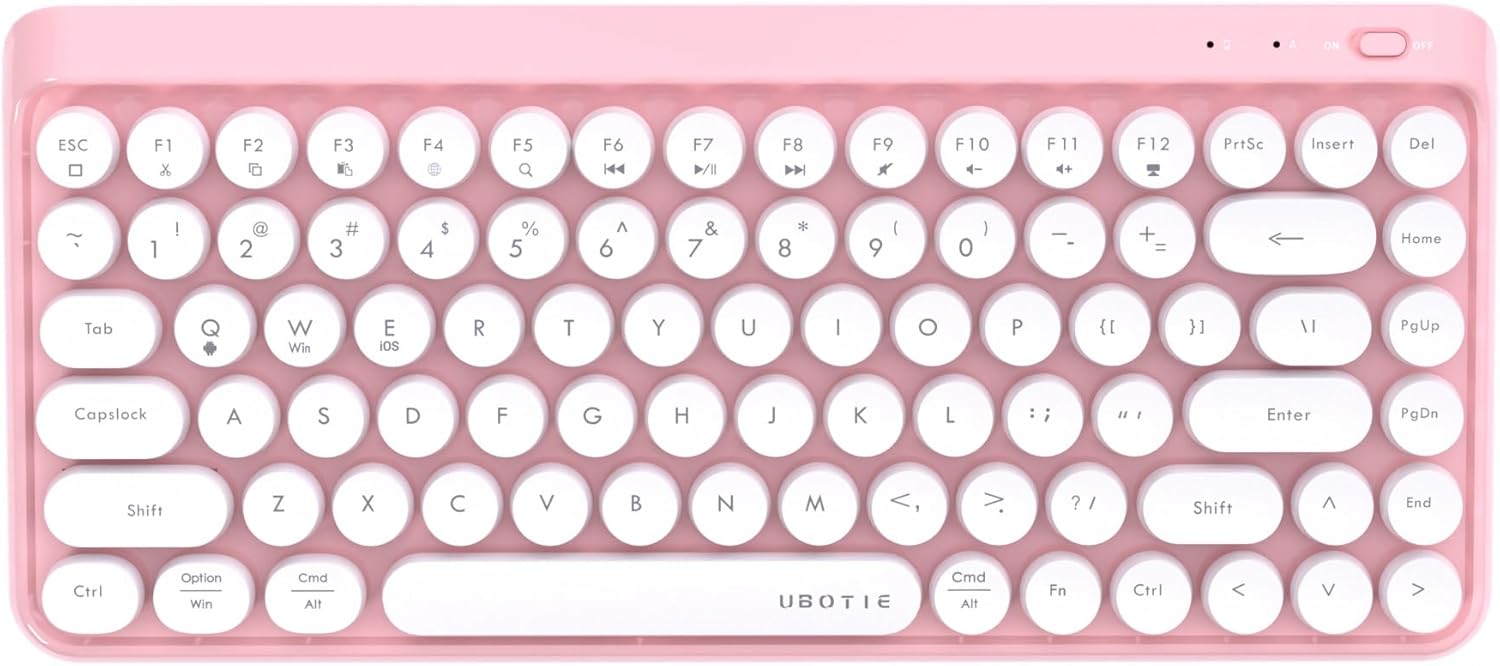
Image: Top-down view of the UBOTIE Wireless Bluetooth Keyboard in pink and white, showcasing its retro round keycaps.
Package Contents
Please verify that all items are present in your package:
- UBOTIE Wireless Bluetooth Keyboard
- User Manual (this document)
- Extra 2pcs AAA batteries
Setup
1. Battery Installation
The keyboard requires 2 AAA batteries for operation. The battery compartment is located on the underside of the keyboard.
- Locate the battery compartment cover on the back of the keyboard.
- Slide the cover open.
- Insert 2 AAA batteries, ensuring correct polarity (+/-) as indicated inside the compartment.
- Close the battery compartment cover securely.

Image: The underside of the UBOTIE keyboard showing the open battery compartment with AAA batteries inserted.
2. Bluetooth Pairing
The UBOTIE keyboard supports multi-channel Bluetooth connections (BT1, BT2, BT3), allowing you to connect to up to three devices simultaneously and switch between them.
- Turn on the keyboard using the On/Off switch located on the top right side.
- To enter pairing mode for a specific channel, press and hold the Fn key along with the desired channel key (1, 2, or 3) for 2 seconds. The indicator light will flash, signifying it is ready for pairing.
- On your device (PC, laptop, tablet, or cellphone), navigate to Bluetooth settings and search for available devices.
- Select the pairing name (e.g., "UBOTIE Keyboard") from the list to connect.
- Once connected, the indicator light will stop flashing.
To switch between connected devices, simply press Fn + 1, Fn + 2, or Fn + 3.

Image: Diagram illustrating the steps for Bluetooth pairing, showing the Fn key combined with channel keys (1, 2, 3) and device selection.
Operating System Specific Key Combinations:
- For Android: Press Fn + Q
- For Windows: Press Fn + W
- For iOS/MAC: Press Fn + E

Image: Diagram showing the key combinations for selecting Android, Windows, or iOS/MAC operating systems.
Operating Instructions
Basic Functions
The UBOTIE keyboard features 84 keys with a retro round keycap design, providing a comfortable and ergonomic typing experience. Standard alphanumeric and symbol keys function as expected.

Image: A close-up view of the UBOTIE keyboard, highlighting the round keycaps and key layout.
Multimedia and Function Keys
The top row of keys (F1-F12) serves dual purposes. When pressed alone, they act as standard function keys. When pressed in combination with the Fn key, they activate multimedia or special functions:
- Fn + F1: Media Player
- Fn + F2: Volume Down
- Fn + F3: Volume Up
- Fn + F4: Mute
- Fn + F5: Previous Track
- Fn + F6: Next Track
- Fn + F7: Play/Pause
- Fn + F8: Stop
- Fn + F9: Home Page
- Fn + F10: Mail
- Fn + F11: My Computer
- Fn + F12: Calculator
Auto-Sleep Feature
To conserve battery life, the keyboard will automatically enter sleep mode after a period of inactivity. To wake it up, simply press any key. The keyboard will quickly re-connect to the last paired device.
Maintenance
Cleaning the Keyboard
To maintain the cleanliness and functionality of your keyboard, regular cleaning is recommended. The round keycaps can be removed for thorough cleaning.
- Turn off the keyboard and remove the batteries.
- Gently pull up on each keycap to remove it. A keycap puller (not included) can be used for easier removal.
- Use a soft, lint-free cloth dampened with a small amount of mild cleaning solution (e.g., isopropyl alcohol) to wipe down the keycaps and the keyboard base. Ensure no liquid enters the internal components.
- Allow all parts to dry completely before reattaching the keycaps.
- Align each keycap with its corresponding switch and press down firmly until it clicks into place.

Image: The UBOTIE keyboard with several keycaps removed, showing the underlying switches and facilitating cleaning.
Battery Replacement
When the keyboard's performance degrades or the indicator light signals low power, it's time to replace the AAA batteries. Follow the battery installation steps outlined in the Setup section.
Troubleshooting
| Problem | Possible Cause | Solution |
|---|---|---|
| Keyboard does not turn on. | Batteries are dead or incorrectly installed. | Check battery polarity. Replace with new AAA batteries. Ensure the On/Off switch is in the "On" position. |
| Cannot pair the keyboard via Bluetooth. | Keyboard not in pairing mode; device Bluetooth is off; interference; incorrect OS mode selected. | Ensure keyboard is in pairing mode (Fn + 1/2/3 for 2s). Turn on Bluetooth on your device. Move closer to the device. Select the correct OS mode (Fn + Q/W/E). Try restarting both keyboard and device. |
| Keyboard frequently disconnects or has input lag. | Low battery; too far from device; interference; device-specific Bluetooth issues. | Replace batteries. Move keyboard closer to your device (within 10m range). Minimize interference from other wireless devices. For Windows PCs, a Bluetooth adapter might be required if the built-in one is not optimal. |
| Certain keys do not respond. | Keycap not properly seated; debris under keycap; hardware malfunction. | Remove and re-seat the keycap. Clean under the keycap. If the issue persists, contact customer support. |
Specifications
| Feature | Detail |
|---|---|
| Model Number | 4798 |
| Product Dimensions | 12.6 x 5.51 x 0.98 inches |
| Item Weight | 1.39 pounds |
| Connectivity Technology | Bluetooth |
| Number of Keys | 84 |
| Keyboard Description | Membrane Round Key Colorful Wireless Keyboard Bluetooth |
| Compatible Devices | Laptop, PC, Tablet (Windows, Android, MAC OS, iOS) |
| Power Source | 2 AAA batteries (included) |
| Wireless Range | Up to 10 meters (33 feet) |
| Style | Retro |
| Manufacturer | KKT |
| Country of Origin | China |
Warranty and Support
This product comes with a one-year new product service. If you encounter any problems or have questions regarding your UBOTIE Wireless Bluetooth Keyboard, please consult our 24-hour service for a satisfactory solution. For further assistance, please refer to the contact information provided with your purchase or visit the official UBOTIE website.
For the latest information and support, please visit the UBOTIE Store on Amazon.
Ask a question about this manual
Ask about setup, troubleshooting, compatibility, parts, safety, or missing instructions. Manuals+ will review the question and use this page’s manual context to help answer it.