
XTRONS CM179A+DWH005+DWH006
XTRONS Android Car Overhead Player User Manual
Model: CM179A+DWH005+DWH006
Brand: XTRONS
Introduction
This user manual provides comprehensive instructions for the XTRONS Android Car Overhead Player (Model: CM179A+DWH005+DWH006). This advanced car roof mount monitor features a 17.3-inch wide IPS screen, supports 8K video playback, and includes built-in stereo speakers. It offers versatile connectivity options including HDMI and USB, and comes with two IR headphones for an enhanced in-car entertainment experience. Please read this manual thoroughly before installation and operation to ensure proper use and longevity of your device.

This image displays the main unit of the XTRONS Android Car Overhead Player, showcasing its large 17.3-inch screen in a flip-down configuration. Two IR headphones, one black and one white, are positioned below the main unit, highlighting the included accessories for private listening.
Product Overview and Features
The XTRONS Android Car Overhead Player is designed to provide a premium entertainment experience in your vehicle. It boasts a powerful Android operating system and a high-resolution display, making it suitable for a wide range of multimedia applications.
Key Features:
- Android 9.0 Pie OS: Equipped with Octa Core CPU, 2GB RAM, and 32GB ROM for smooth performance and app compatibility.
- 17.3" Large Digital FHD IPS Screen: Features HDR10+ Technology for immersive viewing with sharp images and vibrant colors.
- 8K Video Support: Capable of playing 4K, 2K, and 1080P videos smoothly, supporting various formats like MP4, AVI, MKV, WMV, MPG, MPEG, MOV, RM, RMVB, DAT, FLV, MP3, WMA, WAV, AAC, APE, FLAC, JPG, JPEG, BMP, PNG.
- Versatile Connectivity: Includes HDMI, USB port, AV input, and screen mirroring for connecting mobile phones, game consoles, cameras, and video recorders.
- Built-in Stereo Speakers: Provides clear audio directly from the unit.
- Bluetooth Audio Transmission: Allows connection to external Bluetooth speakers or headphones.
- IR Headphone Support: Compatible with IR headphones for private listening.
- Automatic Lighting Control & Colorful Aura Lighting: Enhances the in-car ambiance.
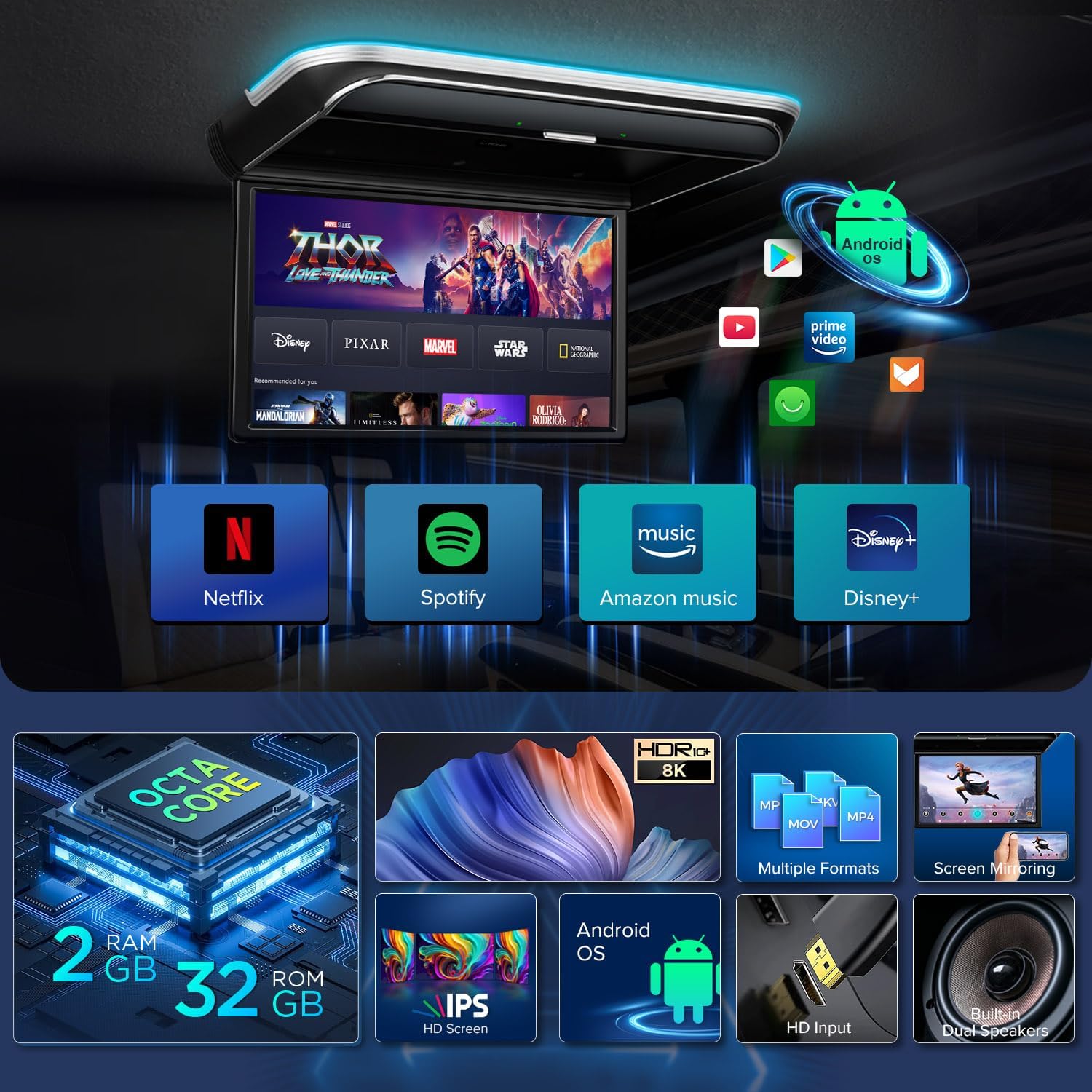
This image highlights the core specifications of the XTRONS unit, including its Octa-Core processor, 2GB RAM, 32GB ROM, IPS HD screen, and support for 8K video and multiple media formats. It also shows various streaming app icons like Netflix and Disney+, indicating its smart capabilities.

This visual emphasizes the display quality, showcasing the 17.3-inch screen with Full HD (1920x1080) IPS resolution, HDR10+ technology, and 8K video support, promising a superior visual experience.

This image illustrates the integrated dual high-power speakers, indicating that the unit provides direct audio output without requiring external speakers.

This image highlights the customizable colorful aura lighting feature, showing various color options that can enhance the interior ambiance of the vehicle.
Specifications
| Feature | Detail |
|---|---|
| Product Dimensions | 17.3 x 17.3 x 17.3 inches |
| Item Weight | 12.25 pounds |
| Brand | XTRONS |
| Media Type | SD |
| Color | Black |
| Screen Size | 17.3 Inches |
| Display Type | LCD (IPS) |
| Operating System | Android 9.0 Pie |
| CPU | Octa Core |
| RAM | 2GB |
| ROM | 32GB |
| Video Resolution Support | Up to 8K, also 4K/2K/1080P |
| Connectivity | HDMI, USB, AV In, Wi-Fi, Bluetooth, IR |

This image provides a visual comparison of different XTRONS overhead monitor sizes, including the 17.3-inch CM179AS model, alongside a standard A4 paper for scale. It also shows examples of large vehicles like coaches, buses, and motor homes where this unit is a perfect fit.
Installation
Proper installation is crucial for the performance and safety of your XTRONS overhead player. It is recommended to have this unit installed by a professional if you are not familiar with car electronics installation.
Installation Steps:
- Install the bracket to the car roof: Securely attach the mounting bracket to the designated area on your vehicle's roof. Ensure the location provides adequate clearance for the flip-down screen and does not obstruct any critical vehicle components.
- Fix the car roof player to the bracket with the screws: Once the bracket is in place, align the overhead player with the bracket and fasten it using the provided screws. Double-check that the unit is firmly attached and stable.
- Connect the power cable: Carefully connect the power cable to the unit and route it to the vehicle's power source according to the wiring diagram. Ensure all connections are secure and properly insulated to prevent short circuits.
- Connect other necessary cables: Depending on your setup, connect HDMI, USB, AV, or other audio output cables as required. Refer to the wiring harness diagram for correct connections.

This diagram visually outlines the three primary steps for installing the XTRONS car roof monitor: installing the bracket to the car roof, fixing the player to the bracket with screws, and connecting the power cable. It provides a clear, simplified guide for the physical mounting process.

This image provides a detailed wiring harness diagram, labeling each connection point (B+, ACC, GND, Door Control -, Door Control +, Audio Left/Right Input, Video Input 1/2). It also includes precise dimensions of the unit and its mounting bracket, essential for pre-installation planning and fitment.
Setup
After installation, follow these steps to set up your XTRONS Android Car Overhead Player for optimal performance.
Initial Setup:
- Power On: Ensure the unit is properly connected to power. The screen will automatically flip down and power on when the vehicle ignition is turned on, or when the screen is manually opened if configured.
- Network Connection:
- Navigate to Settings > Network & Internet.
- Turn on Wi-Fi and connect to an available Wi-Fi network (e.g., car hotspot, mobile hotspot).
- Alternatively, if using an optional 3G/4G dongle, ensure it is connected and configured for internet access.
- Google Account Setup: For full access to the Play Store and other Google services, sign in with your Google account.
- Screen Mirroring Setup:
- Access the Wireless Display or Screen Mirroring app on the unit.
- Follow the on-screen instructions to connect your iOS (9.0 and above) or Android (8.0 and above) smartphone.

This image demonstrates the wireless screen mirroring feature, showing content from a smartphone being displayed on the XTRONS overhead monitor. It highlights compatibility with both iOS and Android devices.

This image illustrates the unit's built-in WiFi capability and its support for 3G/4G internet sharing via an optional dongle, enabling seamless online connectivity for streaming and app usage.
Operating Instructions
This section covers the basic operation of your XTRONS Android Car Overhead Player.
Navigating the Android System:
The unit operates like a standard Android tablet. You can navigate using the included remote control (which features an air mouse function) or the virtual touch buttons on the unit itself.
- Home Screen: Access frequently used apps like Music, Video, YouTube, Settings, and Downloads directly from the main interface.
- App Drawer: Swipe up or select the "Apps" icon to view all installed applications.
- Google Play Store: Download and install new applications, games, and media content.
- Adjusting Screen Angle: The screen can be rotated up to 170 degrees for optimal viewing from various seating positions.

This image illustrates the unit's versatile touch buttons for control and highlights its ability to adjust the screen to an optimal viewing angle, with a maximum open angle of 180 degrees for user comfort.
Media Playback:
- USB Playback: Insert a USB flash drive into the USB port to play local media files (videos, music, photos).
- HDMI Input: Connect external devices such as game consoles, digital TV receivers (e.g., XTRONS Freeview), or other HDMI-enabled devices using an HDMI cable.
- AV Input: Connect older devices using RCA cables (yellow for video, white/red for audio).
- Streaming Apps: Utilize pre-installed apps like Netflix, YouTube, Prime Video, Hulu, Spotify, and Amazon Music for online content streaming (requires internet connection).

This image provides a close-up view of the USB and HDMI IN ports on the side of the unit, illustrating the direct connectivity options for external media devices.

This image details the various input and output options available on the unit, including USB, HD IN (HDMI), Bluetooth/IR for headphones, AV IN for RCA connections, and FM-TX for transmitting audio to the car's FM radio.
Audio Output Options:
- Built-in Speakers: Audio will play directly through the unit's integrated stereo speakers.
- Bluetooth Headphones: Pair Bluetooth headphones (e.g., XTRONS BH002, not included) for private listening.
- IR Headphones: Use the included IR headphones (DWH005/DWH006) for wireless audio. Ensure the headphones are powered on and within range.
- FM Transmitter: Transmit audio to your car's FM radio by tuning both the unit and your car radio to the same FM frequency.
Official Product Video:
This official video from XTRONS provides a comprehensive overview of the Android Car Overhead Player, highlighting its key features such as the 17.3-inch IPS screen, 8K video support, Android system capabilities, screen mirroring, various input/output options, and colorful aura lighting. It demonstrates the product's functionality and design.
Maintenance
To ensure the longevity and optimal performance of your XTRONS Android Car Overhead Player, follow these maintenance guidelines:
- Cleaning: Use a soft, dry cloth to clean the screen and exterior of the unit. For stubborn smudges, slightly dampen the cloth with water or a screen-safe cleaner. Avoid abrasive materials or harsh chemicals.
- Temperature: Avoid exposing the unit to extreme temperatures, both hot and cold, for extended periods.
- Ventilation: Ensure that the ventilation openings on the unit are not blocked to prevent overheating.
- Software Updates: Periodically check for and install software updates to ensure the system runs efficiently and securely.
Troubleshooting
If you encounter issues with your XTRONS Android Car Overhead Player, refer to the following common troubleshooting steps:
| Problem | Possible Cause / Solution |
|---|---|
| Unit does not power on. | Check power connections and vehicle's ignition. Ensure the screen is fully flipped down and then opened to trigger power on. Verify vehicle battery is charged. |
| No sound from speakers/headphones. | Check volume settings. Ensure correct audio output is selected (built-in speakers, Bluetooth, IR, FM). Verify headphone connection/pairing. |
| Screen mirroring not working. | Ensure both devices are on the same Wi-Fi network. Check compatibility of your smartphone's OS version (Android 8.0+, iOS 9.0+). Restart both devices. |
| Choppy video playback. | Ensure video file format is supported. For streaming, check Wi-Fi signal strength and internet speed. Close background applications. |
| Remote control not responding. | Check remote control batteries. Ensure there are no obstructions between the remote and the unit's IR receiver. |
Warranty and Support
XTRONS is committed to providing high-quality products and excellent customer service.
- Warranty: This XTRONS car roof monitor is backed by a 1-year warranty.
- Technical Support: For any technical assistance or inquiries, please do not hesitate to contact XTRONS professional technical support.
- Contact Information: You can typically reach support via Amazon email through the seller's page. Look for the "Ask a question" link on the product's Amazon listing or visit the official XTRONS store on Amazon.
XTRONS has over 15 years of experience in in-car entertainment and is dedicated to exceeding standards for quality and mobile connectivity.
Ask a question about this manual
Ask about setup, troubleshooting, compatibility, parts, safety, or missing instructions. Manuals+ will review the question and use this page’s manual context to help answer it.