Introduction
This manual provides comprehensive instructions for the Elekpia Universal Remote Control, designed as a direct replacement for your original remote for all ONN Roku TVs. This remote offers seamless control of your television and features dedicated buttons for popular streaming services like Netflix, Sling, Hulu, and VUDU.
Please read this manual carefully to ensure proper setup and operation of your new remote control.
Setup
1. Battery Installation
The Elekpia Universal Remote Control requires two (2) AAA alkaline batteries (not included) for operation. Follow these steps to install the batteries:
- Locate the battery compartment on the back of the remote control.
- Slide the battery compartment cover downwards to open it.
- Insert two AAA batteries, ensuring the positive (+) and negative (-) terminals align correctly with the markings inside the compartment.
- Slide the battery compartment cover back into place until it clicks securely.
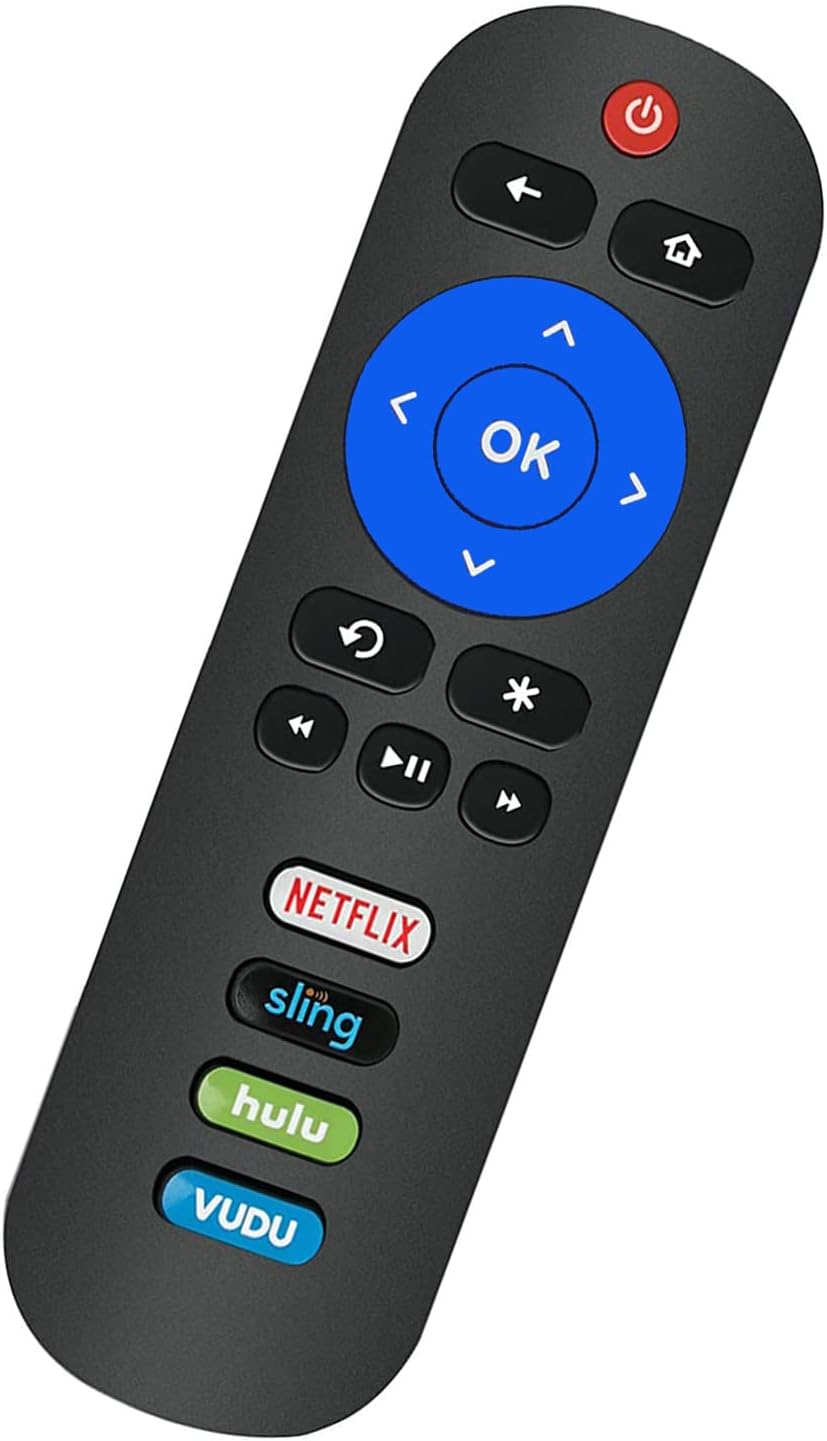
Image: Back of the remote control with the battery compartment visible.
2. Initial Use (No Programming Required)
This remote control is pre-programmed to work with all ONN Roku TVs. No programming or pairing is needed. Once the batteries are installed, the remote is ready for immediate use with your compatible ONN Roku TV.
Important Note: This remote control operates via Infrared (IR) technology and is specifically designed for ONN Roku TVs. It does not work with Roku sticks, Roku players, Roku boxes, or any other non-TV Roku devices. It also lacks a pairing button, voice function, and headphone jack.
Operating Instructions
Familiarize yourself with the buttons on your Elekpia Universal Remote Control:

Image: Front view of the Elekpia remote control, displaying all control buttons.
- Power Button (⏻): Turns your ONN Roku TV on or off.
- Back Button (←): Returns to the previous screen or menu.
- Home Button (⌂): Navigates to the Roku Home screen.
- Directional Pad (Up, Down, Left, Right): Used to navigate through menus and select options.
- OK Button: Confirms a selection or opens an item.
- Instant Replay Button (↻): Replays the last few seconds of video.
- Asterisk Button (∗): Accesses options or settings within an app or menu.
- Rewind (⏮), Play/Pause (⏸), Fast Forward (⏭): Standard media playback controls.
- Volume Up/Down (🔊 / 🔉): Adjusts the television volume.
- Mute Button (🔇): Mutes or unmutes the television audio.
- Dedicated App Buttons (Netflix, Sling, Hulu, VUDU): Directly launch the corresponding streaming application.

Image: Side view of the remote control, showing the volume and mute buttons located on the side.
Maintenance
- Battery Replacement: Replace batteries when the remote's response becomes sluggish or stops working. Always replace both batteries at the same time with new AAA alkaline batteries. Do not mix old and new batteries, or different types of batteries.
- Cleaning: To clean the remote control, wipe it with a soft, dry cloth. Do not use liquid cleaners, sprays, or abrasive materials, as these may damage the remote's surface or internal components.
- Storage: Store the remote control in a cool, dry place away from direct sunlight and extreme temperatures. If the remote will not be used for an extended period, it is advisable to remove the batteries to prevent leakage.
- Handling: Avoid dropping the remote control or subjecting it to strong impacts, which can cause internal damage.
Troubleshooting
| Problem | Possible Cause / Solution |
|---|---|
| Remote is not responding. |
|
| Remote works for some functions but not others. |
|
| Remote does not work with my Roku device. | This remote is specifically designed for ONN Roku TVs (televisions with Roku built-in). It is not compatible with standalone Roku streaming sticks, Roku players, Roku boxes, or Roku gaming consoles. |
Specifications
- Model: Elekpia-ONN-RK
- Product Dimensions: 5.5 x 1.5 x 0.6 inches (13.97 x 3.81 x 1.52 cm)
- Item Weight: 1.76 ounces (50 grams)
- Power Supply: 2 x 1.5V AAA Alkaline Batteries (not included)
- Connectivity Technology: Infrared (IR)
- Compatible Devices: All ONN Roku TVs (e.g., models 100012585, 100012584, 100012586, 100012587, 100012589, 100018971, 100012590, 100005844, 3226000855, 3226000858, 100007147, 100005395, 100005397, 100005396, 100012588)
- Special Features: Universal compatibility with ONN Roku TVs, dedicated streaming service buttons.
Warranty Information
Specific warranty details for the Elekpia Universal Remote Control are typically provided by the seller or manufacturer at the time of purchase. Please refer to your purchase documentation or contact the retailer from whom you purchased this product for information regarding warranty coverage and terms.
Support
If you encounter any issues or have questions regarding your Elekpia Universal Remote Control that are not addressed in this manual, please contact the seller or the manufacturer directly for assistance. Provide your product model number (Elekpia-ONN-RK) and details of your issue for faster support.
For general inquiries, you may also refer to the product listing page where you purchased the item for additional resources or frequently asked questions.


