
PXN V3II
PXN-V3II PC Game Racing Wheel User Manual
Model: V3II | Brand: PXN
Introduction
This manual provides detailed instructions for setting up, operating, maintaining, and troubleshooting your PXN-V3II PC Game Racing Wheel. Designed for an immersive racing experience, this wheel is compatible with PC, PS3, PS4, Xbox Series X|S, Xbox One, and Nintendo Switch. Please read this manual thoroughly before use to ensure optimal performance and longevity of your device.

Figure 1: PXN-V3II PC Game Racing Wheel, pedals, and mounting clamp.
What's Included
Upon unboxing, please ensure all the following components are present:
- V3 Game Racing Wheel (1 unit)
- Steering Wheel Pedal (1 unit)
- Steering Wheel Mount (1 unit)
- Instruction Manual (1 unit)
- Warranty Card (1 unit)

Figure 2: Detailed view of the racing wheel and its components, including pedal port and USB port for original controller.
Key Features
- Wide Compatibility: Compatible with PC, PS3, PS4, Xbox Series X|S, Xbox One, and Nintendo Switch.
- Realistic Driving Simulation: Features a shift accelerator lever, shift paddles, and an adjustable length foot pedal for brake and acceleration functions.
- Ergonomic Design: The steering wheel has an ergonomic rubber grip for comfortable handling and can rotate 180°. It measures 26cm (10.24 inches) in diameter.
- Dual Mode PC Support: Supports X-input/D-input modes on PC. X-input is default; long press "HOME" for 3 seconds to switch to D-input.
- Double Fixation: Equipped with seven suction cups on the bottom for stable placement and a C-shaped fixing bracket for secure mounting to a desk.
- Vibration Function: Dual motors provide vibration feedback, with automatic adjustment based on driving scenarios. Vibration amplitude can be manually adjusted on PC.
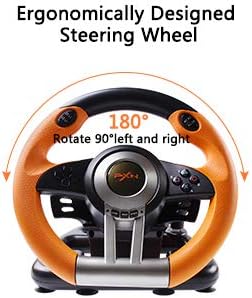
Figure 3: 180-degree steering rotation for realistic control.

Figure 4: Dual motor vibration for enhanced realism.

Figure 5: Double fixation method for stability during gameplay.

Figure 6: Plug and Play compatibility across multiple platforms.
Setup and Installation
Mounting the Steering Wheel
The PXN-V3II offers two methods for secure mounting: suction cups and a C-clamp. For best stability, especially during intense gameplay, it is recommended to use the C-clamp.
- Attach the fixing rod to the U-shaped bracket.
- Clip the installed U-shaped bracket onto the steering wheel.
- Mount the steering wheel on the desk and then tighten the fixing rod to secure it.
Video 1: Tutorial for installing the PXN-V3II bracket onto a desk.
Connecting to Consoles and PC
Important Note: When connecting to Xbox One, Xbox Series, and PS4 consoles, the official original controller is required and must be turned OFF before connecting. Ensure the data cable used for the controller has data transmission functionality.
Using on PS4 / PS3
- Use a USB cable to connect the original PS4 controller to the racing wheel's USB port (Power OFF the controller).
- Plug the USB of the Racing wheel into the PS4 USB interface.
- Press the "HOME" Button on the Racing wheel. When the racing wheel can control the console interface, it means it's successfully connected.
Video 2: Tutorial for connecting the PXN-V3II to a PS4 console.
Using on Xbox One / Xbox Series X|S
- Power OFF the original controller of Xbox One/Xbox Series X|S.
- Use a Micro USB cable to connect the Xbox One/Xbox Series X|S original controller and the guidance port in the steering wheel.
- Plug the USB cable of the steering wheel into Xbox One/Xbox Series X|S.
- Press the 'HOME' button on the steering wheel; the red indicator will remain ON when the connection is successful.
Video 3: Tutorial for connecting the PXN-V3II to an Xbox console.
Using on Nintendo Switch
- Connect the Type-C OTG adapter (not included) with the USB interface of the steering wheel.
- Then plug the Type-C interface into the Switch console.
- The red mode indicator displays ON when connected successfully.
Using on PC
The PC steering wheel is X-input by default. To switch to D-input mode, long press the "HOME" button for 3 seconds.
Operating Instructions
Once connected, the PXN-V3II racing wheel provides an intuitive and responsive control experience for various racing games.
- Steering: The wheel offers 180 degrees of rotation for precise steering control.
- Acceleration & Braking: Use the linear foot pedals for realistic acceleration and braking.
- Gear Shifting: Utilize the integrated shifter lever or the sports car-style paddles behind the wheel for manual gear changes.
- Vibration Feedback: The dual vibration motors will provide immersive feedback based on in-game events like collisions, terrain changes, and engine RPM. On PC, you can manually adjust the vibration amplitude.
- Button Functions: Familiarize yourself with the various function buttons on the steering wheel, including HOME, SHARE, OPTIONS, and the directional pad, along with the standard A, B, X, Y buttons and shoulder buttons (RT, R2, LT, L2, R1, RB, L1, LB).
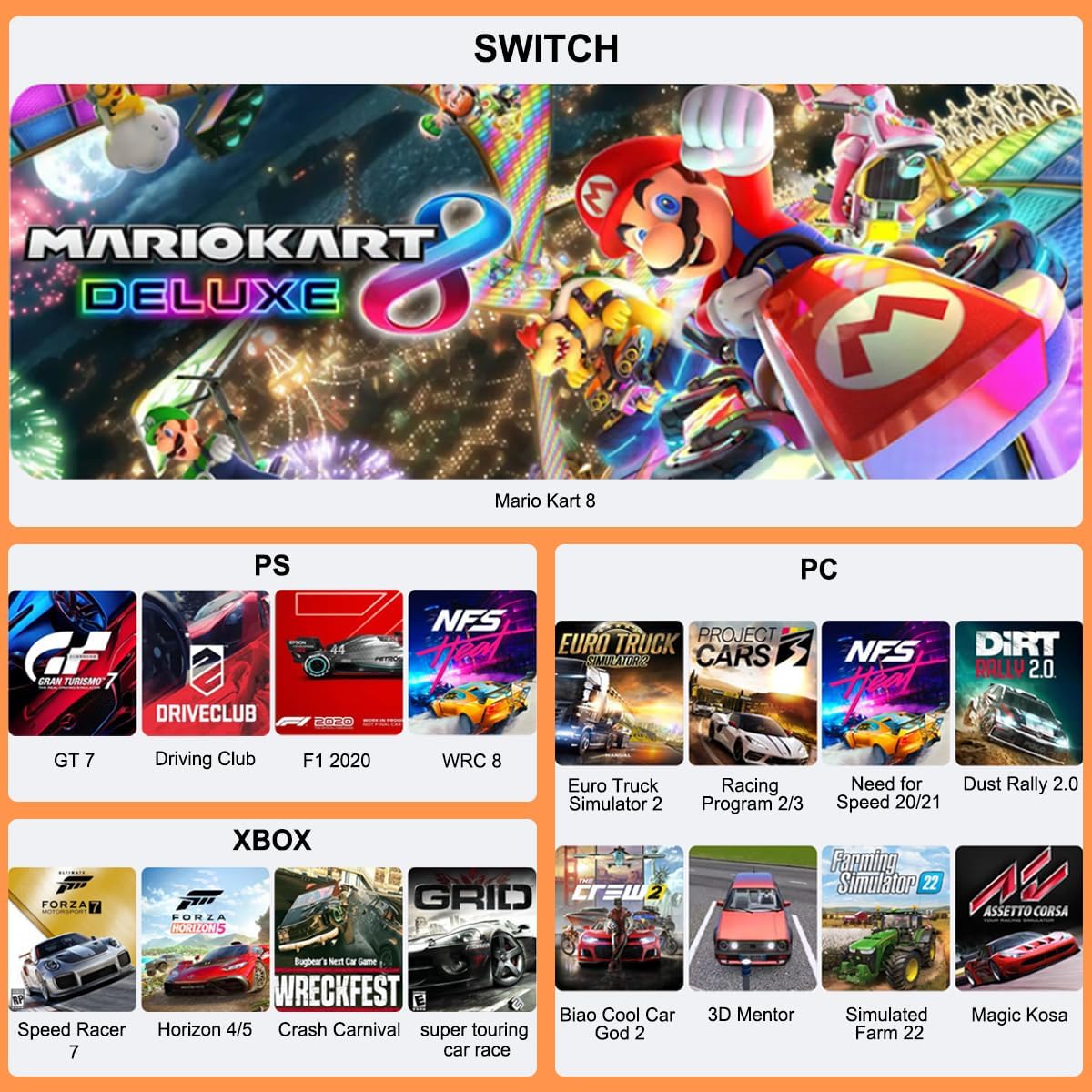
Figure 7: Examples of compatible racing games across different platforms.
Maintenance
To ensure the longevity and optimal performance of your PXN-V3II Racing Wheel, follow these simple maintenance guidelines:
- Cleaning: Wipe the steering wheel and pedals with a soft, dry cloth. For stubborn dirt, slightly dampen the cloth with water. Avoid using harsh chemicals or abrasive cleaners.
- Storage: Store the device in a cool, dry place away from direct sunlight and extreme temperatures.
- Cable Care: Avoid sharp bends or kinks in the cables. Do not pull on the cables to disconnect the device.
- Suction Cups/Clamp: Periodically check the suction cups and C-clamp for wear and tear. Ensure they are clean for maximum grip.
Troubleshooting
If you encounter any issues with your PXN-V3II Racing Wheel, please refer to the following common solutions:
- Wheel Not Responding on PS4/Xbox:
- Ensure the original console controller (PS4/Xbox One/Series X|S) is used for connection and is powered OFF before connecting to the wheel.
- Verify that the USB data cable connecting the original controller to the wheel's USB port has data transmission functionality. Some cables are charge-only.
- Confirm the controller is completely off before plugging it into the wheel.
- If it's not the original controller, it will not connect successfully.
- Pedals Not Working / Intermittent Function:
- Ensure the pedal cord is inserted correctly and fully into the "Port Of Pedal" on the wheel base. Some users have found success by ensuring the plug is inserted horizontally.
- Check for any physical obstructions or damage to the pedal unit or cable.
- Wheel Sliding on Desk:
- Ensure the seven suction cups on the bottom of the wheel base are clean and firmly pressed onto a smooth, non-porous surface.
- Utilize the C-shaped fixing bracket to clamp the wheel securely to your desk. Tighten the fixing rod firmly.
- Button Configuration Issues (e.g., Gas/Brake mapped incorrectly):
- For PC, ensure the correct input mode (X-input or D-input) is selected by long-pressing the "HOME" button.
- For consoles, check the game's internal settings or the console's accessibility/button configuration options. Some games or consoles allow remapping of controls. Restarting the console after changes may help.
- Not Compatible with PS5: Please note that this product is not compatible with PS5 consoles.
Specifications
| Product Dimensions | 10.23 x 12.59 x 9.6 inches |
| Item Weight | 0.106 ounces |
| Model Name | V3II |
| Compatible Devices | Nintendo Switch, PC, Playstation 4, Xbox One, Xbox Series X |
| Controller Type | Paddle, Pedals, Steering Wheel |
| Connectivity Technology | USB |
| Manufacturer | PXN |
| Country of Origin | China |
Warranty Information
Your PXN-V3II PC Game Racing Wheel includes a Warranty Card. Please refer to the card for specific details regarding warranty coverage, terms, and conditions.
Customer Support
For any questions, technical assistance, or after-sales problems, please contact us through the Amazon platform. We aim to respond to all inquiries within 24 hours.
Related documentsV3II


Ask a question about this manual
Ask about setup, troubleshooting, compatibility, parts, safety, or missing instructions. Manuals+ will review the question and use this page’s manual context to help answer it.