1. Introduction
This manual provides essential information for the safe and efficient use of your MEDION P14371 (MD 30044) Full HD 43 inch Android Smart TV. Please read these instructions carefully before operating the device and retain them for future reference.
The MEDION P14371 is a 43-inch Full HD (1920x1080) Smart TV featuring Android TV, HDR support, PVR readiness, and integrated Google Chromecast and Assistant. It offers access to popular streaming services like Netflix and Amazon Prime Video, along with a triple HD tuner for DVB-T2 HD, cable, and satellite reception.
2. Safety Information
Always observe the following safety precautions to prevent electric shock, fire, or injury:
- Do not expose the TV to rain or moisture.
- Ensure proper ventilation; do not block ventilation openings.
- Only use the power cord supplied with the TV.
- Do not open the TV casing; refer all servicing to qualified personnel.
- Keep batteries away from children and dispose of them properly.
3. Package Contents
Verify that all items are present in the packaging:
- MEDION LIFE Smart TV P14371 (MD 30044)
- Feet with screws for stand assembly
- Remote control with AAA batteries
- User manual
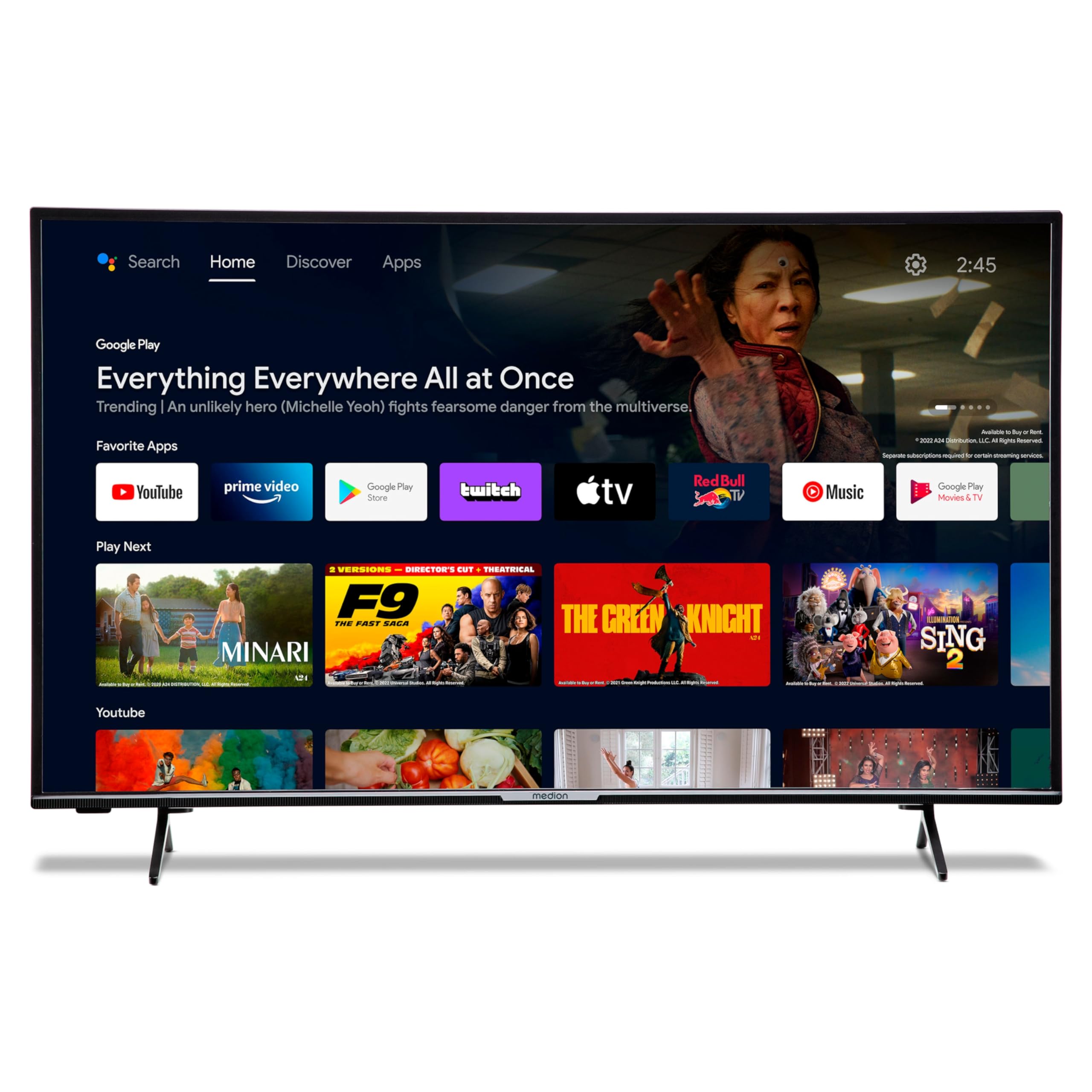
Image: The MEDION P14371 Smart TV with its remote control, illustrating the main components included in the package.
4. Setup
4.1. Physical Installation
Attaching the Stand:
- Carefully place the TV screen-down on a soft, flat surface to prevent damage.
- Align the TV feet with the corresponding screw holes on the bottom of the TV.
- Secure the feet using the provided screws.

Image: The MEDION P14371 television securely placed on its stand, ready for use.
Wall Mounting: If wall mounting, ensure you use a VESA compatible bracket (100 x 100 mm) and follow the bracket manufacturer's instructions. Remove the stand feet before mounting.
4.2. Connections
Connect your external devices to the TV's ports. Refer to the image below for port locations:
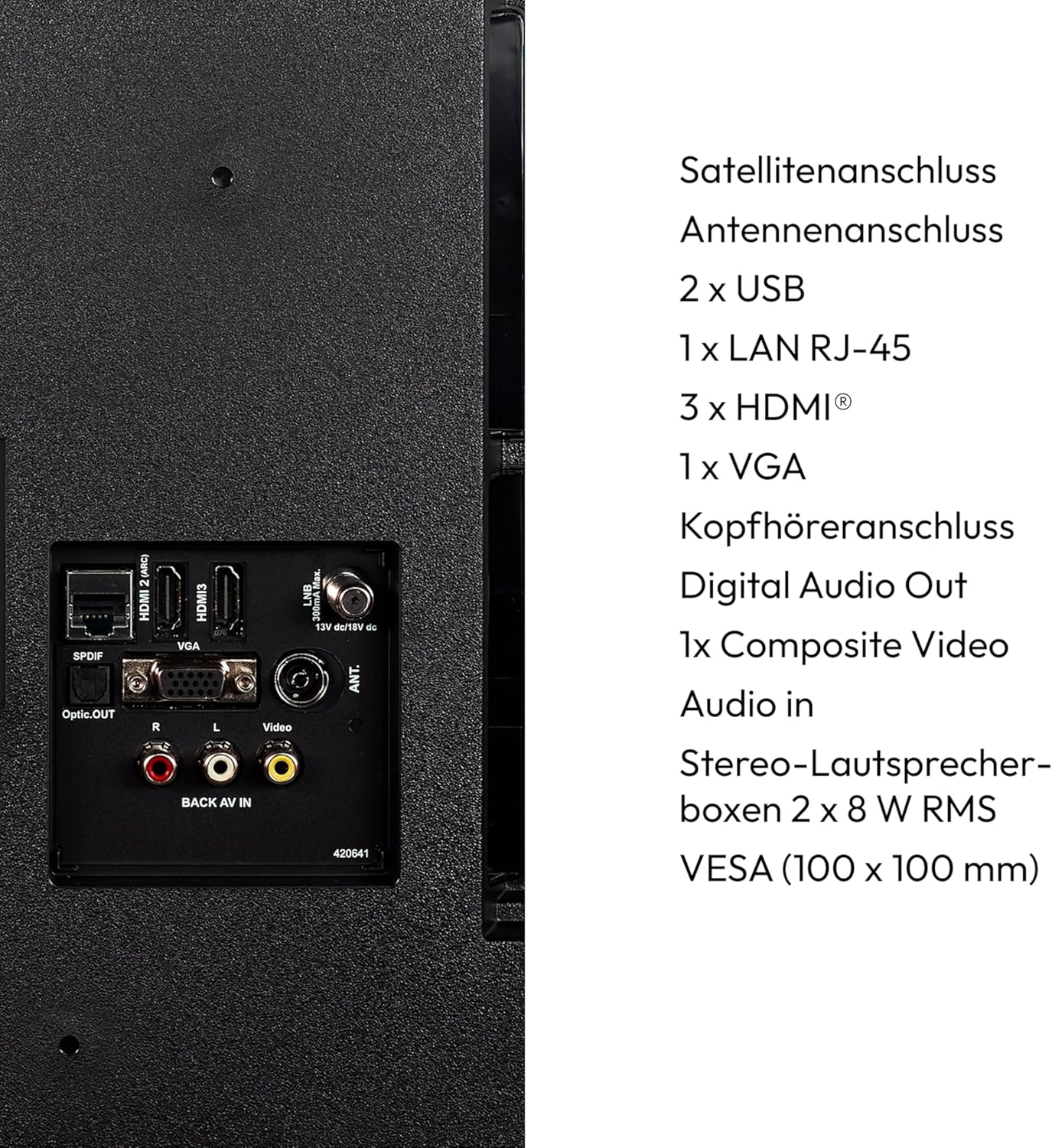
Image: A detailed view of the rear panel of the MEDION P14371 TV, showing various input and output ports including Satellite, Antenna, USB, LAN, HDMI, VGA, Headphone, Digital Audio Out, Composite Video, and Audio In.
- Satellite Connection: Connect your satellite dish cable.
- Antenna Connection: Connect your terrestrial antenna cable.
- 2 x USB: For connecting USB storage devices for media playback or PVR functionality.
- 1 x LAN RJ-45: For a wired internet connection.
- 3 x HDMI®: For connecting high-definition devices like Blu-ray players, game consoles, or set-top boxes.
- 1 x VGA: For connecting a computer.
- Headphone Jack: For connecting headphones.
- Digital Audio Out (Optical): For connecting to an external audio system.
- 1 x Composite Video (AV In): For connecting older devices.
4.3. Initial Power On
- After all connections are made, plug the power cord into a wall outlet.
- Press the power button on the remote control or on the TV.
- Follow the on-screen instructions for initial setup, including language selection, network connection, and channel scanning.
5. Operating the TV
5.1. Remote Control
The included remote control provides access to all TV functions. Insert the two AAA batteries as indicated in the battery compartment.
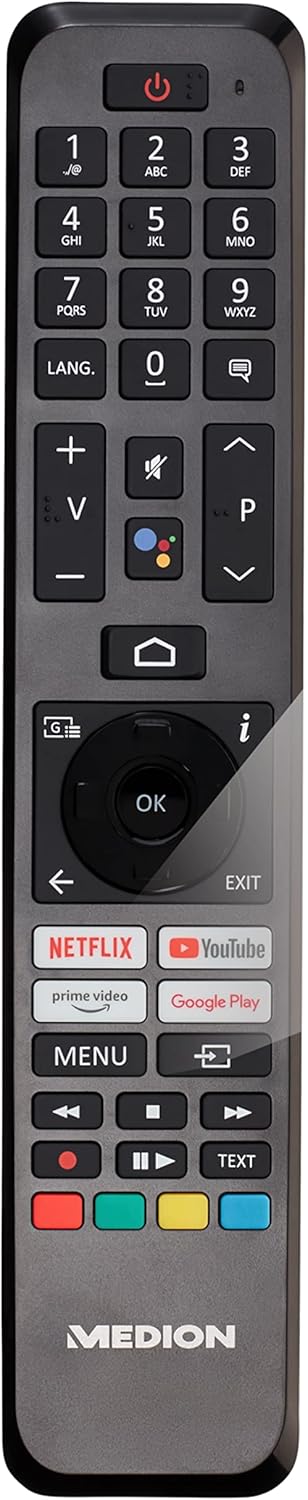
Image: The remote control for the MEDION P14371 TV, showing buttons for power, volume, channel, navigation, Netflix, Prime Video, Google Play, and Google Assistant.
- Power Button: Turns the TV on/off or to standby.
- Number Buttons (0-9): For direct channel selection.
- Volume (+/-): Adjusts the volume level.
- Channel (P+/P-): Changes channels.
- Navigation Buttons (Up/Down/Left/Right/OK): For menu navigation and selection.
- Home Button: Accesses the Android TV home screen.
- Back Button: Returns to the previous screen.
- Google Assistant Button: Activates voice control (Hey Google).
- Netflix, Amazon Prime Video, Google Play Buttons: Direct access to these streaming services.
5.2. Smart TV Features (Android TV)
Your TV runs on Android TV, providing access to a wide range of apps and services.

Image: The MEDION P14371 TV displaying the Google Play interface with various apps and games, highlighting its Smart TV capabilities.
- Google Play Store: Download and install your favorite apps, games, and streaming services.
- Chromecast Built-in: Cast content from your smartphone, tablet, or computer directly to the TV.
- Google Assistant: Use voice commands via the remote control to search for content, control smart home devices, and get information.
- HDR (High Dynamic Range): Enjoy enhanced contrast and color detail with compatible content.
5.3. Triple HD Tuner
The integrated triple tuner allows reception of digital television signals without an external receiver:
- DVB-T2 HD: Terrestrial digital television.
- DVB-C: Digital cable television.
- DVB-S2: Digital satellite television.
Perform a channel scan during initial setup or via the TV menu to find available channels.
5.4. PVR (Personal Video Recorder)
Connect a USB storage device to record TV programs. Access the PVR function through the TV menu to schedule recordings or record live TV.
5.5. Wireless Connectivity
- Wi-Fi: Connect to your home wireless network for internet access and Smart TV features.
- Bluetooth: Connect wireless headphones, soundbars, or other Bluetooth-enabled devices.
6. Maintenance
6.1. Cleaning
- Always unplug the TV before cleaning.
- Use a soft, dry cloth to wipe the screen and cabinet.
- For stubborn marks, use a slightly damp cloth with a mild, non-abrasive cleaner. Do not spray cleaner directly onto the screen.
6.2. Software Updates
The TV may receive software updates to improve performance and add new features. Ensure your TV is connected to the internet to receive these updates. You can check for updates manually in the TV's settings menu.
7. Troubleshooting
If you encounter issues with your TV, refer to the following common solutions:
| Problem | Possible Solution |
|---|---|
| No power | Check if the power cord is securely plugged into the TV and the wall outlet. Try a different outlet. |
| No picture, but sound is present | Check the input source. Ensure all video cables are securely connected. |
| No sound, but picture is present | Check the volume level and mute settings. Ensure audio cables are connected correctly. |
| Remote control not working | Replace the batteries. Ensure there are no obstructions between the remote and the TV's IR sensor. |
| Smart TV features are slow or unresponsive | Check your internet connection. Restart the TV by unplugging it for a few minutes and plugging it back in. Clear app caches in settings. |
| Cannot connect to Wi-Fi | Ensure your router is on and working. Re-enter the Wi-Fi password. Try restarting your router and the TV. |
8. Specifications
Detailed technical specifications for the MEDION P14371 (MD 30044) TV:
| Feature | Specification |
|---|---|
| Brand | MEDION |
| Model Number | P14371 (MD 30044) |
| Screen Size | 43 inches (108 cm) |
| Display Technology | LED LCD |
| Resolution | 1080p Full HD (1920 x 1080 pixels) |
| Aspect Ratio | 1.77:1 (16:9) |
| Refresh Rate | 60 Hz |
| Operating System | Android TV |
| Connectivity Technology | Bluetooth, HDMI, USB, WLAN (Wi-Fi) |
| Total USB Ports | 2 |
| Special Features | Bluetooth, USB Recording (PVR), HDR, Smart/Internet TV, Wi-Fi, Google Chromecast, Google Assistant |
| Supported Internet Services | Netflix, Amazon Prime Video |
| Energy Efficiency Class (SDR) | E |
| Power Consumption (SDR) | 42.0 W / 1000h |
| Energy Efficiency Class (HDR) | G |
| Power Consumption (HDR) | 62.0 W / 1000h |
| Manufacturer | MEDION |
| Included Components | Smart TV (MD30044) |
For more detailed energy information, please refer to the EU EPREL database: https://eprel.ec.europa.eu/qr/1587496

Image: Diagram showing the physical dimensions of the MEDION P14371 TV, including width (973 mm), height (570 mm without stand, 627 mm with stand), and depth (92 mm without stand, 250 mm with stand).
9. Warranty and Support
MEDION is committed to providing excellent customer service and product support.
- General Warranty: A minimum general warranty of 2 years is offered by the supplier.
- Product Support: Guaranteed product support for up to 10 years.
- Spare Parts Availability: Guaranteed availability of spare parts for up to 7 years from the date of market withdrawal.
- Software Updates: Guaranteed software and firmware updates for up to 8 years from the date of market withdrawal.
Our competent customer service team is available 365 days a year. Our customer relationship does not end with the purchase. If an issue cannot be resolved through direct communication, our repair service will handle it quickly and efficiently.
For support, please visit the official MEDION website or contact their customer service directly.


