
Lenovo 82HS000GUS
Lenovo IdeaPad Flex 5i 14" Convertible Laptop User Manual
Model: 82HS000GUS
Introduction
This manual provides essential information for the safe and efficient use of your Lenovo IdeaPad Flex 5i 14" Convertible Laptop, Model 82HS000GUS. Please read this manual thoroughly before operating your device and retain it for future reference.
Product Overview
The Lenovo IdeaPad Flex 5i is a versatile 2-in-1 laptop designed for various computing needs. It features a 14-inch Full HD touchscreen display and a 360-degree hinge, allowing it to function as a traditional laptop, tablet, tent, or stand.
Key Features:
- 14-inch FHD (1920 x 1080) Touch Display
- Intel Core i3-1115G4 Processor
- 4GB DDR4 RAM
- 128GB SSD Storage
- Intel UHD Graphics
- Windows 10 in S Mode (user-switchable to Windows 10 Home)
- 360° Hinge for multi-mode functionality
- Physical webcam shutter for privacy
Component Identification:
Refer to the images below for a visual guide to the laptop's components.
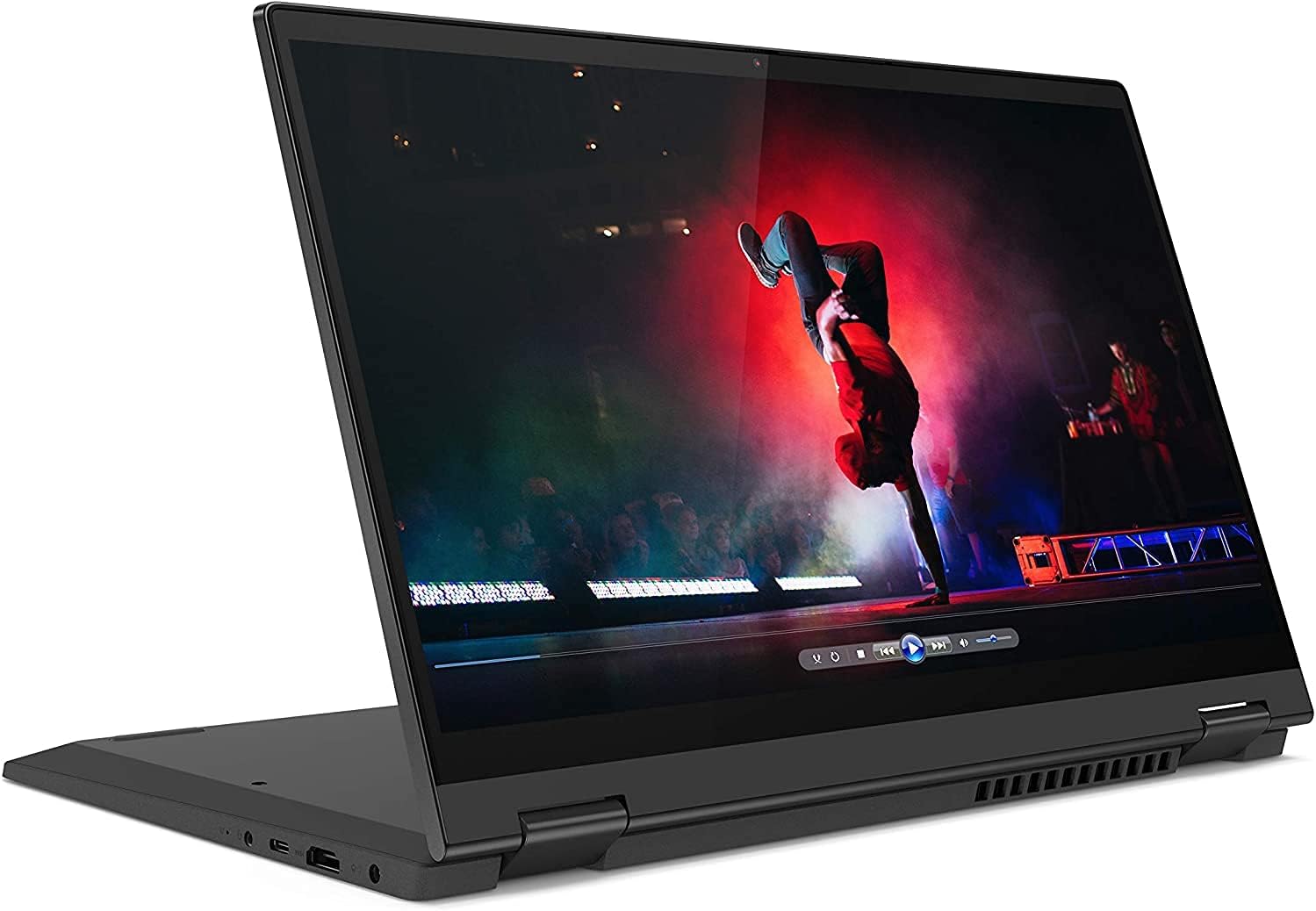
Figure 1: Lenovo IdeaPad Flex 5i in tent mode, showcasing its ability to display media. The screen is angled for optimal viewing, and the keyboard is folded underneath.

Figure 2: Side view of the Lenovo IdeaPad Flex 5i in laptop mode, highlighting the keyboard, touchpad, and various ports on the left and right sides of the device.

Figure 3: Lenovo IdeaPad Flex 5i in stand mode, demonstrating its use with a digital pen (sold separately) for note-taking or drawing on the touchscreen. The keyboard is folded back, acting as a stable base.
Setup
1. Initial Power On and Charging:
- Connect the provided charger to the laptop's power port and a wall outlet.
- Allow the battery to charge for at least 30 minutes before initial use, or until the charging indicator light shows a full charge.
- Press the power button to turn on the laptop.
2. Windows 10 S Mode Setup:
- Follow the on-screen instructions to complete the Windows 10 S Mode setup process. This includes selecting your region, connecting to a Wi-Fi network, and creating a Microsoft account or signing in.
- Windows 10 S Mode is designed for security and performance, exclusively running apps from the Microsoft Store.
3. Switching Out of S Mode (Optional):
If you require applications not available in the Microsoft Store, you can switch out of S Mode. This is a one-way process.
- Ensure your device is connected to the internet.
- Go to Settings > Update & Security > Activation.
- In the "Switch to Windows 10 Home" or "Switch to Windows 10 Pro" section, select Go to the Store.
- On the "Switch out of S mode" (or similar) page that appears in the Microsoft Store, click the Get button.
- Follow the on-screen prompts to confirm the switch.
Note: Switching out of S Mode is irreversible.
Operating Instructions
1. Using Multi-Modes:
The 360-degree hinge allows for flexible usage:
- Laptop Mode: Standard laptop configuration for typing and productivity.
- Tent Mode: Fold the screen back to form an inverted 'V' shape. Ideal for watching videos or presentations in confined spaces.
- Stand Mode: Fold the screen back further, resting the keyboard face down. Suitable for media consumption or touch-based applications.
- Tablet Mode: Fold the screen completely back against the base. The keyboard and touchpad are automatically disabled, and the device functions as a tablet.
2. Touchscreen and Digital Pen:
- The 10-point multi-touch display supports standard touch gestures.
- A digital pen (sold separately) can be used for precise input, drawing, and note-taking. Ensure the pen is compatible with Windows Ink.
3. Webcam Privacy Shutter:
To ensure privacy, slide the physical shutter located above the webcam to cover or uncover the camera lens.
4. Connectivity:
- Wi-Fi: Connect to wireless networks via the built-in 802.11ac Wi-Fi.
- Bluetooth: Pair with Bluetooth 5.0 compatible devices such as headphones or mice.
- USB Ports: Utilize the USB 3.1 and USB-C ports for connecting peripherals and data transfer.
- HDMI: Connect to external displays or projectors using the HDMI port.
- Card Reader: Insert compatible memory cards into the 4-in-1 card reader for data access.
- Audio Jack: Connect headphones or external speakers to the 3.5mm audio jack.
Maintenance
1. Cleaning the Device:
- Power off the laptop and disconnect the charger before cleaning.
- Use a soft, lint-free cloth slightly dampened with water or a screen cleaner specifically designed for electronics to clean the display.
- For the keyboard and chassis, use a soft, dry cloth. Avoid abrasive materials or harsh chemicals.
2. Battery Care:
- To prolong battery life, avoid extreme temperatures.
- It is recommended to occasionally discharge the battery below 20% and then fully recharge it.
- If storing the laptop for an extended period, charge the battery to approximately 50-60%.
3. Software Updates:
Regularly check for and install Windows updates and driver updates to ensure optimal performance and security. Go to Settings > Update & Security > Windows Update.
Troubleshooting
Common Issues and Solutions:
| Issue | Possible Solution |
|---|---|
| Laptop does not power on. | Ensure the charger is securely connected and the power outlet is functional. Try a different outlet. If the battery is completely drained, it may take a few minutes to respond after connecting the charger. |
| Wi-Fi connection issues. | Check if Wi-Fi is enabled in Windows settings. Restart your router and the laptop. Ensure drivers are up to date. |
| Touchscreen not responding. | Restart the laptop. Check for driver updates for the touchscreen. Ensure the device is not in a mode that disables touch input (e.g., certain external display configurations). |
| Slow performance. | Close unnecessary applications. Check for background processes consuming resources. Ensure Windows and drivers are updated. Consider switching out of S Mode if you are running many non-Microsoft Store applications. |
| Webcam not working. | Check the physical privacy shutter above the webcam. Ensure camera access is enabled in Windows privacy settings. |
For further assistance, refer to the Lenovo support website or contact customer service.
Specifications
| Feature | Detail |
|---|---|
| Model Name | Lenovo IdeaPad Flex 5i 14" |
| Model Number | 82HS000GUS |
| Display | 14-inch FHD (1920 x 1080) Touch Display |
| Processor | Intel Core i3-1115G4 (3 GHz) |
| RAM | 4 GB DDR4 (3200 MHz) |
| Storage | 128 GB SSD |
| Graphics | Intel UHD Graphics (Integrated) |
| Operating System | Windows 10 S |
| Wireless Connectivity | 802.11ac Wi-Fi, Bluetooth 5.0 |
| Ports | 3x USB 3.0, USB-C, HDMI, 4-in-1 Card Reader, Audio Jack |
| Battery Life | Up to 10 Hours (Average) |
| Dimensions (LxWxH) | 12.66 x 8.56 x 0.82 inches |
| Weight | 4.64 pounds |
| Color | Graphite Grey |
Warranty and Support
Your Lenovo IdeaPad Flex 5i is covered by a manufacturer's warranty. Please refer to the warranty card included with your product or visit the official Lenovo support website for detailed warranty terms and conditions.
For technical support, driver downloads, and service information, please visit: support.lenovo.com
You may also consider purchasing extended protection plans for additional coverage. Details on available plans can often be found on the Lenovo website or through authorized retailers.