
Introduction
The Logitech M720 Triathlon Wireless Mouse is designed for productivity across multiple devices. Featuring Easy-Switch technology, it allows seamless switching between up to three computers. This mouse offers both Bluetooth and USB Unifying Receiver connectivity, hyper-fast scrolling, and a durable design for extended use. This manual provides instructions for setup, operation, maintenance, and troubleshooting to ensure optimal performance.

Image: Top view of the Logitech M720 Triathlon Wireless Mouse, showcasing its ergonomic design and primary buttons.
Setup
1. Battery Installation
The M720 mouse operates on a single AA battery. To install:
- Locate the battery compartment on the underside of the mouse.
- Open the compartment cover.
- Insert one AA battery, ensuring correct polarity (+/-).
- Close the battery compartment cover.
2. Connecting via USB Unifying Receiver
For a stable 2.4 GHz wireless connection:
- Remove the USB Unifying Receiver from its storage slot within the battery compartment.
- Plug the receiver into an available USB port on your computer.
- Turn on the mouse using the power switch on the underside.
- The mouse should automatically connect. If not, press the Easy-Switch button (labeled 1, 2, or 3) to select an available channel.
3. Connecting via Bluetooth
To connect your M720 mouse via Bluetooth:
- Turn on the mouse using the power switch.
- Press and hold one of the Easy-Switch buttons (1, 2, or 3) for three seconds until the LED light next to the number starts blinking rapidly. This indicates pairing mode.
- On your computer, open Bluetooth settings and search for new devices.
- Select "Logitech M720" from the list of available devices to complete the pairing process.

Image: The Logitech M720 mouse positioned next to a laptop and keyboard, illustrating its wireless connectivity options via Bluetooth or the included USB Unifying Receiver.
4. Logitech Options Software
For full customization of buttons and features, download and install the Logitech Options software from the official Logitech website. This software allows you to:
- Assign custom functions to buttons.
- Adjust pointer speed and scrolling behavior.
- Manage Easy-Switch devices.
Operating Instructions
1. Easy-Switch Technology
The M720 mouse can be paired with up to three devices. Use the Easy-Switch buttons (1, 2, 3) on the side of the mouse to switch between connected computers. A quick press of the button will switch the connection, indicated by the corresponding LED lighting up.

Image: A close-up of the Logitech M720 mouse, emphasizing the '1', '2', '3' Easy-Switch buttons on its side, used for switching between multiple connected devices.
2. Hyper-Fast Scrolling
The scroll wheel features two modes:
- Hyper-Fast Scrolling: Spin the scroll wheel freely to glide through long documents and web pages quickly.
- Click-to-Click Scrolling: Press the button directly below the scroll wheel to switch to a precise, ratcheted scrolling mode for detailed navigation.
3. Customizable Buttons
The M720 mouse includes several programmable buttons. Utilize the Logitech Options software to assign specific functions, shortcuts, or gestures to these buttons, enhancing your workflow and productivity.

Image: A top-down view of the Logitech M720 mouse, highlighting its various buttons and scroll wheel, indicating areas for custom shortcuts and enhanced productivity.
Maintenance
1. Battery Replacement
The M720 mouse is designed for long battery life (up to 24 months on a single AA battery). When the battery is low, the LED indicator on the mouse may flash. Replace the AA battery as described in the Setup section.
2. Cleaning
To maintain optimal performance and hygiene:
- Use a soft, lint-free cloth slightly dampened with water or isopropyl alcohol to clean the exterior of the mouse.
- Avoid using harsh chemicals or abrasive materials.
- Do not allow liquids to enter the mouse's openings.
- Clean the optical sensor on the underside periodically with a dry cotton swab to ensure accurate tracking.

Image: A side profile of the Logitech M720 mouse, highlighting its soft, durable rubber surface designed for comfortable grip and longevity.
Troubleshooting
Mouse Not Responding
- Check Battery: Ensure the AA battery is correctly installed and has sufficient charge. Replace if necessary.
- Power Switch: Verify the mouse is turned on.
- Connectivity:
- USB Receiver: Ensure the Unifying Receiver is securely plugged into a working USB port. Try a different USB port.
- Bluetooth: Confirm Bluetooth is enabled on your computer. Re-pair the mouse if the connection is lost (refer to Setup section).
- Easy-Switch Channel: Make sure you have selected the correct Easy-Switch channel (1, 2, or 3) for the device you are trying to control.
Erratic Cursor Movement or Tracking Issues
- Surface: Use the mouse on a clean, non-reflective, and uniform surface. Avoid glass or highly reflective surfaces.
- Optical Sensor: Clean the optical sensor on the underside of the mouse with a dry cotton swab.
Scroll Wheel Not Working Correctly
- Mode Switch: Ensure the scroll wheel is in the desired mode (hyper-fast or click-to-click). Press the button below the scroll wheel to toggle modes.
- Software: If using Logitech Options, check scroll settings for any conflicts.
Custom Buttons Not Functioning
- Logitech Options: Ensure the Logitech Options software is installed and running. Verify that button assignments are correctly configured within the software.
Specifications
| Feature | Detail |
|---|---|
| Model | M720 Triathlon |
| Connectivity | Bluetooth Smart, 2.4 GHz Wireless (Logitech Unifying Receiver) |
| Movement Detection | Optical |
| Battery Type | 1 x AA battery |
| Battery Life | Up to 24 months (may vary based on usage) |
| Product Dimensions | 4.5 x 2.9 x 0.1 inches (114.3 x 73.66 x 2.54 mm) |
| Item Weight | 6.4 ounces (181.44 grams) |
| Button Durability | Up to 10 million clicks |
| Color | Black |
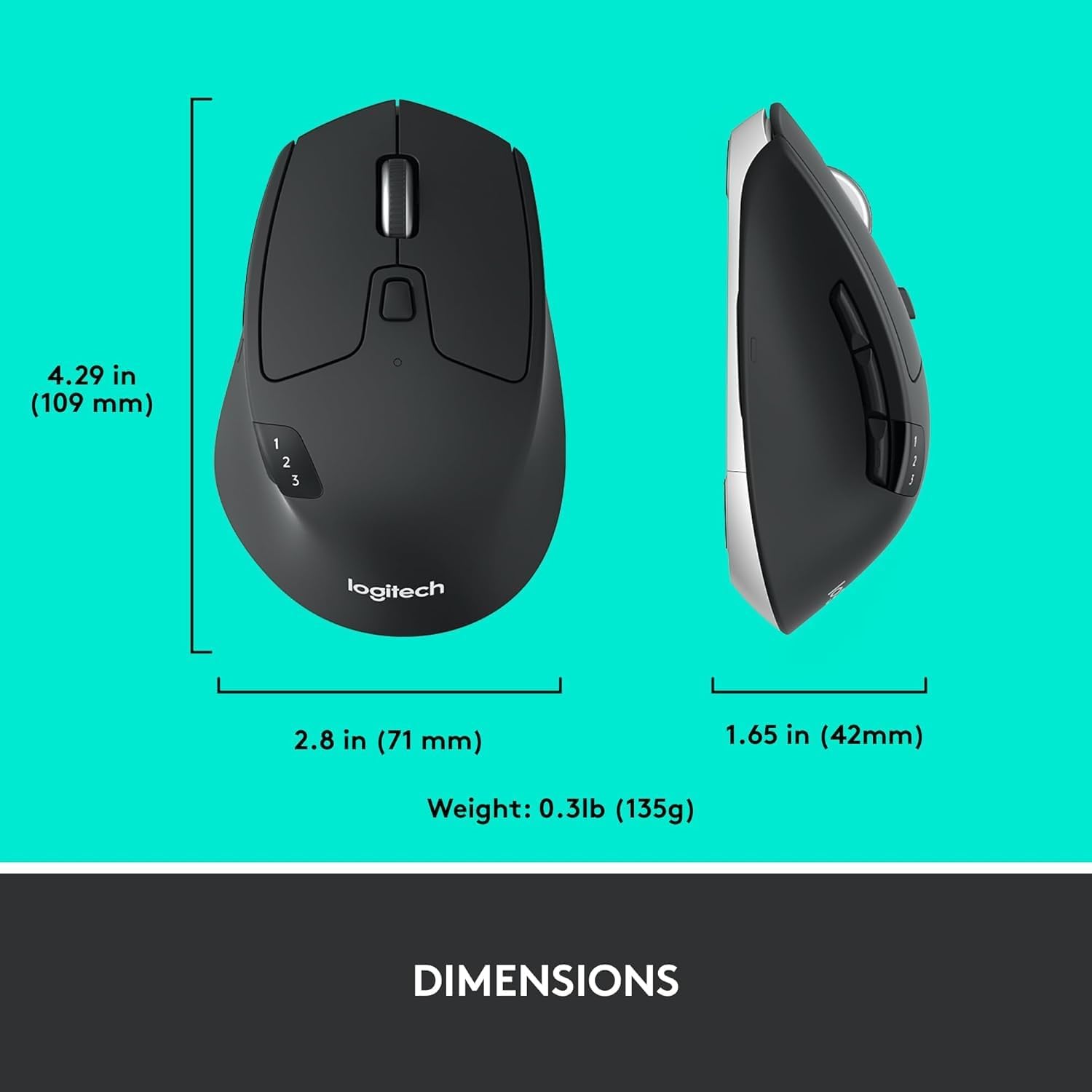
Image: The Logitech M720 mouse shown with its key dimensions (length, width, height) and weight indicated for reference.
Warranty and Support
For detailed warranty information, technical support, and additional resources, please visit the official Logitech support website. You can find FAQs, driver downloads, and contact information for customer service.
Logitech Support Website: support.logi.com