
Verbatim Vi3000
Verbatim Vi3000 PCIe NVMe M.2 2280 Internal SSD User Manual
Model: Vi3000 (Part No. 70872)
1. Introduction
The Verbatim Vi3000 PCIe NVMe M.2 2280 Internal SSD is engineered for users requiring high-speed data transfer and superior performance. Utilizing the PCIe NVMe Gen 3.0 x4 interface, this SSD offers significantly faster data access compared to traditional SATA-based SSDs. Its compact M.2 2280 form factor allows for installation in systems with limited space, making it suitable for both desktop and laptop environments. This manual provides essential information for the proper installation, operation, and maintenance of your Verbatim Vi3000 SSD.
2. Safety Information
Please read the following safety precautions carefully before installing or using the SSD:
- Electrostatic Discharge (ESD) Prevention: Electronic components are sensitive to static electricity. Always handle the SSD by its edges and avoid touching the gold connectors. Use an anti-static wrist strap or ground yourself by touching a metal object before handling the SSD.
- Power Off: Ensure your computer system is completely powered off and unplugged from the power source before installation.
- Compatibility: Verify that your motherboard has an M.2 slot that supports NVMe PCIe Gen 3.0 x4 SSDs. This SSD is not compatible with SATA M.2 slots.
- Physical Damage: Avoid bending or applying excessive force to the SSD. Inspect the SSD for any physical damage before installation.
- Ventilation: Ensure adequate airflow within your computer case to prevent overheating, especially during intensive operations.
3. Package Contents
The Verbatim Vi3000 PCIe NVMe M.2 2280 Internal SSD package typically includes:
- Verbatim Vi3000 PCIe NVMe M.2 2280 Internal SSD (512GB model)
- Installation Guide (may be included or available for download)
4. Product Overview
The Verbatim Vi3000 SSD is a compact storage device designed for high performance. Below are images illustrating the physical appearance of the SSD.


5. Installation Guide
Follow these steps to install your Verbatim Vi3000 PCIe NVMe M.2 2280 Internal SSD into a compatible desktop or laptop computer. It is recommended to consult your computer's or motherboard's manual for specific M.2 slot locations and installation procedures.
Preparation: Before beginning, ensure your computer is powered off and disconnected from all power sources. Open your computer case or laptop chassis to access the motherboard. Locate an available M.2 slot. Refer to your system's manual to confirm it supports NVMe PCIe SSDs.
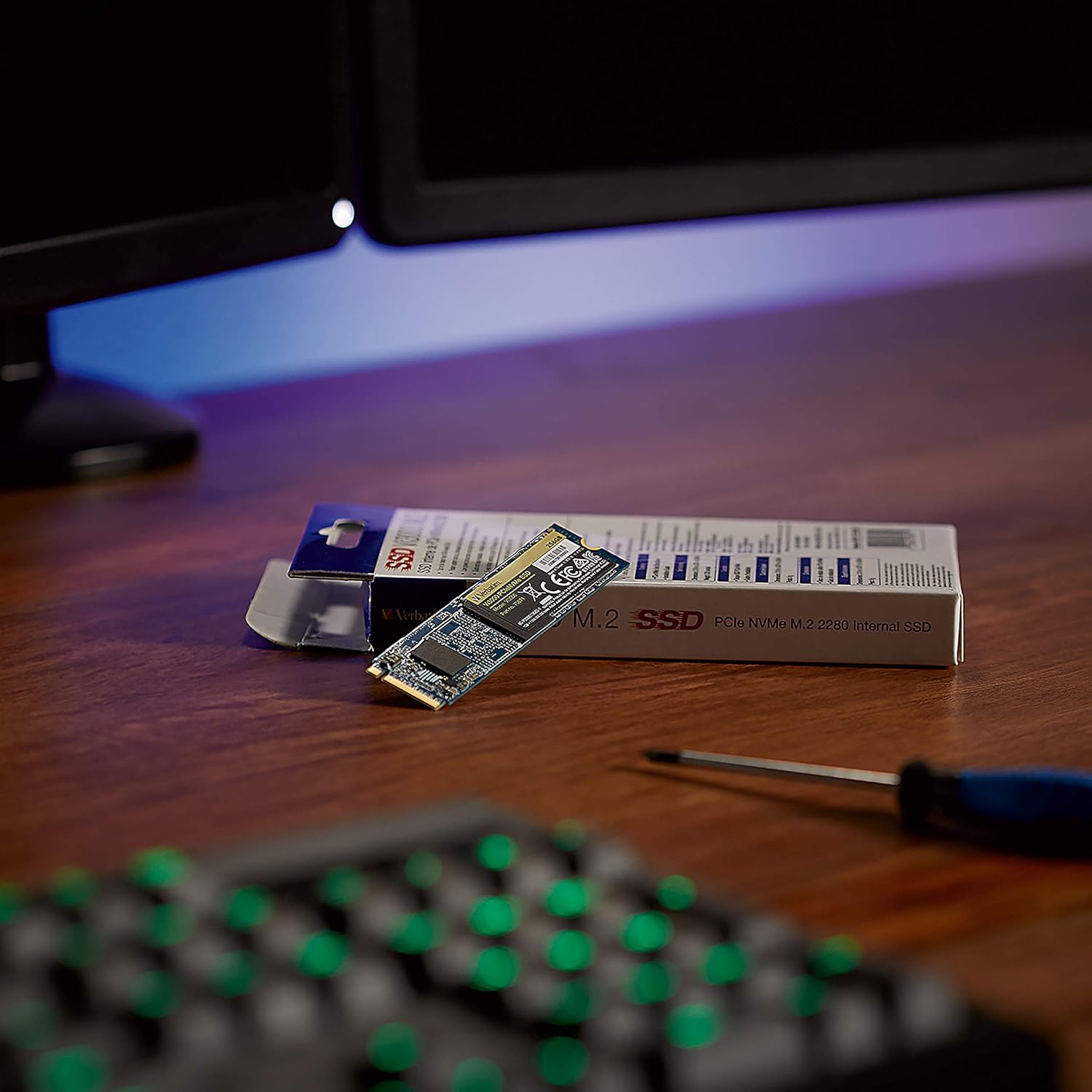
Figure 5.1: The SSD and its packaging, ready for installation. Ensure you have the necessary tools, such as a small Phillips head screwdriver. Insert the SSD: Carefully align the notch on the SSD with the key in the M.2 slot. Gently insert the SSD into the slot at an angle (typically 30 degrees) until it is fully seated. Do not force the SSD into the slot.

Figure 5.2: Proper insertion of the SSD into the M.2 slot on the motherboard. The SSD should slide in smoothly. Secure the SSD: Once inserted, gently push the SSD down towards the motherboard. It should lay flat. Secure the SSD with the screw provided with your motherboard or computer system. This screw typically goes into a standoff at the end of the M.2 slot.

Figure 5.3: The SSD is now fully seated in the M.2 slot, ready for securing with a screw. 
Figure 5.4: Using a screwdriver to secure the SSD to the motherboard's standoff. Do not overtighten. Reassemble and Power On: Close your computer case or laptop chassis. Reconnect all power cables and peripherals. Power on your computer.
Initialize and Format (New Installation): For a new SSD installation, you will need to initialize and format the drive in your operating system's Disk Management utility (Windows) or Disk Utility (macOS). This step makes the SSD usable for storing data. If you are migrating an existing operating system, follow your OS migration software's instructions.
6. Operating the SSD
Once installed and formatted, your Verbatim Vi3000 SSD operates like any other storage drive. Its primary function is to provide fast data storage and retrieval for your operating system, applications, and files.
- Operating System Drive: For optimal performance, it is recommended to install your operating system on the SSD. This will significantly reduce boot times and improve overall system responsiveness.
- Application Storage: Install frequently used applications and games on the SSD to benefit from faster loading times.
- Data Storage: Store important files, documents, photos, and videos on the SSD for quick access.
- Data Transfer: Enjoy rapid file transfers when moving data to and from the SSD, leveraging its high read and write speeds.
7. Maintenance
To ensure the longevity and optimal performance of your Verbatim Vi3000 SSD, consider the following maintenance tips:
- Keep Firmware Updated: Periodically check the Verbatim website for firmware updates for your SSD. Firmware updates can improve performance, stability, and compatibility.
- Avoid Filling to Capacity: While SSDs perform well even when nearly full, leaving some free space (e.g., 10-15%) can help maintain optimal performance and extend the drive's lifespan by allowing for efficient wear leveling.
- Enable TRIM: Ensure that the TRIM command is enabled in your operating system. TRIM helps the SSD manage data more efficiently, preventing performance degradation over time. Most modern operating systems enable TRIM by default for SSDs.
- Regular Backups: Always back up your important data to another storage device. While SSDs are reliable, no storage device is immune to failure.
- Avoid Defragmentation: Do not defragment an SSD. Defragmentation is designed for traditional hard drives and can reduce the lifespan of an SSD without providing any performance benefit.
8. Troubleshooting
If you encounter issues with your Verbatim Vi3000 SSD, refer to the following common problems and solutions:
| Problem | Possible Cause | Solution |
|---|---|---|
| SSD not detected by system. | Incorrect installation, incompatible M.2 slot, BIOS/UEFI settings. |
|
| SSD detected but not showing in "My Computer" / "Finder". | Not initialized or formatted. |
|
| Slow performance. | TRIM not enabled, nearly full drive, outdated drivers, overheating. |
|
| System crashes or freezes. | Driver issues, hardware conflict, faulty SSD. |
|
9. Specifications
Key technical specifications for the Verbatim Vi3000 PCIe NVMe M.2 2280 Internal SSD (512GB model):
| Feature | Detail |
|---|---|
| Model Name | Vi3000 |
| Part Number | 70872 |
| Capacity | 512 GB |
| Interface | PCIe Gen 3.0 x4 NVMe |
| Form Factor | M.2 2280 |
| Sequential Read Speed | Up to 3000 MB/s |
| Sequential Write Speed | Up to 2900 MB/s |
| Dimensions (LxWxH) | 3.15 x 0.87 x 0.08 inches |
| Item Weight | 0.634 ounces |
| Hardware Platform | PC, Laptop |
| Manufacturer | Verbatim Americas, LLC |
Note: Sequential transfer speeds are based on internal testing using ATTO benchmark. Actual performance may vary depending on host computer environment and use conditions.
10. Warranty and Support
Verbatim products are designed for reliability and performance. For information regarding the warranty period and terms for your Vi3000 SSD, please refer to the official Verbatim website or the warranty documentation included with your purchase.
For technical support, troubleshooting assistance, or to download the latest drivers and firmware, please visit the official Verbatim support page:
Additional resources, including a detailed user guide and spec sheet, may be available for download from the product page or the Technical Specifications section on Amazon.com.
- User Guide (PDF): Download User Guide
- User Manual (PDF): Download User Manual
Related Documents - Vi3000
 |
Verbatim Store 'n' Go Slim Portable SSD USB-C 3.2 Gen 1 - Fast Storage Discover the Verbatim Store 'n' Go Slim Portable SSD, featuring USB 3.2 Gen 1 speeds up to 5Gbps for fast data transfers and storage expansion. Compatible with PC and Mac. |
 |
Verbatim External Solid State Drive Quick Install Guide A concise guide to installing and using your Verbatim External Solid State Drive, covering connection, software setup, and compliance information. |
 |
Verbatim SnapBack Ultra Slim SSD: Quick Start Guide for USB-C 3.2 Gen 2x2 External Storage Get started quickly with the Verbatim SnapBack Ultra Slim Magnetic External SSD. This guide covers setup, magnetic attachment to smartphones, connection to PCs, safety information, and specifications for USB-C 3.2 Gen 2x2 high-speed data transfer. |
 |
Verbatim SnapBack Magnetic External SSD Quick Start Guide Get started quickly with the Verbatim SnapBack Magnetic External SSD. This guide provides essential information on setup, connection, usage with various devices (iPhone, Android, PC), and specifications for your USB-C 3.2 Gen 2x2 storage solution. |
 |
Verbatim Store 'n' Go Secure Portable HDD/SSD with Keypad Access User Manual User manual for the Verbatim Store 'n' Go Secure Portable Hard Drive and Solid State Drive with Keypad Access, detailing features, setup, password management, and formatting procedures. |
 |
Verbatim Portable Touch Monitor Quick Start Guide: 14", 15.6", 17.3" Full HD Get started quickly with the Verbatim Portable Touch Monitor series (PMT-14/15/17). This guide covers setup, connections via USB-C and HDMI, key operations, and specifications for the 14", 15.6", and 17.3" Full HD models. |