
Epson HA14B
Epson EF-12 Projector User Manual
Model: HA14B
Introduction
This manual provides essential information for the safe and effective use of your Epson EF-12 projector. Please read it thoroughly before operating the device and keep it for future reference.
The Epson EF-12 is a compact and lightweight projector designed for versatile home entertainment. It features Epson's 3LCD technology for clear and accurate images, integrated Android TV for streaming, and YAMAHA sound for an immersive audio experience.
Safety Information
Always observe the following safety precautions to prevent injury or damage to the projector:
- Do not block ventilation openings.
- Do not look directly into the lens when the projector is on.
- Use only the power cord supplied with the projector.
- Do not expose the projector to rain or moisture.
- Place the projector on a stable, level surface.
- Refer all servicing to qualified service personnel.
What's in the Box
Upon opening the package, ensure all the following items are present:
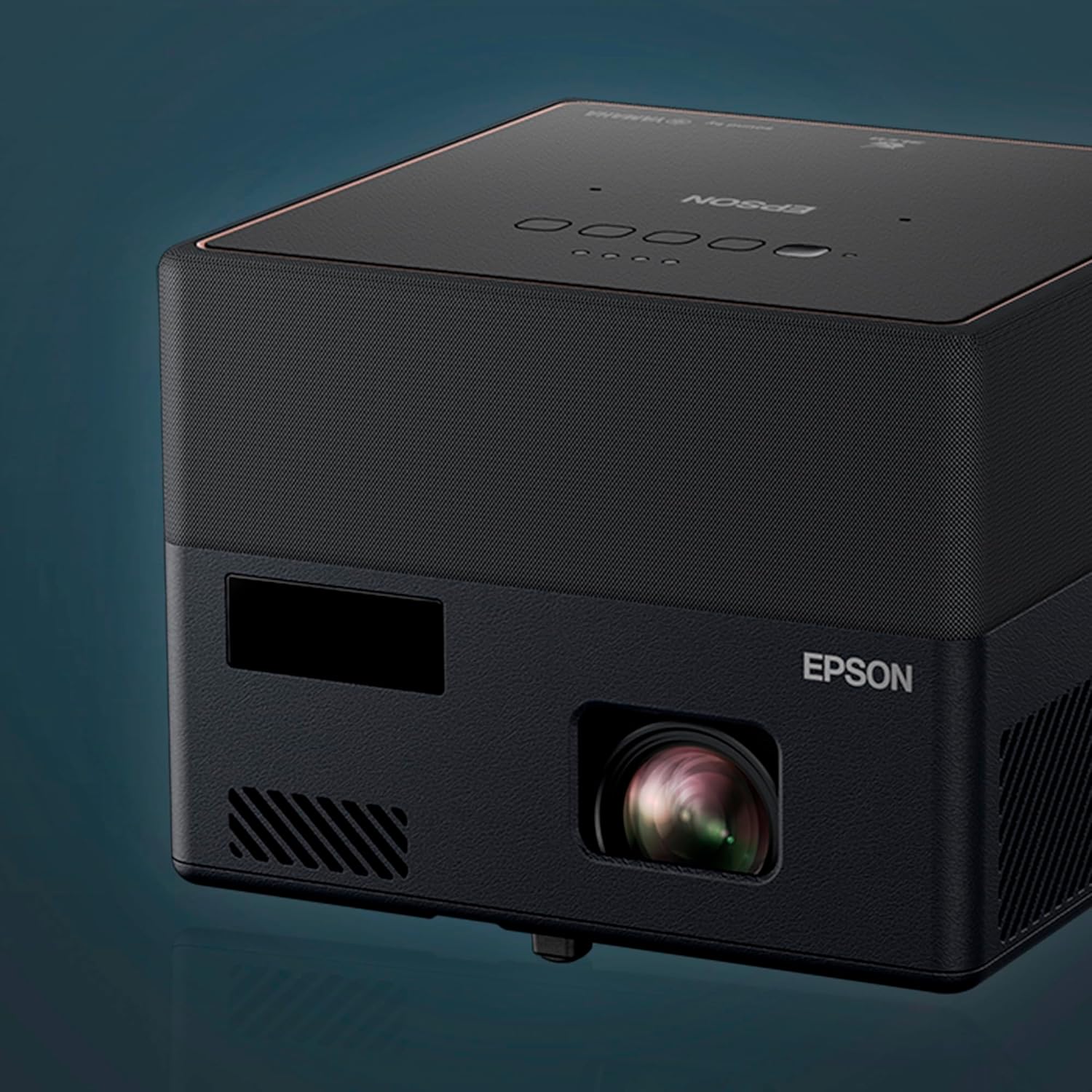
Image: The Epson EF-12 projector and its included accessories. The box contains the projector unit, a remote control with batteries, a power cable, and warranty documents along with a user guide.
- Epson EF-12 Projector Unit
- Remote Control (with batteries)
- Power Cable
- Warranty Document and User Guide
Product Overview
Front View

Image: Front view of the Epson EF-12 projector, showcasing its lens and compact design.
The front of the projector features the projection lens and ventilation openings. Ensure these are unobstructed for optimal performance.
Rear View and Connectivity
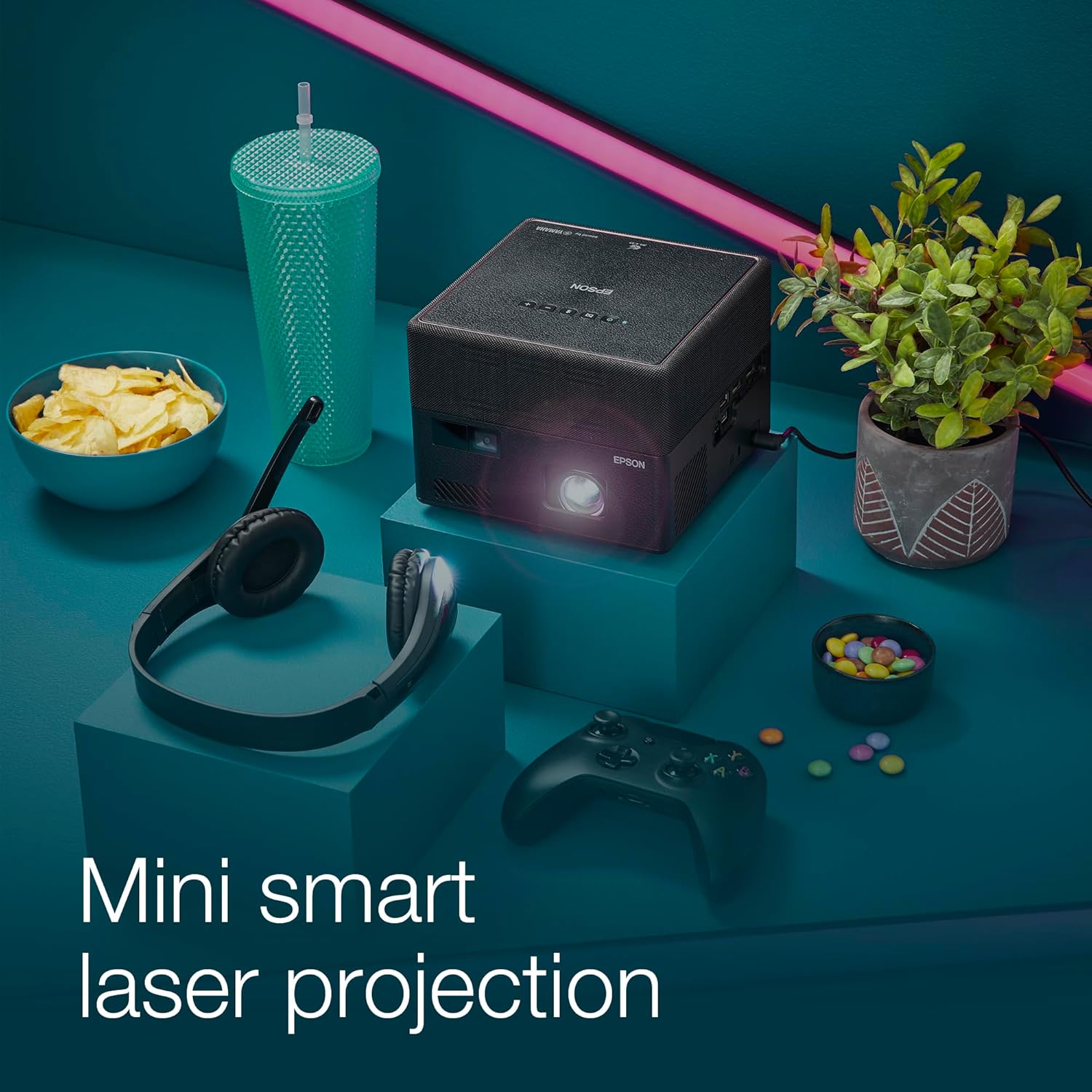
Image: Rear view of the Epson EF-12 projector, highlighting its connectivity ports. These include USB Type A, HDMI ARC, standard HDMI, headphone connector, USB Mini B for firmware updates, Kensington lock slot, and the power supply input.
The rear panel provides access to all input and output ports:
- USB Type A: For connecting storage devices, cameras, webcams, and microphones.
- HDMI ARC: To connect sound bars and other audio devices supporting Audio Return Channel.
- HDMI: For connecting Smart TVs, gaming consoles, laptops, and other HDMI-enabled devices.
- Headphone Connector: For private listening.
- USB Mini B: Used for firmware updates.
- Kensington Lock: For securing the projector.
- Power Supply: Connect the provided power cable here.
Setup
Initial Placement
Place the projector on a flat, stable surface. For optimal viewing, position the projector directly in front of your screen or wall. The EF-12 is designed for portability, allowing flexible placement.

Image: The Epson EF-12 projector placed on a wooden table, ready for use. A hand is shown holding the remote control, indicating ease of setup and operation.
Power Connection
- Connect the power cable to the Power Supply port on the rear of the projector.
- Plug the other end of the power cable into a wall outlet.
Connecting Devices
Use the appropriate ports on the rear of the projector to connect your desired devices:
- For gaming consoles, Blu-ray players, or laptops, use the HDMI or HDMI ARC ports.
- For external storage or peripherals, use the USB Type A port.
Operating the Projector
Powering On/Off
Press the power button on the projector or the remote control to turn the unit on or off.
Automatic Focus and Keystone Correction
The EF-12 features automatic focus and keystone correction. Upon startup or movement, the projector will automatically adjust the image for sharpness and correct any trapezoidal distortion, ensuring a perfectly rectangular picture.
Navigating Android TV™
The projector comes with integrated Android TV, providing access to a wide range of streaming services and apps. Use the remote control to navigate the Android TV interface, select apps, and browse content.
- Use the directional pad on the remote to move through menus.
- Press the OK button to select an item.
- Press the Back button to return to the previous screen.
- Press the Home button to go to the Android TV home screen.
Audio Features (YAMAHA Sound)
The EF-12 is equipped with YAMAHA sound technology, offering dynamic and 3D surround sound. You can use the built-in speakers or connect external audio systems via HDMI ARC or the headphone jack.
Adjust volume using the remote control. Explore sound modes within the projector's settings for an optimized audio experience.
Maintenance
Cleaning the Projector
- Exterior: Wipe the exterior of the projector with a soft, dry cloth. Do not use liquid or abrasive cleaners.
- Lens: Gently clean the lens with a lens cleaning cloth designed for optical surfaces. Avoid touching the lens with your fingers.
Firmware Updates
Periodically check for firmware updates to ensure optimal performance and access to the latest features. Updates can typically be performed via the projector's network connection or by connecting a USB device to the USB Mini B port.
Troubleshooting
| Problem | Possible Cause | Solution |
|---|---|---|
| No image projected | Power cable disconnected; Input source not selected; Lens cap on. | Ensure power cable is securely connected. Select the correct input source using the remote. Remove the lens cap. |
| Image is blurry | Projector out of focus; Projector moved. | The projector has automatic focus. If still blurry, try restarting the projector or ensuring it is on a stable surface. |
| No sound | Volume too low; Muted; External audio device not connected properly. | Increase volume. Check if muted. Ensure external audio devices are correctly connected to HDMI ARC or headphone jack. |
| Remote control not working | Batteries depleted; Obstruction between remote and projector. | Replace batteries. Ensure no objects are blocking the signal path. |
For further assistance, refer to the full user guide or contact Epson support.
Specifications

Image: A summary of the Epson EF-12's main features and additional features, including color, technology, light source, resolution, lumens, display size, keystone correction, dimensions, Android TV, Chromecast built-in, Google Assistant, Yamaha sound, built-in speaker, and HDMI ports.
| Feature | Detail |
|---|---|
| Model Number | HA14B |
| Brand | Epson |
| Display Resolution | 1920 x 1080 (Full HD 1080p) |
| Light Source | Laser |
| Brightness | 1,000 Lumens |
| Display Technology | 3LCD |
| Max Display Size | 150 inches |
| Connectivity | USB 2.0 Type A, B, 3.5mm Jack, HDMI (HDCP 2.3) |
| Special Features | Portable, Android TV, Chromecast built-in, Google Assistant, YAMAHA Sound, Built-in speaker, Automatic Keystone Correction |
| Color | Black with copper bezel |
| Item Weight | 4.62 pounds |
| Product Dimensions (W x D x H) | 175 x 175 x 135 mm (approx. 6.9 x 6.9 x 5.3 inches) |
| Recommended Use | Gaming, Home Entertainment |
Warranty and Support
Warranty information for your Epson EF-12 projector is typically included with the product documentation in the box. Please refer to the provided warranty card or user guide for details on coverage, terms, and conditions.
For technical support, service, or to find authorized service centers, please visit the official Epson support website or contact their customer service line. Contact details can usually be found in your product documentation or on the Epson website.
Keep your proof of purchase for warranty claims.
Related documentsHA14B


Ask a question about this manual
Ask about setup, troubleshooting, compatibility, parts, safety, or missing instructions. Manuals+ will review the question and use this page’s manual context to help answer it.