
1. Introduction
The TX3 Mini Pro Android 10.0 TV Box is a smart home entertainment device designed to transform your television into a powerful smart player. Running on the fast and robust Android 10.0 operating system, it offers enhanced compatibility with a wide range of applications, games, and streaming services. With its high-level configuration, including 2GB RAM and 16GB ROM, dual-band Wi-Fi, and 4K video decoding capabilities, this TV box delivers a smooth and immersive visual experience.
2. Product Overview
2.1 Device and Remote Control

Image: The TX3 Mini Pro TV Box (left) and its accompanying remote control (right). The TV box is compact and black, featuring the 'TX3 mini' logo. The remote control is also black with standard navigation and function buttons.
2.2 Ports and Connections

Image: Top view showing the TF Card slot and two USB ports. Bottom view showing AV, SPDIF, Ethernet, HDMI, and Power ports.

Image: A detailed diagram illustrating the I/O extension ports of the TX3 Mini Pro TV Box. Numbered labels indicate: 1. Power, 2. HDMI, 3. Ethernet, 4. AV, 5. USB 2.0, 6. Micro SD Card.
The TX3 Mini Pro TV Box features a variety of ports for connectivity:
- Power Input: Connect the provided power adapter.
- HDMI Output: Connect to your TV or display for high-definition video and audio.
- Ethernet Port: For wired internet connection (10/100M, standard RJ-45).
- AV Output: For connecting to older TVs using an AV cable.
- USB 2.0 Ports (x2): For connecting external devices such as USB drives, keyboards, or mice.
- Micro SD Card Slot: For expanding storage up to 64GB.
- SPDIF: Digital audio output.
3. Setup Guide
Setting up your TX3 Mini Pro TV Box is a straightforward process:

Image: A visual guide showing three simple steps for setting up the TV Box: 1. Connect TV Box to TV, 2. Connect to internet, 3. Start in streaming.
- Connect to TV: Connect the HDMI cable from the TV Box to an HDMI input on your television. If using an older TV, connect via the AV port.
- Power On: Connect the power adapter to the TV Box and plug it into a power outlet. The device will automatically power on.
- Connect to Internet:
- Wi-Fi: Navigate to Settings > Network > Wi-Fi, select your network, and enter the password.
- Ethernet: Connect an Ethernet cable from your router to the Ethernet port on the TV Box.
- Initial Setup: Follow the on-screen prompts for initial setup, including language selection and time zone.
4. Operating Instructions
4.1 User Interface and Navigation
Video: This video demonstrates the user interface of the TX3 Mini Pro Android 10.0 TV Box, showcasing navigation through various applications and settings. It highlights the ease of adding and managing apps on the home screen.
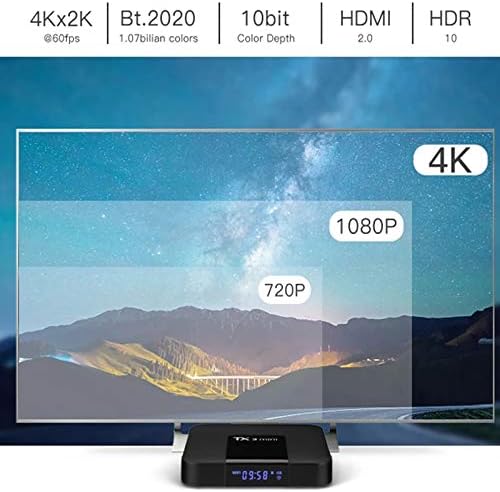
Image: The home screen of the TX3 Mini Pro TV Box, running Android 10. It displays various app icons such as Kodi, Google Play Store, FileBrowser, Chrome, Memory Recycle, YouTube, Settings, and a general Apps folder. There is also an option to add more applications.
The TX3 Mini Pro runs on Android 10.0, providing a user-friendly interface. Use the remote control to navigate through the home screen, select applications, and adjust settings. The main screen provides quick access to frequently used apps like Google Play Store, YouTube, and a file browser.
4.2 App Installation
Access the Google Play Store from the home screen to download and install a wide variety of applications, including streaming services, games, and utility tools. Ensure you are logged in with a Google account.
4.3 Media Playback and Display

Image: A television screen displaying a high-definition landscape, emphasizing the 4K*2K display and Super HD video playback capabilities of the TX3 Mini Pro TV Box. The TV box is positioned below the screen.

Image: A visual representation of different resolutions (720P, 1080P, 4K) on a TV screen, demonstrating the superior clarity of 4K (3840x2160) supported by the TX3 Mini Pro TV Box. The image also highlights 10bit@60fps H.265 powerful decoding capability.
The TV Box supports 4K video decoding and HDR media profiles, providing crisp details and rich colors. It is compatible with various TVs, including older models via AV output.

Image: The TX3 Mini Pro TV Box connected to both a modern flat-screen TV via HDMI and an older CRT television via AV cables, illustrating its compatibility with various TV types.
4.4 Screen Mirroring and Casting
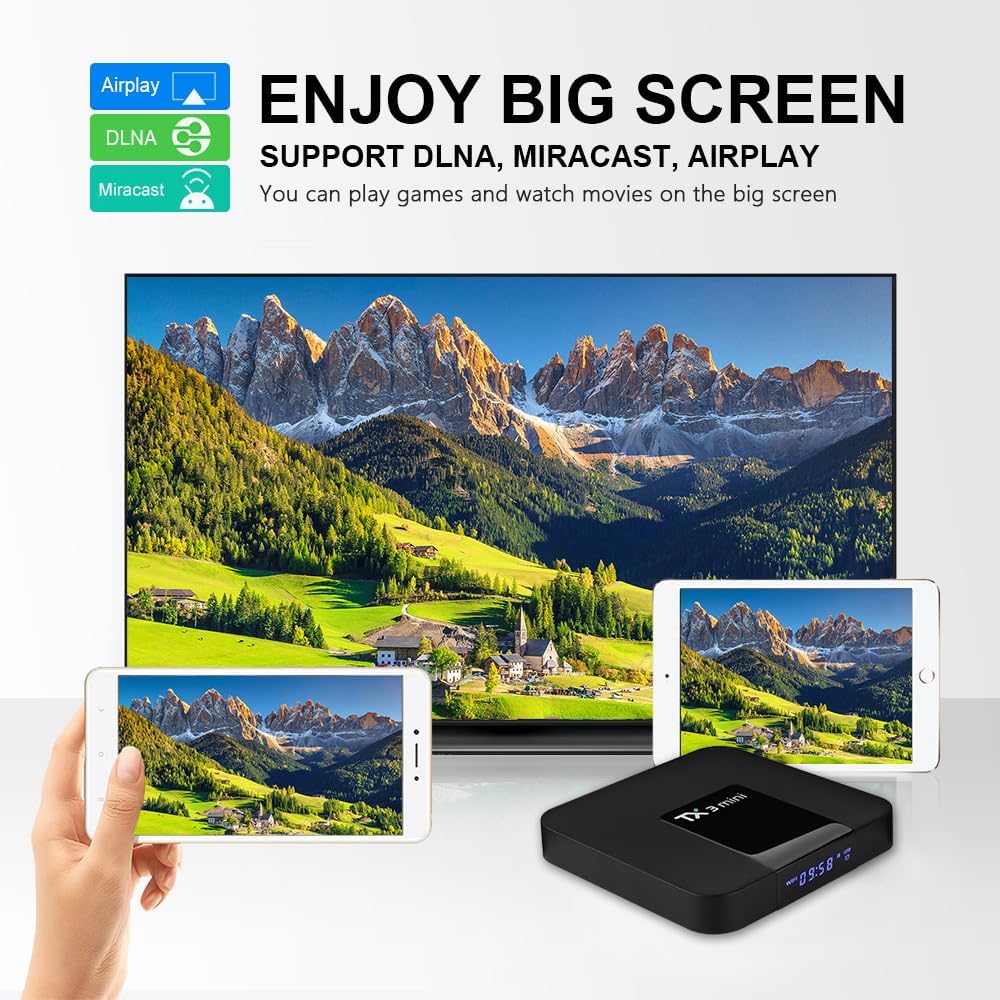
Image: A graphic illustrating the 'Enjoy Big Screen' feature, showing the TX3 Mini Pro TV Box connected to a large TV, with content being mirrored from a smartphone and a tablet. Icons for Airplay, DLNA, and Miracast are displayed, indicating support for these technologies.
The TX3 Mini Pro supports DLNA, Miracast, and Airplay, allowing you to cast content from your mobile devices to your TV for a larger viewing experience.
5. Maintenance
To ensure optimal performance and longevity of your TX3 Mini Pro TV Box, follow these maintenance guidelines:
- Cleaning: Use a soft, dry cloth to clean the exterior of the device. Avoid using liquid cleaners or abrasive materials.
- Ventilation: Ensure the device is placed in a well-ventilated area to prevent overheating. Do not block the ventilation holes.
- Software Updates: Periodically check for system updates in the Settings menu to ensure you have the latest features and security patches.
- Storage Management: Regularly clear cached data and uninstall unused applications to free up internal storage. You can check storage usage in Settings > Storage & reset.
6. Troubleshooting
If you encounter issues with your TX3 Mini Pro TV Box, refer to the following common troubleshooting steps:
| Problem | Possible Solution |
|---|---|
| No Power | Ensure the power adapter is securely connected to the device and the power outlet. Try a different outlet. |
| No Signal on TV | Check HDMI/AV cable connections. Ensure your TV input source is set to the correct HDMI/AV port. Restart the TV Box. |
| Wi-Fi Connection Issues | Verify Wi-Fi password. Restart your router and the TV Box. Ensure the TV Box is within range of your Wi-Fi signal. |
| Apps Crashing/Freezing | Clear app cache (Settings > Apps > select app > Clear cache). Restart the device. If persistent, consider a factory data reset (see below). |
| Remote Control Not Responding | Check batteries. Ensure no obstructions between the remote and the TV Box. |
Factory Data Reset
If issues persist, a factory data reset can resolve many software-related problems. Warning: This will erase all data and settings on the device.
- Go to Settings from the home screen.
- Select Storage & reset.
- Choose Factory data reset and confirm.
7. Specifications
Detailed technical specifications for the TX3 Mini Pro Android 10.0 TV Box:
| Feature | Detail |
|---|---|
| Brand Name | X88 |
| Item Model Number | TX3MINI-16GB |
| Operating System | Android 10.0 |
| Processor | Amlogic Quad core A53 (2.0 GHz) |
| GPU | Mali 450MP3 |
| RAM | 2GB DDR |
| ROM | 16GB eMMC Flash (Expandable via Micro SD up to 64GB) |
| Connectivity | Dual Band 2.4GHz & 5.8GHz Wi-Fi, Ethernet (10/100M), Bluetooth 4.2, USB |
| Video Resolution | 4K (UHD) |
| Special Features | Miracast, DLNA, Airplay, H.265 hardware decoding |
| Dimensions | 3.9 x 3.9 x 0.68 inches |
| Item Weight | 10.6 ounces |
8. Warranty and Support
For warranty information and technical support, please refer to the documentation provided with your purchase or contact the seller directly. Keep your proof of purchase for any warranty claims.