
WAVLINK WL-UG69DK7-A
Contents
WAVLINK USB-C DisplayLink Vertical Aluminum Ultra HD 5K Universal Docking Station User Manual
Model: WL-UG69DK7-A
1. Introduction
This manual provides detailed instructions for the installation, operation, and maintenance of your WAVLINK USB-C DisplayLink Vertical Aluminum Ultra HD 5K Universal Docking Station. Please read this manual thoroughly before using the product to ensure proper functionality and to maximize its capabilities.
The WAVLINK WL-UG69DK7-A is a versatile docking station designed to expand the connectivity of your laptop or desktop computer. It supports Ultra HD 5K or dual 4K video output, multiple USB ports, Gigabit Ethernet, and audio connections, transforming your device into a powerful workstation.
2. Package Contents
Verify that all items listed below are present in your package. If any items are missing or damaged, please contact customer support.
- WAVLINK USB-C DisplayLink Vertical Aluminum Ultra HD 5K Universal Docking Station (WL-UG69DK7-A)
- USB 3.0 Type-A to Type-C Cable
- USB 3.0 Type-C to Type-C Cable
- Power Adapter
- Driver CD (Drivers can also be downloaded from the WAVLINK website)
- Instruction Manual
- Warranty Card
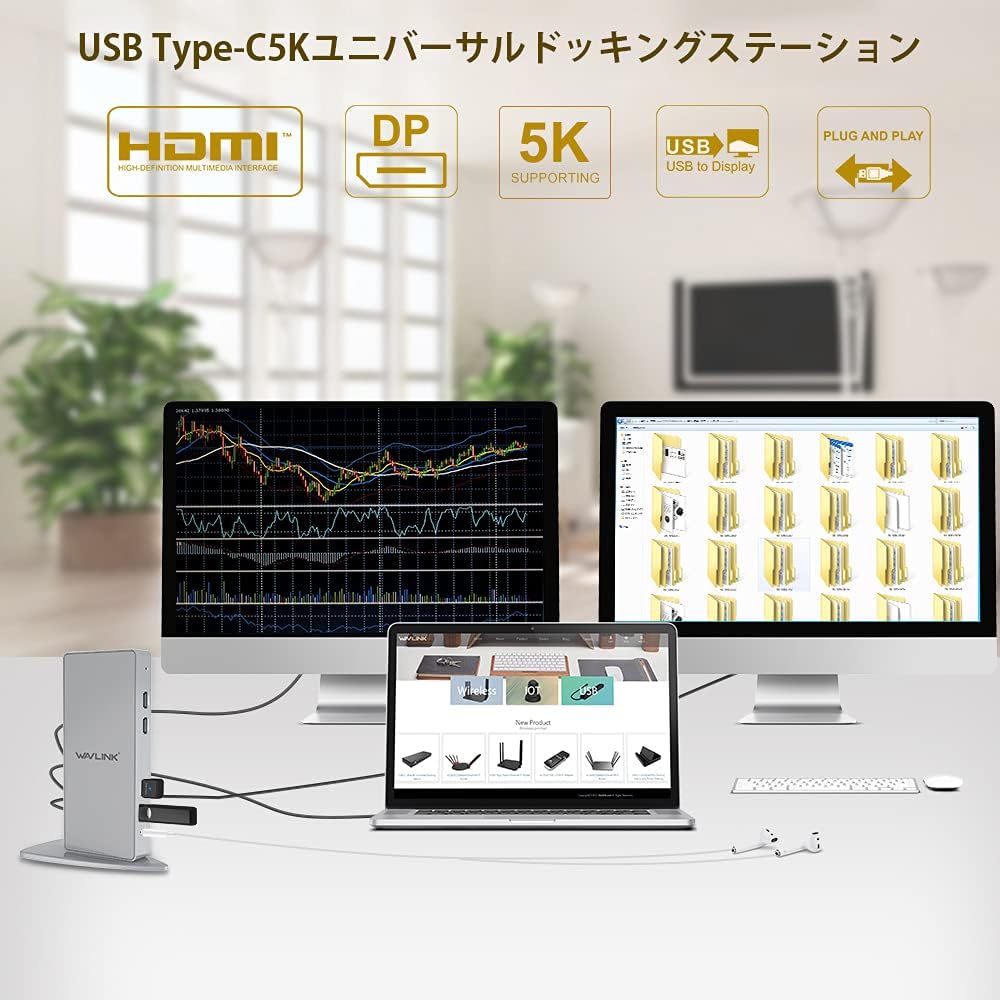
Image: Contents of the WAVLINK USB-C DisplayLink Universal Docking Station package, including the docking station, cables, power adapter, driver CD, and documentation.
3. Product Features
- Multi-functional Connectivity: Transforms your computer into a high-performance workstation with comprehensive port expansion.
- Ultra HD Video Output: Supports a single 5K (5120x2880) @ 60Hz display via dual DisplayPort connections.
- Dual 4K Display Support: Provides dual 4K (3840x2160) @ 60Hz resolution via HDMI/HDMI, DisplayPort/DisplayPort, or HDMI/DisplayPort configurations.
- Gigabit Ethernet: Integrated RJ-45 port for stable 10/100/1000Mbps wired network connection.
- High-Speed USB Ports: Features 6 USB 3.0 ports (5Gbps) for connecting peripherals and 2 Type-C ports for host device compatibility.
- Audio Connectivity: Includes audio input and output ports for headphones and microphones.
- System Compatibility: Compatible with Windows 11, 10, 8, 7, XP, and Mac OS 10.6 to 10.13.3.
- Efficient Design: Vertical aluminum casing promotes effective heat dissipation and saves desk space.

Image: Close-up view of the WAVLINK docking station's ports, including LAN, HDMI, DisplayPort, and USB-C IN.
4. Setup Guide
4.1 Driver Installation
- Windows: The DisplayLink driver may install automatically when the docking station is connected to a Windows 10/11 system with an active internet connection. If not, insert the provided driver CD or download the latest driver from the official WAVLINK website (www.wavlink.com). Follow the on-screen instructions to complete the installation.
- macOS: Download the latest DisplayLink driver from the official WAVLINK website (www.wavlink.com). Install the driver and restart your Mac. Important Note for Mac Users: macOS 10.13.4 and later versions do not natively support DisplayLink. For optimal performance, it is recommended to use macOS 10.13.3 or earlier and disable automatic updates.
4.2 Connecting the Docking Station
- Connect the power adapter to the docking station and plug it into a power outlet.
- Connect the provided USB-C to USB-C cable (or USB-A to USB-C cable) from the docking station's USB-C IN port to your laptop or desktop computer's USB-C or USB 3.0 port.
- Connect your monitors to the docking station using HDMI or DisplayPort cables. For 5K resolution, use two DisplayPort cables. For dual 4K, use two HDMI, two DisplayPort, or one of each.
- Connect your peripherals (keyboard, mouse, external drives, etc.) to the available USB 3.0 ports.
- For a wired network connection, connect an Ethernet cable from your router/modem to the RJ-45 Gigabit Ethernet port on the docking station.
- Connect headphones or speakers to the audio output port, and a microphone to the audio input port if needed.

Image: A WAVLINK docking station connected to a laptop, extending the display to two external monitors and connecting various USB peripherals.
5. Operating Instructions
5.1 Display Modes
The docking station supports various display modes, allowing you to customize your workspace:
- Extended Mode: Extends your desktop across multiple screens, allowing you to view different applications simultaneously. This mode is ideal for multitasking and increasing productivity.
- Mirror Mode (Clone Mode): Duplicates your primary display onto the external monitors, showing the same content on all screens. Useful for presentations or sharing content.

Image: Diagram illustrating the extended display mode, where the laptop screen and an external monitor show different content.
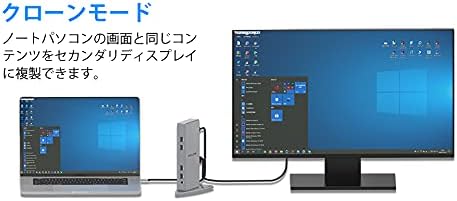
Image: Diagram illustrating the clone (mirror) display mode, where the laptop screen and an external monitor show identical content.
5.2 Configuring Displays (Windows)
- Right-click on your desktop and select "Display settings."
- In the Display settings window, you can detect, identify, and arrange your displays.
- Select a display and choose your preferred display mode (Extend these displays, Duplicate these displays, Show only on 1, Show only on 2, etc.) from the "Multiple displays" dropdown menu.
- Adjust resolution, orientation, and scaling as needed for each monitor.
5.3 Configuring Displays (macOS)
- Go to "System Preferences" > "Displays."
- In the Display window, you can detect and arrange your displays.
- To extend your desktop, ensure "Mirror Displays" is unchecked in the "Arrangement" tab.
- To mirror your display, check "Mirror Displays" in the "Arrangement" tab.
- Adjust resolution and refresh rate as needed.
6. Maintenance
- Keep the docking station in a dry environment, away from moisture and extreme temperatures.
- Clean the device with a soft, dry cloth. Avoid using liquid or aerosol cleaners.
- Do not attempt to disassemble or repair the device yourself. Refer to qualified service personnel for any repairs.
- Ensure proper ventilation around the docking station to prevent overheating. The vertical aluminum design aids in heat dissipation.
7. Troubleshooting
If you encounter issues with your WAVLINK docking station, please refer to the following common solutions:
| Problem | Solution |
|---|---|
| No display on external monitors. |
|
| USB devices are not recognized. |
|
| Ethernet connection issues. |
|
| Audio is not working. |
|
| Docking station feels warm. |
|
8. Specifications
| Feature | Detail |
|---|---|
| Model | WL-UG69DK7-A |
| Brand | WAVLINK |
| Color | Silver |
| Host Interface | USB-C (compatible with USB 3.0 Type-A via adapter cable) |
| Video Output | 2 x HDMI, 2 x DisplayPort |
| Max Resolution (Single Display) | 5K (5120x2880) @ 60Hz via Dual DisplayPort |
| Max Resolution (Dual Display) | Dual 4K (3840x2160) @ 60Hz |
| USB Ports | 6 x USB 3.0 (5Gbps), 2 x USB Type-C |
| Ethernet | RJ-45 Gigabit Ethernet (10/100/1000Mbps) |
| Audio | 1 x Audio Input (Microphone), 1 x Audio Output (Headphone) |
| Dimensions (L x W x H) | 15.6 cm x 9 cm x 28 cm |
| System Compatibility | Windows 11/10/8/7/XP, macOS 10.6 to 10.13.3 |
| UPC | 695536204468 |
9. Warranty and Support
WAVLINK products come with a standard manufacturer's warranty. Please refer to the warranty card included in your package for specific terms and conditions, including the warranty period and coverage details.
For technical support, driver downloads, or further assistance, please visit the official WAVLINK website or contact their customer service:
- Website: www.wavlink.com
- Customer Service: Refer to the contact information provided on the WAVLINK website or your warranty card.
Please have your product model (WL-UG69DK7-A) and purchase details ready when contacting support.
Documents and downloads
Ask a question about this manual
Ask about setup, troubleshooting, compatibility, parts, safety, or missing instructions. Manuals+ will review the question and use this page’s manual context to help answer it.