Introduction
The NETGEAR Orbi Pro Tri-Band WiFi Router (SRR60) is designed to provide robust, high-speed wireless connectivity for businesses. This system offers extensive coverage, advanced security features, and simplified management through the NETGEAR Insight app, ensuring a reliable and efficient network environment for employees, guests, and critical business operations.
This manual provides detailed instructions for setting up, operating, maintaining, and troubleshooting your Orbi Pro SRR60 router.
Package Contents
Before you begin, ensure all items are present in your package:
- One (1) Orbi Pro AC3000 Router (SRR60)
- One (1) wall mount with screws
- One (1) ceiling mount with screws
- One (1) 2m Ethernet cable
- One (1) 12V/3.5A power adapter
- Quick start guide
Setup Instructions
1. Physical Placement and Connection
Place your Orbi Pro router in a central location within your business area for optimal WiFi coverage. Avoid placing it near large metal objects, concrete walls, or other devices that may cause interference.
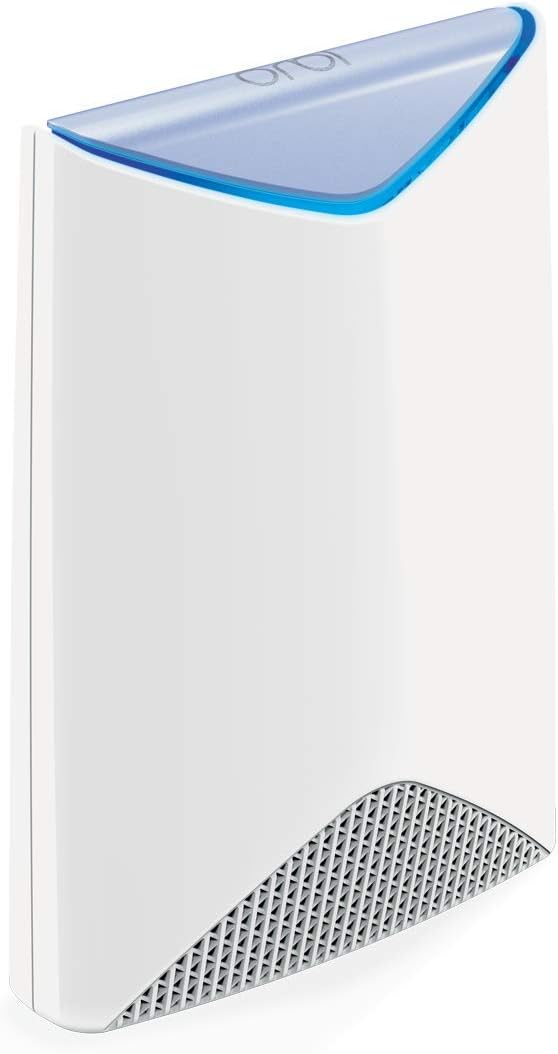
Image: The NETGEAR Orbi Pro SRR60 Router, a white rectangular device with a blue top accent, designed for optimal signal distribution.
- Connect to Modem: Connect one end of the provided Ethernet cable to the yellow Internet port on your Orbi Pro router. Connect the other end to your modem's Ethernet port.
- Power On: Connect the power adapter to the Orbi Pro router and plug it into a power outlet. Wait for the router's LED to turn solid white, indicating it's ready.
- Wired Connections: Utilize the three Ethernet ports on the back of the router to connect wired devices such as computers, servers, or network printers for stable, high-speed connections.

Image: Rear view of the Orbi Pro router, highlighting the sync button, power on/off switch, and three Ethernet ports for connecting to a modem and other devices.
2. Initial Configuration using NETGEAR Insight App
The NETGEAR Insight app simplifies the setup and management of your Orbi Pro system.
- Download App: Download the NETGEAR Insight app from the Apple App Store or Google Play Store on your mobile device.
- Launch App: Open the Insight app and follow the on-screen instructions to set up your Orbi Pro router. This typically involves scanning a QR code on the router or entering its serial number.
- Create Networks: The app will guide you through creating your secure WiFi networks, including dedicated networks for Guests, Employees, and Admins.

Image: A smartphone displaying the NETGEAR Insight app, showing network status, connected clients, and various settings for easy network management.
Operating the Orbi Pro System
WiFi Coverage and Expansion
The Orbi Pro SRR60 router provides reliable WiFi coverage up to 2,500 sq. ft. For larger areas, the system is expandable by adding Orbi Pro satellites (sold separately).

Image: An illustration depicting the Orbi Pro router providing reliable WiFi coverage across an office space, covering up to 2,500 sq. ft.

Image: A visual representation of how the Orbi Pro system expands coverage by adding satellites, illustrating coverage areas for 1, 2, and 3 units.
Orbi Pro satellites can be wall or ceiling mounted to extend coverage seamlessly without the need for additional Ethernet cables for backhaul.

Image: Examples of Orbi Pro satellites discreetly mounted on a wall and a ceiling, demonstrating flexible placement options.
Network Management and Security
- Tri-Band Technology: The Orbi Pro utilizes a dedicated tri-band backhaul to ensure maximum speed (up to 3Gbps) for your devices, separating network traffic efficiently.
- Pre-Defined Networks: Manage three distinct WiFi networks:
- Admin/Manager: Secure access to critical infrastructure.
- Employee: Full internet and non-critical network access.
- Guest: Limited internet access through a customizable guest portal with optional time limits.

Image: A diagram showing the three pre-defined network types (Admin/Manager, Employee, Guest) and their respective access levels, ensuring secure traffic separation.
- Seamless Roaming: Devices automatically switch to the strongest WiFi signal as users move around the office, ensuring uninterrupted connectivity.
- Advanced Security: Features include WPA2 wireless security protocols, Guest WiFi access, Denial of Service (DoS) protection, Firewall, and VPN support.
- Insight Cloud Management: Use the NETGEAR Insight app for remote management of your network settings, speed tests, and monitoring from anywhere. A 1-year premium subscription is included.

Image: A comparison chart demonstrating the superior speed of Orbi Pro's Tri-Band WiFi (3Gbps) compared to a typical Dual-Band WiFi system (600Mbps).
Maintenance
- Firmware Updates: Regularly check for and install firmware updates through the NETGEAR Insight app or the router's web interface to ensure optimal performance, security, and access to new features.
- Cleaning: Keep the router clean and free from dust. Use a soft, dry cloth to wipe the exterior. Do not use liquid cleaners or aerosols.
- Ventilation: Ensure the router has adequate ventilation. Do not block the ventilation holes or place the router in an enclosed space that could lead to overheating.
- Rebooting: Periodically rebooting your router (unplugging the power for 10 seconds and plugging it back in) can help resolve minor network issues and improve performance.
Troubleshooting
Common Issues and Solutions
| Problem | Possible Cause | Solution |
|---|---|---|
| No Internet Connection | Modem issue, incorrect cable connection, ISP outage. |
|
| Slow WiFi Speed | Interference, too many devices, outdated firmware, poor placement. |
|
| Cannot Connect to WiFi Network | Incorrect password, network not broadcasting, device issue. |
|
Specifications
| Model Name | SRR60 |
| Brand | NETGEAR |
| Product Dimensions | 3.3 x 9.7 x 6.8 inches |
| Item Weight | 2.06 pounds |
| Connectivity Technology | Ethernet, Wireless |
| Wireless Communication Standard | 802.11a (and other WiFi standards supported by AC3000 Tri-Band) |
| Frequency Band Class | Tri-Band |
| Antenna Type | Internal |
| Special Feature | WPS (Wi-Fi Protected Setup) |
| Recommended Uses | Business |
| Manufacturer | Netgear Inc |
Warranty and Support
Warranty Information
This product is sold as an Amazon Renewed item. Amazon Renewed products are eligible for replacement or refund under the Amazon Renewed Guarantee if you are not satisfied with your purchase. Please refer to the Amazon Renewed Guarantee terms and conditions for specific details regarding your warranty coverage.
Technical Support
For technical assistance with your NETGEAR Orbi Pro SRR60 router, please visit the official NETGEAR support website or contact their customer service. The NETGEAR Insight app also provides in-app support resources and diagnostics.
- NETGEAR Support Website: www.netgear.com/support
- NETGEAR Insight App: Available on Apple App Store and Google Play Store.