
DOOGEE S40 Pro
DOOGEE S40 Pro Rugged Phone User Manual
Model: S40 Pro
Introduction
The DOOGEE S40 Pro is a rugged smartphone designed for durability and performance in challenging environments. It features a 5.45-inch display, Android 10, a 4650mAh battery, and dual rear cameras. This manual provides essential information for setting up, operating, maintaining, and troubleshooting your device.

Image: Front and back view of the DOOGEE S40 Pro rugged phone, showcasing its robust design and camera module.
1. Setup
1.1 Unboxing and Package Contents
Carefully unbox your DOOGEE S40 Pro. Verify that all standard accessories are included in the package.

Image: Contents of the DOOGEE S40 Pro package, including the phone, power adapter, USB cable, user manual, and warranty information.
- DOOGEE S40 Pro Smartphone
- Power Adapter
- USB Cable
- User Manual
- Warranty Card
1.2 SIM Card and SD Card Installation
The DOOGEE S40 Pro supports dual SIM cards and an expandable SD card for additional storage. Locate the SIM tray on the side of the device.
- Use the provided SIM ejector tool to open the SIM card tray.
- Carefully place your Nano-SIM cards and/or microSD card into the designated slots on the tray. Ensure the gold contacts are facing down.
- Gently push the tray back into the phone until it is flush with the device body.
1.3 Initial Charging
Before first use, it is recommended to fully charge the device.
- Connect the USB cable to the power adapter.
- Plug the USB cable into the charging port of the phone.
- Plug the power adapter into a wall outlet.
- The charging indicator will appear on the screen. Allow the phone to charge until the battery icon shows full.
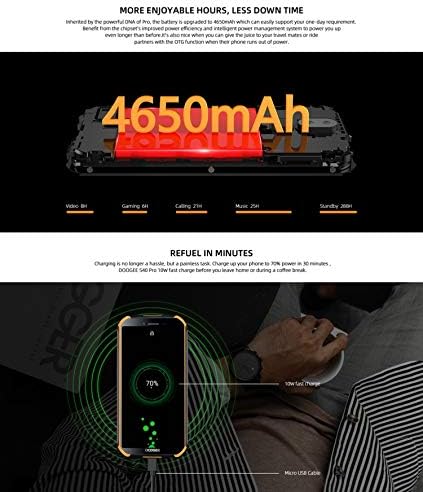
Image: The DOOGEE S40 Pro connected to a charger, showing the charging animation and battery percentage.
1.4 Power On/Off
- To Power On: Press and hold the Power button (located on the right side) until the DOOGEE logo appears.
- To Power Off: Press and hold the Power button until the power options menu appears. Select "Power off" and confirm.
- To Restart: From the power options menu, select "Restart" and confirm.
2. Operating Instructions
2.1 Basic Navigation
The DOOGEE S40 Pro operates on Android 10.0 and uses a touchscreen for navigation.
- Tap: Touch the screen once to select an item or open an application.
- Swipe: Drag your finger across the screen to scroll through pages or lists.
- Pinch-to-Zoom: Place two fingers on the screen and move them apart or together to zoom in or out.
- Long Press: Press and hold an item to access additional options or move icons.
2.2 Calls and Messaging
- Making Calls: Open the Phone app, enter the number, and tap the call icon.
- Receiving Calls: Swipe up to answer or down to decline an incoming call.
- Sending Messages: Open the Messages app, tap the new message icon, enter the recipient and message, then tap send.
2.3 Camera Usage
The S40 Pro features dual rear cameras (13MP Sony primary sensor + 2MP portrait camera) and a front camera for selfies.

Image: Diagram highlighting the AI Rear Dual Camera setup on the DOOGEE S40 Pro, showing the 13MP Sony sensor and 2MP portrait camera, along with example photos.
- Open the Camera app from your home screen or app drawer.
- Switch between front and rear cameras using the camera switch icon.
- Tap the shutter button to take a photo.
- Explore different modes like Portrait, Video, and Panorama.
2.4 Fingerprint Unlock
The device includes a rear-mounted fingerprint sensor for quick and secure unlocking.

Image: Illustration of the fingerprint unlock feature on the DOOGEE S40 Pro, showing a finger interacting with the rear-mounted sensor.
- Go to Settings > Security & location > Fingerprint.
- Follow the on-screen instructions to register your fingerprint.
- Once registered, simply place your finger on the sensor to unlock the phone.
2.5 NFC and Google Pay
The DOOGEE S40 Pro supports NFC (Near Field Communication) for convenient data transmission and mobile payments like Google Pay.

Image: Visual representation of NFC functionality for Google Pay and data transmission, and the 3.5mm headphone jack on the DOOGEE S40 Pro.
- To enable NFC: Go to Settings > Connected devices > NFC and toggle it on.
- Google Pay: Ensure Google Pay is set up with your payment methods. Tap your phone to compatible terminals for contactless payments.
2.6 Connectivity
- Wi-Fi: Connect to wireless networks via Settings > Network & internet > Wi-Fi.
- Bluetooth: Pair with Bluetooth devices via Settings > Connected devices > Bluetooth.
- USB: Connect to a computer using the provided USB cable for file transfer or charging.
- 3.5mm Headphone Jack: Plug in wired headphones for audio.
3. Maintenance
3.1 Rugged Features and Durability
The DOOGEE S40 Pro is built to withstand harsh conditions, featuring IP68 water and dust resistance and MIL-STD-810G certification for drops and extreme temperatures.

Image: The DOOGEE S40 Pro submerged in water, dropped onto concrete, and surviving a fall, illustrating its IP68 and MIL-STD-810G durability.
- Water Resistance (IP68): Can withstand submersion up to 1.5 meters for 30 minutes. Ensure all port covers are securely closed before exposure to water.
- Dust Resistance (IP68): Fully protected against dust ingress.
- Drop Resistance (MIL-STD-810G): Designed to survive drops from up to 1.2 meters onto hard surfaces.
- Temperature Resistance: Operates in extreme temperatures from -55°C to 70°C.

Image: The DOOGEE S40 Pro shown in extreme cold (-55°C) and hot (70°C) environments, highlighting its robust temperature tolerance.
3.2 Cleaning Your Device
To clean your DOOGEE S40 Pro:
- Wipe the screen and body with a soft, lint-free cloth.
- For stubborn dirt, dampen the cloth slightly with water. Avoid harsh chemicals or abrasive materials.
- If the device has been exposed to saltwater, rinse it thoroughly with fresh water and dry it completely before charging.
3.3 Software Updates
Regularly check for software updates to ensure optimal performance and security.
- Go to Settings > System > System update.
- Follow the on-screen prompts to download and install any available updates. Ensure your device has sufficient battery and a stable internet connection during updates.
4. Troubleshooting
| Problem | Possible Solution |
|---|---|
| Device does not power on. | Ensure the battery is charged. Connect to a charger and wait a few minutes before attempting to power on again. If unresponsive, try a forced restart by holding the Power button for 10-15 seconds. |
| Battery drains quickly. | Check for background apps consuming power. Reduce screen brightness. Disable Wi-Fi, Bluetooth, or GPS when not in use. Perform a software update. |
| Cannot connect to Wi-Fi. | Ensure Wi-Fi is enabled. Restart your router and the phone. Forget the network and reconnect. |
| Phone is slow or unresponsive. | Close unnecessary background apps. Clear cache. Restart the device. If issues persist, consider a factory reset (back up data first). |
| Camera not working. | Restart the phone. Clear the Camera app's cache and data in Settings > Apps. Ensure no other app is using the camera. |
5. Specifications
Key technical specifications for the DOOGEE S40 Pro:
- Model Name: S40 Pro
- Operating System: Android 10.0
- Display: 5.45 inches, LCD, 1440 x 720 resolution
- RAM: 4 GB
- Internal Storage: 64 GB (expandable via microSD)
- Battery: 4650mAh
- Rear Camera: Dual Back Cameras (13MP Sony primary + 2MP portrait)
- Front Camera: Yes
- Processor: Octa Core (CPU speed: 1.8 GHz, CPU model: Snapdragon)
- Connectivity: 4G Cellular, Wi-Fi, Bluetooth, USB, GPS, NFC
- Special Features: Touchscreen, Fingerprint Sensor, 3.5mm Headphone Jack
- Durability: IP68 Water & Dust Resistant, MIL-STD-810G Drop Resistant
- Color: Black
- What's in the box: Adapter, USB Cable
6. Warranty and Support
For warranty information and customer support, please refer to the warranty card included in your product package or visit the official DOOGEE website. Keep your proof of purchase for warranty claims.
- Official Website: www.doogee.cc (Please note: This is a placeholder URL, refer to your product's specific documentation for the correct support website.)
- Customer Service: Contact details may be found on the official website or your warranty card.
Related documentsS40 Pro


Ask a question about this manual
Ask about setup, troubleshooting, compatibility, parts, safety, or missing instructions. Manuals+ will review the question and use this page’s manual context to help answer it.