1. Introduction
Welcome to the Tecnolite Connect Smart Home experience. This instruction manual provides essential information for the safe and efficient use of your Tecnolite Connect Smart White Light WiFi and Bluetooth Smart Bulbs. Please read this manual thoroughly before installation and operation, and keep it for future reference.

Image: Tecnolite Connect Smart Bulbs 3-pack packaging. The package displays three white smart bulbs, with one bulb shown separately and illuminated with a warm white light.
2. What's Included
Your Tecnolite Connect Smart Bulb package includes:
- 3 x Tecnolite Connect Smart White Light Bulbs
- 1 x Instruction Manual
3. Key Features
- LED Technology: Energy-efficient 7W bulbs with a lifespan of 15,000 hours.
- Tunable White Light: Choose from 64,000 shades of white light (warm, cool, dynamic).
- Dimmable: Adjust light intensity from 0% to 100%.
- Smart Control: Control lights via the Tecnolite Connect mobile app.
- Voice Assistant Compatibility: Works with Alexa, Siri Shortcuts, and Google Assistant.
- Energy Saving: Reduces energy consumption by up to 80%.
- Easy Installation: Compatible with traditional E26/E27 bases, no additional wiring required.
- Timer Function: Automate lighting schedules.
- Remote Control: Manage your lighting from anywhere.

Image: A graphic displaying icons representing the smart bulb's features: adjustable white tones, WiFi connection, timer, dimmable, control sharing, mobile app control, and LED technology.
4. Setup
4.1. Physical Installation
Install your Tecnolite Connect Smart Bulbs into any standard E26/E27 light socket. Ensure the power is off before installation. Simply screw the bulb into the socket as you would a traditional light bulb.

Image: A person is shown screwing a Tecnolite Connect smart bulb into a hanging light fixture. The bulb is compatible with traditional bases.
4.2. App Download
Download the free Tecnolite Connect mobile application from the App Store (iOS) or Google Play Store (Android). You will also need the Amazon Alexa app if you plan to use Alexa voice control.

Image: A smartphone screen illustrating the steps to download the Tecnolite Connect and Alexa apps, followed by instructions for linking accounts and detecting devices.
4.3. Pairing with Tecnolite Connect App
Once the bulbs are installed and the app is downloaded, open the Tecnolite Connect app. Ensure your Wi-Fi network is 2.4 GHz. The app will guide you through the pairing process. The bulbs will typically flash to indicate pairing mode. Follow the on-screen instructions to add your devices.
Video: This video demonstrates the physical installation of the smart bulbs, followed by the process of pairing them with the Tecnolite Connect mobile application. It shows how to add devices and control basic functions like color and dimming.
4.4. Connecting with Alexa
To enable voice control with Alexa, follow these steps:
- Open the Amazon Alexa app.
- Navigate to the 'More' menu (usually three horizontal lines or dots).
- Select 'Skills & Games'.
- Search for 'Tecnolite Connect' and enable the skill.
- You will be prompted to link your Tecnolite Connect account. Use the same credentials you used for the Tecnolite Connect app.
- Once linked, Alexa will discover your devices. You can then assign them to rooms or groups.
Video: This video provides a step-by-step guide on how to link your Tecnolite Connect account with the Amazon Alexa app, enable the Tecnolite Connect skill, and discover your smart bulbs for voice control.
5. Operating Instructions
5.1. App Control
The Tecnolite Connect app allows you to fully customize your lighting experience:
- On/Off: Tap the power icon to turn the bulbs on or off.
- Brightness: Use the slider to adjust the brightness level from 0% to 100%.
- Color Temperature: Select from 64,000 shades of white, ranging from warm to cool, to set the perfect ambiance.
- Scenes: Choose from pre-set scenes or create custom scenes for different activities or moods.
- Timers & Schedules: Set schedules for your lights to turn on or off automatically at specific times or days.

Image: A smartphone displaying the Tecnolite Connect app interface, showing a brightness control slider and a color temperature selector for a smart bulb in a living room.
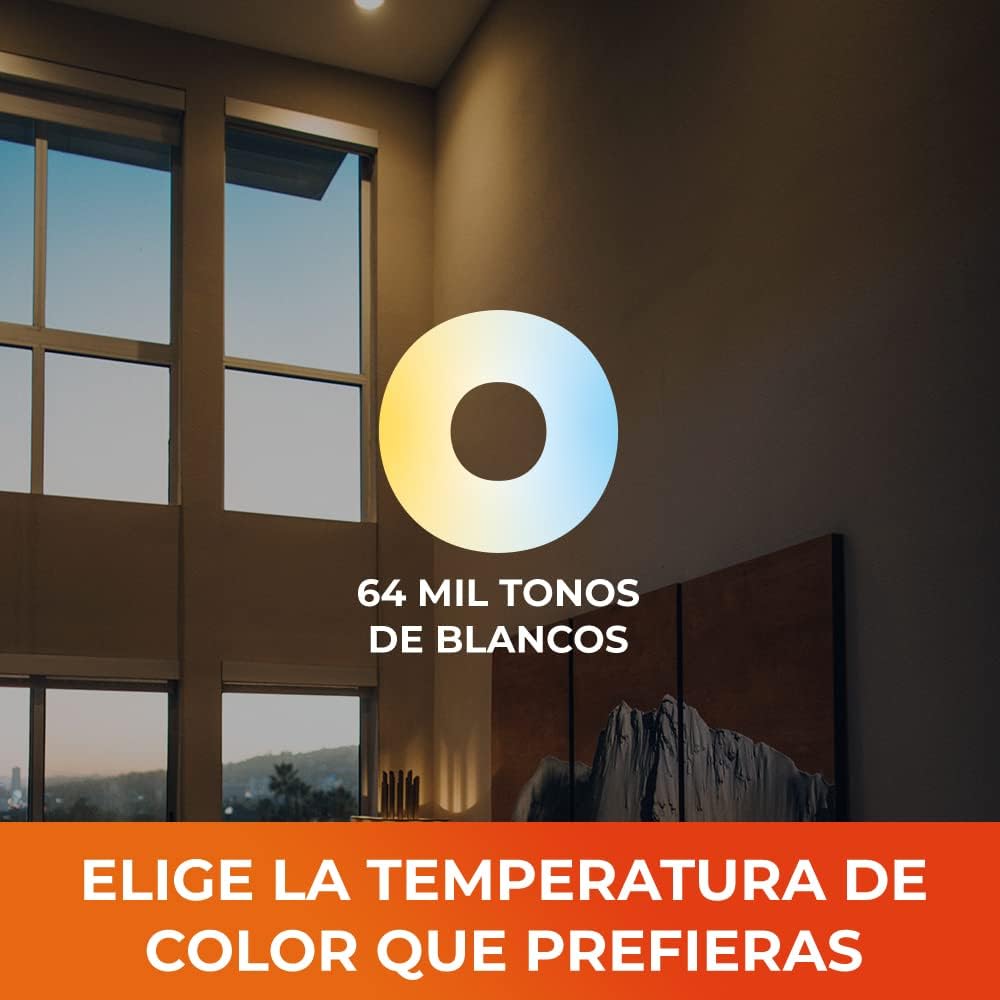
Image: A graphic showcasing the wide range of 64,000 white tones (from warm to cool) that can be selected for the smart bulbs, with a room changing its illumination.
5.2. Voice Control
After connecting your bulbs to Alexa or Google Assistant, you can use voice commands to control your lights. Here are some examples:
- "Alexa, turn on the living room light."
- "Hey Google, dim the kitchen lights to 50%."
- "Alexa, set the bedroom light to warm white."
- "Hey Google, turn off all lights."
6. Maintenance
Tecnolite Connect Smart Bulbs are designed for long-lasting performance with a lifespan of 15,000 hours. No special maintenance is required. Ensure the bulbs are clean and free from dust for optimal light output. Always turn off the power before cleaning or handling the bulbs.
7. Troubleshooting
7.1. Unpairing/Resetting Devices
If you need to unpair a device from your Tecnolite Connect account or reset it to factory settings, follow the instructions in the video below. This is particularly useful if you are transferring ownership or experiencing connectivity issues that require a fresh setup.
Video: This video demonstrates the process of unpairing Tecnolite Connect devices from the mobile application. It covers steps to select and remove devices, ensuring they are properly disconnected from your account.
7.2. General Troubleshooting Tips
- Connectivity Issues: Ensure your Wi-Fi network is 2.4 GHz. Check your router and internet connection. Move the bulb closer to the router if possible.
- Bulb Not Responding: Try turning the light switch off and on again. If the issue persists, try resetting the bulb as shown in the unpairing video.
- App Issues: Ensure your Tecnolite Connect app is updated to the latest version. Restart the app or your mobile device.
- Voice Assistant Issues: Verify that the Tecnolite Connect skill is enabled in your Alexa or Google Home app and that your accounts are correctly linked.
8. Product Specifications
| Specification | Detail |
|---|---|
| Brand | Tecnolite |
| Product Model Number | KITA19CCTTCW3P |
| Item Package Quantity | 3 Units (Pack of 1) |
| Color | White |
| Style | Kit de 3 focos LED |
| Material | Plastic |
| Shape | Arbitrary (A19) |
| Power Source | AC |
| Voltage | 127 Volts |
| Wattage | 7 Watts |
| Bulb Type | LED |
| Luminous Flux | 800 lm |
| Special Features | Low power consumption |
| Usage | Home, office, industry |
| Batteries Required? | No |
| Product Dimensions | 5.99 x 5.99 x 11.61 cm; 200 g (2.36 x 2.36 x 4.57 inches) |
9. Warranty Information
Specific warranty details for Tecnolite Connect products are typically provided at the point of purchase or on the official Tecnolite website. Please refer to your purchase documentation or contact Tecnolite customer support for comprehensive warranty information.
10. Customer Support
Should you have any questions or require assistance with your Tecnolite Connect Smart Bulbs, please contact our customer support team through the following channels:
- Chat Support: Available via WhatsApp.
- Phone Support: Contact our technical support hotline.
- Email Support: Send your inquiries to our support email address.
- In-App Support: Access support directly within the Tecnolite Connect application.
Free coverage is available after your purchase. Technical support hours are Monday - Thursday: 8:30 a.m. - 6:30 p.m. (CDMX time) and Friday: 8:30 a.m. - 2:30 p.m. (CDMX time).

Image: A graphic detailing Tecnolite Connect customer support options, including chat, phone, email, and in-app support, with a customer service representative.


