
Introduction
The Logilink Full HD USB Webcam UA0371 is designed for high-quality video communication, offering 1080p resolution at 30 frames per second. It features an integrated microphone for clear audio and a versatile mounting clip for various setups. This manual provides essential information for the proper installation, operation, and maintenance of your webcam.
What's in the Box
- Logilink Full HD USB Webcam UA0371
- Integrated USB Cable
Product Overview
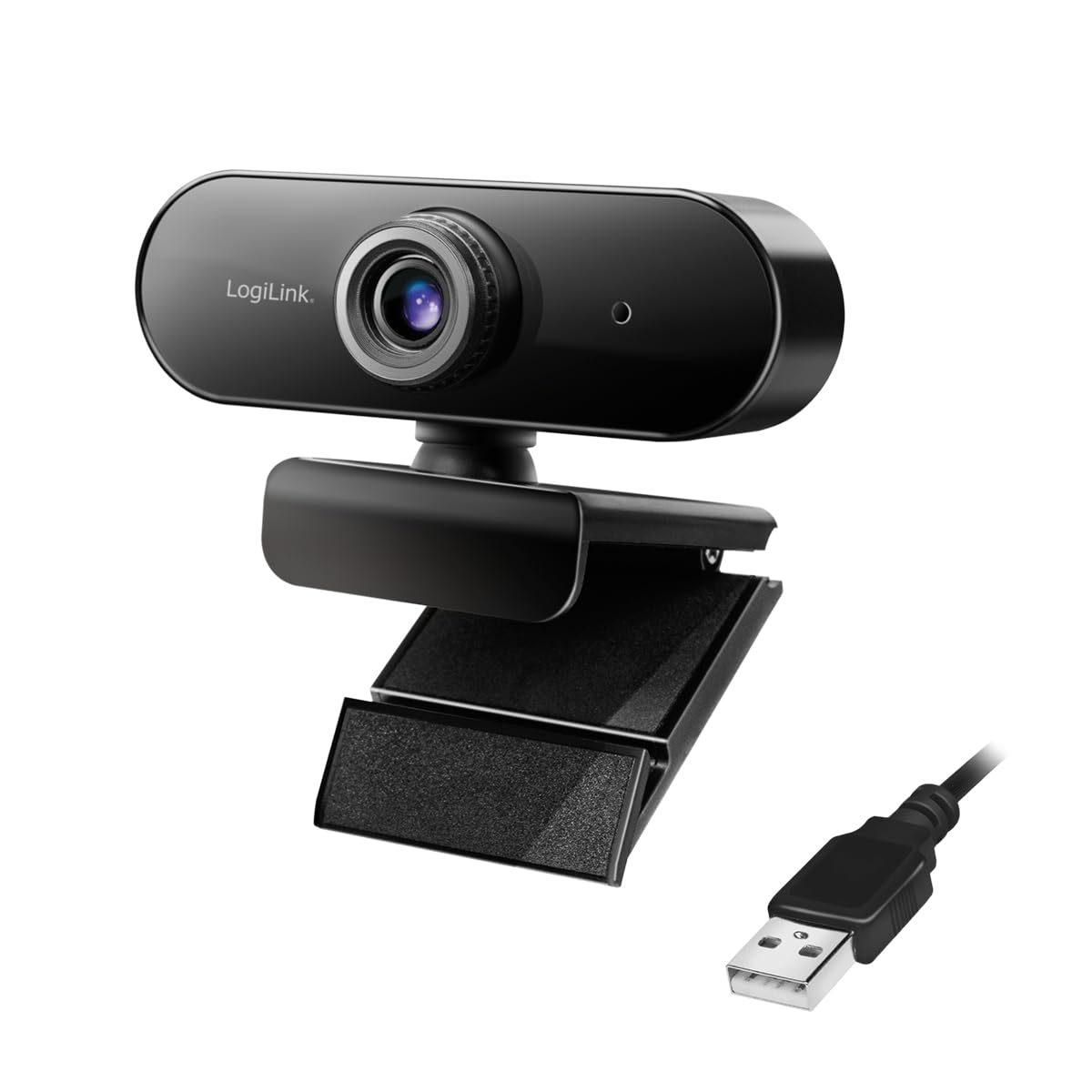
Front view of the Logilink Full HD USB Webcam UA0371, showing the lens and Logilink branding.
The Logilink UA0371 webcam is equipped with a 1080p sensor for clear video capture and an integrated microphone for audio input. Its design includes a flexible clip for easy attachment to various displays or surfaces, and a standard tripod thread for alternative mounting options.

Close-up view of the adjustable mounting clip, demonstrating its design for secure attachment.
Setup
1. Connecting the Webcam
- Unpack the webcam and its integrated USB cable.
- Plug the USB cable into an available USB port on your computer. The webcam is designed for plug-and-play functionality and typically does not require additional driver installation.
2. Mounting the Webcam
The webcam offers flexible mounting options:
- On a Monitor or Laptop Screen: Use the adjustable clip to securely attach the webcam to the top edge of your display. Adjust the angle as needed.

The webcam securely mounted on the top edge of a computer monitor.
- On a Flat Surface: Fold the clip to create a stable base, allowing the webcam to stand on a desk or tabletop.
- On a Tripod: The webcam includes a standard tripod thread on its base for mounting on a compatible tripod (not included).

The webcam attached to a tripod for alternative positioning.
Operating Instructions
Using the Webcam with Applications
- After connecting the webcam, your operating system should automatically recognize it.
- Open your desired video conferencing, streaming, or recording application (e.g., Zoom, Skype, Microsoft Teams, OBS Studio).
- Navigate to the application's settings or preferences, typically under 'Video' and 'Audio' input devices.
- Select 'Logilink Webcam UA0371' (or similar name) as your primary video input device.
- Select 'Logilink Webcam UA0371' (or similar name) as your primary audio input device to utilize the integrated microphone.
- Adjust any video or audio settings within the application as needed (e.g., resolution, brightness, microphone volume).

Two individuals engaged in a video call using the webcam on a laptop.

A person participating in a video conference using the webcam with a desktop setup.
Maintenance
To ensure optimal performance and longevity of your Logilink Webcam UA0371, follow these maintenance guidelines:
- Cleaning the Lens: Gently wipe the webcam lens with a soft, dry, lint-free cloth. Avoid using abrasive cleaners, solvents, or harsh chemicals, as these can damage the lens coating.
- Cleaning the Body: Use a slightly damp cloth to clean the exterior of the webcam. Ensure no moisture enters the device.
- Storage: When not in use, store the webcam in a clean, dry environment away from extreme temperatures and direct sunlight.
Troubleshooting
If you encounter issues with your Logilink Webcam UA0371, refer to the following common problems and solutions:
- Webcam not detected by computer:
- Ensure the USB cable is securely connected to both the webcam and your computer's USB port.
- Try connecting the webcam to a different USB port on your computer.
- Restart your computer.
- Check your operating system's Device Manager (Windows) or System Information (macOS) to see if the webcam is listed.
- No video or poor image quality:
- Verify that the Logilink Webcam UA0371 is selected as the video input device within your video conferencing or recording application's settings.
- Ensure there is adequate lighting in your environment.
- Clean the webcam lens if it appears smudged or dirty.
- Check the application's video resolution settings; ensure it is set to 1080p or a suitable resolution.
- No audio or poor audio quality from the microphone:
- Confirm that the Logilink Webcam UA0371's microphone is selected as the audio input device in your application's settings and your operating system's sound settings.
- Ensure the microphone is not muted within your application or operating system.
- Adjust the microphone input volume in your system or application settings.
Specifications
| Feature | Specification |
|---|---|
| Model Number | UA0371 |
| Video Capture Resolution | 1080p |
| Photo Sensor Technology | CMOS |
| Connectivity Technology | USB |
| Product Dimensions | 3.35 x 2.36 x 2.36 inches |
| Item Weight | 5.3 ounces |
| Maximum Focal Length | 10 Millimeters |
| Maximum Aperture | 3.5 Millimeters |
| Video Capture Format | MP4 |
| Supported Audio Format | AAC, PCM |
Warranty and Support
For detailed warranty information, technical support, or further assistance with your Logilink Full HD USB Webcam UA0371, please visit the official Logilink website or contact their customer service department. Keep your purchase receipt for warranty claims.


