
Introduction
Thank you for choosing the MOES WiFi Smart Light Switch. This device allows you to control your lighting remotely via the Smart Life/Tuya app, voice commands through Alexa or Google Home, RF433 remote control, or directly by touch. Designed for convenience and smart living, this switch operates on a 2.4GHz Wi-Fi network and does not require a neutral wire for installation. Please read this manual carefully before installation and use to ensure proper operation and safety.

Image: The MOES WiFi Smart Light Switch (2 Gang, White) alongside its retail packaging, highlighting its compatibility with Tuya, Alexa, and Google Assistant.
Safety Information and Important Notes
- Electrical Safety: Installation should be performed by a qualified electrician or a person with sufficient knowledge of electrical systems. Always turn off power at the circuit breaker before installation or maintenance.
- Network Compatibility: This device supports 2.4GHz Wi-Fi networks ONLY. It is not compatible with 5GHz Wi-Fi.
- Bulb Requirements: Ensure connected light bulbs have a rated power of ≥ 5W.
- No Neutral Wire Required: This switch is designed for systems without a neutral wire. A 1A capacitance is required for proper operation and is included in the package.
- Not for 3-Way Circuits: This switch is designed for single-pole (1-way) circuits only and cannot be used as a 3-way switch.
- Capacitor Note: The included capacitance may produce a faint humming sound during operation. This is normal.

Image: Visual summary of important installation notes, including 2.4GHz Wi-Fi only, ≥5W bulb requirement, not for 2-way switches, and no neutral wire required.
Package Contents
- MOES WiFi Smart Light Switch (2 Gang)
- Capacitance (1A)
- Mounting Screws
- User Manual
Specifications
| Feature | Detail |
|---|---|
| Model Number | b38c87e2-a0bd-41a4-afc3-8affc48d249a |
| Dimensions | 10.7 x 10.1 x 5 cm; 200 g |
| Operating Mode | ON-OFF |
| Rated Current | 1 Amperes |
| Contact Type | Normally Open |
| Connector Type | Clamp |
| Circuit Type | Single-pole (1-way) |
| Mounting Type | Surface Mount |
| Actuator Type | Push Button |
| Contact Material | Plastic |
| Country of Origin | China |
Installation Guide
1. Wiring Diagram
Before starting, ensure the main power supply to the circuit is turned OFF at the circuit breaker. Connect the switch according to the diagram below. Remember to install the included capacitance across the light bulb terminals.

Image: Detailed wiring diagram for the MOES WiFi Smart Switch, showing connections for Live (L), Load (L1), and the required capacitance across the light bulb. Also includes physical dimensions of the switch.
2. Physical Installation
- Turn off the power at the main circuit breaker.
- Remove your old wall switch.
- Connect the wires from your wall to the MOES Smart Switch terminals as shown in the wiring diagram. Ensure all connections are secure.
- Install the included 1A capacitance across the terminals of your light bulb (not at the switch). This is crucial for proper operation in no-neutral setups.
- Mount the MOES Smart Switch into the wall box using the provided screws.
- Attach the glass panel to the switch.
- Restore power at the circuit breaker.

Image: Illustration emphasizing the importance of installing the capacitance across the light bulb for normal operation of the no-neutral smart switch.
Pairing and Connectivity
1. Download the Smart Life / Tuya App
Search for "Smart Life" or "Tuya Smart" in your mobile app store (App Store for iOS, Google Play for Android) and download the application. Register or log in to your account.
2. Add Device (New Pairing Mode)
The MOES Smart Switch features an easy pairing mode with Wi-Fi and Bluetooth connectivity for automatic identification and quick configuration.
- Ensure your mobile device's Bluetooth and Wi-Fi are enabled.
- Open the Smart Life or Tuya Smart app.
- Tap the "+" icon in the top right corner to add a device.
- The app should automatically discover the new device. If not, select "Lighting" > "Switch (Wi-Fi)".
- Follow the on-screen prompts to connect the switch to your 2.4GHz Wi-Fi network.
- Once connected, you can rename the switch for easier control.

Image: Illustrates the simplified new pairing mode of the MOES switch compared to older, more complex methods, highlighting quick and easy connection within 8 seconds.
Operating Instructions
Multiple Control Modes
The MOES Smart Switch offers versatile control options that work independently:
- Touch Control: Directly press the touch panel on the switch to turn lights ON/OFF.
- App Control: Use the Smart Life / Tuya app on your smartphone or tablet to control the switch from anywhere, anytime.
- Voice Control: Compatible with Amazon Alexa and Google Home for hands-free voice commands. Simply say, "Alexa, turn off the light" or "Hey Google, turn on the living room light."
- RF433 Remote Control: Control the switch using an RF433 remote control with 1527 encoding (remote not included).

Image: Depicts the four main control methods: RF433 Remote Control, Hands-free Voice Control (Alexa/Google Home), Smart Life/Tuya Remote Control via app, and direct Touch Control on the switch panel.
Advanced App Features
- Timer and Schedule: Set precise timers and schedules for your lights to turn ON/OFF automatically. Options include countdowns (1/5/30 minutes, 1 hour, etc.) and daily/weekly schedules.
- Relay Status Memory: The switch can remember its last ON/OFF state after a power outage, ensuring your lights return to their previous setting. You can configure this in the app.
- Backlight Switch: The backlight indicator on the switch can be turned ON or OFF via the app, preventing any disturbance to sleep.
- Device Sharing: Share control of the smart switch with family members and friends through the app, allowing multiple users to manage the lights.
- Group Control: Create groups within the app to manage multiple smart switches simultaneously, controlling all lights in a room or your entire home with a single command.
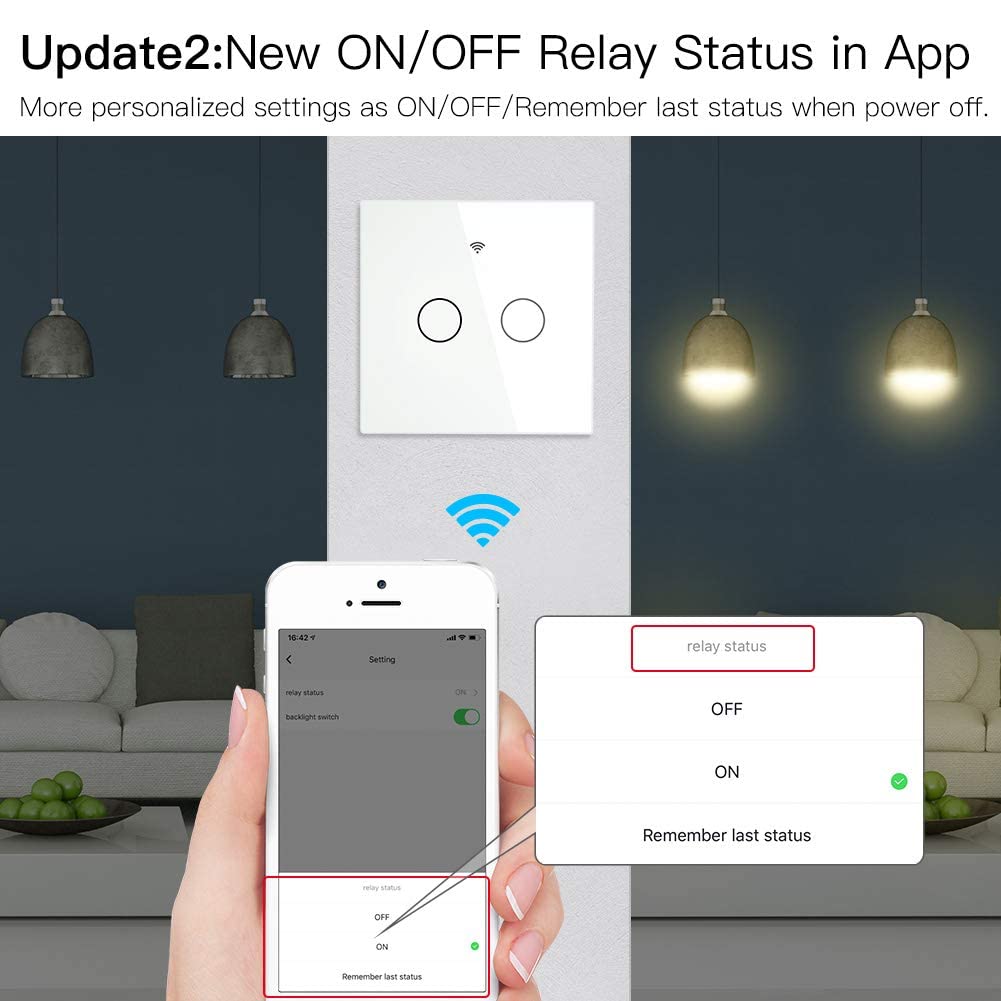
Image: Screenshot of the Smart Life app showing options to set the relay status (ON/OFF/Remember last status) for the MOES Smart Switch after a power cut.
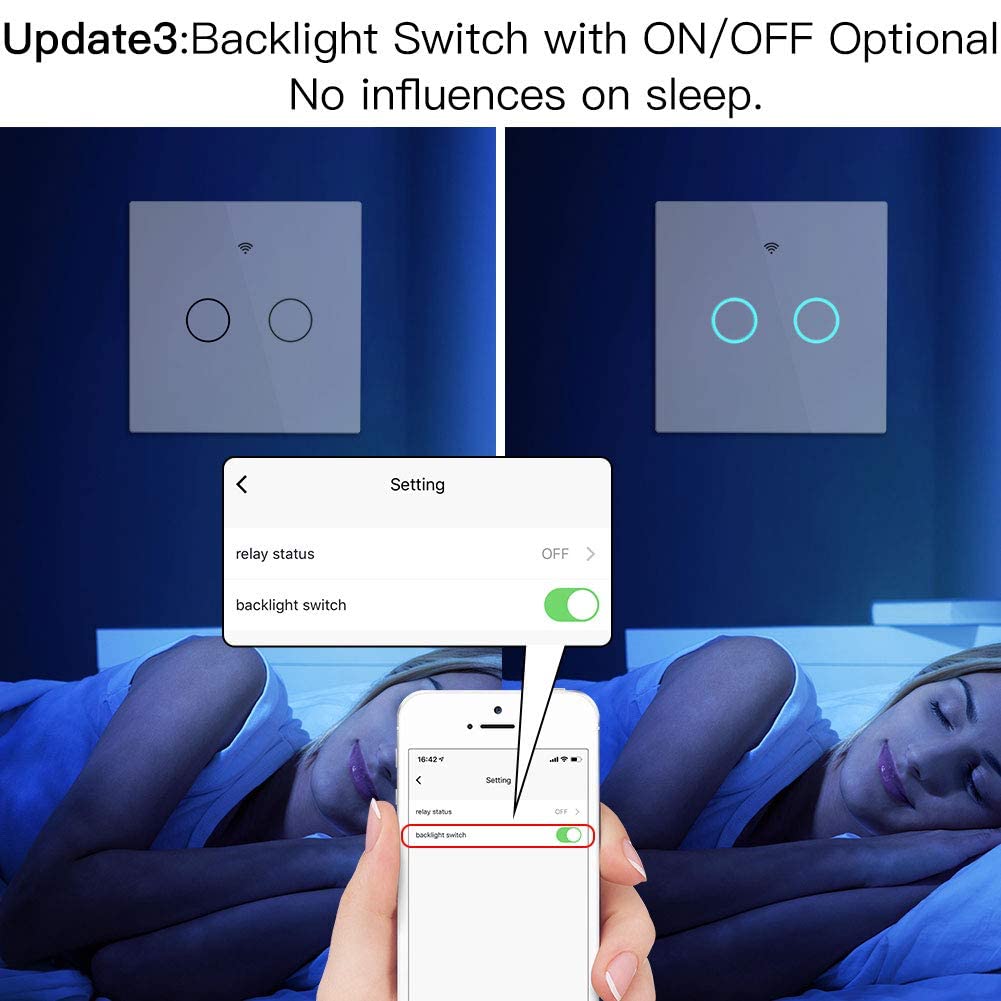
Image: Screenshot of the Smart Life app demonstrating the option to toggle the backlight of the MOES Smart Switch ON or OFF, useful for undisturbed sleep.

Image: Illustrates the timer function within the Smart Life app, allowing users to set specific ON/OFF times for automated lighting control.

Image: Shows how to create groups in the app to manage multiple lights and share device control with family members, enabling collaborative smart home management.
Maintenance
- Cleaning: The tempered glass panel is anti-scratch and easy to clean. Use a soft, damp cloth to wipe the surface. Avoid abrasive cleaners or solvents.
- Durability: The switch is designed with a durable tempered glass panel, offering resistance to scratches and humidity.
- Firmware Updates: Periodically check the Smart Life/Tuya app for any available firmware updates for your switch to ensure optimal performance and security.

Image: Highlights the durability of the MOES Smart Switch, featuring a tempered glass panel that is anti-scratch and resistant to humidity, making it easy to clean.
Troubleshooting
| Problem | Possible Cause / Solution |
|---|---|
| Switch not responding / Light flickering |
|
| Cannot connect to Wi-Fi / App pairing fails |
|
| Voice control not working |
|
| Faint humming sound from capacitance | This is normal for the included capacitance in no-neutral setups and does not indicate a fault. |
Warranty and Support
The MOES WiFi Smart Light Switch comes with a comprehensive 2-year warranty and a 60-day money-back guarantee for your complete satisfaction.
For technical support, troubleshooting assistance, or warranty claims, please contact MOES customer service through the retailer's platform or visit the official MOES website.
Manufacturer: WENZHOU NOVA NEW ENERGY CO.,LTD