
Heyday 0818009024695
HEYDAY 6-ft Lightning to USB-A Braided Cable User Manual
Model: 0818009024695
Introduction
This manual provides essential information for the proper use and care of your Heyday 6-ft Lightning to USB-A Braided Cable. This cable is designed for charging and syncing compatible Apple devices with a Lightning port to devices with a USB-A port.
The braided TPU cord and metal-wrapped connectors are engineered for durability and ease of use, providing a reliable connection for your daily charging and data transfer needs.
Product Overview

Image: The Heyday 6-ft Lightning to USB-A Braided Cable in Midnight Purple, displaying the USB-A connector on the left and the Lightning connector on the right. Both connectors are purple, and the braided cable is a mix of purple and black.
The Heyday 6-ft Lightning to USB-A Braided Cable features:
- Lightning to USB-A Connectivity: Enables charging and data synchronization for compatible devices.
- Extended Length: A 6-foot (approximately 1.8 meters) cable provides flexibility for use at home, work, or while traveling.
- MFi Certified: Ensures compatibility and safe operation with Apple devices.
- Durable Construction: Features a braided nylon cord and metal-wrapped connectors for enhanced longevity and resistance to wear.
- High Performance: Supports up to 2.4 Amps for efficient charging and a data transfer rate of 480 Mbps.
Setup
Setting up your Heyday Braided Cable is straightforward. No software installation is required.
- Identify Connectors: Locate the Lightning connector (smaller, reversible end) and the USB-A connector (larger, rectangular end).
- Connect to Power Source/Computer: Insert the USB-A connector into a compatible USB-A port on a wall charger, power bank, computer, or other USB-A enabled device. Ensure the connection is firm.
- Connect to Device: Insert the Lightning connector into the Lightning port of your compatible Apple device (e.g., iPhone, iPad, iPod). The Lightning connector is reversible, so it can be inserted in either orientation.
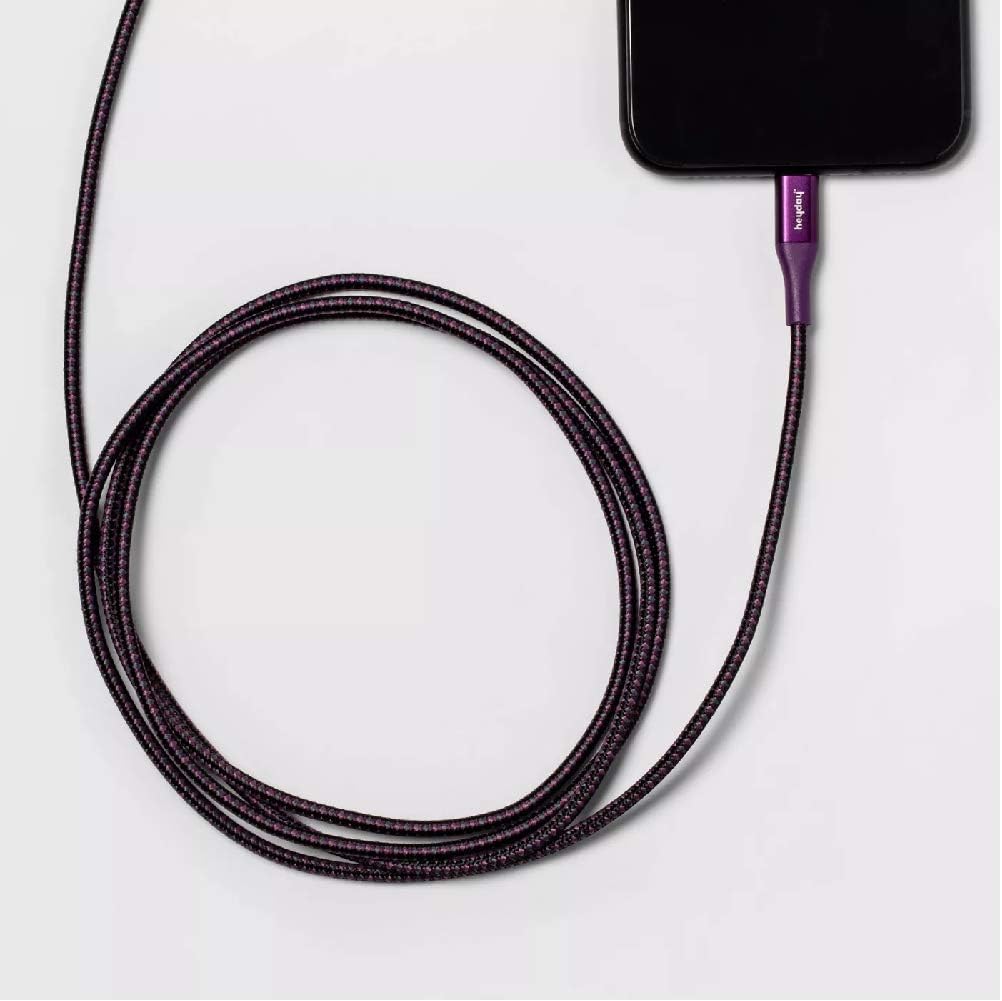
Image: The Heyday Lightning cable with its Lightning connector securely plugged into the charging port of a smartphone, demonstrating a typical connection for charging or data transfer.
Operating Instructions
Once connected, the cable will facilitate charging or data transfer automatically, depending on the connected devices and their settings.
- Charging: When connected to a power source (e.g., wall adapter, power bank), your Apple device will begin charging. The charging indicator on your device will confirm this.
- Data Transfer/Syncing: When connected to a computer, your device may prompt you to "Trust This Computer." Follow the on-screen instructions to allow data transfer and syncing with applications like iTunes or Finder.
- Optimal Performance: For best charging results, use with a power adapter that provides at least 2.4 Amps (e.g., 12W USB power adapter).
Maintenance
Proper care will extend the life of your cable.
- Storage: When not in use, coil the cable loosely. Avoid tight coiling or sharp bends, especially near the connectors, as this can damage the internal wires.
- Cleaning: If the cable or connectors become dirty, gently wipe them with a soft, dry, lint-free cloth. Do not use harsh chemicals or abrasive materials.
- Handling: Always grasp the connector housing when plugging or unplugging the cable. Do not pull directly on the cable itself, as this can strain the connection points.
- Environmental Conditions: Avoid exposing the cable to extreme temperatures, direct sunlight for prolonged periods, or excessive moisture.

Image: The Heyday 6-ft Lightning to USB-A Braided Cable neatly coiled, demonstrating proper storage to prevent damage and tangling.
Troubleshooting
If you encounter issues with your cable, try the following steps:
- Cable Not Charging/Syncing:
- Ensure both ends of the cable are fully and securely inserted into their respective ports.
- Try using a different USB-A port or power adapter.
- Test the cable with a different compatible device to rule out an issue with your device.
- Check the Lightning port on your device for any debris or lint that might be obstructing the connection.
- Restart your device and the connected computer/power source.
- Slow Charging:
- Ensure you are using a power adapter that provides sufficient amperage (e.g., 2.4A or higher).
- Avoid using the device heavily while it is charging.
- "Accessory Not Supported" Message:
- This message can sometimes appear if the cable is not fully inserted or if there's debris in the port. Re-insert the cable firmly.
- Ensure your device's software is up to date.
- As the cable is MFi certified, this message is less likely but can occur with very old or damaged devices.
If problems persist after trying these steps, the cable may be damaged or defective. Please refer to the warranty information if applicable.
Specifications
| Brand | Heyday |
| Model Number | 0818009024695 |
| Cable Type | Lightning to USB-A |
| Length | 6 feet (approx. 1.8 meters) |
| Color | Midnight Purple |
| Data Transfer Rate | 480 Mbps (0.48 Gigabits Per Second) |
| Charging Current | Up to 2.4 Amps |
| Special Features | Braided, MFi Certified |
| Compatible Phone Models | iPhone 12, iPhone 12 Pro, iPhone 12 Pro Max, iPhone 12 mini, iPhone SE (2020), iPhone 11, iPhone 11 Pro, iPhone 11 Pro Max, iPhone XR, iPhone XS, iPhone XS Max, iPhone X, iPhone 8, iPhone 8 Plus |
| Item Weight | 2.89 ounces |
Warranty and Support
Specific warranty details for this product are not provided in the available information. Please refer to the product packaging or the manufacturer's official website for warranty terms and conditions.
For further assistance or technical support, please contact Heyday customer service through their official channels, typically found on their website or product packaging.
Ask a question about this manual
Ask about setup, troubleshooting, compatibility, parts, safety, or missing instructions. Manuals+ will review the question and use this page’s manual context to help answer it.