
1. Introduction and Overview
The Samsung Galaxy S10 is a powerful and versatile smartphone designed for a wide range of uses, from business and entertainment to gaming and photography. This device features a 6.1-inch Dynamic AMOLED display, a robust camera system, and an intelligent battery, providing a secure and efficient mobile experience.
Key Features:
- Display: 6.1" Dynamic AMOLED, 3040 x 1440 (Quad HD+), 16M colors, Ultrasonic Fingerprint ID.
- Storage & RAM: 128GB internal storage, 8GB RAM, expandable via MicroSD (up to 512GB).
- Processor: Snapdragon 855 Octa-core, Adreno 640 GPU.
- Cameras: Rear: 12MP Wide-angle + 16MP Ultra Wide + 12MP Telephoto. Front: 10MP.
- Battery: 3400 mAh capacity, supports 15W fast charging.
- Connectivity: 4G LTE, NFC, Bluetooth 5.0, Wi-Fi.
- Operating System: Android.
- Security: Ultrasonic Fingerprint ID.

Figure 1: Front and back view of the Samsung Galaxy S10 smartphone.
2. Setup
2.1 Unboxing and Initial Inspection
Upon receiving your Samsung Galaxy S10, carefully unbox the device and inspect it for any physical damage. Ensure all included accessories are present: a USB Charger Block and a USB Charging Cable.
2.2 Inserting the SIM Card
- Locate the SIM card tray on the side of your device.
- Use the SIM ejector tool (usually included in the box) to gently push into the small hole on the tray. The tray will pop out.
- Place your Nano SIM card into the tray with the gold contacts facing down. Ensure it is correctly aligned.
- Gently push the tray back into the device until it clicks into place.
2.3 Powering On and Initial Configuration
- Press and hold the Power button (located on the right side of the device) until the Samsung logo appears.
- Follow the on-screen prompts to select your language, connect to a Wi-Fi network, and agree to the terms and conditions.
- Sign in with your Google account or create a new one. This is essential for downloading apps and backing up data.
- Set up your preferred screen lock method, including the Ultrasonic Fingerprint ID for enhanced security.

Figure 2: Samsung Galaxy S10 front view with display.
3. Operating Your Device
3.1 Navigating the Interface
The Galaxy S10 runs on the Android operating system, offering an intuitive user experience. Swipe up from the bottom of the screen to access the app drawer. Swipe down from the top to open the notification panel and quick settings. Use the on-screen navigation gestures or buttons to go back, home, or view recent apps.
3.2 Camera Functions
The Galaxy S10 features a versatile camera system. The rear camera setup includes a 12MP wide-angle lens, a 16MP ultra-wide lens, and a 12MP telephoto lens, allowing for various photographic styles including optical zoom. The front-facing camera is 10MP, ideal for high-quality selfies and video calls.
- Taking Photos: Open the Camera app and tap the shutter button.
- Switching Modes: Swipe left or right on the viewfinder to change between modes like Photo, Video, Pro, Panorama, and more.
- Zoom: Pinch in or out on the screen, or tap the lens icons to switch between wide, ultra-wide, and telephoto views.
3.3 Storage Management
Your device comes with 128GB of internal storage. If you require more space, you can expand it up to 512GB using a MicroSD card. To manage your storage, go to Settings > Device care > Storage.
Figure 3: Internal view highlighting storage and other components.
3.4 Connectivity
The Galaxy S10 supports various connectivity options:
- Wi-Fi: Connect to wireless networks for internet access. Go to Settings > Connections > Wi-Fi.
- Bluetooth: Pair with headphones, speakers, and other Bluetooth-enabled devices. Go to Settings > Connections > Bluetooth.
- NFC: Use Near Field Communication for contactless payments and quick data sharing.
- 4G LTE: Access high-speed mobile data through your cellular provider. The device is fully unlocked and compatible with most GSM and CDMA carriers.
4. Maintenance
4.1 Battery Care
To maximize battery life, avoid extreme temperatures. Use the provided 15W charger for optimal charging speed. While the device has a 3400 mAh battery designed for long-lasting performance, frequent full discharges can reduce its overall lifespan. Consider enabling power-saving modes when needed.
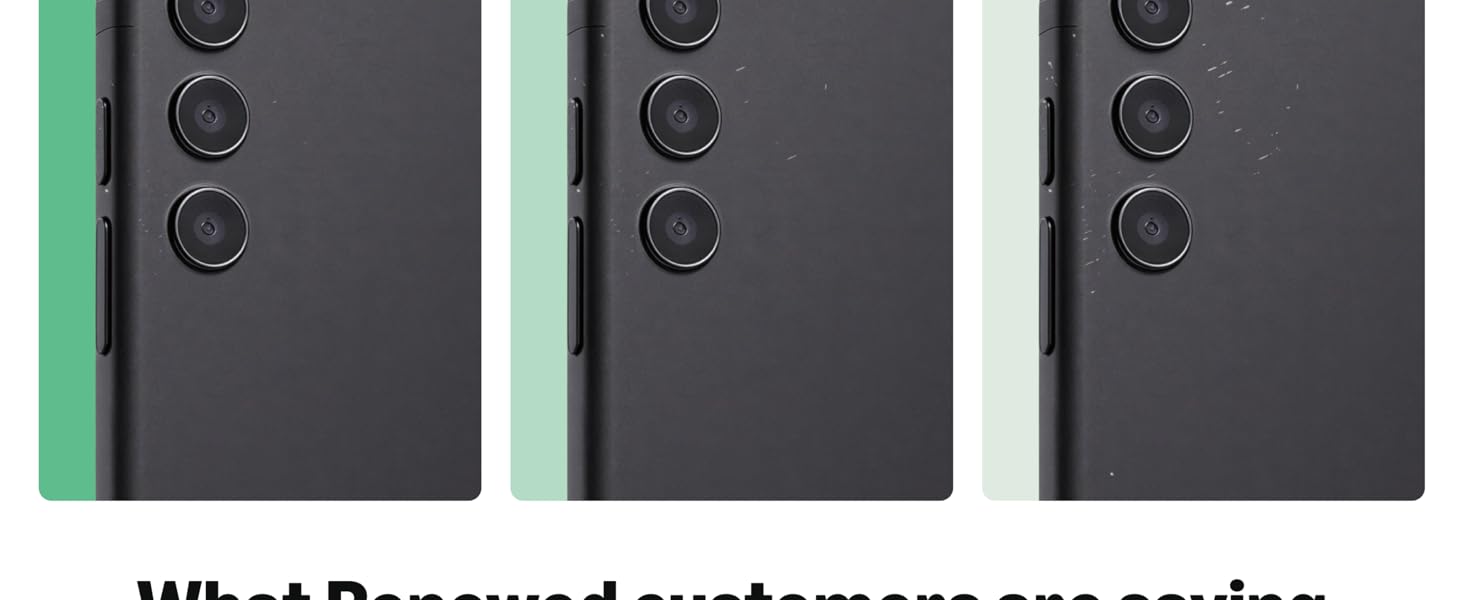
Figure 4: Intelligent battery management features.
4.2 Software Updates
Regularly check for and install software updates to ensure your device has the latest features, security patches, and performance improvements. Go to Settings > Software update > Download and install.
4.3 Cleaning Your Device
Use a soft, lint-free cloth to clean the screen and body of your phone. Avoid harsh chemicals or abrasive materials. The Galaxy S10 is water-resistant, but it is not waterproof. Avoid submerging the device in water or exposing it to high-pressure water jets.
5. Troubleshooting
5.1 Common Issues and Solutions
- Device Freezing/Unresponsive: Press and hold the Power and Volume Down buttons simultaneously for about 7-10 seconds to force restart the device.
- Battery Draining Quickly: Check battery usage in Settings > Device care > Battery to identify apps consuming excessive power. Reduce screen brightness, disable unnecessary features like GPS or Bluetooth when not in use, and ensure software is up to date.
- Network Connectivity Issues: Ensure your SIM card is properly inserted. Try restarting your device. Check your carrier's network status. For Wi-Fi, try forgetting the network and reconnecting, or restart your router.
- Fingerprint Sensor Not Working: Ensure your finger is clean and dry. Re-register your fingerprints in Settings > Biometrics and security > Fingerprints.
5.2 Factory Reset
If you encounter persistent software issues, a factory reset may resolve them. Warning: A factory reset will erase all data on your device. Back up important data before proceeding. Go to Settings > General management > Reset > Factory data reset.
6. Specifications
| Feature | Specification |
|---|---|
| Brand | Samsung |
| Model Name | Galaxy S10 |
| Operating System | Android |
| CPU Model | Snapdragon 855 |
| CPU Speed | 2.84 GHz |
| RAM Memory Installed Size | 8 GB |
| Memory Storage Capacity | 128 GB |
| Flash Memory Supported Size Maximum | 512 GB (MicroSD) |
| Screen Size | 6.1 Inches |
| Display Type | Dynamic AMOLED |
| Display Resolution Maximum | 3040 x 1440 (Quad HD+) |
| Rear Facing Camera Photo Sensor Resolution | 12MP Wide-angle + 16MP Ultra Wide + 12MP Telephoto |
| Front Photo Sensor Resolution | 10 MP |
| Battery Capacity | 3400 Milliamp Hours |
| Charging | 15W Charger |
| Wireless Provider | Unlocked |
| Cellular Technology | 4G LTE |
| Connectivity Technology | Wi-Fi, Bluetooth 5.0, NFC |
| Biometric Security Feature | Fingerprint Recognition (Ultrasonic) |
| Water Resistance Level | Water Resistant |
| Headphones Jack | 3.5 mm |
| Item Dimensions | 6 x 4 x 2 inches |
| Model Year | 2019 |
| UPC | 808219004433 |
7. Warranty and Support
7.1 Renewed Product Information
This Samsung Galaxy S10 is a renewed product. Renewed products are fully functional and typically come with generic or original accessories and packaging. Please refer to the seller's specific return policy for details regarding your purchase. This product includes a 90-day return policy for refunds or replacements.
7.2 Customer Support
For technical assistance, troubleshooting beyond this manual, or warranty inquiries, please contact Samsung Customer Service or the seller from whom you purchased the renewed device. You can find contact information on the official Samsung website or through your purchase documentation.


