Introduction
Thank you for choosing the Xigmatek POSEIDON EN42883 PC Gaming Case. This manual provides essential information for the proper installation, operation, and maintenance of your new computer chassis. Please read this manual thoroughly before beginning the assembly process to ensure optimal performance and longevity of your system.

Image: Angled view of the Xigmatek POSEIDON EN42883 PC Gaming Case, showcasing its tempered glass side panel and front-mounted Rainbow LED fans.
Setup and Installation
This section guides you through the process of setting up your Xigmatek POSEIDON EN42883 PC case and installing your components.
1. Unpacking and Inspection
- Carefully remove the PC case from its packaging.
- Inspect the case for any signs of damage during transit. If damage is found, contact your retailer immediately.
- Remove all protective films from the tempered glass panels.
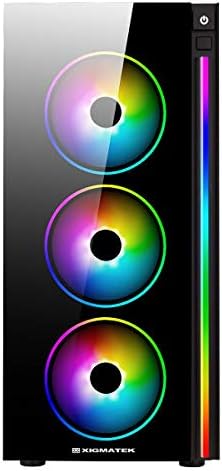
Image: Front view of the Xigmatek POSEIDON EN42883 PC Gaming Case, highlighting the three 12cm Rainbow LED fans.
2. Component Installation
Before installing components, ensure the case is placed on a stable, flat surface. Refer to your individual component manuals for specific installation instructions.
2.1. Power Supply Unit (PSU) Installation
- Locate the PSU mounting area at the bottom rear of the case.
- Secure the PSU with the provided screws.
2.2. Motherboard Installation
- Install the I/O shield into the rear opening of the case.
- Align your ATX, MicroATX, or Mini-ATX motherboard with the standoffs inside the case.
- Secure the motherboard with the appropriate screws.

Image: Interior view of the Xigmatek POSEIDON EN42883 PC Gaming Case, showing the motherboard tray, drive bays, and cable management cutouts.
2.3. Storage Drive Installation
- Install 2.5" SSDs or 3.5" HDDs into the designated drive bays. Refer to the case's internal layout for specific mounting points.
- Secure drives with screws or tool-less mechanisms if available.
2.4. Graphics Card (GPU) and Expansion Card Installation
- Remove the necessary PCIe slot covers from the rear of the case.
- Insert your graphics card or other expansion cards into the motherboard's PCIe slots.
- Secure the cards with screws.
3. Cable Management
Utilize the cable routing cutouts and tie-down points behind the motherboard tray to manage cables. This improves airflow and aesthetics.
4. Connecting Front Panel I/O
Connect the front panel cables (USB, audio, power switch, reset switch, LED indicators) to the corresponding headers on your motherboard. Consult your motherboard manual for header locations.

Image: Top view of the Xigmatek POSEIDON EN42883 PC Gaming Case, showing the front I/O panel with USB ports, audio jacks, and power button.
Operating Instructions
Once all components are installed and connected, your Xigmatek POSEIDON EN42883 case is ready for operation.
1. Power On/Off
- Press the power button located on the top front panel to turn on your system.
- To turn off, either shut down via your operating system or press and hold the power button for a few seconds.
2. Front Panel Connectivity
- USB Ports: Use the USB ports on the top panel to connect peripherals such as keyboards, mice, and external storage devices.
- Audio Jacks: Connect your headphones or microphone to the dedicated audio jacks.
3. RGB Lighting Control
The Xigmatek POSEIDON EN42883 features pre-installed Rainbow LED fans and an LED strip. Lighting effects are typically controlled via a dedicated button on the front panel (if present) or through your motherboard's RGB software if connected to an RGB header.
Maintenance
Regular maintenance helps ensure optimal performance and extends the lifespan of your PC components.
1. Dust Filter Cleaning
- The case is designed for easy cleaning. Regularly check and clean the dust filters located on the top and bottom (for the PSU intake) of the case.
- Gently slide out the filters, clean them with compressed air or a soft brush, and reinsert them.

Image: Bottom view of the Xigmatek POSEIDON EN42883 PC Gaming Case, showing the feet and the removable dust filter for the power supply unit.
2. Exterior Cleaning
- Wipe the exterior surfaces, including the tempered glass, with a soft, damp cloth. Avoid abrasive cleaners.
3. Internal Dust Removal
- Periodically open the case and use compressed air to remove dust buildup from internal components and fans. Ensure the system is powered off and unplugged before performing internal cleaning.
Troubleshooting
This section addresses common issues you might encounter.
System Does Not Power On
- Ensure the power cable is securely connected to both the PSU and the wall outlet.
- Check that the PSU switch is in the 'ON' position.
- Verify that the front panel power switch cable is correctly connected to the motherboard header.
- Confirm all internal power cables (24-pin ATX, CPU, GPU, etc.) are securely seated.
Fans or LEDs Are Not Working
- Check that the fan power cables are properly connected to the motherboard or fan controller.
- Ensure any RGB/LED cables are correctly connected to the motherboard's RGB header or a dedicated controller.
- Consult your motherboard manual for fan and RGB header locations and settings.
Front Panel USB/Audio Ports Not Functioning
- Verify that the USB and audio cables from the front panel are correctly connected to the corresponding headers on your motherboard.
- Check your motherboard's BIOS/UEFI settings to ensure USB and audio ports are enabled.
Specifications
Below are the technical specifications for the Xigmatek POSEIDON EN42883 PC Gaming Case:
| Feature | Detail |
|---|---|
| Brand | Xigmatek |
| Model | POSEIDON EN42883 |
| Case Type | Mid-Tower Gaming Case |
| Motherboard Support | ATX, MicroATX, Mini-ATX |
| Dimensions (D x W x H) | 48.6 cm x 29.6 cm x 50.8 cm (approximately 19.13 x 11.65 x 20 inches) |
| Weight | 7.16 Kilograms (approximately 15.78 lbs) |
| Color | Black |
| Pre-installed Fans | 4 x 12cm Rainbow LED Fans |
| Side Panel | Tempered Glass |
| Front Panel I/O | USB Ports, Audio Jacks, Power Button, Reset Button |

Image: Diagram illustrating the dimensions of the Xigmatek POSEIDON EN42883 PC Gaming Case.
Warranty and Support
For warranty information and technical support, please refer to the official Xigmatek website or contact your local retailer. Warranty terms and conditions may vary by region and purchase date.
- Online Support: Visit the official Xigmatek website for FAQs, driver downloads, and support resources.
- Customer Service: Contact Xigmatek customer service for direct assistance with product issues.


