
1. Introduction
The Poly GC8 is an intuitive touchscreen interface designed to provide easy access and control for Poly video conferencing solutions. Its slim design and high-definition touchscreen ensure clear visibility and accessible control functions, enhancing the user experience in meeting environments.
2. Product Overview
The Poly GC8 serves as the central control unit for managing your video conferences. It features a responsive touchscreen display for navigating menus, initiating calls, and controlling meeting functions. The device is designed for desktop placement, offering a stable and accessible interface.

Figure 2.1: Front view of the Poly GC8 Touchscreen Controller, displaying a meeting schedule and various control icons such as 'New meeting', 'Dial pad', and 'Present'.
3. Setup
Follow these steps to properly set up your Poly GC8 Touchscreen Controller:
- Unpack the Device: Carefully remove the Poly GC8 from its packaging. Ensure all components, including the device and any cables, are present.
- Position the Device: Place the Poly GC8 on a stable, flat surface, such as a conference table or desk, ensuring adequate ventilation around the unit.
- Connect Power: Locate the power input port on the rear of the device. Connect the provided power adapter to the GC8 and then plug it into a suitable power outlet.
- Connect to Conferencing System: Use the appropriate cable (e.g., USB or Ethernet, depending on your Poly conferencing system) to connect the GC8 to your main video conferencing unit. Refer to your specific conferencing system's manual for connection details.
- Power On: The device should power on automatically once connected to power. If not, locate and press the power button (if available) or refer to your system's documentation for power-on procedures.
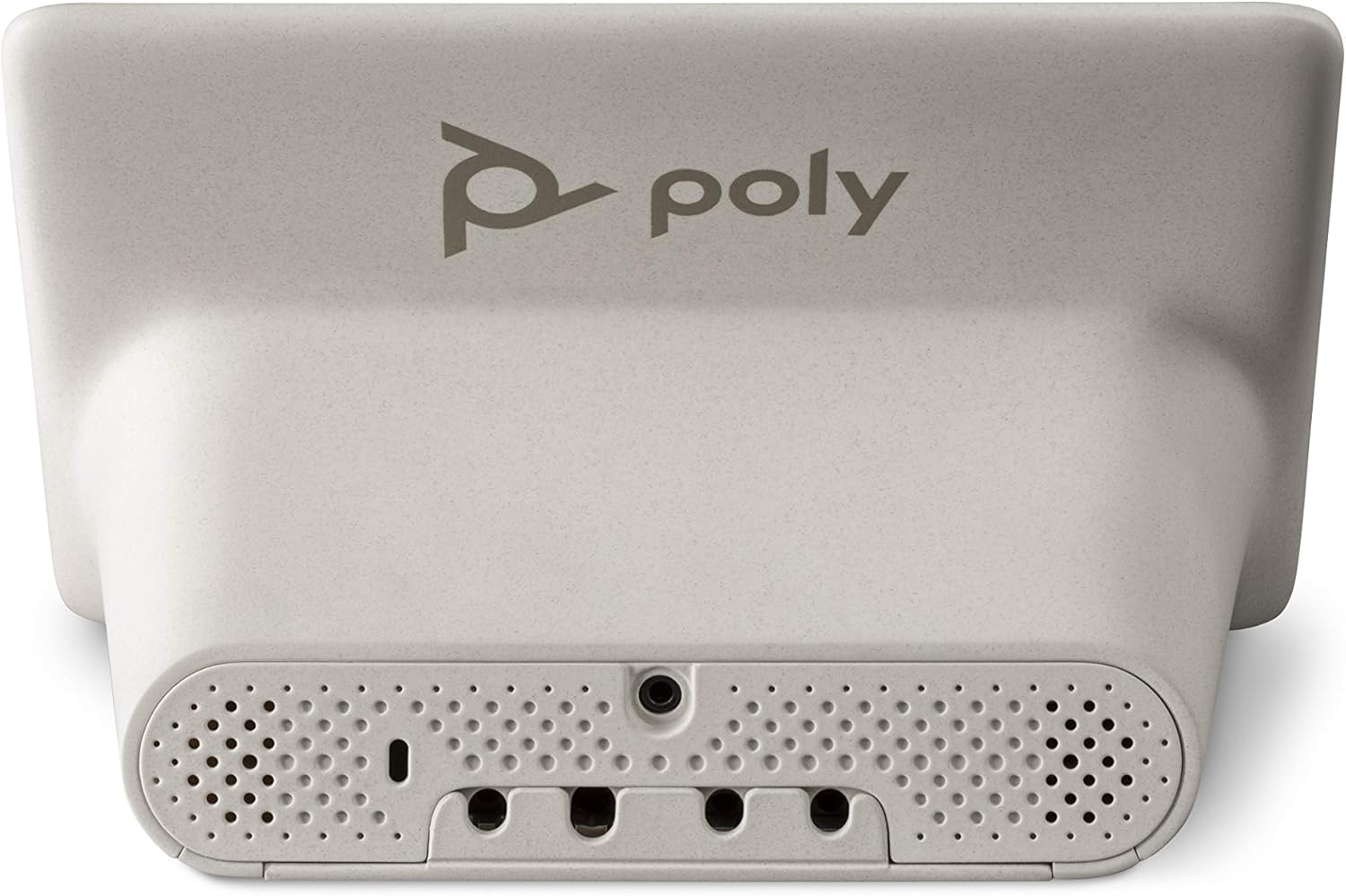
Figure 3.1: Rear view of the Poly GC8, highlighting the connectivity ports for power and integration with a conferencing system.
4. Operating Instructions
The Poly GC8 provides a user-friendly interface for managing your meetings. Here are common operations:
4.1. Navigating the Interface
- Home Screen: Displays upcoming meetings, quick access buttons for new meetings, dial pad, and content sharing.
- Touch Gestures: Use taps, swipes, and pinches as you would on any modern touchscreen device to navigate menus and control functions.
4.2. Joining a Meeting
Scheduled meetings will appear on the home screen. To join:
- Locate the desired meeting on the home screen.
- Tap the 'Join' button next to the meeting entry.
4.3. Starting a New Meeting
To initiate an ad-hoc meeting:
- Tap the 'New meeting' icon on the home screen.
- Follow the on-screen prompts to add participants or select meeting options.
4.4. Using the Dial Pad
For dialing into audio conferences or making direct calls:
- Tap the 'Dial pad' icon on the home screen.
- Enter the desired number using the on-screen keypad.
- Tap the call button to initiate the connection.
4.5. Presenting Content
To share content from your device:
- Tap the 'Present' icon on the home screen.
- Follow the on-screen instructions to connect your content source (e.g., laptop via HDMI or wireless sharing).
5. Maintenance
Proper maintenance ensures the longevity and optimal performance of your Poly GC8.
5.1. Cleaning the Device
- Screen: Use a soft, lint-free cloth slightly dampened with water or a screen-cleaning solution. Avoid harsh chemicals or abrasive materials.
- Casing: Wipe the exterior with a soft, dry cloth. Do not use liquid cleaners directly on the device.
- Ensure the device is powered off and unplugged before cleaning.
5.2. Software Updates
Periodically check for and install software updates provided by Poly. These updates often include performance improvements, new features, and security enhancements. Refer to your Poly conferencing system's administration guide for instructions on managing GC8 software updates.
6. Troubleshooting
This section addresses common issues you might encounter with your Poly GC8.
6.1. Device Not Powering On
- Check Power Connection: Ensure the power adapter is securely connected to the GC8 and the power outlet. Verify the outlet is functional.
- Verify Power Adapter: Confirm you are using the original Poly power adapter supplied with the device.
- Restart: Disconnect and reconnect the power adapter to perform a hard reset.
6.2. Screen Unresponsive
- Restart Device: Perform a power cycle by unplugging and re-plugging the power adapter.
- Clean Screen: Ensure the screen is clean and free of debris that might interfere with touch input.
6.3. Cannot Connect to Conferencing System
- Check Cables: Ensure all connection cables (e.g., USB, Ethernet) between the GC8 and the main conferencing unit are securely plugged in.
- System Compatibility: Verify that your Poly GC8 is compatible with your specific Poly video conferencing system.
- Network Connectivity: If using an Ethernet connection, ensure the network is active and the GC8 has a valid IP address.
If issues persist after attempting these troubleshooting steps, contact Poly technical support for further assistance.
7. Specifications
| Feature | Detail |
|---|---|
| Brand | POLY |
| Series | GC8 |
| Model Number | 2200-30780-001 |
| Hardware Platform | Desktop |
| Standing Screen Display Size | 2 Inches (Note: This value appears inconsistent with typical touchscreen controllers and may refer to a specific component or be an error in source data. The main image suggests a larger display.) |
| Item Weight | 3.08 pounds |
| Product Dimensions (LxWxH) | 19.69 x 19.69 x 11.02 inches |
| Color | Black |
| Manufacturer | Polycom Inc. |
| Date First Available | October 5, 2020 |
8. Warranty and Support
For information regarding the warranty coverage for your Poly GC8 Touchscreen Controller, please refer to the warranty documentation included with your purchase or visit the official Poly website. For technical support, product registration, or to access additional resources, please visit the Poly support portal or contact their customer service department directly.
Poly Support Website: www.poly.com/support