
1. Introduction
The PNI GB1200 Gigabit Mesh Wi-Fi System is designed to provide seamless and robust wireless internet coverage throughout your home or office. Unlike traditional Wi-Fi networks, mesh technology creates a unified network where multiple units work together to eliminate dead zones and deliver consistent, high-speed connectivity. This system allows for flexible network configuration and easy expansion by adding more satellite units.
Each PNI GB1200 unit features integrated high-power amplifiers for superior signal penetration and coverage, ensuring internet access in every corner of your space. The Gigabit Ethernet ports enable fast wired connections for devices requiring stable, high-bandwidth access, such as smart TVs or gaming consoles.
2. Package Contents
Please verify that all items are present in your package:
- 3 x PNI GB1200 Mesh Wi-Fi Units
- 3 x Power Adapters
- 1 x Ethernet Cable
- 1 x User Manual (this document)

Image: The package includes three PNI GB1200 mesh units, three power adapters for each unit, and one Ethernet cable for initial setup or wired connections.
3. Product Overview
Each PNI GB1200 mesh unit is a compact device designed for optimal performance and discreet placement. The units feature a clean, minimalist design with essential ports located on the rear panel.

Image: Front view of three PNI GB1200 Mesh Wi-Fi units, highlighting their uniform, compact design.
Rear Panel Ports and Buttons
The rear panel of each PNI GB1200 unit contains the following:
- DC 5V Power Input: Connects to the provided power adapter.
- LAN2 (100M) Port: A 100Mbps Ethernet port for connecting wired devices.
- LAN1 (1000M) Port: A Gigabit Ethernet port for connecting wired devices.
- Internet / LAN/Backhaul (1000M) Port: A Gigabit Ethernet port used for connecting to your modem/router (as the main unit) or for wired backhaul/LAN connections (for satellite units).
- OFF/ON Switch: Power switch for the unit.
- RESET 6S / Pair 1S Button: A multi-function button. Press for 1 second to initiate pairing with another mesh unit. Press and hold for 6 seconds to perform a factory reset.

Image: Detailed view of the rear panel of a single PNI GB1200 unit, illustrating all ports and controls.

Image: Rear view of three PNI GB1200 Mesh Wi-Fi units, showing the arrangement of ports and switches on each device.
4. Setup Guide
Follow these steps to set up your PNI GB1200 Mesh Wi-Fi System.
4.1 Initial Setup (Main Unit)
- Unpack: Remove all three PNI GB1200 units, power adapters, and the Ethernet cable from the packaging.
- Connect Main Unit: Choose one mesh unit to be your main router. Connect one end of the provided Ethernet cable to the Internet/LAN/Backhaul port on this unit. Connect the other end of the Ethernet cable to your existing modem or router's LAN port.
- Power On Main Unit: Connect a power adapter to the DC 5V input of the main unit and plug it into a power outlet. Turn on the unit using the OFF/ON switch.
- Wait for Initialization: Allow the main unit a few minutes to power on and initialize. The indicator light on top will change to indicate readiness (refer to the device's LED indicator guide, if available, for specific light patterns).
4.2 Adding Satellite Units
Once the main unit is operational, you can add the other two units as satellites to extend your Wi-Fi coverage.
- Placement: Place the satellite units in locations where you need extended Wi-Fi coverage, ensuring they are within range of the main unit or another satellite unit for optimal signal strength. Each unit covers approximately 280 square meters.
- Power On Satellite Units: Connect a power adapter to each satellite unit and plug them into power outlets. Turn on the units using their respective OFF/ON switches.
- Automatic Pairing: The satellite units are designed to automatically detect and pair with the main unit or an existing mesh unit. This process may take a few minutes. The indicator light will confirm successful pairing.
- Manual Pairing (if needed): If a satellite unit does not pair automatically, press the 'Pair 1S' button on both the main unit (or nearest paired unit) and the satellite unit for 1 second. The units will attempt to establish a connection.
4.3 Using the MeshGo Application
The MeshGo application provides an intuitive way to manage your PNI GB1200 Mesh Wi-Fi System.
- Download App: Scan the QR code provided in the physical manual or search for "MeshGo" in your device's app store (iOS/Android).
- Install and Launch: Install the application and open it.
- Follow On-Screen Instructions: The app will guide you through the final steps of setting up your mesh network, including setting up your Wi-Fi name (SSID) and password.
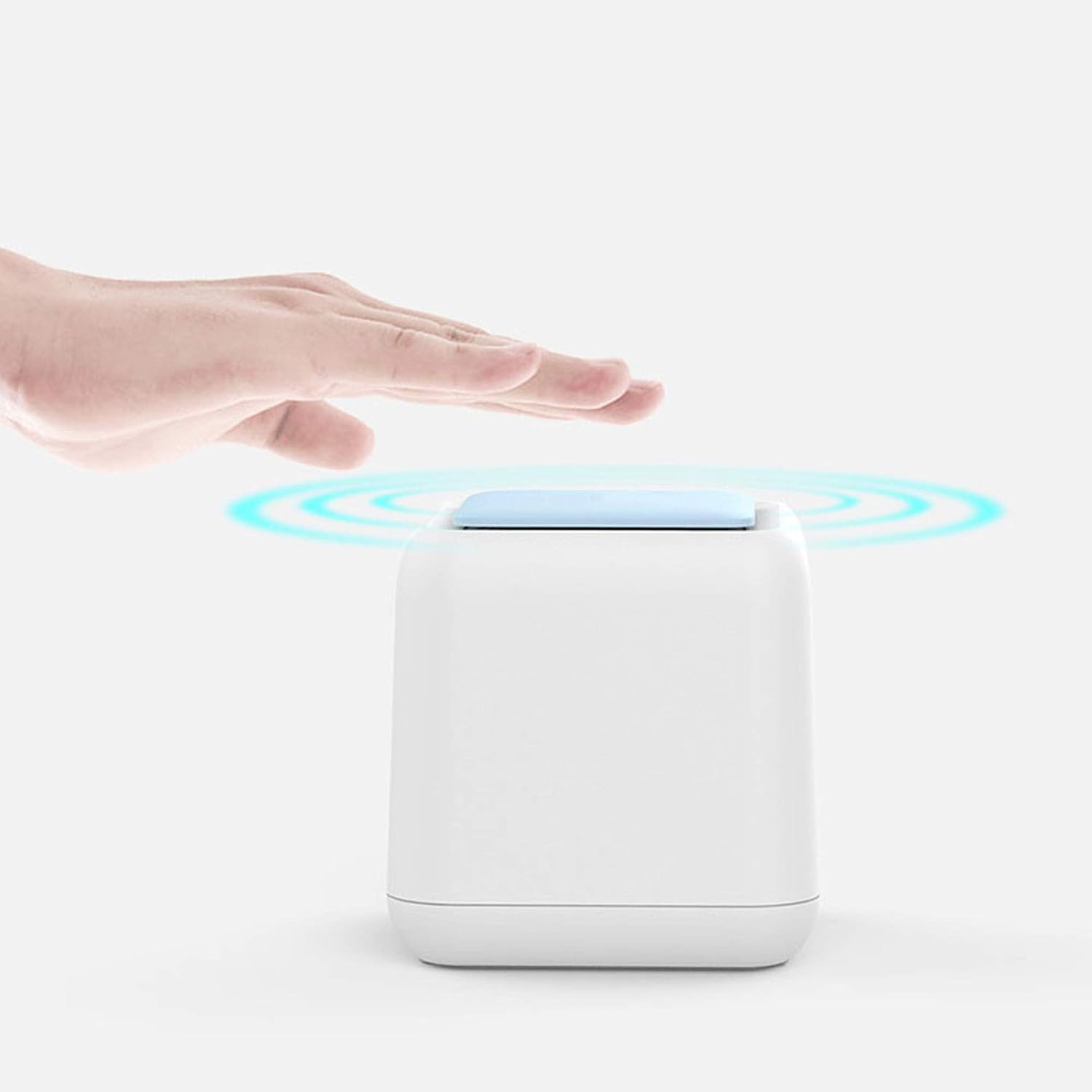
Image: A hand interacting with the top of a mesh unit, possibly indicating the pairing process or a status indicator.
5. Operating Instructions
5.1 Network Expansion
The PNI GB1200 system supports up to 10 mesh devices. To expand your network, simply purchase additional PNI GB1200 units and follow the "Adding Satellite Units" procedure (Section 4.2).
5.2 Wired Connections
Each mesh unit includes Gigabit Ethernet ports (LAN1 and Internet/LAN/Backhaul) and a 100Mbps Ethernet port (LAN2). These ports can be used to connect wired devices such as desktop computers, smart TVs, gaming consoles, or network-attached storage (NAS) for stable and high-speed data transfer.
5.3 MeshGo App Features
The MeshGo application allows you to:
- View all connected devices on your network.
- Monitor network bandwidth and speed.
- Prioritize specific devices for higher network speed, optimizing performance for critical tasks like gaming or streaming.
- Manage Wi-Fi settings, including SSID and password.
6. Maintenance
6.1 General Care
- Keep the units in a well-ventilated area, away from direct sunlight, heat sources, and moisture.
- Clean the units with a soft, dry cloth. Do not use liquid cleaners or aerosols.
- Avoid placing objects on top of the mesh units to ensure proper airflow.
6.2 Factory Reset
To restore a mesh unit to its factory default settings:
- Ensure the unit is powered on.
- Locate the RESET 6S / Pair 1S button on the rear panel.
- Using a paperclip or a similar pointed object, press and hold the button for approximately 6 seconds until the indicator light changes or flashes, then release.
- The unit will restart with factory default settings. You will need to reconfigure it as a main or satellite unit.
7. Troubleshooting
If you encounter issues with your PNI GB1200 Mesh Wi-Fi System, refer to the following common solutions:
- No Internet Connection:
- Check if your modem/router is working correctly.
- Ensure the Ethernet cable from your modem/router is securely connected to the Internet/LAN/Backhaul port of the main mesh unit.
- Restart your modem/router and the main mesh unit.
- Weak Wi-Fi Signal or Dead Zones:
- Relocate satellite units closer to the main unit or other paired units.
- Ensure there are no major obstructions (e.g., thick walls, large metal objects) between mesh units.
- Add additional PNI GB1200 units to expand coverage further.
- Satellite Unit Not Pairing:
- Ensure the satellite unit is powered on and within range of an existing mesh unit.
- Perform a manual pairing by pressing the 'Pair 1S' button on both units for 1 second.
- Try resetting the satellite unit to factory defaults (Section 6.2) and then attempting to pair again.
- Slow Speeds:
- Use the MeshGo app to check bandwidth usage and prioritize devices.
- Ensure your internet service provider (ISP) is delivering the expected speeds.
- For critical devices, use the Gigabit Ethernet ports for a wired connection.
8. Specifications
| Feature | Specification |
|---|---|
| Brand | PNI |
| Model Name | GB1200 |
| Product Dimensions | 3.94 x 3.58 x 4.33 inches |
| Item Weight | 3.56 pounds (1.62 Kilograms) |
| Frequency Band Class | Dual-Band |
| Wireless Communication Standard | 802.11ac |
| Connectivity Technology | Ethernet, Wi-Fi (802.11ac) |
| Ethernet Ports | 1x 100Mbps LAN, 2x 1000Mbps (Gigabit) LAN/WAN |
| Security Protocol | WPS |
| Special Feature | Access Point Mode, WPS |
| Recommended Uses | Home |
| Compatible Devices | Game Console, Laptop, Personal Computer, Smartphone, Streaming Device, Tablet |
9. Warranty and Support
9.1 Product Warranty
The PNI GB1200 Mesh Wi-Fi System is covered by a standard manufacturer's warranty. Please refer to the warranty card included in your product packaging or visit the official PNI website for detailed warranty terms and conditions.
9.2 Technical Support
For technical assistance, troubleshooting beyond this manual, or inquiries regarding your PNI GB1200 system, please contact PNI customer support. Contact information can typically be found on the official PNI website or within your product documentation.
You may also visit the PNI Store on Amazon for additional product information and resources.