
Introduction
This manual provides detailed instructions for the i-tec USB-C Dual Display Docking Station (Model C31DUALDPDOCKPD100W). Please read this manual carefully before using the device to ensure proper setup, operation, and maintenance. This docking station expands the connectivity of your USB-C enabled laptop or tablet, allowing for multiple displays, USB peripherals, network access, and power delivery.
Package Contents
- i-tec USB-C Dual Display Docking Station
- Integrated USB-C cable (100 cm)
- Quick Start Guide
- Optional: USB-C Charger (77W or 100W, depending on purchase)

Image: The i-tec USB-C Dual Display Docking Station shown with its power adapter. The docking station is a compact black square unit with various ports, and the power adapter is a rectangular black unit with a power cable.
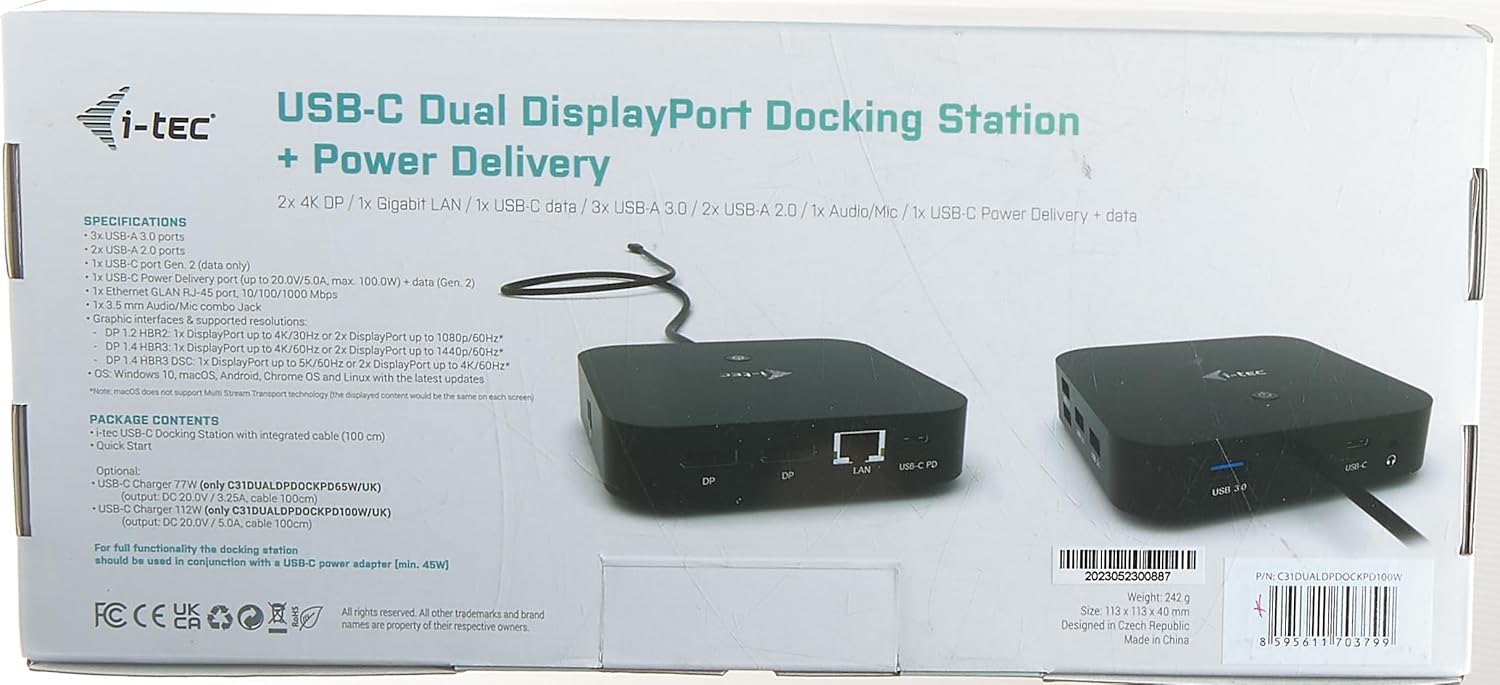
Image: The retail packaging for the i-tec USB-C Dual Display Docking Station, displaying product specifications and features on the box.
Setup Instructions
- Connect Power: If your docking station came with an external power adapter, connect it to the DC IN port on the docking station and then plug the adapter into a power outlet. This is essential for Power Delivery functionality and stable operation.
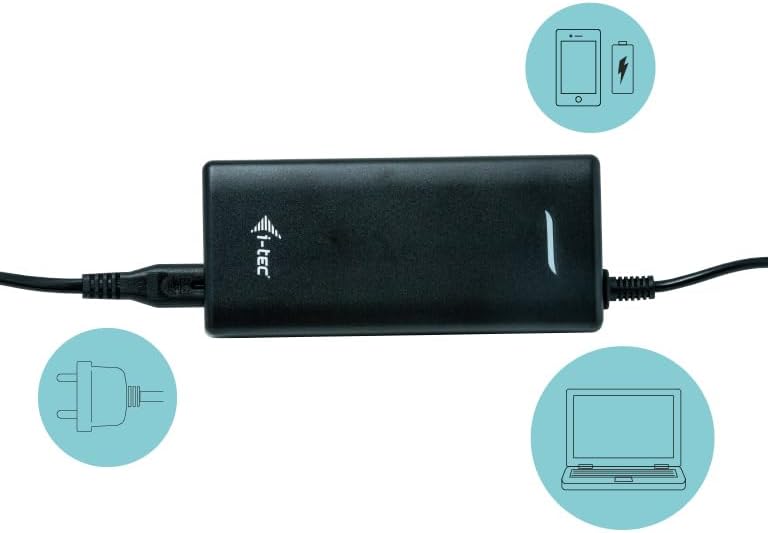
Image: A close-up of the i-tec power adapter, illustrating its connection to a power source and its output to the docking station, providing up to 100W of power.
- Connect to Host Device: Connect the integrated USB-C cable from the docking station to a USB-C port on your laptop or tablet. Ensure your host device's USB-C port supports DisplayPort Alternate Mode and Power Delivery for full functionality.
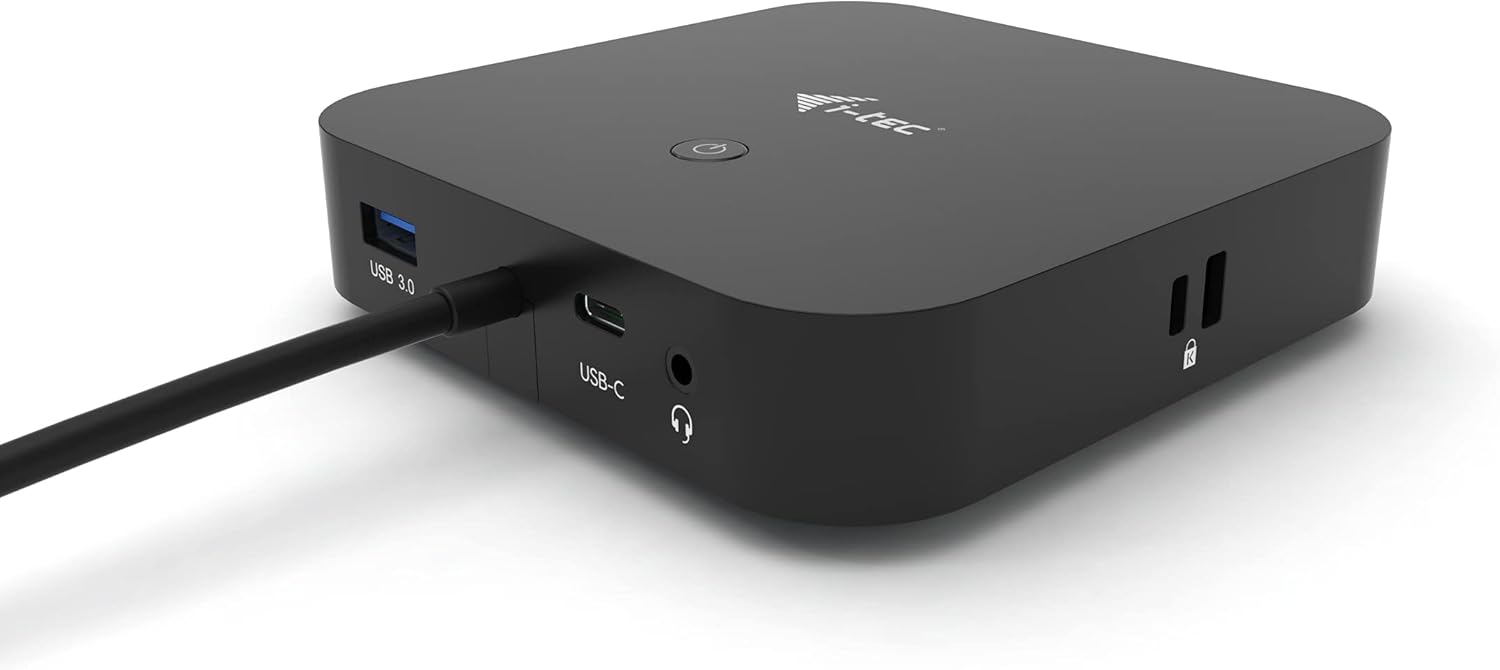
Image: A close-up view of the i-tec docking station, highlighting the USB-C input port where the host device connects, along with a USB 3.0 port and an audio jack.
- Connect Displays: Connect your external monitors to the DisplayPort (DP) outputs on the docking station using DisplayPort cables. The docking station supports dual display configurations.
- Connect Peripherals:
- USB Devices: Connect USB keyboards, mice, external hard drives, or other USB peripherals to the available USB-A 3.0, USB-A 2.0, or USB-C data ports.
- Network: For a stable wired internet connection, connect an Ethernet cable from your router or modem to the GLAN RJ-45 port on the docking station.
- Audio: Connect headphones or speakers to the 3.5 mm Audio/Mic combo jack.

Image: A diagram illustrating various connections to the i-tec docking station, including multiple USB devices, network cable, power, and dual monitors, demonstrating its comprehensive connectivity options.
Operating Instructions
Display Configuration
Once connected, your operating system should automatically detect the external displays. You may need to adjust display settings:
- Windows: Right-click on the desktop, select "Display settings," and arrange your monitors. You can choose to extend, duplicate, or show only one display.
- macOS: Go to "System Preferences" > "Displays" to arrange and configure your monitors.
The docking station supports various resolutions depending on your host device's DisplayPort version and monitor capabilities. Refer to the Specifications section for supported resolutions.

Image: A workstation setup featuring a laptop connected to the i-tec docking station, which in turn drives two external monitors, demonstrating a typical dual-display configuration for enhanced productivity.

Image: A close-up of the i-tec docking station on a desk, showing its connections to a laptop, external monitors, and various USB peripherals like a flash drive, illustrating its role as a central hub.
Power Delivery (PD)
The USB-C Power Delivery port allows you to charge your host laptop or tablet (up to 100W) while simultaneously using the docking station's other features. Ensure your host device supports USB-C Power Delivery and that the docking station is connected to its external power adapter.

Image: The i-tec docking station discreetly mounted behind two large monitors, showcasing a clean and organized desk setup where the docking station manages all peripheral connections.
Maintenance
- Cleaning: Use a soft, dry cloth to clean the docking station. Do not use liquid or aerosol cleaners.
- Storage: Store the device in a cool, dry place away from direct sunlight and extreme temperatures.
- Handling: Avoid dropping or subjecting the device to strong impacts.
Troubleshooting
- No display output or flickering displays:
- Ensure the USB-C cable is securely connected to both the docking station and your host device.
- Verify that your host device's USB-C port supports DisplayPort Alternate Mode.
- Check all DisplayPort cables for secure connections.
- Try updating your graphics drivers on your host device.
- Restart your host device.
- Ensure the docking station is receiving adequate power, especially if using multiple displays or charging your laptop.
- USB devices not recognized:
- Ensure the USB-C cable connecting the docking station to your host device is fully inserted.
- Try connecting the USB device to a different port on the docking station.
- Connect the USB device directly to your host device to confirm it is functional.
- Ensure the docking station has sufficient power, especially for high-power USB devices.
- Laptop not charging via Power Delivery:
- Verify that the external power adapter is correctly connected to the docking station and a power outlet.
- Confirm that your laptop's USB-C port supports Power Delivery.
- Check if your laptop requires more than 100W of power; if so, it may charge slower or not at all via the docking station.
- Ethernet connection issues:
- Ensure the Ethernet cable is securely connected to both the docking station and your network router/modem.
- Check your network settings on your host device.
- Try a different Ethernet cable.
Specifications
| Model Name | C31DUALDPDOCKPD100W |
| Brand | i-tec |
| Host Interface | USB-C (integrated cable) |
| Video Output | 2x DisplayPort (DP) |
| Supported Resolutions (Single Display) |
|
| Supported Resolutions (Dual Display) |
|
| USB Ports |
|
| Ethernet | 1x GLAN RJ-45 (10/100/1000 Mbps) |
| Audio | 1x 3.5 mm Audio/Mic combo jack |
| Power Delivery | Up to 100W (via dedicated USB-C PD port) |
| Compatible Operating Systems | Windows 10, macOS, Android, Chrome OS, Linux (with latest updates) |
| Dimensions (LxWxH) | 4.45 x 4.45 x 1.57 inches (113 x 113 x 40 mm) |
| Weight | 1.79 pounds (810 Grams) |
Warranty and Support
For warranty information and technical support, please refer to the official i-tec website or contact your local reseller. Keep your proof of purchase for warranty claims.
For further assistance, visit the i-tec Store on Amazon.


