
Boompods ZERO
Boompods Zero Mini Bluetooth Speaker User Manual
Model: ZERO | Brand: Boompods
Introduction
Thank you for choosing the Boompods Zero Mini Bluetooth Speaker. This compact and portable speaker is designed to deliver impressive sound quality with the convenience of wireless connectivity, IPX6 water protection, and a built-in microphone for hands-free calls. It also features a selfie function for remote photo capture. Please read this manual carefully to ensure proper use and maintenance of your device.

Image: The Boompods Zero Mini Bluetooth Speaker, a small black device, with a hand reaching down to emphasize its compact size. This speaker is designed for portability and ease of use.
Safety Information
- Do not expose the speaker to extreme temperatures or direct sunlight for extended periods.
- Avoid dropping or subjecting the speaker to strong impacts.
- Do not attempt to disassemble, repair, or modify the speaker yourself. This will void the warranty.
- Keep the speaker away from medical devices, as its magnetic components may interfere with their operation.
- Ensure the charging port cover is securely closed when the speaker is exposed to water to maintain IPX6 water resistance.
- Use only the provided charging cable or a certified equivalent.
Package Contents
Please check the package for the following items:
- Boompods Zero Mini Bluetooth Speaker
- USB-C Charging Cable
- User Manual (this document)
- Wireless charging pad

Image: The retail packaging for the Boompods Zero Mini Bluetooth Speaker. The box highlights key features like wireless charging and water resistance, and notes its plastic-free packaging.
Product Overview
The Boompods Zero Mini Bluetooth Speaker features a minimalist design with a single multi-function button located on the bottom.
- Speaker Grille: Top surface for audio output.
- Multi-function Button: Located on the bottom, used for power, pairing, call control, and selfie function.
- LED Indicator: Provides status updates (power, charging, pairing).
- USB-C Charging Port: For wired charging, located under a protective cover.
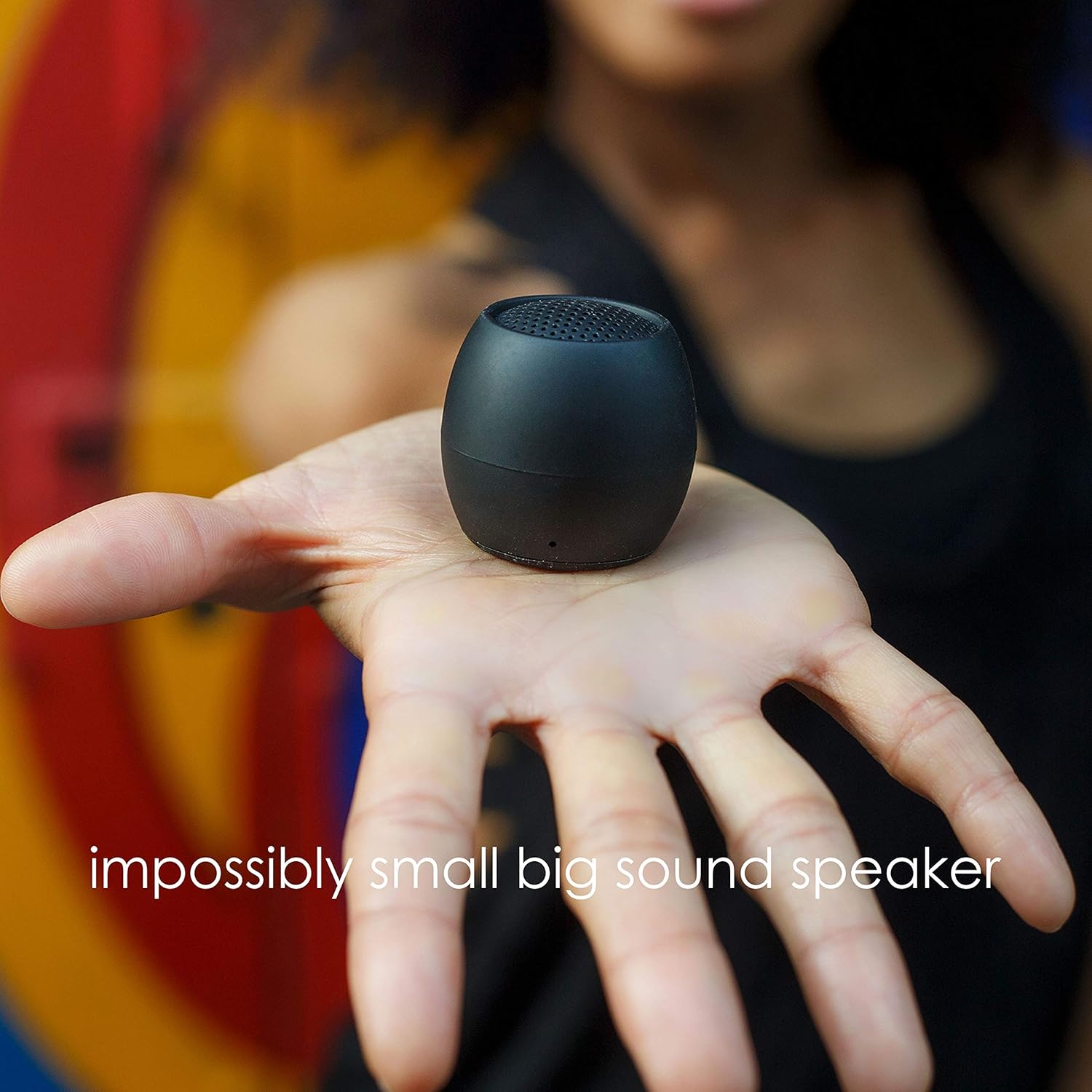
Image: The Boompods Zero Mini Bluetooth Speaker resting in the palm of a hand, demonstrating its extremely small and portable form factor.
Setup
1. Charging the Speaker
Before first use, fully charge your Boompods Zero speaker.
- Wired Charging: Open the protective cover on the bottom of the speaker to reveal the USB-C port. Connect the provided USB-C cable to the speaker and the other end to a USB power adapter (not included) or a computer's USB port. The LED indicator will show charging status.
- Wireless Charging: Place the speaker on the included wireless charging pad. Ensure the speaker is centered on the pad for optimal charging. The LED indicator will confirm charging.

Image: The Boompods Zero Mini Bluetooth Speaker being charged wirelessly on its dedicated charging pad. The image highlights the convenience of wireless power transfer.
2. Powering On/Off
- Power On: Press and hold the multi-function button on the bottom of the speaker for approximately 3 seconds until you hear an audible prompt and the LED indicator lights up.
- Power Off: Press and hold the multi-function button for approximately 3 seconds until you hear an audible prompt and the LED indicator turns off.

Image: A close-up view of the bottom of the Boompods Zero Mini Bluetooth Speaker, illustrating the location of the multi-function button and how to interact with it for various controls.
3. Bluetooth Pairing
To connect your speaker to a Bluetooth-enabled device:
- Ensure the speaker is powered off.
- Press and hold the multi-function button for about 5 seconds until the LED indicator flashes rapidly, indicating it's in pairing mode.
- On your device (smartphone, tablet, etc.), enable Bluetooth and search for available devices.
- Select "Boompods Zero" from the list of found devices.
- Once paired, the LED indicator will stop flashing and remain solid, and you will hear a confirmation sound.
4. Dual Pairing (Stereo Sound)
You can pair two Boompods Zero speakers together for a true stereo sound experience.
- Ensure both Boompods Zero speakers are powered off.
- Power on both speakers simultaneously. They will automatically attempt to connect to each other.
- Once connected to each other, one speaker will act as the master and enter Bluetooth pairing mode (LED flashing rapidly).
- Connect your device to the master speaker as described in the "Bluetooth Pairing" section.
- You will now experience stereo audio playback through both speakers.

Image: Two Boompods Zero Mini Bluetooth Speakers shown together, representing their ability to be dual-paired for an enhanced stereo audio experience.
Operating Instructions
1. Music Playback
- Play/Pause: Short press the multi-function button once.
- Volume Control: Adjust volume directly from your connected device. The speaker does not have dedicated volume buttons.
2. Call Function
The built-in microphone allows for hands-free calling when connected to your smartphone.
- Answer Call: Short press the multi-function button once when a call comes in.
- End Call: Short press the multi-function button once during a call.
- Reject Call: Press and hold the multi-function button for approximately 2 seconds when a call comes in.
3. Selfie Function
Use the speaker as a remote shutter for your smartphone camera.
- Ensure the speaker is paired with your smartphone.
- Open your smartphone's camera application.
- Short press the multi-function button on the speaker to trigger the camera shutter.
Image: The bottom of the Boompods Zero Mini Bluetooth Speaker, highlighting its selfie control feature. A finger is shown pressing the button, indicating its use as a remote camera shutter.
4. IPX6 Water Resistance
The Boompods Zero speaker is rated IPX6, meaning it is protected against powerful water jets. It is suitable for use in environments where it may be exposed to splashes or rain, such as a shower or outdoors.
- Important: Ensure the USB-C charging port cover is fully and securely closed before exposing the speaker to water.
- Do not submerge the speaker in water. IPX6 rating does not mean it is waterproof for submersion.
- After exposure to water, wipe the speaker dry with a soft cloth before charging.
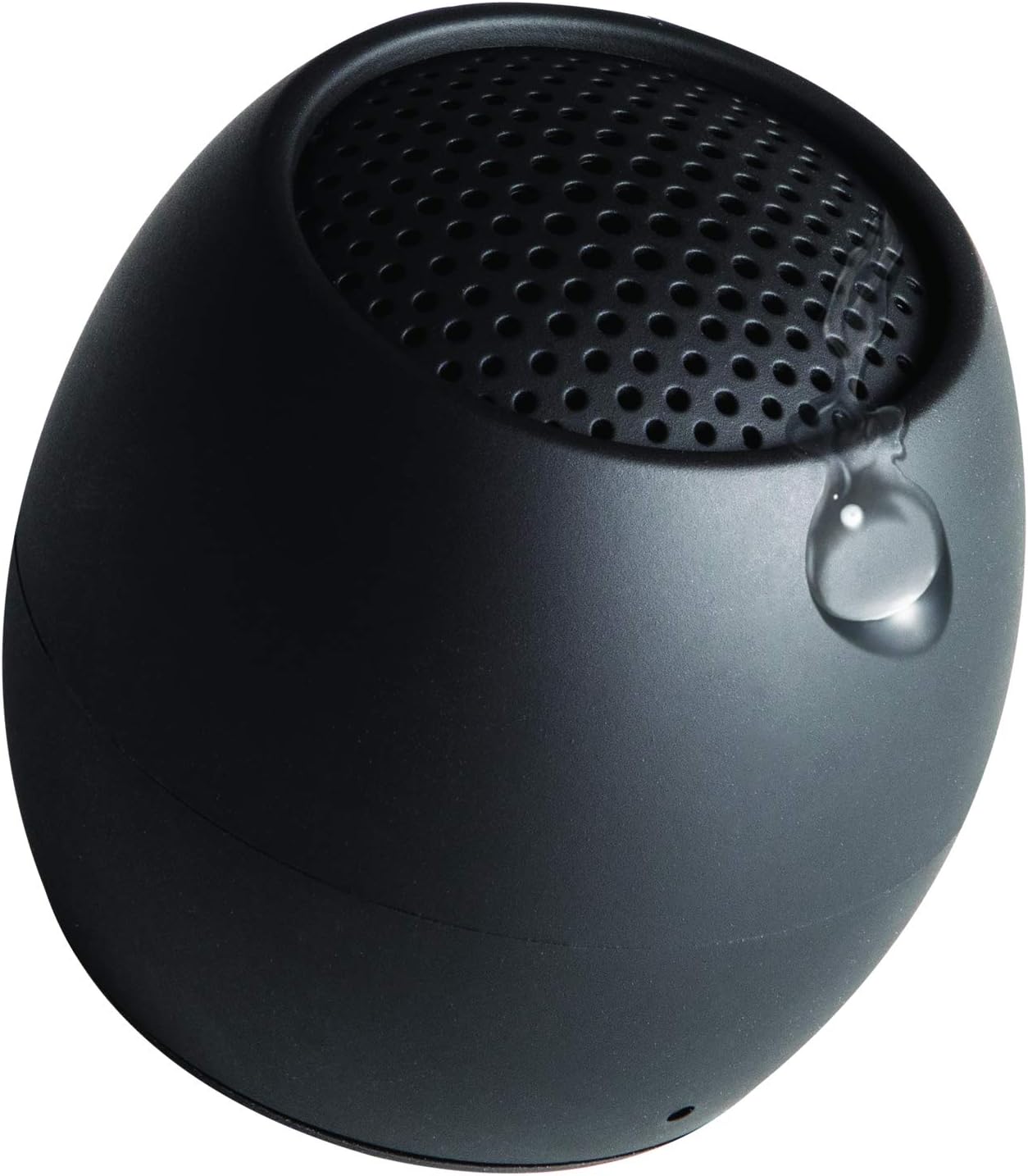
Image: A water droplet visible on the surface of the Boompods Zero Mini Bluetooth Speaker, illustrating its IPX6 water resistance, making it suitable for use in wet environments.
Maintenance
- Cleaning: Wipe the speaker with a soft, damp cloth. Do not use abrasive cleaners or solvents.
- Storage: Store the speaker in a cool, dry place away from direct sunlight and extreme temperatures.
- Battery Care: To prolong battery life, avoid fully discharging the battery frequently. Charge the speaker regularly, even if not in use for extended periods.
Troubleshooting
| Problem | Possible Cause | Solution |
|---|---|---|
| Speaker does not power on. | Low battery. | Charge the speaker fully. |
| Cannot pair with device. | Speaker not in pairing mode; Bluetooth off on device; device too far. | Ensure speaker is in pairing mode (flashing LED). Turn on Bluetooth on your device. Move device closer to speaker (within 10 meters). |
| No sound or low volume. | Volume on device too low; speaker not connected; audio source issue. | Increase volume on your connected device. Re-pair the speaker. Check audio source on your device. |
| Selfie function not working. | Camera app not open; speaker not paired. | Ensure your camera app is open and active. Confirm speaker is paired with your phone. |
| "Low Power" voice prompt repeats frequently. | Battery is critically low. | Charge the speaker immediately. This is a warning to prevent unexpected shutdown. |
Specifications
- Model Name: ZERO
- Brand: Boompods
- Connectivity Technology: Bluetooth
- Speaker Type: Bluetooth
- Maximum Output Power: 10 Watts
- Audio Output Mode: Stereo, Surround-Sound
- Special Features: Bluetooth, Waterproof (IPX6), Portable
- Recommended Uses: Music, Outdoor
- Compatible Devices: Smartphone
- Batteries: 1 Lithium-Ion battery required (included)
- Product Dimensions: 1 x 1 x 1 cm
- Item Weight: 81 Grams
- Manufacturer: Boompods
- Country of Origin: China
Warranty and Support
Boompods products are designed and manufactured to the highest quality standards. For information regarding warranty, returns, or technical support, please visit the official Boompods website or contact their customer service directly.
You can also visit the Boompods store on Amazon for more information and support: Boompods Amazon Store
Related documentsZERO


Ask a question about this manual
Ask about setup, troubleshooting, compatibility, parts, safety, or missing instructions. Manuals+ will review the question and use this page’s manual context to help answer it.