
Introduction
This manual provides essential information for the setup, operation, and maintenance of your Glorious GMMK Compact Modular Mechanical Gaming Keyboard. Designed for performance and customization, this 60% compact keyboard features hot-swappable switches and vibrant RGB backlighting.
Package Contents
- Glorious GMMK Compact Keyboard
- USB-C Cable
- Keycap Puller Tool
- Switch Puller Tool
Features
- Compact 60% Layout (61-Key): Space-saving design for a minimalist desktop.
- Full Modular, Hot-Swappable Switches: Easily change Cherry, Gateron, or Kailh switches without soldering.
- Gateron Brown Mechanical Switches: Pre-installed, offering a tactile typing experience.
- 16.8 Million Color RGB LED Backlighting: Customizable lighting with adjustable brightness and effects.
- Durable Construction: Sandblasted aluminum faceplate and raised keys.
- 100% Anti-Ghosting (Full NKRO): Ensures every keystroke is registered accurately.
- Removable Braided USB-C Cable: For easy portability and replacement.
- ABS Doubleshot Injection Keycaps: For enhanced durability and legend visibility.
Setup
- Connect the Keyboard: Plug the provided USB-C cable into the keyboard's USB-C port and the other end into an available USB port on your computer (PC, Mac, or Laptop).

Image: The Glorious GMMK Compact Keyboard with its removable USB-C cable connected, showcasing its compact design and RGB lighting.
- Initial Power-On: The keyboard should automatically power on and display its default RGB lighting.
- Software Installation (Optional): For advanced customization of RGB lighting and key assignments, download the official Glorious GMMK software from the manufacturer's website. Ensure you download the correct software version for your specific GMMK Compact model.
Operation
Basic Functions
The GMMK Compact functions as a standard QWERTY keyboard. All keys are pre-programmed for immediate use.
RGB LED Backlighting
The keyboard features 16.8 million color RGB LED backlighting with various effects and adjustable brightness. Use the keyboard's function keys (Fn) in combination with other keys to cycle through lighting modes, adjust brightness, and change colors. Refer to the software for full customization.
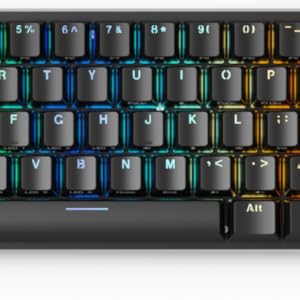
Image: A close-up view of an RGB LED keycap, highlighting the vibrant backlighting capabilities of the keyboard.
Hot-Swappable Switches
One of the key features of the GMMK Compact is its hot-swappable switch design, allowing you to easily change mechanical switches without soldering.
- Removing a Switch: Use the provided switch puller tool. Gently grip the switch from the top and bottom, then pull upwards with even pressure until the switch detaches from the PCB.

Image: A side view of the keyboard with a switch partially removed, illustrating the hot-swappable feature.
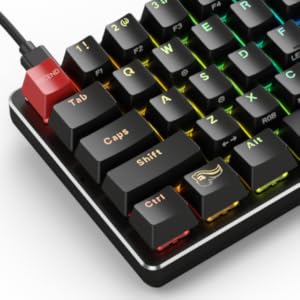
Image: The GMMK Compact keyboard displayed with various mechanical switches and keycaps, emphasizing its modularity.
- Installing a Switch: Align the pins of the new switch with the holes on the PCB. Press down firmly until the switch clicks into place. Ensure the pins are not bent during installation.
Special Features
The keyboard supports hotkeys and media keys, accessible via the Fn key combinations. Consult the software or the Glorious website for a full list of these functions.
Video: A sound test of the Glorious GMMK Compact keyboard with Gateron Brown switches, demonstrating the tactile typing experience.
Maintenance
Cleaning
To clean your keyboard, first disconnect it from your computer. Use the provided keycap puller to remove keycaps. Clean the keycaps with a mild soap solution and a soft cloth, then dry thoroughly. Use compressed air to remove dust and debris from between the switches. Wipe the keyboard frame with a damp cloth.
Switch and Keycap Replacement
As detailed in the Operation section, switches and keycaps can be easily replaced. This allows for customization and maintenance of individual components.

Image: The underside of the Glorious GMMK Compact keyboard, highlighting the integrated switch puller tool for convenient access.
Troubleshooting
- Keyboard Not Responding: Ensure the USB-C cable is securely connected to both the keyboard and the computer. Try a different USB port or cable.
- RGB Lighting Issues: If RGB lighting is not functioning correctly, check the software settings. Ensure the keyboard firmware is up to date.
- Keys Not Registering: If a specific key is not working, try removing and re-seating its switch. If the issue persists, the switch may need replacement.
- Software Not Detecting Keyboard: Download the latest software from the official Glorious website. Ensure no other keyboard software is conflicting.
Specifications
| Feature | Specification |
|---|---|
| Model | GMMK-COMPACT-BRN |
| Layout | 61 Key Standard QWERTY (ANSI), 60% Compact |
| Switches | Gateron Brown (pre-installed), Hot-Swappable |
| Backlighting | 16.8 Million Color RGB LED |
| Anti-Ghosting | 100% Anti-Ghosting (NKRO/6KRO) |
| Polling Rate | 1000 Hz |
| Connectivity | USB-C (Removable Braided Cable) |
| Keycaps | ABS Doubleshot Injection |
| Material | Aluminum (Faceplate) |
| Dimensions (L x W x H) | 11.5 x 4.1 x 1.4 inches (Product Dimensions: 14 x 5.1 x 1.4 inches) |
| Item Weight | 1.5 pounds |
Warranty and Support
Glorious provides a 2-Year Warranty for this product, offering hassle-free return and replacement on all Glorious electronic devices. If you encounter any issues with your keyboard, a replacement will be provided free of charge (up to one year from the date of purchase, as per product description). For further assistance or inquiries, please visit the official Glorious PC Gaming Race website for support resources, firmware updates, and software downloads.
This product is eligible for a 90-day refund/replacement return policy through the seller.


