
1. Introduction
This manual provides essential information for the installation, operation, and maintenance of the Fortinet FortiSwitch FS-448E-POE Layer 2/3 PoE+ Switch. Please read this manual thoroughly before using the device to ensure proper setup and functionality.
2. Product Overview
The FortiSwitch FS-448E-POE is a high-performance Layer 2/3 Power over Ethernet Plus (PoE+) switch designed for secure access and network aggregation. It offers advanced security, performance, and manageability, integrating seamlessly with the Fortinet Security Fabric via FortiLink for unified management.
Key Features:
- Delivers outstanding security, performance, and manageability.
- Secure, simple, and scalable design suitable for businesses of all sizes.
- Tightly integrated into the Fortinet Security Fabric via FortiLink for direct management from the FortiGate interface.
- Provides complete visibility and control of users and devices on the network.
- Ideal for SD-Branch deployments, supporting applications from desktop to data center aggregation.
- Features Universal Zero Trust Network Access (ZTNA), SASE support, and 128 MB Flash memory.

Image 2.1: FortiSwitch FS-448E-POE highlighting key features such as Universal ZTNA, PoE and PoE+ support, SASE support, and 128 MB Flash.
What's in the Box:
The FortiSwitch FS-448E-POE package includes the following:
- Fortinet FortiSwitch FS-448E-POE Unit
- Accessories (e.g., power cord, rackmount kit)
3. Setup Instructions
Follow these steps to properly set up your FortiSwitch FS-448E-POE.
3.1 Physical Installation
- Unpack the Switch: Carefully remove the switch and all accessories from the packaging. Inspect for any damage.
- Mounting: The FortiSwitch FS-448E-POE is designed for rack mounting. Use the provided rackmount kit to secure the switch in a standard 19-inch equipment rack. Ensure adequate ventilation around the unit.
- Power Connection: Connect the provided power cord to one of the AC input ports on the rear of the switch and then to a grounded electrical outlet.
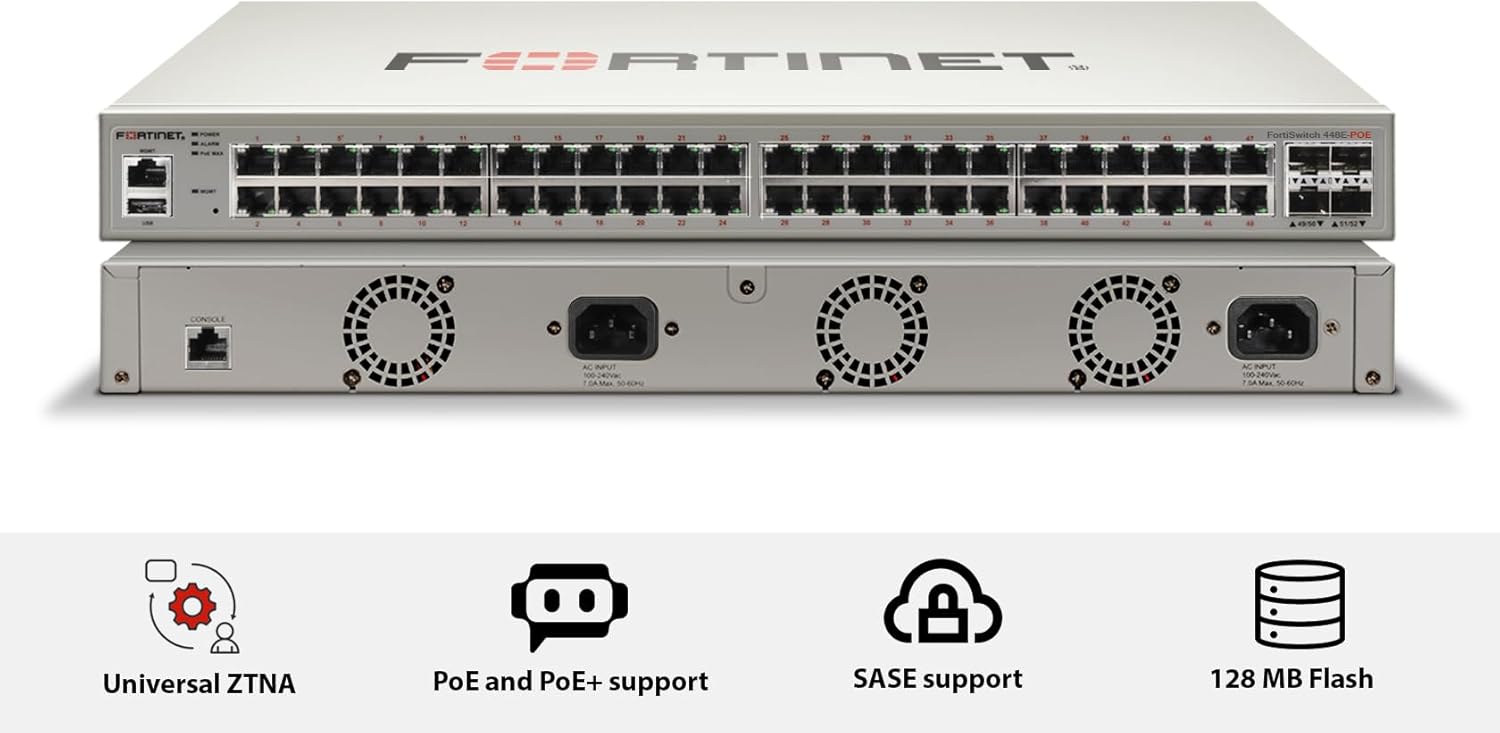
Image 3.1: Front and rear views of the FortiSwitch FS-448E-POE, showing the 48 PoE+ ports on the front and AC input, console port, and cooling fans on the rear.

Image 3.2: Detailed rear view of the FortiSwitch FS-448E-POE, highlighting the console port, AC power inputs, and cooling fan exhausts.
3.2 Network Connections
- Uplink Connection: Connect an Ethernet cable from one of the uplink ports (SFP+ or RJ45) on the FortiSwitch to your network's core switch or router.
- Device Connections: Connect your network devices (e.g., IP phones, wireless access points, computers) to the RJ45 ports on the front of the FortiSwitch. The PoE+ ports will automatically provide power to compatible devices.
- Console Connection (Optional): For initial configuration or troubleshooting, connect a console cable from your management workstation to the console port on the rear of the switch.
4. Operating Instructions
Once physically installed and connected, the FortiSwitch FS-448E-POE can be managed and operated.
4.1 Powering On
After connecting the power cord, the switch will automatically power on. Observe the LED indicators on the front panel to confirm power status and port activity.
4.2 Management Interface
The FortiSwitch FS-448E-POE is designed for integration with a FortiGate firewall using FortiLink. This allows for centralized management of the switch directly from the FortiGate interface, providing a single pane of glass for network and security control.
- FortiLink Integration: Refer to the FortiGate documentation for detailed instructions on configuring FortiLink and managing connected FortiSwitches.
- Local Management (CLI): For advanced configuration or in standalone deployments, the switch can be managed via its Command Line Interface (CLI) through the console port or SSH.
4.3 PoE+ Functionality
The switch's PoE+ ports automatically detect and provide power to connected PoE-compatible devices. Ensure that the total power consumption of all connected devices does not exceed the switch's maximum PoE power budget (421 Watts).
5. Maintenance
Regular maintenance helps ensure the longevity and optimal performance of your FortiSwitch.
- Cleaning: Keep the switch and its ventilation openings clean and free of dust. Use a soft, dry cloth for cleaning. Do not use liquid or aerosol cleaners.
- Firmware Updates: Regularly check the Fortinet support website for the latest firmware updates. Keeping the firmware up-to-date ensures access to new features, performance improvements, and security patches.
- Environmental Conditions: Ensure the switch operates within its specified environmental conditions (temperature, humidity) to prevent overheating and component failure.
6. Troubleshooting
This section provides solutions to common issues you might encounter.
6.1 No Power
- Check Power Cord: Ensure the power cord is securely connected to both the switch and the electrical outlet.
- Verify Outlet: Test the electrical outlet with another device to confirm it is functioning.
- Power Supply: If the switch has redundant power supplies, check the status of both.
6.2 No Network Connectivity
- Check Cables: Ensure all Ethernet cables are securely connected to the correct ports on both the switch and the connected devices.
- LED Indicators: Observe the port status LEDs. A solid green or amber light typically indicates a link, while a blinking light indicates activity. No light suggests no link.
- Configuration: Verify the network configuration on the FortiGate (if using FortiLink) or the switch's CLI. Ensure VLANs, IP addresses, and routing are correctly configured.
- Device Compatibility: Ensure connected devices are compatible with the switch's port speeds and settings.
6.3 PoE Device Not Receiving Power
- PoE Compatibility: Confirm that the connected device is PoE or PoE+ compatible.
- Cable Quality: Use high-quality Ethernet cables (Cat5e or higher) for PoE connections.
- Power Budget: Check the switch's PoE power budget. If the total power draw exceeds the budget, some devices may not receive power. Disconnect non-essential PoE devices or add an additional PoE power source.
- Port Status: Check the PoE status of the port via the management interface.
7. Specifications
Detailed technical specifications for the Fortinet FortiSwitch FS-448E-POE.

Image 7.1: Comprehensive specifications table for the FortiSwitch FS-448E-POE, including hardware specifications, system specifications, dimensions, environmental conditions, and warranty information.

Image 7.2: Physical dimensions (Height x Depth x Width: 1.73 x 16.1 x 17.3 inches) and weight (13.8 pounds) of the FortiSwitch FS-448E-POE as depicted in this visual reference.
| Feature | Specification |
|---|---|
| Item Model Number | FS-448E-POE |
| Brand | FORTINET |
| Number of Ports | 48 |
| Interface Type | PoE+ |
| Data Transfer Rate | 1000 Megabits Per Second (1 Gbps) |
| Maximum Power (PoE Budget) | 421 Watts |
| Product Dimensions | 23 x 22 x 6 inches |
| Item Weight | 18.56 pounds (8.44 Kilograms) |
| UPC | 842382178607 |
| Manufacturer | Fortinet |
| Compatible Devices | Desktop (general network devices) |
8. Warranty and Support
Fortinet products are backed by comprehensive warranty and support services.
- Warranty Information: Fortinet provides a limited lifetime warranty on certain models. Please refer to the official Fortinet website or your purchase documentation for specific warranty terms applicable to the FS-448E-POE model.
- Technical Support: For technical assistance, documentation, and software downloads, visit the official Fortinet support portal at support.fortinet.com.
- Contact Information: For sales or general inquiries, visit the Fortinet website at www.fortinet.com.


