1. Product Overview
The WD_BLACK SN850 NVMe SSD is a high-performance internal solid-state drive designed for gaming and demanding applications. Utilizing PCIe Gen4 technology, it offers fast data transfer speeds and a compact M.2 2280 form factor for easy integration into compatible systems.
Key Features:
- Next-generation PCIe Gen4 technology for enhanced performance.
- Read speeds up to 7000 MB/s and write speeds up to 5300 MB/s (for 1TB model).
- 1TB capacity for storing a large library of games and applications.
- Compact M.2 2280 form factor for broad compatibility.
- Compatible with the downloadable WD_BLACK Dashboard software for drive management.
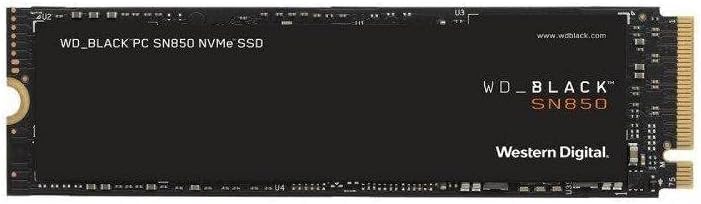
Image 1.1: Top view of the WD_BLACK SN850 NVMe SSD. This image displays the sleek black design of the M.2 2280 form factor SSD, highlighting the WD_BLACK branding and model number SN850.
2. Installation Guide
This section provides general instructions for installing the WD_BLACK SN850 NVMe SSD. Specific steps may vary depending on your computer's motherboard or console model. Always refer to your system's manual for detailed installation procedures.
2.1. Before Installation
- Compatibility Check: Ensure your motherboard or device has an available M.2 slot that supports PCIe Gen4 NVMe SSDs. The SN850 uses the M.2 2280 form factor.
- Safety Precautions:
- Power off your system and disconnect all power cables.
- Discharge static electricity by touching a grounded metal object before handling the SSD.
- Tools Required: Typically, a Phillips head screwdriver is needed.
- Heatsink Recommendation: For optimal performance and thermal management, especially in high-demand scenarios or when installing in a PlayStation 5, a compatible heatsink is highly recommended.
2.2. Installation Steps (General)
- Locate the M.2 Slot: Open your computer case or console cover and identify an available M.2 slot on the motherboard.
- Remove Retention Screw/Standoff: If present, remove the screw and standoff from the M.2 slot.
- Insert the SSD: Gently insert the WD_BLACK SN850 SSD into the M.2 slot at a 30-degree angle. The gold contacts should disappear into the slot.
- Secure the SSD: Push the SSD down until it is parallel with the motherboard. Secure it with the retention screw or standoff. If using a heatsink, install it according to its specific instructions before securing the SSD.
- Close System: Reassemble your computer or console.

Image 2.1: Dimensions of the WD_BLACK SN850 NVMe SSD and M.2 slot compatibility. This image illustrates the physical dimensions of the SSD (3.15" x 0.87" x 0.09") and indicates that it works with PCIe one-notch slots only, which is standard for M.2 NVMe drives.
3. Initial Setup and Operation
After physical installation, the SSD needs to be initialized and formatted by your operating system or console.
3.1. For PC Users (Windows)
- Boot System: Power on your computer.
- Initialize Disk:
- Right-click on the Start button and select "Disk Management."
- You should see the new SSD listed as "Disk [number]" and "Unallocated."
- Right-click on the disk number (not the unallocated space) and select "Initialize Disk." Choose GPT (GUID Partition Table) for modern systems.
- Create New Simple Volume:
- Right-click on the "Unallocated" space of the new SSD.
- Select "New Simple Volume" and follow the wizard. Assign a drive letter and choose a file system (NTFS is standard for Windows).
- The SSD is now ready for use.
3.2. For PlayStation 5 Users
- Power On PS5: After installing the SSD, power on your PlayStation 5.
- Format Prompt: The PS5 will automatically detect the new SSD and prompt you to format it. Select "Format M.2 SSD."
- Completion: Once formatted, the SSD will be available for use. You can then manage game installations and move data between the console's internal storage and the new M.2 SSD via the PS5 settings.
3.3. WD_BLACK Dashboard Software
The WD_BLACK Dashboard software provides tools to monitor the health of your SSD, update firmware, and optimize performance. It is available for download from the official Western Digital website.
- Download: Visit Western Digital Support to download the latest version.
- Features: Monitor drive temperature, performance, and remaining lifespan.
4. Maintenance
Proper maintenance ensures the longevity and optimal performance of your WD_BLACK SN850 SSD.
- Firmware Updates: Regularly check for and install firmware updates using the WD_BLACK Dashboard software. Firmware updates can improve performance, stability, and compatibility.
- Monitor Drive Health: Use the WD_BLACK Dashboard to monitor the SSD's health status, temperature, and estimated remaining lifespan.
- Data Backup: While SSDs are reliable, it is always recommended to regularly back up important data to another storage device to prevent data loss.
- Avoid Overfilling: Try to keep some free space on the SSD (e.g., 10-15%) for optimal performance and wear leveling.
5. Troubleshooting
If you encounter issues with your WD_BLACK SN850 NVMe SSD, refer to the following common troubleshooting steps.
- SSD Not Detected:
- Ensure the SSD is correctly seated in the M.2 slot.
- Check your system's BIOS/UEFI settings to confirm the M.2 slot is enabled and configured correctly (e.g., PCIe mode).
- Verify that your motherboard drivers are up to date.
- For new installations, ensure the disk has been initialized and formatted in Disk Management (Windows) or by the console.
- Slow Performance:
- Confirm the SSD is operating in PCIe Gen4 mode (check motherboard manual or WD_BLACK Dashboard).
- Ensure your system's drivers (chipset, storage controller) are up to date.
- Check the SSD's temperature using WD_BLACK Dashboard; high temperatures can lead to thermal throttling. Ensure adequate cooling or consider adding a heatsink.
- Ensure sufficient free space on the drive.
- System Instability/Crashes:
- Update SSD firmware via WD_BLACK Dashboard.
- Check for conflicting drivers or software.
- Run system diagnostics to rule out other hardware issues.
If these steps do not resolve your issue, please contact Western Digital support for further assistance.
6. Specifications
| Feature | Detail |
|---|---|
| Brand | WD_BLACK |
| Model Number | WDS100T1X0E |
| Digital Storage Capacity | 1TB (1000 GB) |
| Hard Disk Interface | NVMe (PCIe Gen4) |
| Connectivity Technology | NVMe |
| Form Factor | M.2 2280 |
| Max Sequential Read Speed | Up to 7000 MB/s |
| Max Sequential Write Speed | Up to 5300 MB/s |
| Product Dimensions (LxWxH) | 3.15 x 0.87 x 0.09 inches |
| Item Weight | 0.264 ounces |
| Compatible Devices | Laptop, Motherboards (also compatible with PlayStation 5) |
| Special Feature | WD_BLACK Dashboard Software Support |
7. Warranty and Support
Western Digital provides comprehensive support for its products.
- Limited Warranty: The WD_BLACK SN850 NVMe SSD typically comes with a 5-year limited warranty. Please refer to the official Western Digital website for the most current and detailed warranty information specific to your region and purchase.
- Data Recovery Plans: Optional data recovery plans are available for purchase separately to protect against data loss. These plans are offered for 2-year or 3-year durations.
- Technical Support: For technical assistance, product registration, or warranty claims, visit the official Western Digital support website: www.westerndigital.com/support.
- Product Registration: Registering your product can help streamline support processes and keep you informed about important updates.