
Deco Gear 40-inch 5K UltraWide Monitor (Model VIEW401) User Manual
Model: VIEW401
Introduction
This manual provides essential information for the proper setup, operation, and maintenance of your Deco Gear 40-inch 5K UltraWide Monitor (Model VIEW401). Please read this manual thoroughly before using the product to ensure optimal performance and safety.
Important Safety Information
Observe the following safety precautions to prevent damage to the monitor and ensure user safety:
- Do not expose the monitor to rain or moisture.
- Do not open the monitor casing; refer all servicing to qualified personnel.
- Ensure proper ventilation around the monitor.
- Use only the power adapter supplied with the monitor.
- Avoid placing heavy objects on the power cord.
- Clean the monitor with a soft, dry cloth. Avoid liquid cleaners.
Package Contents
Verify that all items are present in the package:
- Deco Gear 40-inch 5K UltraWide Monitor
- Monitor Stand (Base and Neck)
- Power Adapter
- USB-C Cable
- USB-B Cable
- DisplayPort (DP) Cable
- User Manual (this document)
Setup Instructions
1. Assembling the Monitor Stand
Carefully remove the monitor from its packaging. Place the monitor face down on a soft, clean surface to prevent scratches. Attach the stand neck to the monitor, then secure the base to the neck. Ensure all connections are firm.

Image: Deco Gear 40-inch 5K UltraWide Monitor with its stand assembled.
2. Connecting Cables
The monitor offers various connectivity options. Connect the appropriate cables from your computer or device to the monitor's input ports. Ensure the power adapter is connected to the monitor and a power outlet.
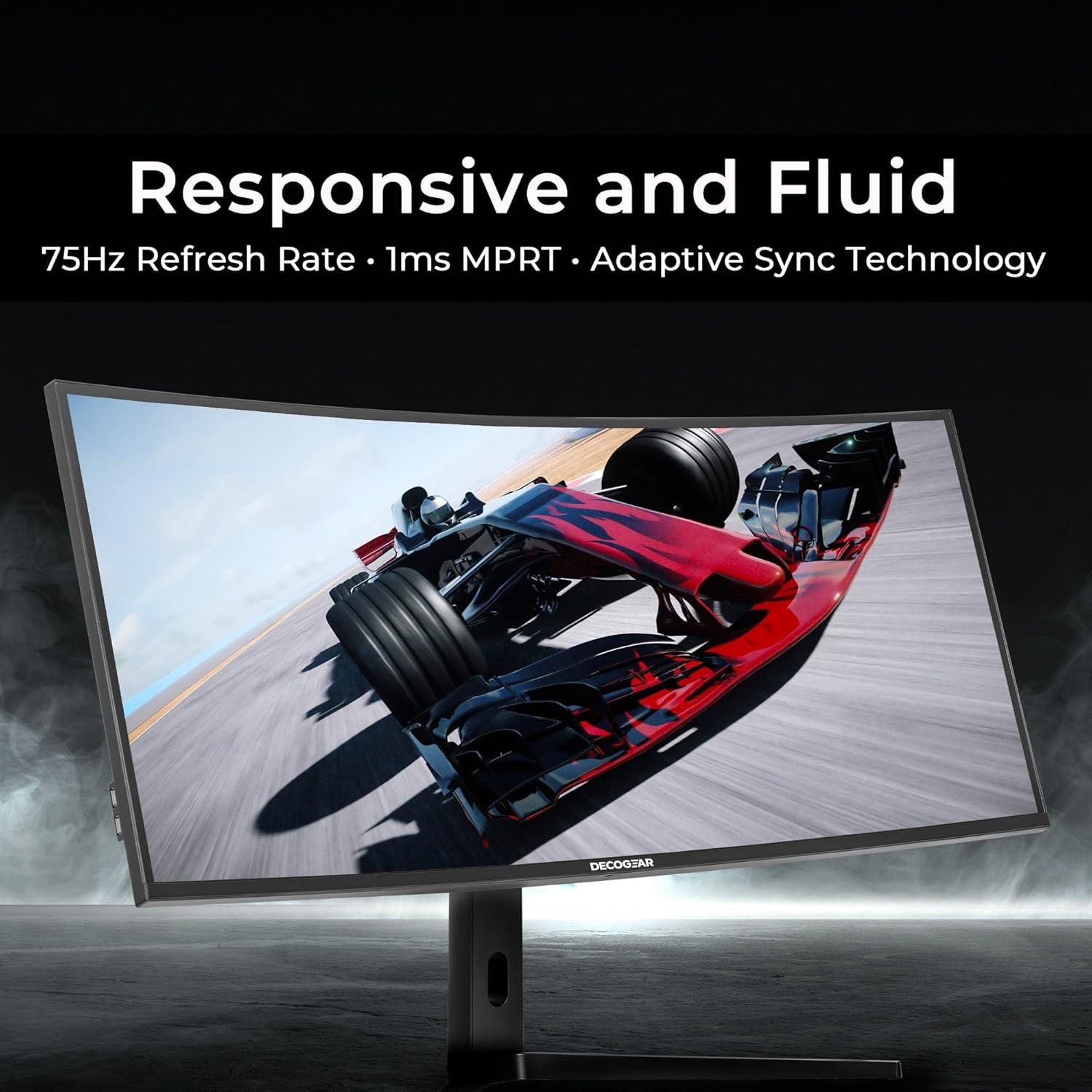
Image: Rear view of the Deco Gear 40-inch monitor, highlighting the various input ports including HDMI, DisplayPort, USB-C, USB-B, and USB-A.
- DisplayPort (DP 1.4): For high-resolution and refresh rate connections.
- HDMI (HDMI 2.0): Standard video input.
- USB-C: Supports video, data, and power delivery (up to 90W PD).
- USB-B: Connects to your computer to enable the monitor's USB-A ports.
- USB-A: For connecting peripherals like keyboards, mice, or USB drives.
- Audio Out: For connecting external speakers or headphones.
3. Initial Power On
Press the power button located on the monitor to turn it on. The monitor will automatically detect the active input source. If multiple sources are connected, you may need to manually select the input via the On-Screen Display (OSD) menu.
Operating Instructions
On-Screen Display (OSD) Menu
The OSD menu allows you to adjust various monitor settings. Use the buttons on the monitor (typically located on the back or bottom right) to navigate and select options. Common settings include brightness, contrast, color temperature, input source, and advanced features.
Picture-in-Picture (PIP) and Picture-by-Picture (PBP)
The VIEW401 supports PIP and PBP modes, allowing you to display content from multiple input sources simultaneously. This feature is ideal for multitasking and viewing content from different devices on a single screen.
- PIP: Displays one input source in a smaller window over another main source.
- PBP: Divides the screen into multiple sections, each displaying a different input source side-by-side.

Image: The Deco Gear 40-inch monitor showcasing multiple applications open simultaneously, demonstrating its multitasking capabilities with a 21:9 aspect ratio.
Adaptive Sync Technology
Adaptive Sync synchronizes the monitor's refresh rate with your graphics card's frame rate, reducing screen tearing and stuttering for smoother visual experiences, especially during gaming or fast-paced video content.
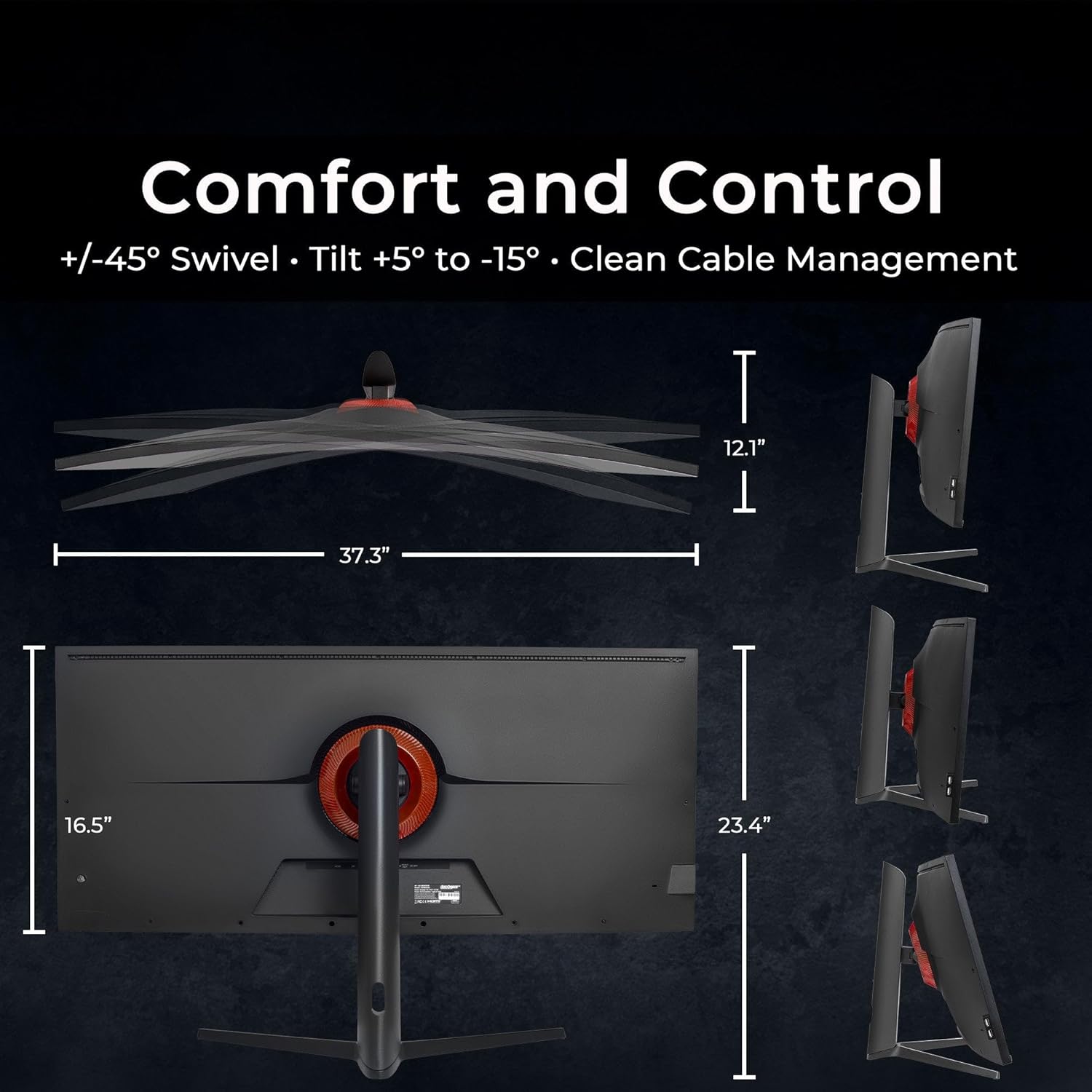
Image: A racing game displayed on the Deco Gear 40-inch monitor, demonstrating the fluid motion and lack of tearing provided by Adaptive Sync technology.
Color Accuracy and HDR10
The monitor features an IPS panel with wide color gamut coverage (95% NTSC, 96% DCI-P3, and 100% sRGB) and HDR10 support. These features ensure accurate and vibrant color reproduction, making it suitable for professional creative work and immersive media consumption.

Image: The Deco Gear 40-inch monitor displaying video editing software, highlighting its precision for creative tasks with accurate color representation.
Maintenance
Cleaning the Monitor
To clean the monitor screen, gently wipe it with a soft, lint-free cloth. For stubborn marks, slightly dampen the cloth with water or a mild, non-abrasive screen cleaner. Do not spray liquid directly onto the screen.
To clean the monitor casing, use a soft, dry cloth. Avoid using harsh chemicals or abrasive materials that could damage the surface.
Troubleshooting
| Problem | Possible Cause | Solution |
|---|---|---|
| No image on screen | Power cable disconnected; incorrect input source selected; video cable loose. | Check power connections. Select the correct input source via OSD. Ensure video cables (DP, HDMI, USB-C) are securely connected. |
| Flickering or distorted image | Faulty video cable; incorrect resolution/refresh rate; graphics card issue. | Try a different video cable. Adjust display settings on your computer to match monitor specifications. Update graphics drivers. |
| No sound from speakers/audio out | Volume too low; incorrect audio output selected on computer; audio cable issue. | Increase monitor volume. Select the monitor as the default audio output device on your computer. Check audio cable connections. |
| USB ports not working | USB-B upstream cable not connected. | Ensure the USB-B cable is connected from the monitor to your computer. |
If the issue persists after attempting these solutions, please contact customer support.
Specifications
| Feature | Detail |
|---|---|
| Model Number | VIEW401 |
| Screen Size | 40 Inches |
| Resolution | 5120 x 2160 (5K UHD Ultra Wide) |
| Aspect Ratio | 21:9 |
| Panel Type | IPS |
| HDR Support | HDR10 |
| Color Gamut | 95% NTSC, 96% DCI-P3, 100% sRGB |
| Response Time | 6ms (with OD) |
| Connectivity | DisplayPort 1.4, HDMI 2.0, USB-C (90W PD), USB-A, USB-B, Audio Out |
| Special Features | PIP/PBP, Adaptive Sync, Low Blue Light Control, Flicker-Free Backlight, OverDrive, Cable Management |
| Product Dimensions | 12.1 x 37.3 x 23.4 inches |
| Item Weight | 30.2 pounds |
Warranty and Support
For warranty information and technical support, please refer to the official Deco Gear website or contact their customer service department. Keep your purchase receipt for warranty claims.
Deco Gear is committed to providing quality products and customer satisfaction.