
FANGOR FANGOR Projector F-601
Contents
FANGOR F-601 Portable WiFi Projector User Manual
Model: FANGOR Projector F-601
Brand: FANGOR
1. Introduction
This manual provides comprehensive instructions for the FANGOR F-601 WiFi Projector. Designed for portable home entertainment, this projector features an 8400mAh built-in battery, supports up to 1080P resolution, and offers seamless smartphone screen synchronization via WiFi or USB cable. It also includes Bluetooth functionality for connecting external audio devices. Please read this manual thoroughly before operation to ensure proper use and longevity of your device.
Key features include:
- Built-in 8400mAh battery for up to 2.5 hours of portable use.
- Supports 1080P resolution with 6000:1 contrast ratio.
- Wired and wireless screen mirroring for Android/iOS devices.
- Bluetooth function for connecting external speakers.
- Innovative noise reduction and heat dissipation technology.
- Zoom function (100% to 75%) via remote control.
- Multiple input ports: AV, Audio, Micro SD, HDMI (x2), USB.
2. What's in the Box
Upon opening your FANGOR F-601 projector package, you should find the following items:
- FANGOR F-601 Video Projector
- Lens Cover
- 3-in-1 Power Adapter
- HDMI Cable
- Remote Control
- User Manual (this document)

Image: All components included in the FANGOR F-601 package.
3. Product Overview
The FANGOR F-601 projector is designed for ease of use and portability. Below are key visual aspects and features of the device.
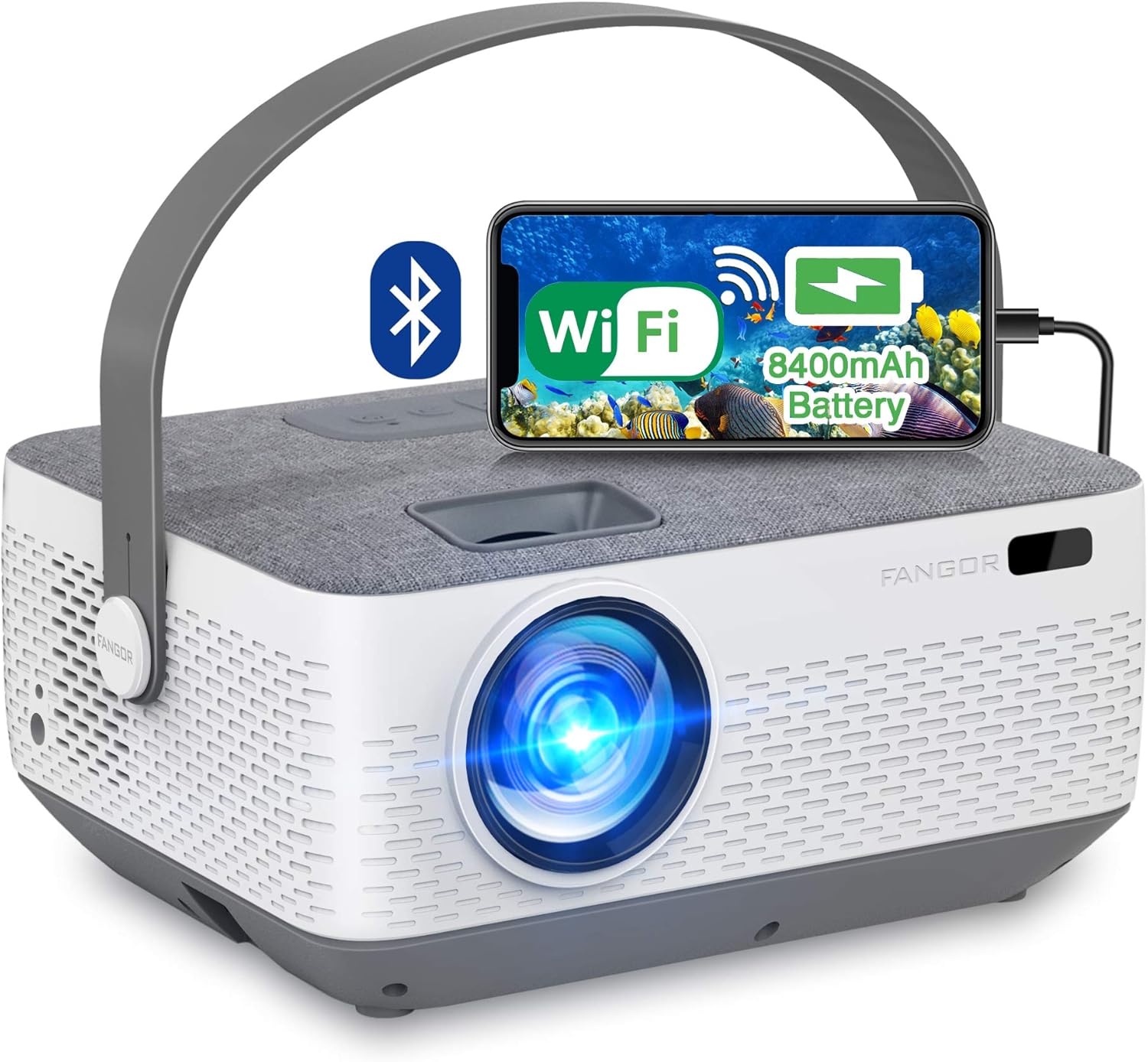
Image: The FANGOR F-601 projector, highlighting its compact design and connectivity features.
3.1. Design and Portability

Image: The projector features a unique handle for easy transport, making it ideal for outdoor use.
3.2. Input Ports and Connectivity

Image: Overview of the projector's connectivity options, including HDMI, USB, Micro SD, AV, and Audio ports, compatible with various devices like laptops, gaming consoles, and smartphones.
3.3. Built-in Battery and Outdoor Use

Image: The FANGOR F-601 features an 8400mAh built-in battery, allowing for extended movie nights outdoors without external power.
3.4. Keystone Correction and Zoom Function

Image: The projector offers ±45° electric keystone correction and a zoom function (100% to 75%) accessible via the remote control for optimal image adjustment.
4. Setup
Follow these steps to set up your FANGOR F-601 projector for the first time.
4.1. Powering On
- Connect the power adapter to the projector's power input and then to a power outlet.
- Press the power button on the projector or the remote control to turn on the device.
4.2. Adjusting Image Focus and Keystone
- Rotate the focus ring on the projector lens until the image appears clear and sharp.
- Use the ±45° electric keystone correction on the remote control to adjust the image shape if it appears trapezoidal.
4.3. Connecting to Devices (Screen Mirroring)
The FANGOR F-601 supports both wired and wireless screen mirroring for Android and iOS devices.
4.3.1. iOS WiFi Connection

Image: Steps for connecting an iOS device wirelessly to the projector.
- Press "Source" on the projector/remote and choose "Screen Mirroring".
- On your iOS device, find the projector's SSID (e.g., "Dualcast-XXXX") in your WiFi settings and connect.
- Open screen mirroring on your iOS device and select the projector.
4.3.2. iOS Wired Connection

Image: Steps for connecting an iOS device via USB cable to the projector.
- Press "Source" on the projector/remote and choose "Screen Mirroring".
- Connect your iOS device to the projector's USB port using its original USB charging cable.
- Select "Trust" on your iOS device when prompted and enter your phone password if required.
4.3.3. Android WiFi Connection

Image: Steps for connecting an Android device wirelessly to the projector.
- Press "Source" on the projector/remote and choose "Screen Mirroring".
- Turn on WiFi on your Android phone (do not connect to any WiFi network).
- Open your phone's settings, find "Wireless Projection" or "Screen Cast" and select "Dualcast-XXXX" to connect.
Note: For apps with copyright issues (e.g., Netflix, Amazon Prime Video), screen mirroring may not work. We recommend using TV sticks or HDMI cables for these services.
5. Operating Instructions
5.1. Media Playback
Connect your media source (e.g., laptop, TV stick, USB drive) to the appropriate port (HDMI, USB, Micro SD). Select the corresponding input source from the projector's menu using the "Source" button on the remote or projector.

Image: The projector supports multimedia connections for various content sources, including streaming services via TV adapters (not included).
5.2. Bluetooth Audio Connection
The projector features a built-in Bluetooth 5.0 chip, allowing you to connect to external wireless speakers for enhanced audio experience. Please note that this Bluetooth function is designed for connecting speakers and is not intended for smartphone connections.
Image: Connect your FANGOR F-601 projector to a Bluetooth speaker for a more immersive audio experience.
5.3. Projection Distance and Size
The recommended viewing distance for the FANGOR F-601 projector is 8 feet, which provides an optimal viewing experience. The projector can project screen sizes ranging from 30 inches to 200 inches, with projection distances from 3ft to 20ft.

Image: Guide to achieving different screen sizes based on projection distance.
6. Maintenance
6.1. Cleaning the Lens
Use a professional lens cleaning cloth and lens cleaning fluid to clean the projector lens. Avoid touching the lens directly with your hands to prevent smudges or damage.
6.2. General Cleaning
Wipe the projector's exterior with a soft, dry cloth. Do not use abrasive cleaners or solvents, as they may damage the surface.
6.3. Storage
When not in use for an extended period, store the projector in a cool, dry place, away from direct sunlight and extreme temperatures. Use the provided lens cover to protect the lens from dust.
6.4. Safety Information
We recommend using this movie projector in a dark environment for optimal viewing and to prolong the lamp life.
7. Specifications
| Feature | Specification |
|---|---|
| Product Dimensions | 8.27 x 6.22 x 3.94 inches |
| Item Weight | 3.04 pounds |
| Item Model Number | FANGOR Projector F-601 |
| Batteries | 2 Lithium Polymer batteries required. (included) |
| Brand | FANGOR |
| Recommended Uses For Product | Indoor/Outdoor projector |
| Special Feature | Built-In Speaker, WiFi Sync Screen, with handle, Bluetooth(not for smartphone), Rechargeable Battery |
| Connectivity Technology | Bluetooth, USB, HDMI, wireless |
| Display Resolution | 1280 x 720 |
8. Troubleshooting
If you encounter issues with your FANGOR F-601 projector, please refer to the following common problems and solutions:
8.1. No Image or Poor Image Quality
- Ensure all cables (HDMI, USB) are securely connected.
- Verify the correct input source is selected on the projector.
- Adjust the focus ring on the lens.
- Use the keystone correction function to correct distorted images.
- Ensure the projection surface is clean and flat.
- For best results, use the projector in a dark environment.
8.2. No Sound or Low Volume
- Check the volume level on both the projector and the connected device.
- If using external speakers via Bluetooth, ensure they are properly paired and charged.
- If using an HDMI connection, ensure the audio output is correctly configured on the source device.
8.3. Screen Mirroring Issues
- For wireless mirroring, ensure your smartphone is connected to the projector's WiFi signal (not your home WiFi).
- For wired mirroring, use the original USB charging cable of your device.
- Some streaming apps (e.g., Netflix, Hulu) may block screen mirroring due to copyright protection. Use an HDMI cable or a streaming stick for these services.
9. Warranty and Support
FANGOR provides a 1-month guarantee for returns. For detailed warranty information, technical support, or service inquiries, please refer to the official FANGOR store or the user guide PDF.
- Official User Guide (PDF): Download PDF
- Visit the FANGOR Store: FANGOR Store on Amazon
Documents and downloads
Ask a question about this manual
Ask about setup, troubleshooting, compatibility, parts, safety, or missing instructions. Manuals+ will review the question and use this page’s manual context to help answer it.