1. Introduction
Thank you for choosing the Venom PS5 DualSense Controller Twin Docking Station. This manual provides essential information for the proper setup, operation, and maintenance of your charging station. Please read these instructions carefully before use.
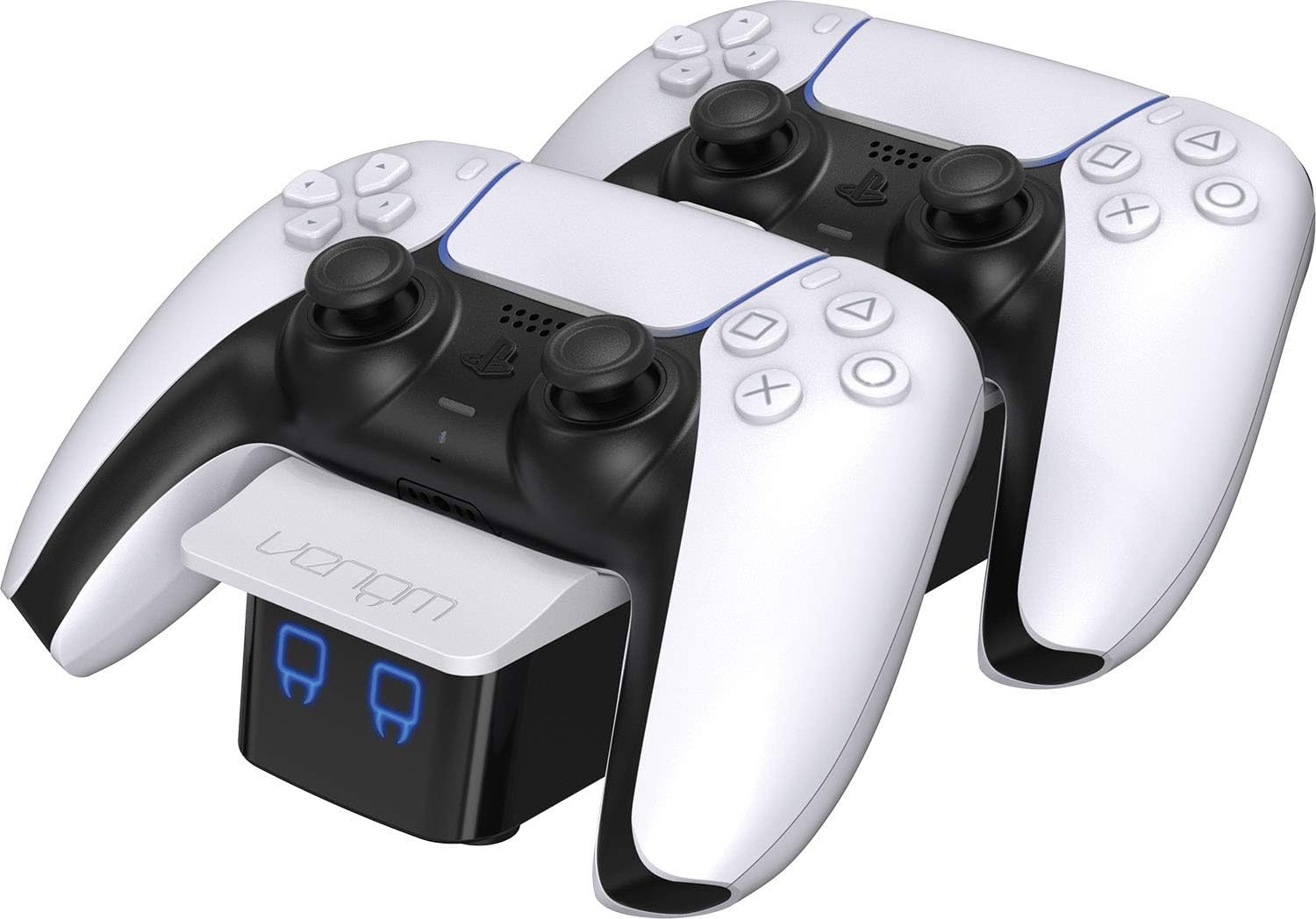
Image 1.1: The Venom PS5 DualSense Controller Twin Docking Station with two controllers.
2. Package Contents
Ensure all the following items are present in your package:
- Venom PS5 DualSense Controller Twin Docking Station
- USB-A to USB-C Charging Cable (1 meter)
- 2 x USB-C Charging Dongles

Image 2.1: The two included USB-C charging dongles.

Image 2.2: The USB-A to USB-C charging cable.
3. Setup Instructions
- Attach Charging Dongles: Carefully insert one USB-C charging dongle into the USB-C port on each of your PS5 DualSense controllers. These dongles are designed to remain in the controller for convenient drop-and-charge functionality.
- Connect Power: Connect the supplied USB-A to USB-C charging cable to the USB-C input port on the rear of the docking station. Plug the USB-A end into a compatible USB power source (e.g., a PS5 console USB port, a USB wall adapter, or a PC USB port). Ensure the power source provides sufficient output (minimum 5V/1.8A recommended for optimal charging of two controllers).
- Place Controllers: Gently place your PS5 DualSense controllers onto the docking station, aligning the dongles with the charging contacts. The controllers should sit securely in the cradles.

Image 3.1: USB-C dongle correctly inserted into a PS5 DualSense controller.

Image 3.2: Rear ports of the docking station, including the USB-C power input.

Image 3.3: A PS5 controller correctly placed on the docking station.
4. Operating Instructions
4.1 Charging Controllers
Once controllers are correctly placed on the docking station and power is connected, charging will begin automatically. The front LED indicators provide charging status:
- Red LED: Indicates the controller is currently charging.
- Blue LED: Indicates the controller is fully charged.
4.2 Rear USB Output
The docking station features a rear USB-A output port. This port can be used to charge other USB-powered devices, such as wireless headsets or mobile phones, while the docking station is powered.
5. Maintenance
- Cleaning: Disconnect the docking station from power before cleaning. Use a soft, dry cloth to wipe the surface. Do not use abrasive cleaners or solvents.
- Storage: When not in use for extended periods, store the docking station in a cool, dry place away from direct sunlight and extreme temperatures.
- Handling: Avoid dropping or subjecting the docking station to strong impacts, as this may damage internal components.
6. Troubleshooting
- Controller Not Charging:
- Ensure the USB-C dongle is fully inserted into the controller.
- Verify the controller is correctly seated on the docking station, making proper contact with the charging pins.
- Check that the power cable is securely connected to both the docking station and the power source.
- Try a different USB power source or USB-A to USB-C cable to rule out a faulty component.
- Only One Controller Charges at a Time:
- Ensure your power source provides adequate current (at least 1.8 Amps). Lower current power sources may prioritize charging one controller over two.
- Verify both controllers have their USB-C dongles correctly inserted and are properly seated on the dock.
- LED Indicators Not Working:
- Confirm the docking station is receiving power.
- If the station is powered but LEDs are off, ensure a controller is placed on the dock and requires charging.
- Concerns about Controller Battery Life:
- The docking station is designed to provide optimal charging. To prolong battery life, avoid leaving controllers on the charger indefinitely after they reach full charge. While modern batteries have overcharge protection, prolonged trickle charging can still contribute to long-term degradation.
- Ensure you are using a reliable power source that meets the recommended specifications.
- Missing USB-C Charging Dongles:
- The package should contain two dongles. If any are missing, please contact Venom customer support.
7. Specifications
| Feature | Specification |
|---|---|
| Model Number | VS5001 |
| Product Dimensions | 9.45 x 3.94 x 2.13 inches |
| Item Weight | 8.5 ounces |
| Input Connector Type | USB-C |
| Output Connector Type | USB-A (for auxiliary charging) |
| Amperage | 1.8 Amps (Input) |
| Wattage | 18 watts (Input) |
| Special Feature | Wireless Charging (via dongle), LED Indicators |
| Compatible Devices | PS5 DualSense Controllers, Cellular Phones (via rear USB) |
8. Warranty and Support
For warranty information, technical support, or to report missing components, please visit the official Venom website or contact their customer service directly. Keep your proof of purchase for warranty claims.
Venom Official Website: www.venomuk.com


