
ipega PG-9193
IPEGA PG-9193 Wireless Gamepad User Manual
Model: PG-9193
Product Overview
The IPEGA PG-9193 is a compact and versatile wireless gamepad designed for a wide range of gaming platforms. It supports Nintendo Switch, PlayStation 3, Android devices (version 6.0 and above), Steam, and PC (Windows 7 and above). Its mini size makes it highly portable, and it features six-axis motion sensing and vibration feedback for an immersive gaming experience. The ergonomic design ensures comfortable handling during extended play sessions.

Image: Top view of the IPEGA PG-9193 Wireless Gamepad, showing the D-pad on the left, action buttons (Y, X, B, A) on the right, and 'SELECT' and 'START' buttons in the center. The gamepad is yellow with white buttons.

Image: Angled view of the IPEGA PG-9193 Wireless Gamepad, highlighting its compact size and button layout. The yellow casing and white buttons are clearly visible.
Package Contents
Upon opening the package, verify that all items listed below are present and in good condition:
- 1x IPEGA PG-9193 Wireless Mini Controller
- 1x Micro USB Cable (for charging)
- 1x Lanyard
- 1x User Manual (this document)

Image: All items included in the package: the yellow PG-9193 controller, a yellow lanyard, a white Micro USB charging cable, and the printed user manual.
Setup and Connection
Charging the Controller
Before first use, fully charge the controller. Connect the supplied Micro USB cable to the charging port on the controller and the other end to a USB power source (e.g., computer USB port, USB wall adapter). The charging time is approximately 2 hours.
Pairing with Devices
The PG-9193 controller connects via Bluetooth 3.0. The transmission distance is up to 8 meters.
- Ensure the controller is sufficiently charged.
- Turn on the controller (specific power-on method not detailed in provided data, assume standard button press).
- On your device (Nintendo Switch, Android, PC, PS3), navigate to the Bluetooth settings.
- Search for available Bluetooth devices. The controller should appear as "PG-9193" or similar.
- Select the controller to pair. Once paired, the indicator light on the controller will confirm connection.
Operating Instructions
Basic Controls
The controller features a D-pad (cross key) and standard action buttons (Y, X, B, A), along with SELECT and START buttons.
Switching D-pad Functionality
By default, the cross key (D-pad) functions as the left 3D joystick. To switch the cross key to its standard D-pad function, simultaneously press the Y and X keys for 2 seconds.
Special Key Combinations
- Pressing the down key of the cross key and the SELECT key simultaneously is equivalent to the HOME key function.
- Pressing the SELECT and START keys simultaneously is equivalent to pressing the ZL and ZR keys on a standard controller.
Six-Axis and Vibration Function
The controller supports six-axis motion sensing and vibration feedback, enhancing the gaming experience. These functions are automatically enabled when supported by the game and connected device.

Image: A yellow IPEGA PG-9193 controller being used with a yellow Nintendo Switch Lite console, demonstrating its compatibility and compact size during gameplay.

Image: Two IPEGA PG-9193 controllers, one yellow and one green, being held by hands, illustrating multi-player use with a Nintendo Switch Lite console in the background.
Maintenance
- Keep the controller clean by wiping it with a soft, dry cloth.
- Avoid exposing the controller to extreme temperatures, direct sunlight, or high humidity.
- Do not disassemble the controller, as this will void the warranty and may cause damage.
- Store the controller in a safe place when not in use to prevent physical damage.
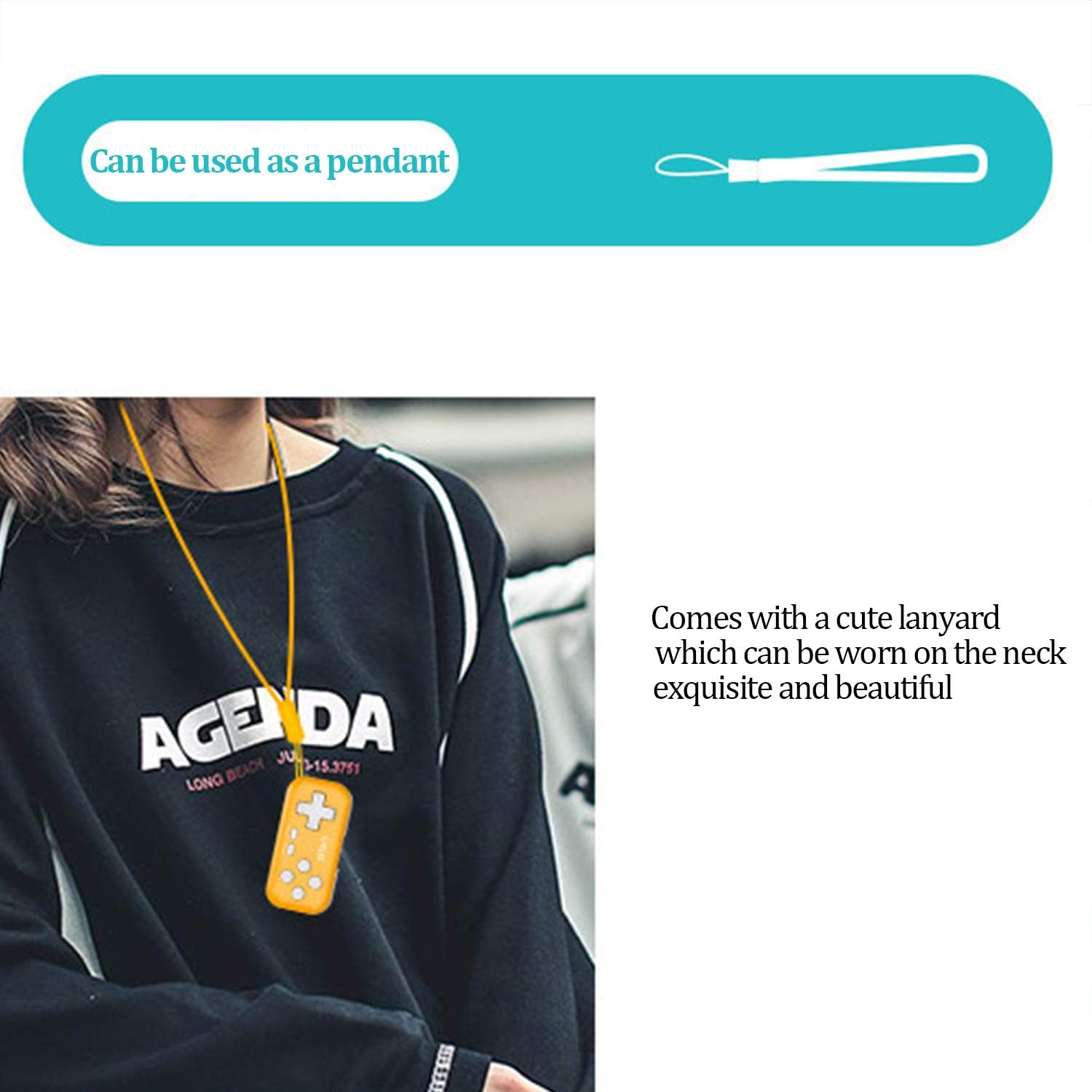
Image: The IPEGA PG-9193 controller shown with its included lanyard, demonstrating how it can be worn or carried for convenience and to prevent loss.
Troubleshooting
Controller Not Connecting
- Ensure the controller is fully charged.
- Verify Bluetooth is enabled on your device.
- Move the controller closer to the device to ensure it is within the 8-meter transmission range.
- Try unpairing and re-pairing the controller from your device's Bluetooth settings.
- Restart both the controller and the device.
Buttons Not Responding
- Check if the controller is properly connected to your device.
- Ensure the game you are playing supports external controllers.
- If the D-pad is not functioning as expected, remember to switch its mode by pressing Y+X for 2 seconds if it's in joystick mode.
- Recharge the controller, as low battery can affect performance.
Specifications
| Working Voltage | DC 3.7V |
| Working Current | <15mA |
| Quiescent Current | <10uA |
| Continuous Use Time | Approximately 8 hours |
| Input Voltage/Current | DC 5V / 500mA |
| Charging Time | Approximately 2 hours |
| Bluetooth Version | BT 3.0 |
| Transmission Distance | ≤8 meters |
| Battery Capacity | 130mAh |
| Standby Time | 30 days (when fully charged) |
| Dimensions (L x W x H) | 6.99 x 3.3 x 0.99 cm (2.75 x 1.30 x 0.39 inches) |
| Weight | 49.9 g (1.76 ounces) |
| Compatible Platforms | Nintendo Switch, PS3, Android (6.0+), Steam, PC (Win 7+) |
Warranty and Support
The product typically comes with an 18-month worry-free product warranty. For any issues or support inquiries, please refer to the contact information provided by your retailer or the official IPEGA support channels.
For further assistance, please visit the official IPEGA website or contact customer service through the platform where the product was purchased.
Related documentsPG-9193


Ask a question about this manual
Ask about setup, troubleshooting, compatibility, parts, safety, or missing instructions. Manuals+ will review the question and use this page’s manual context to help answer it.