
1. Introduction
Thank you for choosing the Dasaita 10.2" Android 10.0 Car Stereo. This manual provides essential information for the proper installation, operation, and maintenance of your new car multimedia system. Please read this manual thoroughly before use to ensure optimal performance and to prevent damage.
2. Compatibility
This Dasaita 1 DIN car stereo is designed for specific Peugeot models and years:
- Peugeot 208: 2012, 2013, 2014, 2015, 2016
- Peugeot 2008: 2012, 2013, 2014, 2015, 2016
The unit is compatible with several original vehicle features, including:
- Original reverse camera
- Original amplifier
- Original parking sensors
- Original USB ports
- Steering wheel controls
3. Key Features
The Dasaita car stereo offers a range of advanced features for an enhanced in-car experience:
- Operating System: Android 10.0
- Processor: Rockchip PX6 64-bit (Quad-Core 1.4G + Dual-Core 1.8G)
- Memory: 4GB RAM + 64GB ROM
- Display: 10.2-inch IPS Touch Screen (1280*720 pixels, 2.5D curved glass)
- Connectivity: Built-in Wi-Fi, Bluetooth 5.0
- Navigation: GPS with support for offline and online maps (Asia, Europe, Roads)
- Smartphone Integration: Built-in Wireless/Wired Apple CarPlay, Wired Android Auto, Mirror Link
- Audio: 15-band DSP (Digital Sound Processor), AM/FM Radio, Stereo audio output
- Additional Functions: Split screen, Google Play Store access, YouTube, 4G internet support (via external dongle, not included)
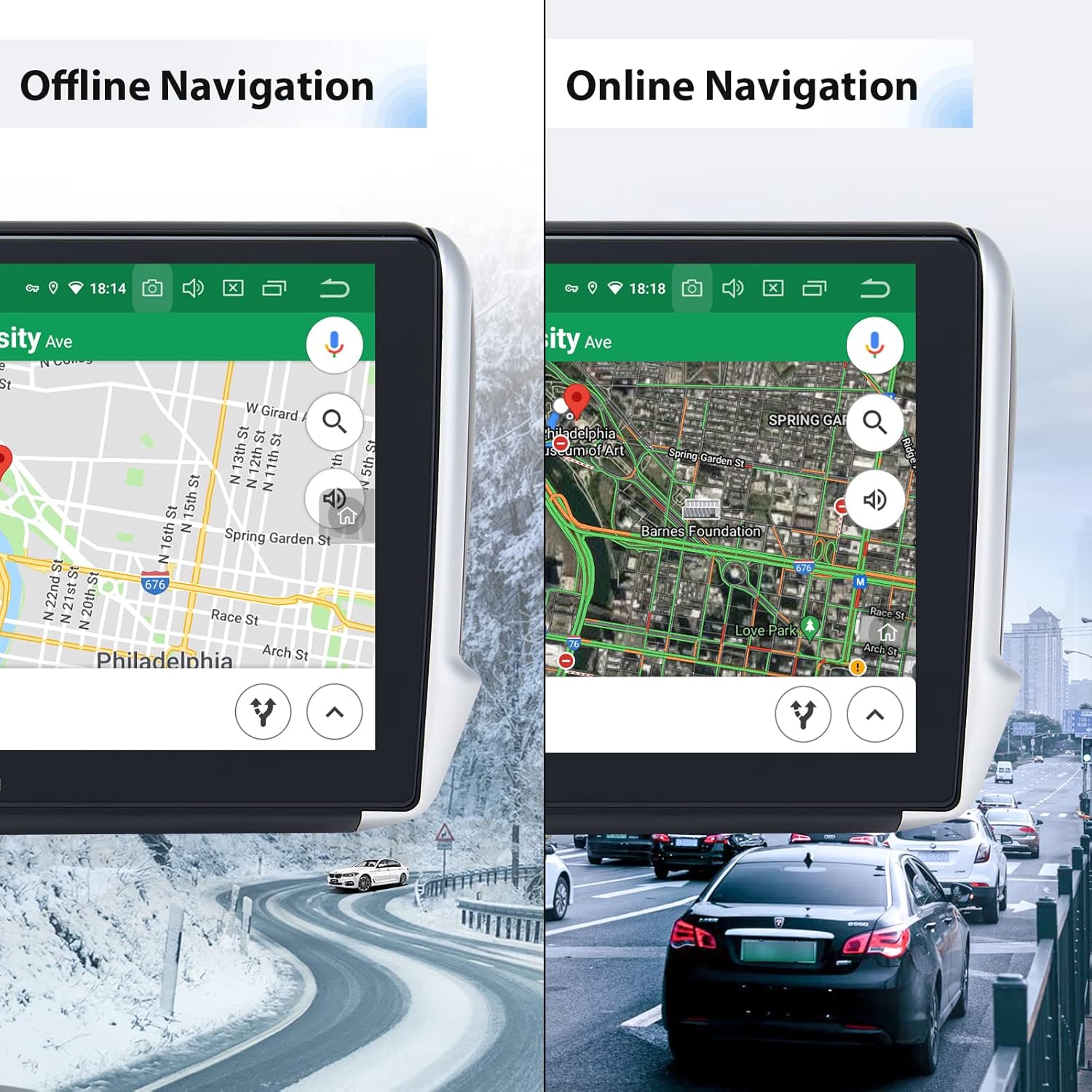
Image: Overview of the Dasaita car stereo's main features and display capabilities.
4. Setup and Installation
Installation of the Dasaita car stereo requires technical knowledge and should ideally be performed by a qualified professional. Incorrect installation can lead to damage to the unit or your vehicle's electrical system.
4.1 Package Contents
Verify that all components are present in the package:
- Dasaita 10.2" Android Car Stereo Unit
- External Microphone
- Wiring Harnesses (vehicle-specific)
- GPS Antenna
- USB Cables
- Installation Brackets/Tools (may vary)
Important Note: Some users have reported missing specific wiring harnesses (e.g., CB006) for certain vehicle models. If you find any parts missing or encounter difficulties with vehicle-specific wiring, please contact Dasaita customer support directly for assistance and correct cabling.
4.2 General Installation Steps
- Disconnect Battery: Before starting, disconnect the negative terminal of your vehicle's battery to prevent electrical shorts.
- Remove Original Radio: Carefully remove the existing car radio and trim panels. Refer to your vehicle's service manual for specific instructions.
- Connect Wiring: Connect the provided wiring harnesses to the car stereo and the vehicle's wiring. Ensure all connections are secure.
- Connect Peripherals: Connect the GPS antenna, external microphone, and any other accessories (e.g., reverse camera, USB devices).
- Test Functionality: Before fully reassembling the dashboard, reconnect the battery and power on the unit to test basic functions (power, audio, touchscreen, steering wheel controls).
- Secure Unit: Mount the Dasaita stereo securely into the dashboard using the provided brackets.
- Reassemble Dashboard: Carefully reattach all trim panels.

Image: Dasaita car stereo installed in a Peugeot 208/2008 dashboard, showing the integrated appearance.
5. Operating Instructions
5.1 Power On/Off
The unit powers on automatically when the vehicle's ignition is turned to the ACC or ON position. There is no dedicated physical power button on the unit itself; it relies on the vehicle's ignition system for power control.
5.2 Touchscreen Operation
The 10.2-inch IPS display is a capacitive touchscreen. Use light touches and swipes to navigate menus, select applications, and control functions. The 2.5D curved glass provides a smooth tactile experience.
5.3 Navigation
The unit supports both offline and online GPS navigation. Pre-installed maps for Asia and Europe are available. For online navigation, ensure the unit is connected to Wi-Fi or a 4G network (via an optional dongle).

Image: Dasaita car stereo displaying both offline and online navigation modes.
5.4 Bluetooth 5.0
Pair your smartphone via Bluetooth for hands-free calling, music streaming, and shared network access.
- Pairing: Go to Bluetooth settings on the stereo and your phone, search for available devices, and select the Dasaita unit. Enter the PIN (usually 0000) if prompted.
- Hands-free Calls: Make and receive calls directly from the stereo interface. The external microphone ensures clear communication.
- Music Streaming: Play audio from your phone through the car's speakers.

Image: Bluetooth interface for calls, network sharing, and music on the Dasaita car stereo.
5.5 Apple CarPlay & Android Auto
Connect your smartphone to access CarPlay (wireless/wired) or Android Auto (wired) for a seamless integration of phone features like navigation, music, and messaging.

Image: Apple CarPlay interface on the Dasaita car stereo.

Image: Android Auto interface on the Dasaita car stereo.
5.6 Wi-Fi and Google Play Store
Connect to a Wi-Fi hotspot (e.g., from your phone) to access the internet. Once connected, you can download and install various applications from the Google Play Store, similar to a tablet device.

Image: Google Play Store and other applications accessible on the Dasaita car stereo.
5.7 Radio (AM/FM)
Access the built-in AM/FM tuner to listen to radio stations. Use the touchscreen to scan for stations, save presets, and adjust settings.
5.8 DSP (Digital Sound Processor)
Utilize the 15-band DSP to fine-tune your audio experience. Adjust equalizer settings, balance, fader, and subwoofer output to match your preferences and vehicle acoustics.
5.9 Steering Wheel Controls
The unit supports your vehicle's original steering wheel controls. These can be configured in the system settings to control volume, track skipping, mode switching, and other functions.
5.10 Split Screen
The split-screen function allows you to run two applications simultaneously on the display, such as navigation on one side and music on the other.
6. Maintenance
6.1 Cleaning the Screen
To clean the touchscreen, power off the unit and gently wipe the screen with a soft, lint-free cloth. For stubborn smudges, use a screen cleaner specifically designed for electronic displays. Avoid harsh chemicals or abrasive materials.
6.2 Software Updates
Dasaita may release software updates to improve performance, add features, or fix bugs. Check the official Dasaita website or contact customer support for information on available updates and installation instructions. Regular updates can enhance the unit's stability and functionality.
7. Troubleshooting
If you encounter issues with your Dasaita car stereo, refer to the following common problems and solutions:
- Unit does not power on:
Ensure all power cables are correctly connected. Check the vehicle's fuse box for any blown fuses. Verify the ignition is in the ACC or ON position. - No sound or distorted audio:
Check speaker connections. Verify volume levels and DSP settings. Ensure the original amplifier (if applicable) is correctly integrated. - Bluetooth connectivity issues:
Ensure Bluetooth is enabled on both the stereo and your phone. Delete previous pairings and try re-pairing. Restart both devices. - Poor microphone quality during calls:
Ensure the external microphone is properly connected and positioned away from air vents or other noise sources. - Screen difficult to see in sunlight:
Adjust screen brightness in the display settings. While the IPS screen offers good viewing angles, direct strong sunlight can still affect visibility. - Wi-Fi connection unstable or not connecting:
Ensure the Wi-Fi hotspot is active and within range. Try forgetting the network and reconnecting. Restart the stereo and the hotspot device. - Radio reception is poor:
Check the antenna connection. Ensure the antenna is properly installed and not obstructed. - Apps not opening or freezing:
Close background applications. Clear app cache or data in Android settings. If the issue persists, a factory reset may be necessary (Note: this will erase all user data and settings). - CarPlay/Android Auto not functioning:
Ensure your phone's operating system is up to date. Use a high-quality USB cable for wired connections. Check app permissions on your phone.
If these steps do not resolve the issue, please contact Dasaita customer support for further assistance.
8. Specifications
| Feature | Specification |
|---|---|
| Model Name | HA5404-MAX10-CP-HD |
| Operating System | Android 10.0 |
| CPU | Rockchip PX6 64-bit (Quad-Core 1.4G + Dual-Core 1.8G) |
| RAM | 4 GB |
| ROM | 64 GB |
| Screen Size | 10.2 Inches |
| Screen Type | IPS LCD, Capacitive Touchscreen, 2.5D Curved |
| Screen Resolution | 1280 x 720 pixels |
| Bluetooth Version | 5.0 |
| Wi-Fi | Built-in |
| GPS | Satellite Navigation Supported |
| Audio Output Mode | Stereo |
| DSP | 15-band EQ |
| Connectivity Protocol | Wi-Fi |
| Compatible Devices | Smartphone |
| Control Method | App, Touch |
| Included Components | External Microphone |
Image: Dasaita car stereo dimensions and rear connections.
9. Warranty and Support
Dasaita products are covered by a standard manufacturer's warranty. Please refer to the warranty card included with your product or visit the official Dasaita website for detailed warranty terms and conditions.
9.1 Customer Support
For technical assistance, troubleshooting, or warranty claims, please contact Dasaita customer support. Many users have reported positive experiences with Dasaita's support team, particularly through direct messaging channels on platforms like Amazon. When contacting support, please provide your product model number (HA5404-MAX10-CP-HD) and a detailed description of the issue.


