
1. Introduction
This manual provides detailed instructions for the installation, setup, and operation of your Ubit AC1200 PCIe WiFi Card with Bluetooth 4.2. Please read this manual thoroughly before proceeding with installation to ensure correct setup and optimal performance.
The Ubit AC1200 PCIe WiFi Card integrates an Intel Dual Band Wireless-AC 7265 chipset, offering dual-band Wi-Fi connectivity (2.4GHz and 5GHz) and Bluetooth 4.2. It is designed to enhance wireless network and Bluetooth capabilities for desktop personal computers.
2. Package Contents
Verify that all items are present in the package:
- Ubit WIE7265C WiFi Card (PCIe Wireless LAN Card)
- Two (2) Antennas
- Bluetooth Cable (for internal USB connection)
- Low Profile Bracket
- Mounting Screws
- Small Phillips Head Screwdriver
- Driver CD
- Installation Guide (this document)

Image 2.1: Contents of the Ubit AC1200 PCIe WiFi Card package, including the card, antennas, Bluetooth cable, brackets, screws, screwdriver, and driver CD.
3. System Requirements
- Operating System: Windows 10, Windows 8.1, Windows 8, Windows 7, Windows Server (32/64-bit). Not compatible with Windows Vista.
- PCI Express Slot: Compatible with PCI Express X1, X4, X8, X16 slots.
- Internal USB Header: An available internal USB 2.0 header on the motherboard is required for Bluetooth functionality.

Image 3.1: Diagram illustrating Bluetooth 4.2 connectivity with various devices such as headphones, speakers, smartphones, and printers.

Image 3.2: Visual representation of compatible PCI-E slots (X1, X4, X8, X16) and the Bluetooth hardware connection via a 9-pin USB mainboard header.
4. Setup and Physical Installation
Before beginning, ensure your computer is powered off and disconnected from the power source. It is recommended to wear an anti-static wrist strap to prevent electrostatic discharge.
4.1. Installing the PCIe WiFi Card
- Open your computer case.
- Locate an available PCI Express slot (X1, X4, X8, or X16).
- Remove the metal bracket cover from the chosen slot on the back of your PC case.
- Carefully insert the Ubit WiFi Card into the PCI Express slot, ensuring it is fully seated. Apply even pressure to both ends of the card.
- Secure the card with a screw to the PC case. If your PC is a small form factor, use the provided low profile bracket.
4.2. Connecting the Bluetooth Cable
The Bluetooth functionality requires an internal USB connection to your motherboard.
- Connect the smaller end of the provided Bluetooth cable to the dedicated header on the Ubit WiFi Card.
- Connect the larger end of the Bluetooth cable to an available 9-pin USB 2.0 header on your motherboard. Ensure correct orientation to avoid damage.
4.3. Attaching the Antennas
- Screw the two antennas onto the connectors on the back of the installed WiFi card.
- Adjust the antennas for optimal signal reception.
Video 4.1: A detailed tutorial demonstrating the physical installation of the Ubit PCIe WiFi Card and the connection of the Bluetooth cable to the motherboard.
5. Driver Installation
After physical installation, drivers must be installed for the WiFi and Bluetooth functions to operate correctly.
5.1. Installing Drivers from CD
- Insert the provided driver CD into your computer's optical drive.
- Navigate to 'This PC' or 'My Computer' and open the CD-ROM drive.
- Locate and run the appropriate driver setup files for your operating system (e.g., 'WIFI_21.0.0_Driver64_Win10.exe' for 64-bit Windows 10 WiFi drivers, and 'BT_21.0.0_64_Win10.exe' for 64-bit Windows 10 Bluetooth drivers).
- Follow the on-screen instructions to complete the installation.
- Restart your computer after installation is complete.
5.2. Verifying Driver Installation
To confirm successful driver installation:
- Right-click 'This PC' and select 'Manage'.
- In the 'Computer Management' window, select 'Device Manager'.
- Expand 'Network adapters' and 'Bluetooth' to ensure the Ubit WiFi and Bluetooth devices are listed without any error symbols.
Video 5.1: A tutorial demonstrating the process of installing drivers for the Ubit WiFi Card from the provided CD and verifying installation in Device Manager.
6. Operating Instructions
6.1. Connecting to a Wi-Fi Network (Station Mode)
After driver installation, your computer can connect to existing wireless networks.
- Click the Wi-Fi icon in the system tray (usually bottom-right corner of the screen).
- Select your desired Wi-Fi network from the list.
- Click 'Connect' and enter the network security key (password) if prompted.
- Confirm connection.

Image 6.1: Illustration of the Ubit WiFi Card operating in Station Mode (receiving signal from a router) and AP Mode (transmitting signal to other devices).
6.2. Pairing Bluetooth Devices
The Bluetooth 4.2 functionality allows connection to various Bluetooth-enabled devices.
- Click the Bluetooth icon in the system tray or go to 'Settings' > 'Devices' > 'Bluetooth & other devices'.
- Ensure Bluetooth is turned 'On'.
- Put your Bluetooth device into pairing mode (refer to your device's manual).
- Click 'Add Bluetooth or other device' and select 'Bluetooth'.
- Select your device from the list and follow any on-screen prompts to complete pairing.
7. Troubleshooting
- No Wi-Fi or Bluetooth detected:
Ensure the card is correctly seated in the PCIe slot and the Bluetooth cable is securely connected to the motherboard's USB header. Verify that drivers are installed correctly in Device Manager. - Slow Wi-Fi speeds:
Check antenna positioning. Ensure your router supports 5GHz for higher speeds and that your computer is connected to the 5GHz band if available. Update drivers to the latest version. - Bluetooth device not pairing:
Ensure the Bluetooth cable is connected. Confirm the device is in pairing mode and within range. Remove and re-add the device in Windows Bluetooth settings. - Intermittent connection:
Check for interference from other wireless devices. Ensure antennas are securely attached. Update drivers.
8. Specifications
| Feature | Detail |
|---|---|
| Brand | Ubit |
| Model Number | F10H-WIE7265C (Variant: WIE7265D+BT4.2) |
| Chipset | Intel Dual Band Wireless-AC 7265 |
| Wi-Fi Standard | IEEE 802.11ac (Wi-Fi 5) |
| Wi-Fi Speed | Up to 1200Mbps (900Mbps on 5GHz, 300Mbps on 2.4GHz) |
| Bluetooth Version | Bluetooth 4.2 |
| Interface | PCI Express X1 (Compatible with X4, X8, X16) |
| Operating Systems | Windows 7/8/8.1/10 (32/64-bit), Windows Server |
| Security | WPA/WPA2 Support |
| Dimensions | 3.15 x 0.71 x 4.49 inches |
| Item Weight | 4.6 ounces (0.13 Kilograms) |
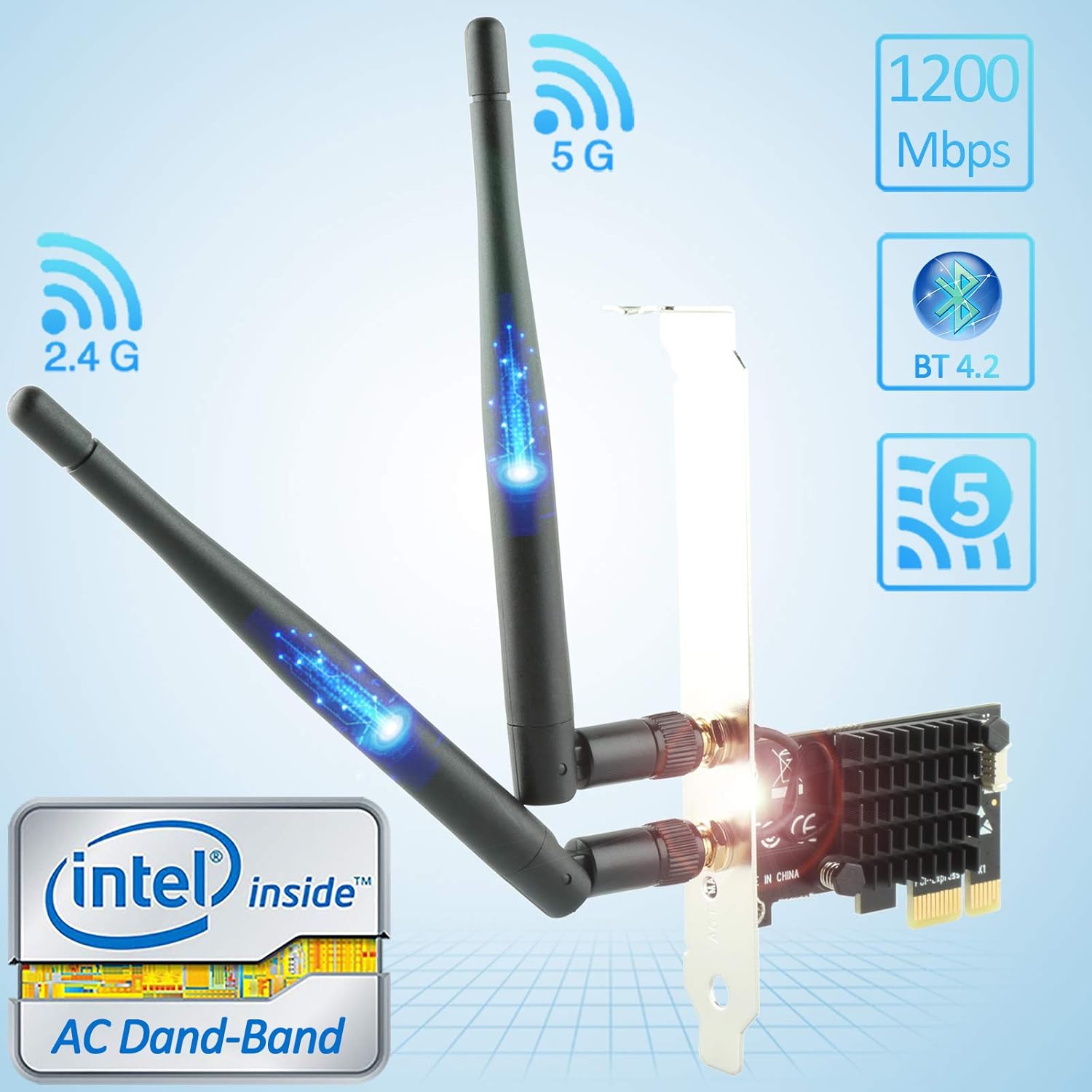
Image 8.1: Key features of the Ubit AC1200 PCIe WiFi Card, highlighting 2.4G and 5G dual-band support, 1200Mbps speed, Bluetooth 4.2, and Wi-Fi 5 standard.
9. Warranty and Support
Ubit products are designed for high quality and reliable service. For warranty information or technical support, please refer to the official Ubit website or contact your retailer. Keep your purchase receipt for warranty claims.