1. Product Overview
The Vetroo 120mm ARGB & PWM Cooling Fans are designed to provide efficient cooling and vibrant lighting for your computer system. This 3-pack includes high-performance fans with a controller hub, offering both Addressable RGB (ARGB) synchronization and Pulse Width Modulation (PWM) fan speed control.
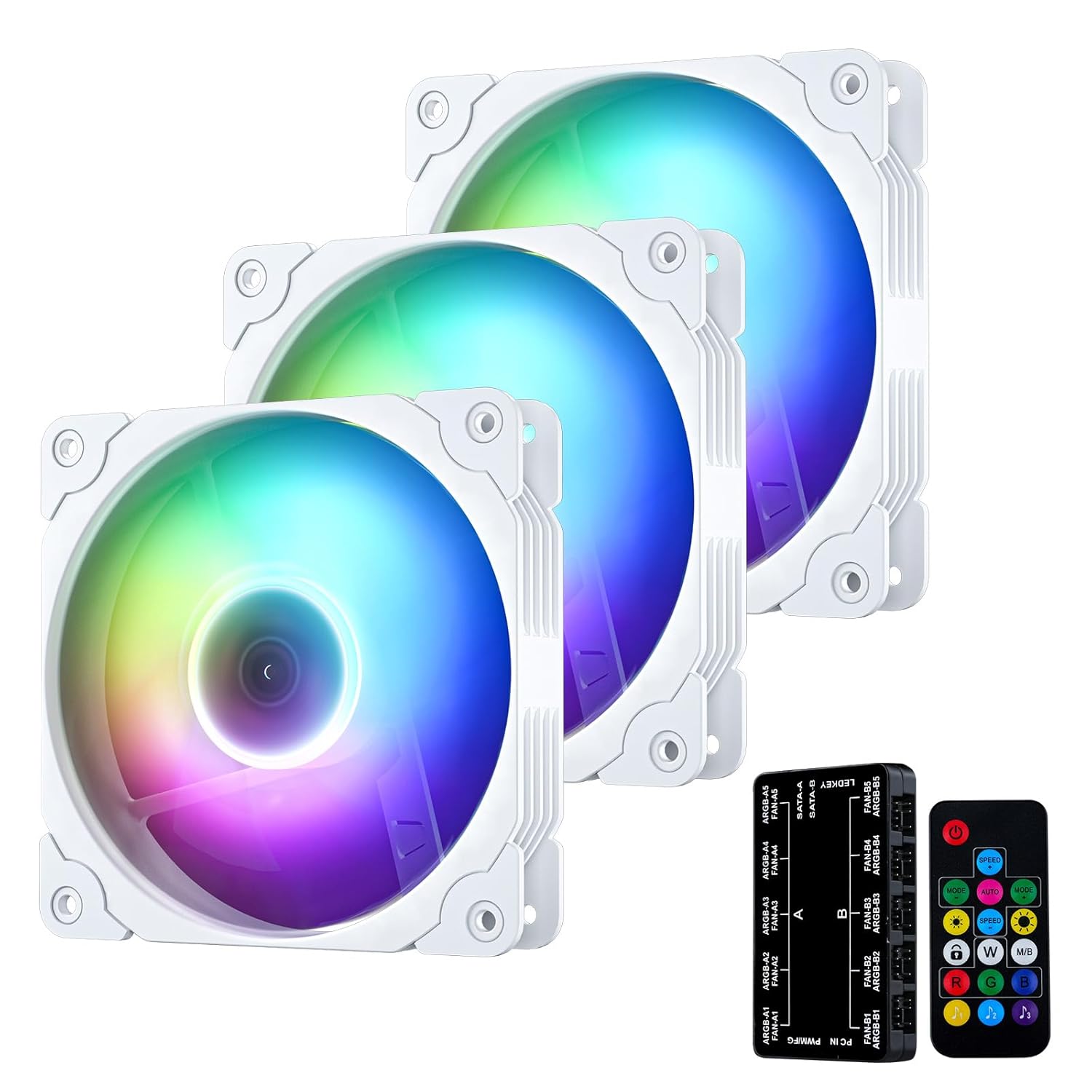
Image 1.1: Vetroo 3-Pack 120mm ARGB & PWM Cooling Fans, including the fans, controller hub, and remote control.
Key features include:
- ARGB Sync: The RGB lighting can be synchronized with the motherboard via a 5V 3-Pin port, allowing for customizable lighting effects.
- PWM Support: Fans automatically adjust speed based on chassis temperature, optimizing cooling efficiency and reducing power consumption.
- Better Airflow: Nine fan blades are engineered to deliver high air volume, ensuring optimal cooling and system stability.
- Silent Operation: Eight vibration-damping rubber pads minimize noise and turbulence for a quieter computing experience.
- Long Life: Wear-resistant hydraulic bearings contribute to quiet operation and an extended lifespan of up to 50,000 hours.

Image 1.2: Close-up view of the nine-blade fan design, optimized for high airflow.

Image 1.3: An illuminated Vetroo fan showcasing its Addressable RGB lighting capabilities.
2. Package Contents
Verify that all items listed below are included in your package:
- Vetroo 120mm ARGB & PWM Cooling Fans (3 units)
- Controller Hub
- Remote Control
- Mounting Screws
- Cables for connection (PWM, ARGB, SATA power)

Image 2.1: All components included in the Vetroo 3-pack fan kit.
3. Setup Guide
Follow these steps to properly install and connect your Vetroo cooling fans:
- Mounting the Fans: Securely attach the fans to your PC case using the provided mounting screws. Ensure proper airflow direction (intake or exhaust) as desired for your system.
- Connecting Fans to Controller Hub: Connect each fan's 4-pin PWM cable and 3-pin ARGB cable to the corresponding ports on the controller hub. The controller supports up to 10 fans.
- Connecting Controller Hub to Motherboard:
- Connect the controller hub's PWM cable to a 4-pin fan header on your motherboard (e.g., CPU_FAN or SYS_FAN). This allows the motherboard to control fan speeds.
- Connect the controller hub's 5V 3-pin ARGB cable to a compatible 5V Addressable RGB header on your motherboard. Note: Do NOT connect to a 12V RGB header, as this may damage the LEDs.
- Powering the Controller Hub: Connect the SATA power cable from your power supply unit (PSU) to the SATA power input on the controller hub. The controller requires SATA power for operation.
- Remote Control Setup: The included remote control is pre-paired with the controller hub. Ensure the controller is powered on to use the remote.

Image 3.1: Detailed connection diagram for the Vetroo fan system, illustrating connections to the motherboard and power supply.

Image 3.2: Vetroo fans properly installed within a PC case, demonstrating their aesthetic integration and lighting.
4. Operating Instructions
Once installed, you can control your Vetroo fans and lighting using either your motherboard's software or the included remote control.
4.1 Fan Speed Control (PWM)
The fans support PWM, allowing for dynamic speed adjustment based on system temperature. This can be managed through your motherboard's BIOS settings or dedicated fan control software.

Image 4.1: Explanation of PWM smart control, showing dynamic speed adjustment between 800 to 1300 RPM for quiet operation and maximized airflow.
4.2 RGB Lighting Control
The ARGB lighting can be controlled in two ways:
- Motherboard Software: If connected to a compatible 5V 3-pin ARGB header, use your motherboard's RGB software (e.g., ASUS Aura Sync, MSI Mystic Light Sync, Gigabyte RGB Fusion) to customize lighting effects, colors, and synchronization with other components.
- Remote Control: Use the provided remote control to adjust lighting effects, colors, and brightness. The remote also allows switching between motherboard control and remote control modes.

Image 4.2: Functions of the remote controller, including power, speed adjustment, mode selection, luminosity, monochromatic shortcuts, and music modes.
5. Maintenance
To ensure optimal performance and longevity of your Vetroo cooling fans, follow these simple maintenance guidelines:
- Regular Cleaning: Periodically clean the fan blades and housing to prevent dust buildup, which can impede airflow and increase noise. Use compressed air or a soft, dry cloth.
- Check Connections: Ensure all cables (PWM, ARGB, SATA power) remain securely connected to the fans, controller hub, and motherboard.
- Avoid Obstructions: Make sure there are no cables or other components obstructing the fan blades' rotation.
The hydraulic bearings are designed for long-term, maintenance-free operation, providing a service life of up to 50,000 hours.
6. Troubleshooting
If you encounter issues with your Vetroo cooling fans, refer to the following common problems and solutions:
| Problem | Possible Cause | Solution |
|---|---|---|
| Fans not spinning | No power to controller hub; Loose PWM cable; Faulty fan. | Ensure SATA power cable is securely connected to the controller and PSU. Check PWM cable connection to motherboard. Test individual fans if possible. |
| RGB lighting not working or incorrect colors | Incorrect ARGB header (12V instead of 5V); Loose ARGB cable; Software conflict; Remote control issue. | Verify ARGB cable is connected to a 5V 3-pin header. Check cable connections. Restart motherboard RGB software. Try using the remote control to switch modes. |
| Fans are too loud | High fan speed setting; Dust buildup; Obstruction. | Adjust fan speed settings in BIOS or motherboard software. Clean fan blades. Ensure no cables are hitting the fan blades. |
| Fan speed not controllable | PWM cable not connected; Motherboard header not configured for PWM. | Ensure PWM cable is securely connected to a 4-pin PWM header. Check motherboard BIOS settings to confirm the header is set to PWM mode. |
If the issue persists after trying these solutions, please contact Vetroo customer support for further assistance.
7. Specifications
Detailed technical specifications for the Vetroo 120mm ARGB & PWM Cooling Fans:
| Feature | Specification |
|---|---|
| Model Number | IB120 |
| Fan Dimensions | 125mm x 125mm x 25mm (approx. 4.92"L x 0.98"W x 4.92"H) |
| Product Dimensions (Packaging) | 14.13 x 10.43 x 2.72 inches |
| Item Weight | 5.29 ounces |
| Fan Speed | 800 - 1300 RPM (PWM controlled) |
| Airflow | 35.2 CFM (MAX) |
| Noise Level | 32 dB |
| Bearing Type | Hydraulic Bearing |
| Lifespan | 50,000 hours |
| Power Connector | 4-Pin (PWM) |
| RGB Connector | 5V 3-Pin ARGB |
| Voltage | 12 Volts (DC) |
| Wattage | 1.92 watts |
| Material | Rubber (vibration pads) |
| Compatible Devices | Gaming Console (PC) |
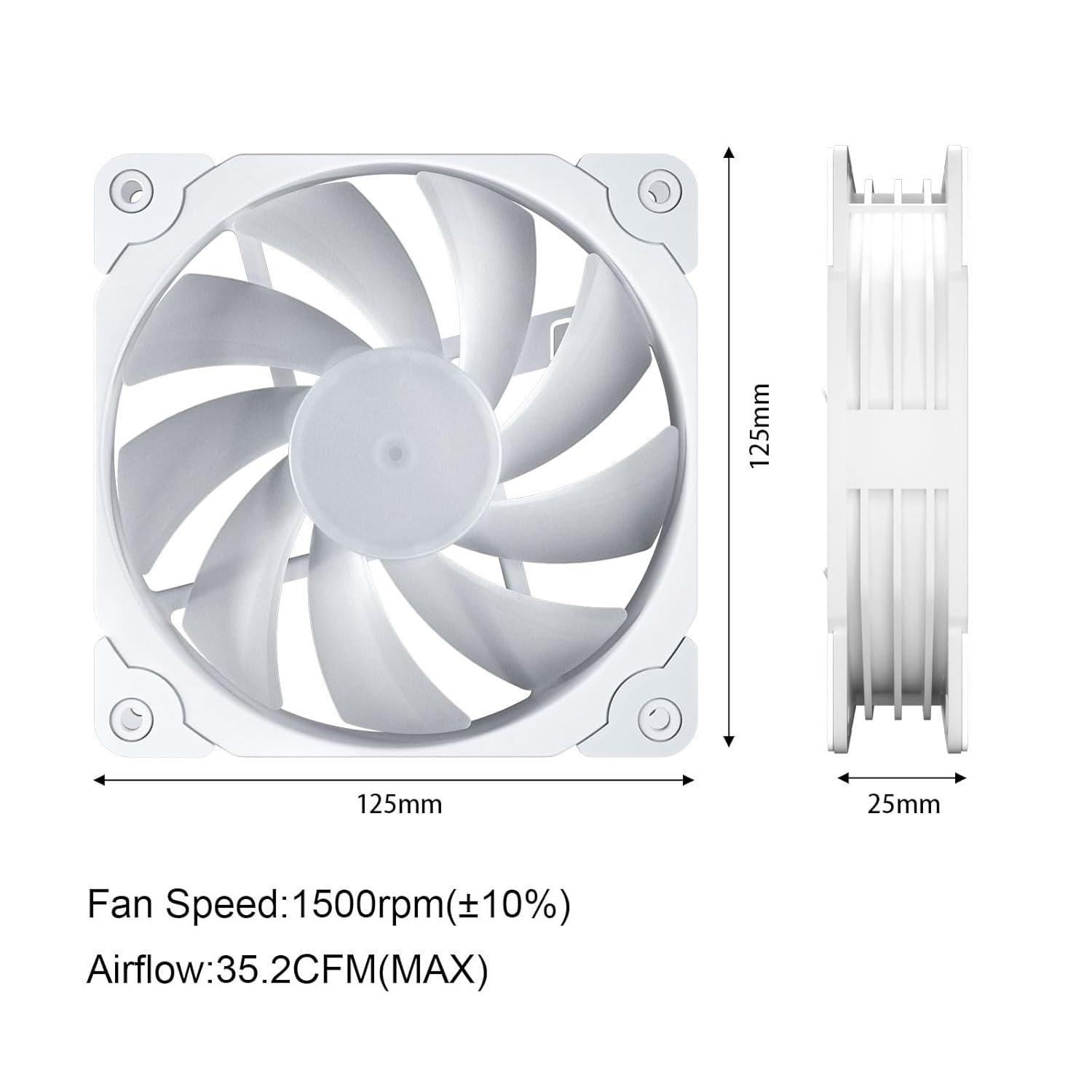
Image 7.1: Dimensional drawing of the Vetroo 120mm fan, including fan speed and airflow ratings.
8. Warranty and Support
Vetroo products are manufactured to high-quality standards. For warranty information and customer support, please refer to the official Vetroo website or contact your retailer.
An official User Manual (PDF) is also available for download: Download User Manual (PDF)


